If QuickBooks Desktop not opening has become a problem, the cause may be a stuck QuickBooks process, damaged program components, a problematic company file, Windows compatibility issues, or an incomplete update. Sometimes QuickBooks appears to do nothing when you double-click its icon; in other cases, the splash screen appears briefly and then disappears.
The good news is that you can usually identify whether the problem is with the QuickBooks program itself or your company file before making major changes. Intuit’s current troubleshooting guidance recommends starting with Quick Fix my Program in QuickBooks Tool Hub and then testing whether the application can open without loading the company file.
Why QuickBooks Desktop May Not Open on Your Computer
QuickBooks may fail to open for several reasons. The issue can be related to the QuickBooks program itself, a specific company file, or your computer settings.
- Stuck Background Processes: QuickBooks may still be running in the background even when the program window is closed.
These processes can prevent QuickBooks from starting normally. - Damaged Program Files: Some QuickBooks installation files may become damaged or corrupted.
This can cause the software to stop opening or crash during startup. - User Configuration Issues: A damaged QuickBooks user configuration file can sometimes create startup problems.
Resetting or repairing the configuration may help QuickBooks launch properly. - Company File Problem: Sometimes QuickBooks opens normally, but a particular company file will not open.
In this case, the issue may be with the company file rather than QuickBooks itself. - Problematic File Location: A company file stored in an incorrect, damaged, or inaccessible folder may not open.
Network locations can also cause access problems if the connection is unstable. - Previous Windows Reopening: QuickBooks may try to reopen multiple windows from the previous session.
This can sometimes cause the program to freeze or fail during startup. - Multi-User or Network Issues: Incorrect hosting or network settings can interfere with company file access.
These issues are more common when QuickBooks is being used by multiple computers. - Windows or Other Software Conflicts: Windows settings, security software, or another installed program may interfere with QuickBooks.
Such conflicts can prevent QuickBooks from launching or accessing its files correctly. - Subscription or Support Issues: An outdated QuickBooks version or subscription-related problem may affect access.
Checking your QuickBooks version and account status can help identify this issue.
What Should You Check When QuickBooks Desktop Will Not Open?
Before changing settings or reinstalling QuickBooks, start with a few basic checks. These simple steps may resolve a temporary startup problem without affecting your QuickBooks installation.
- Restart Windows: A restart can clear a QuickBooks process that remained active in the background and resolve temporary system issues.
- Avoid repeated clicks: Double-click the QuickBooks icon once and give the program enough time to respond. Multiple startup attempts can interfere with the loading process.
- Close unnecessary applications: Other programs running in the background can use system resources or interfere with QuickBooks.
- Try opening QuickBooks again: Wait until Windows finishes loading, then open QuickBooks Desktop once and allow it time to start.
If QuickBooks still doesn’t open, continue with the troubleshooting methods below. Before running repair tools or making major changes, make sure you have a recent backup of your company file and Windows administrator access.
How to Fix the “Cannot Open QuickBooks Desktop” Issue
If QuickBooks Desktop won’t open, the problem may be with the QuickBooks program, a background process, its configuration files, or a specific company file. The quickest way to troubleshoot it is to start with Quick Fix My Program, then determine whether the problem affects QuickBooks itself or only your company file. If that doesn’t help, repair the installation or reinstall QuickBooks as a final step.
Before you begin, close QuickBooks and make sure your important company files are backed up. Then work through the following solutions in order.
Solution 1: Run Quick Fix My Program from QuickBooks Tool Hub
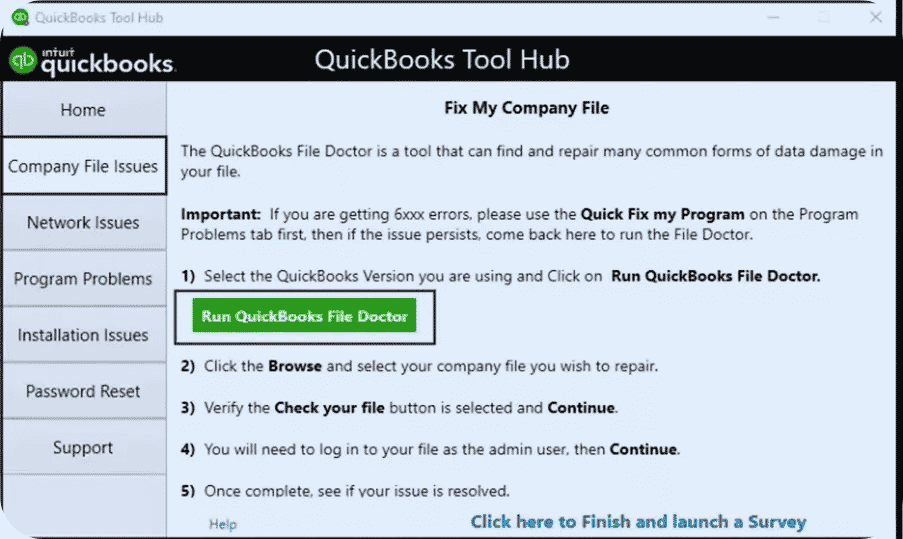
Quick Fix My Program is a good starting point because it closes QuickBooks processes running in the background and performs a quick repair of the program.
Step 1: Install QuickBooks Tool Hub
- Close QuickBooks Desktop.
- Download the latest available version of QuickBooks Tool Hub and save the installer somewhere easy to find.
- Open QuickBooksToolHub.exe.
- Follow the on-screen instructions and accept the terms and conditions.
- Once installation finishes, open QuickBooks Tool Hub from your desktop or Windows Search.
Intuit currently lists QuickBooks Tool Hub version 1.6.0.8 and recommends using Tool Hub on Windows 11, 64-bit for the best experience. If you already have Tool Hub installed, you can check its version from the Home tab.
Step 2: Use Quick Fix My Program
- Open QuickBooks Tool Hub.
- Select Program Problems.
- Click Quick Fix My Program.
- Wait for the tool to finish.
- Start QuickBooks Desktop again and try opening your company file.
If QuickBooks still does not start, move to the next solution.
Solution 2: Determine Whether the Problem Is QuickBooks or Your Company File
Before making deeper changes to the installation, check whether QuickBooks can open without immediately loading the problematic company file. A company file can sometimes be the source of the problem rather than the QuickBooks application itself.
Step 1: Open the Company File With Windows Closed
- Open QuickBooks Desktop.
- When the No Company Open window appears, select your company file.
- Press and hold the ALT key.
- Click Open while continuing to hold ALT.
- If QuickBooks asks you to sign in, release ALT and enter your password.
- Press and hold ALT again, then select OK.
- Keep holding ALT until the company file opens.
If the file still does not open, continue with the next test.
Step 2: Start QuickBooks Without Loading a Company File
- Press and hold the Ctrl key.
- Double-click the QuickBooks Desktop icon.
- Continue holding Ctrl until the No Company Open window appears, QuickBooks freezes, or an error is displayed.
- Select your company file and click Open.
If QuickBooks opens normally but your particular company file does not, the issue may be related to that file rather than the QuickBooks installation.
Solution 3: Rename the QBWUSER.ini File
If QuickBooks opens briefly and then closes, freezes, or refuses to start, the QBWUSER.ini file may be damaged or missing. Renaming it gives QuickBooks an opportunity to create a new configuration file.
- Close QuickBooks Desktop.
- Open the folder containing QBWUSER.ini. The file is typically located under your Windows user profile in the QuickBooks folder for your installed year.
- If you cannot see the folder, enable hidden files and folders in Windows.
- Right-click QBWUSER.ini and select Rename.
- Change the name to QBWUSER.ini.old.
- Start QuickBooks Desktop again.
Keep in mind that renaming this file removes the list of previously opened company files from QuickBooks. You may need to manually select your company file again after QuickBooks starts.
If QuickBooks still won’t open, continue to the next solution.
Solution 4: Run the QuickBooks Install Diagnostic Tool
Problems with installation components or Microsoft components used by QuickBooks can prevent the program from starting correctly. The QuickBooks Install Diagnostic Tool in Tool Hub can diagnose and repair certain installation-related issues.
- Open QuickBooks Tool Hub.
- Select Installation Issues.
- Choose QuickBooks Install Diagnostic Tool.
- Allow the tool to complete its scan and repair process.
- The process can take up to 20 minutes, so don’t close it while it is running.
- Restart your computer after the tool finishes.
- Open QuickBooks Desktop and try your company file again.
If the problem continues, move on to repairing the QuickBooks installation.
Solution 5: Repair Your QuickBooks Desktop Installation
If QuickBooks program files have become damaged, repairing the installation can replace or restore the affected components without immediately requiring a complete reinstall. Intuit includes installation repair as the next troubleshooting step after using Tool Hub.
- Close QuickBooks Desktop and any other open programs.
- Open the Windows Control Panel.
- Go to Programs and Features.
- Find QuickBooks Desktop in the installed programs list.
- Select Uninstall/Change.
- Choose the Repair option.
- Follow the instructions shown by the repair wizard.
- Restart your computer if prompted.
- Launch QuickBooks and try opening your company file.
If repairing the installation does not resolve the startup problem, a clean reinstall may be necessary.
Solution 6: Check Whether QuickBooks Can Open a Sample Company File
If you suspect that only your company file is affected, testing a sample company file can help narrow down the cause.
Try opening a sample company file from QuickBooks. If the sample file opens but your own company file does not, the problem is more likely related to your company file, its location, or folder permissions. Intuit recommends trying a local folder when testing a file that may be affected by its current folder or network location. If neither the sample company file nor QuickBooks itself opens, the QuickBooks installation may be damaged, so continue with the repair or reinstall steps.
Solution 7: Reinstall QuickBooks Desktop
When the previous troubleshooting methods fail, reinstalling QuickBooks can resolve persistent problems caused by damaged or incomplete program files. Intuit lists reinstalling QuickBooks after the earlier repair steps in its current troubleshooting guidance.
Before uninstalling QuickBooks, make sure your company files and other important QuickBooks data are backed up.
Step 1: Uninstall QuickBooks
- Open Control Panel.
- Select Programs and Features.
- Find your QuickBooks Desktop version.
- Select Uninstall/Change.
- Follow the on-screen instructions to remove QuickBooks.
Step 2: Reinstall QuickBooks
- Obtain the appropriate QuickBooks Desktop installation file.
- Run the installer.
- Follow the setup instructions.
- Enter your product and license information when prompted.
- Complete the installation.
- Restart Windows if requested.
- Open QuickBooks Desktop and test your company file.
QuickBooks Opens, but Your Company File Won’t Open
If QuickBooks Desktop opens normally but a particular company file does not, don’t immediately reinstall QuickBooks. The problem may be with the company file, its location, permissions, saved desktop settings, or your multi-user configuration.
A. Check the Company File Type
Make sure you’re trying to open the correct type of QuickBooks file.
- .QBW — QuickBooks company file
- .QBB — backup file
- .QBM — portable company file
A backup or portable file must be restored through the appropriate QuickBooks option rather than opened like a standard .QBW company file.
B. Open the Company File Without Restoring Previous Windows
QuickBooks may become unresponsive if it tries to restore several windows from your previous session.
- Open QuickBooks Desktop.
- From the No Company Open window, select your company file.
- Press and hold ALT.
- Select Open.
- If prompted for your password, release ALT and enter it.
- Press and hold ALT again while selecting OK.
- Continue holding ALT until the company file opens.
If the file opens, go to Edit > Preferences > Desktop View and select Don’t save the desktop to prevent QuickBooks from restoring the previous session.
C. Test a Sample Company File
A sample company file is useful for separating a company-file problem from a QuickBooks program problem. Open a sample company file from the No Company Open window.
- If the sample file opens but your company file doesn’t, focus on the affected company file or its location.
- If the sample file also fails to open, return to the program-level troubleshooting steps because QuickBooks itself may need repair.
D. Check the File’s Location
A company file may fail to open because of its current folder, permissions, or network connection. As a test, make a copy of the company file and place the copy in a simple local folder, such as the Windows desktop. Then open QuickBooks and use File > Open or Restore Company to open the copied file.
If the local copy opens but the original does not, investigate the original folder, network path, permissions, or hosting configuration before moving the production company file permanently.
E. Check Multi-User Hosting
If the company file is stored on a network and multiple computers use it, incorrect hosting settings can prevent access. On each workstation:
- Open QuickBooks without opening the company file.
- Go to File > Utilities.
- If Stop Hosting Multi-User Access appears, select it.
- If Host Multi-User Access appears, leave it unchanged.
On the server computer that stores the company file:
- Open QuickBooks.
- Go to File > Utilities.
- Select Stop Hosting Multi-User Access.
- Return to File > Utilities.
- Select Host Multi-User Access.
Then test the company file again from the workstation.
What to Do If QuickBooks Desktop Freezes, Crashes, or Stops Responding
If QuickBooks Desktop opens but then freezes, crashes, or suddenly stops responding, the problem may be related to damaged program files, QuickBooks configuration settings, Windows components, or another issue affecting the program.
Since the basic startup fixes have already been covered above, there is no need to repeat them here. Instead, identify when QuickBooks becomes unresponsive and use the troubleshooting step that best matches the problem.
1. Identify When QuickBooks Freezes or Crashes
The point at which QuickBooks stops responding can help you narrow down the cause:
- If QuickBooks freezes immediately after starting, the problem may involve program files, configuration settings, or Windows.
- If it freezes only when opening one company file, focus on the company file or its location.
- If it freezes on a network workstation, check the network connection, hosting setup, and folder permissions.
- If it crashes while performing a specific task, note the task and any error message that appears.
This can help you avoid repeating fixes when the actual problem is limited to a company file, network setup, or a specific QuickBooks function.
2. Run the QuickBooks Program Diagnostic Tool
If QuickBooks repeatedly freezes or stops responding, use the QuickBooks Program Diagnostic Tool in QuickBooks Tool Hub. It can help identify and repair certain program-related problems.
- Close QuickBooks Desktop.
- Open QuickBooks Tool Hub.
- Select Program Problems.
- Choose QuickBooks Program Diagnostic Tool.
- Let the tool complete its process. It may take up to about 20 minutes.
- Restart your computer after the process finishes.
- Open QuickBooks Desktop and check whether it is working normally.
If QuickBooks continues to freeze or crash, continue with the checks below.
3. Check Windows and Other Programs
If the diagnostic tool doesn’t resolve the problem, check whether something outside QuickBooks is affecting its performance.
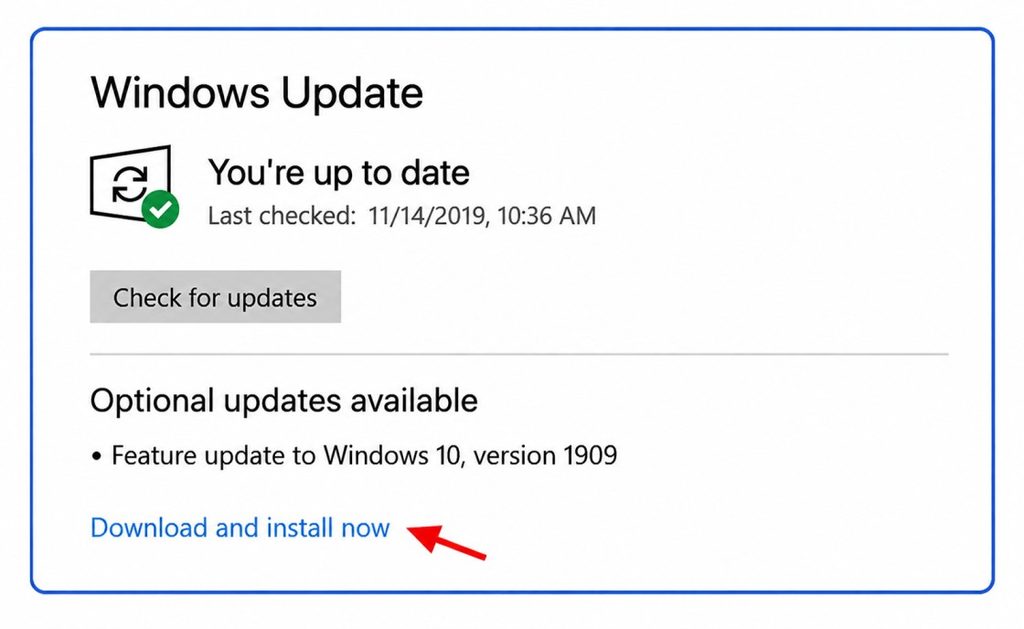
- Windows is up to date.
- You have enough free disk space.
- QuickBooks Desktop is updated to the latest available release.
- Security software or firewall settings aren’t interfering with QuickBooks.
- Other applications aren’t using excessive system resources.
If the problem started after a Windows update, QuickBooks update, or security-software change, note when it began. This may help you identify a possible conflict.
4. If QuickBooks Still Keeps Crashing
If QuickBooks continues to freeze or close unexpectedly, record the exact error message if one appears and note what you were doing when the problem occurred. Check whether the problem happens:
- With every company file or only one file
- On one computer or multiple computers
- During startup or while working
- During a specific task, such as opening a report or transaction
If QuickBooks has problems with every company file, return to the program-level troubleshooting steps earlier in this guide. If the problem occurs only with one company file, use the company-file troubleshooting section instead.
If the problem continues after these steps, revisit the QBWUSER.ini troubleshooting method covered earlier in this guide. A damaged or missing configuration file can also cause QuickBooks to stop working.
How to Prevent QuickBooks Desktop Startup Problems
You can’t prevent every QuickBooks Desktop error, but a few regular maintenance habits can reduce the chances of startup, performance, and company-file problems.
- Keep QuickBooks and Windows updated: Updates can include bug fixes, security improvements, and compatibility changes that help QuickBooks run properly.
- Back up your company files regularly: A recent backup gives you a recovery option if your company file becomes damaged or you encounter an unexpected problem.
- Close QuickBooks normally: Avoid force-closing the program while QuickBooks is processing transactions, reports, or other data.
- Maintain enough free disk space: Windows and QuickBooks need available storage for temporary files and normal operations.
- Use the correct network configuration: If several computers access the same company file, make sure hosting, shared-folder permissions, and the network connection are configured correctly.
- Limit unnecessary background applications: Too many programs running at once can consume system resources and affect QuickBooks performance.
- Keep QuickBooks Tool Hub available: Tool Hub can help diagnose and resolve several common QuickBooks program and installation problems when they occur.
These practices can’t guarantee that QuickBooks will never stop working, but they can reduce avoidable problems and make it easier to recover when an issue occurs.
When Should You Get Professional Help With QuickBooks Desktop?
Most QuickBooks Desktop problems can be resolved with the troubleshooting steps above. However, professional help may be necessary if:
- QuickBooks still won’t open, freezes, or crashes after troubleshooting.
- The same error code keeps appearing.
- One company file won’t open while others work normally.
- Your company file may be damaged or corrupted.
- Multiple computers can’t access a company file over the network.
- The issue involves server, hosting, or advanced Windows settings.
Before attempting advanced repairs, keep a current backup of your company file. If you need assistance, provide the exact error message or code to help identify the problem faster.
Final Thoughts
Whether QuickBooks Desktop won’t open, your company file won’t load, or the program repeatedly freezes, these troubleshooting steps resolve the majority of problems. Using the Tools Hub, repairing installations, checking hosting, and testing sample files will help you pinpoint—and fix—the issue quickly.
If none of these solutions work, the issue is likely data damage or a corrupted installation, and reinstalling or restoring a backup may be required.
Still having trouble? Contact our support team for personalized assistance and get QuickBooks back on track today!
Frequently Asked Questions
If the QuickBooks app isn’t loading, it could be due to issues such as outdated software, a poor internet connection, or corrupted files. Try updating the app, checking your internet, or reinstalling it.
QuickBooks may not work on your laptop due to system incompatibilities, outdated software, or a corrupted installation. Check if your laptop meets the system requirements and try reinstalling or updating the software.
If QuickBooks fails to open on Windows 10 or 11, it may be caused by software conflicts, missing updates, or installation issues. Try running QuickBooks as an administrator, repairing the installation, or reinstalling the program.
If QuickBooks Desktop won’t open after an update, the update may have created a conflict with your system. Try restarting your computer, running QuickBooks in compatibility mode, or using the QuickBooks Tool Hub to fix the issue.
QuickBooks 2022 may not open due to a damaged company file, corrupted installation, or Windows-related issues. You can run QuickBooks File Doctor, repair the installation, or check for any available Windows updates.
If QuickBooks won’t open on your iPhone, it could be caused by a connection issue, outdated app, or software conflict. Try restarting your iPhone, updating the app, or reinstalling QuickBooks to resolve the issue.
If the QuickBooks Online app is stuck on the loading screen, the problem might be due to slow internet or server issues. Make sure your connection is stable, clear the app’s cache, or try accessing it from a different device or browser.
Error 6190 typically occurs when there’s a problem with your company file or its connection to the database server. Ensure the file is in the correct folder, then try opening it in single-user mode or use QuickBooks File Doctor to fix the issue.
If you can’t open the company file in multi-user mode, it might be due to network issues or file corruption. Ensure all users are connected to the same network, and check that the file is stored in the correct location. You may also need to run the QuickBooks Database Server Manager.
If QuickBooks is frozen, try ending the program through Task Manager, restarting your computer, or using the QuickBooks Clean Install Tool to fix any corrupted files. If the issue continues, consider updating or reinstalling QuickBooks.
To reboot QuickBooks Desktop, simply close the program, restart your computer, and reopen QuickBooks. This can help resolve minor glitches and refresh the software.
If your QuickBooks bank feeds stop working, check for any connection issues with your bank or verify that your bank credentials are correct. You may also need to update QuickBooks or reconnect your bank account within the software.
If the QuickBooks Web Connector stops working, it could be caused by an outdated version or a corrupt installation. Update the Web Connector, reinstall it, or clear its cache to resolve the issue.