
Seeing “Your QuickBooks Subscription Has Expired” or “Your QuickBooks Subscription Has Lapsed” does not always mean you need to buy another subscription. The first thing to determine is whether your Intuit account actually shows the subscription as expired or lapsed. If it does, the problem is usually related to billing, payment, or renewal. If your Intuit account shows an active subscription and your payment was successful but QuickBooks Desktop still says expired, you may be dealing with a license synchronization, registration, installation, or connectivity problem.
This guide explains how to identify the cause, check your subscription status, fix the problem step by step, renew the correct QuickBooks subscription, and verify that QuickBooks recognizes the renewal.
Why Does QuickBooks Say Your Subscription Has Expired?
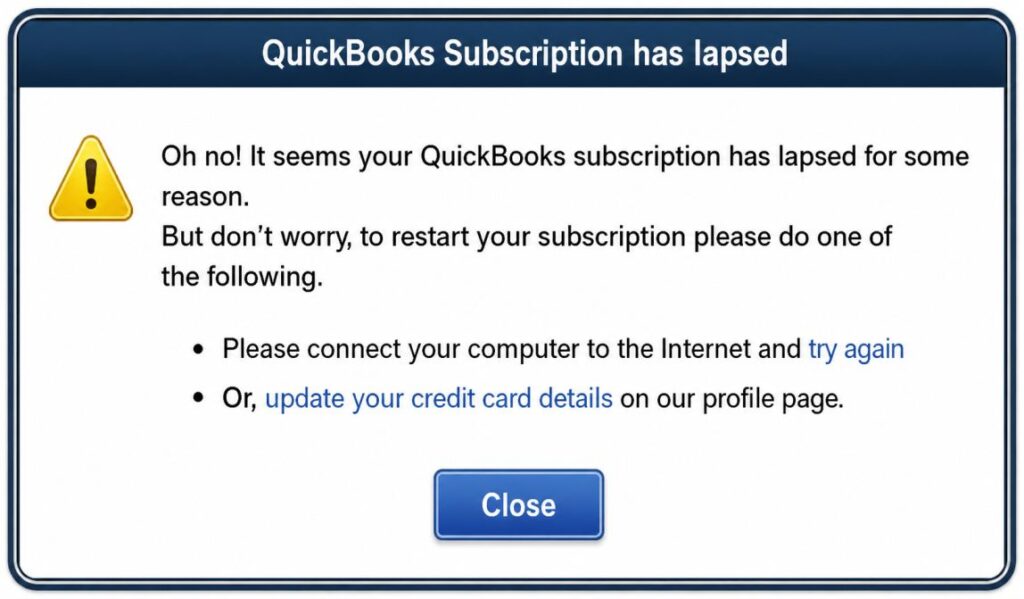
A QuickBooks Subscription Has Expired message generally means QuickBooks cannot currently recognize an active subscription for the product you are using.
That can happen for several different reasons.
1. Your renewal payment failed
An automatic renewal can fail if your:
- Credit or debit card expired
- Card was replaced
- Billing address changed
- Payment was declined
- Payment method was removed
- Bank rejected the transaction
- Account contains an outstanding balance
If the subscription status in your Intuit account also shows Expired or Lapsed, start with your billing information.
2. You are signed into the wrong Intuit account
Businesses sometimes have multiple Intuit accounts, especially when an accountant, bookkeeper, employee, or former administrator originally purchased the software.
You may therefore open one Intuit account and see no active QuickBooks subscription even though the subscription exists under another account.
Before purchasing a new subscription, confirm that you are using the Intuit account associated with your QuickBooks product.
3. QuickBooks has not synchronized the renewal
This situation is different.
For example:
- Your Intuit account says Active
- Your renewal payment was successful
- QuickBooks Desktop still says Expired
In this case, purchasing another subscription is usually not the first step. The Desktop application may need to synchronize its local license information with your Intuit account.
Intuit specifically recommends using Help → Manage My License → Sync License Data Online for certain lapsed-subscription situations.
4. QuickBooks installation or licensing information is damaged
QuickBooks Desktop uses local licensing and entitlement information. If that information becomes damaged, the application may have trouble recognizing a valid subscription.
Intuit’s current troubleshooting guidance includes resetting the EntitlementDataStore.ecml file when synchronization problems occur.
5. Your QuickBooks version or connected service is no longer supported
An expiration message can sometimes be confused with a subscription problem when the underlying issue is an unsupported QuickBooks Desktop version.
Intuit notes that if QuickBooks says it needs a subscription, the product may either have an expired subscription or be an unsupported version.
How Can You Check Whether Your QuickBooks Subscription Is Really Expired?
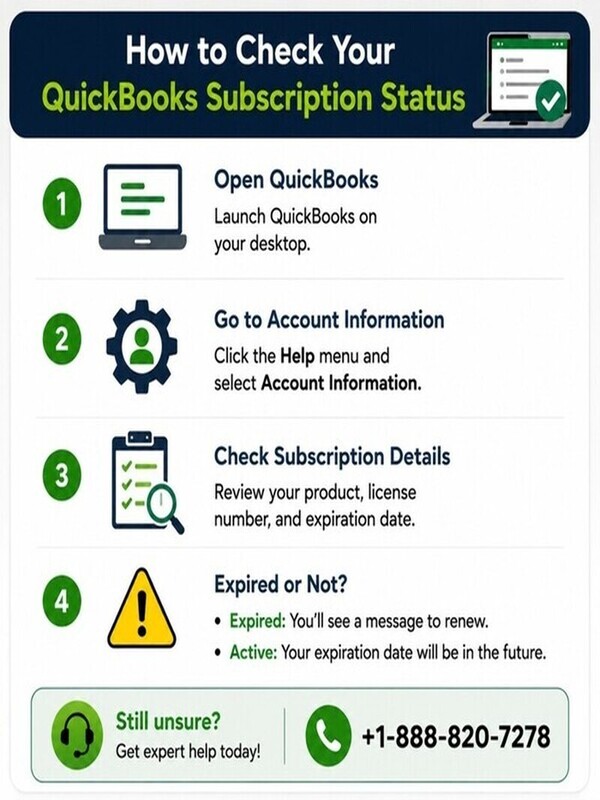
Before you attempt a renewal, I strongly recommend verifying the subscription status directly from your Intuit account. This is an important step because a QuickBooks Subscription Has Expired message inside the software does not always mean that you need to purchase a new subscription. Sometimes the account is active, but QuickBooks is displaying outdated license or billing information.
For QuickBooks Online, you can review your subscription through Account and settings → Billing & subscription. This section can help you determine which QuickBooks plan you’re currently using, whether the subscription is active, how you’re being billed, and whether there are payment-related issues.
If you’re using QuickBooks Desktop, the account information is equally important because your Desktop license and subscription are connected to your Intuit account. Checking the account first helps you determine whether you’re dealing with an actual expired subscription or a problem with license recognition.
A. Check in Your QuickBooks Account
When you open your subscription and billing information, don’t just look for the word Active or Expired. I recommend checking the complete account information because several different details can explain why QuickBooks is showing an expiration message.
1. What Does the Current Subscription Status Say?
Start with the subscription status. You may see a status such as:
- Active
- Expired
- Lapsed
- Canceled
- Pending
- Suspended
If the status says Expired or Lapsed, your renewal may genuinely be required. However, if the account says Active while your QuickBooks application says the subscription has expired, don’t purchase another subscription yet. The problem may be related to license synchronization, account credentials, or the product being connected to a different Intuit account.
2. When Is Your Next Billing Date?
Check the next billing or renewal date carefully. For example, suppose your account shows that the subscription renews on September 15, but QuickBooks displays an expiration message in August. That difference is a reason to investigate the account rather than immediately paying for another subscription.
The billing date can also help you determine whether an automatic renewal was attempted and failed.
3. Was Your Previous Payment Successful?
Look at your recent payment history. A subscription can appear to have been set for automatic renewal, but the actual payment may have failed. Check for:
- Declined payments
- Failed transactions
- Reversed payments
- Pending payments
- Unpaid invoices
- Previous renewal attempts
If you find a failed payment, the subscription may have lapsed because Intuit could not successfully collect the renewal amount.
4. Is Your Payment Method Still Valid?
This is one of the first things I check when troubleshooting an expired subscription. Your payment method may have changed without you realizing it. For example, your credit card could have expired, your bank may have issued a replacement card, or your billing address may no longer match the information associated with the card.
- Card expiration date
- Billing address
- Payment method
- Available payment options
- Whether the card is still authorized for recurring payments
If the payment method is outdated, update it before trying to renew again.
5. Does the Product Name Match Your QuickBooks Version?
This is particularly important if you’ve used QuickBooks for several years. Check whether your account shows the same product you’re currently using. For example, you might be working with QuickBooks Desktop while the account you’re viewing contains information for a different QuickBooks product. Don’t assume that every QuickBooks subscription listed under your Intuit account is interchangeable. The exact product name can affect:
- Available features
- Subscription terms
- Payroll access
- User limits
- Connected services
- Renewal options
6. Is It a Monthly or Annual Subscription?
Check the subscription type and billing frequency. You may have a monthly subscription, an annual subscription, or another billing arrangement depending on your product. This matters because the renewal date and payment amount can be different. If you’re researching a quickbooks annual subscription, for example, don’t assume that the renewal process or price will be identical to a monthly plan.
Always use the billing information shown in your current account rather than relying on an old price you found elsewhere.
7. Who Is the Primary Administrator?
Check which Intuit account has administrative control over the subscription. This is easy to overlook when multiple people manage a business’s QuickBooks account. For example, your accountant may have originally purchased the subscription, while you are now signing in with a different email address. You could then see limited account information and mistakenly assume that your subscription is missing or expired. If you’re managing the business account, make sure you’re using the appropriate administrator credentials before making changes.
8. Are There Any Failed-Payment Notifications?
Look carefully for warnings, banners, emails, or account notifications related to billing.
A failed payment notification can explain why QuickBooks Auto Renewal Not Working even when you never manually canceled the subscription.
If you find such a notification, resolve the payment problem first and then check whether the subscription status changes.
B. Account Says Active but QuickBooks Says Expired
This is where you should slow down instead of purchasing another subscription. If your Intuit account clearly shows Active, but QuickBooks displays Your QuickBooks Subscription Has Expired, the two systems may not be recognizing the same subscription information.
- You’re signed into the wrong Intuit account.
- QuickBooks is using outdated license information.
- The product is registered under another account.
- The renewal payment has not synchronized with QuickBooks.
- The Desktop license needs to be refreshed.
- Your payroll subscription and Desktop subscription have different statuses.
For QuickBooks Desktop, Intuit’s current troubleshooting instructions for a lapsed subscription include correcting billing information through the Customer Account Management Portal and then using Help → Manage My License → Sync License Data Online to refresh the license information.
C. Should You Purchase Another Subscription?
No—not before you identify the reason. If you’ve already paid for the renewal and your account says active, purchasing another subscription could leave you with an unnecessary second charge while the original problem remains unresolved. Instead, compare the information in your Intuit account with what QuickBooks displays.
If the account says Active and the payment was successful, focus on resolving the license, account, or synchronization issue. If the account itself says Expired or Lapsed, then renewing the appropriate subscription is the logical next step. This simple verification step can save you from paying for the wrong QuickBooks subscription and gives you a much clearer picture of what actually needs to be fixed.
How Can You Fix QuickBooks Subscription Has Expired or Lapsed?
Solution 1: Update Your Billing Information in Intuit CAMPs
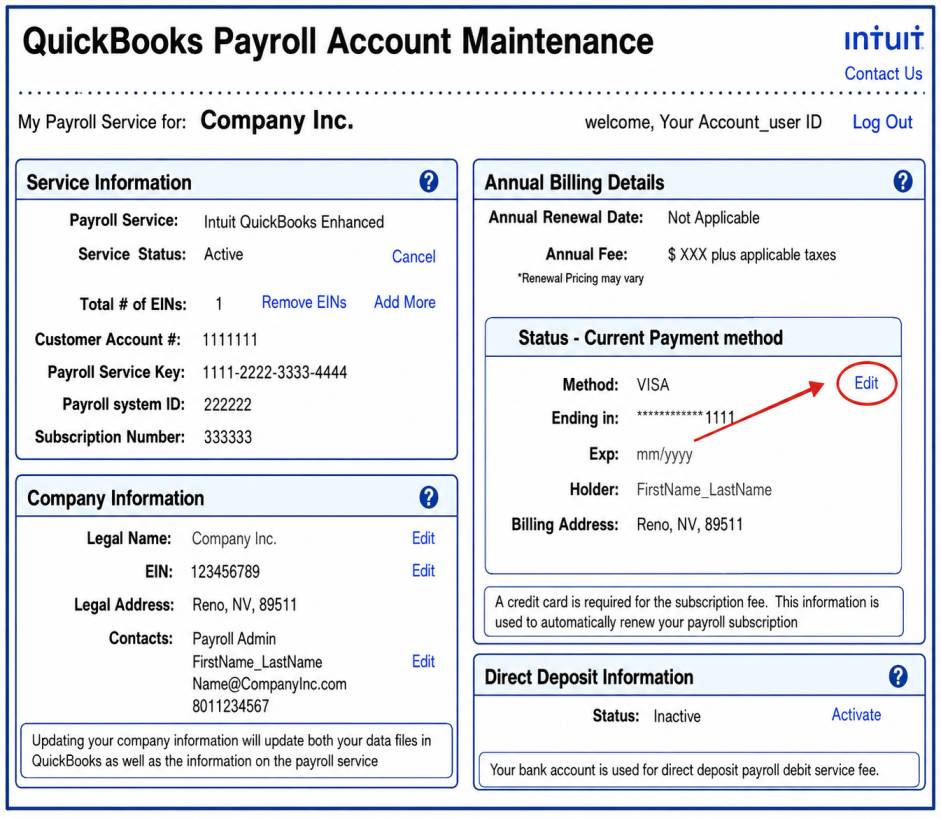
Outdated or declined payment information can cause QuickBooks to stop verifying an otherwise valid subscription. If you receive a QuickBooks Subscription Has Lapsed message, start by checking your billing information in the Intuit Customer Account Management Portal (CAMPs).
Steps to update your billing information:
- Sign in to the Customer Account Management Portal (CAMPs) as the admin.
- Select QuickBooks Desktop from your products.
- Click Details next to your QuickBooks product.
- Select Edit beside the payment method.
- Enter your updated payment information.
- Click Save and Close.
- Open QuickBooks Desktop.
- Go to Help → Manage My License.
- Select Sync License Data Online.
- Restart QuickBooks and check whether the subscription message has disappeared.
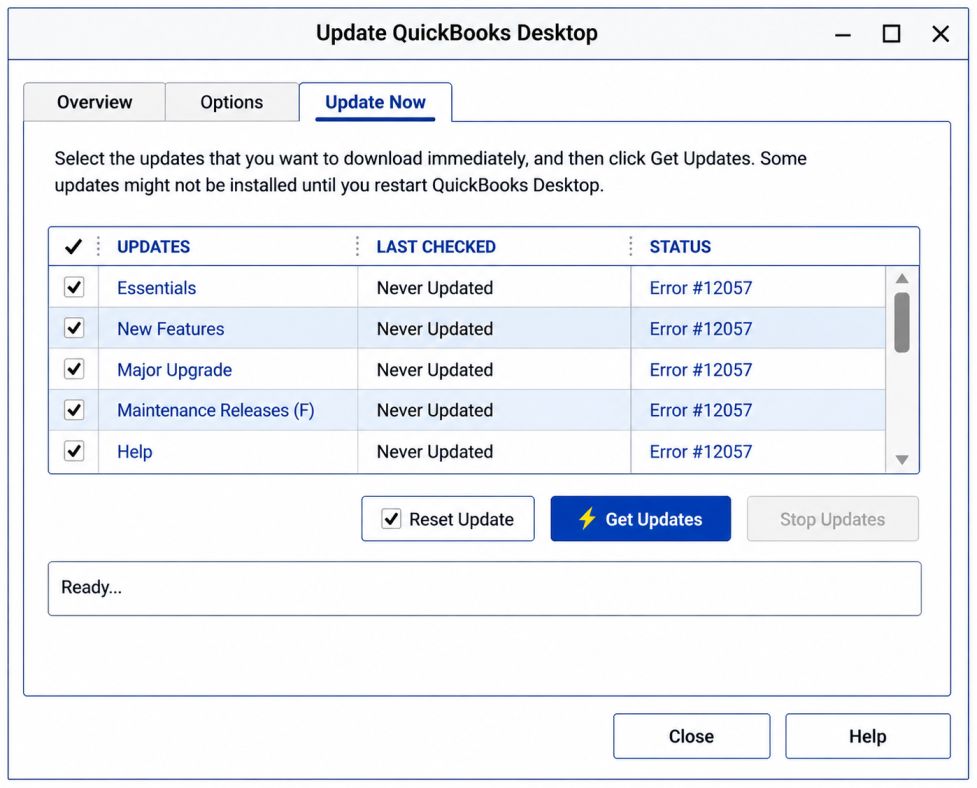
Solution 2: Install the Latest QuickBooks Desktop Updates
An outdated QuickBooks Desktop installation can contribute to subscription verification and connectivity problems. Installing the latest available updates ensures that the application has the most recent maintenance releases and fixes.
Steps to update QuickBooks Desktop:
- Open QuickBooks Desktop.
- Select Help from the top menu.
- Click Update QuickBooks Desktop.
- Open the Options tab.
- Select Mark All.
- Go to the Update Now tab.
- Select Reset Update if you want to clear the previous update download.
- Click Get Updates.
- Wait while QuickBooks downloads the available updates.
- Restart QuickBooks Desktop.
- Select Install Now if QuickBooks prompts you to install the downloaded updates.
- Reopen QuickBooks and check the subscription status.
Solution 3: Run the QuickBooks Install Diagnostic Tool
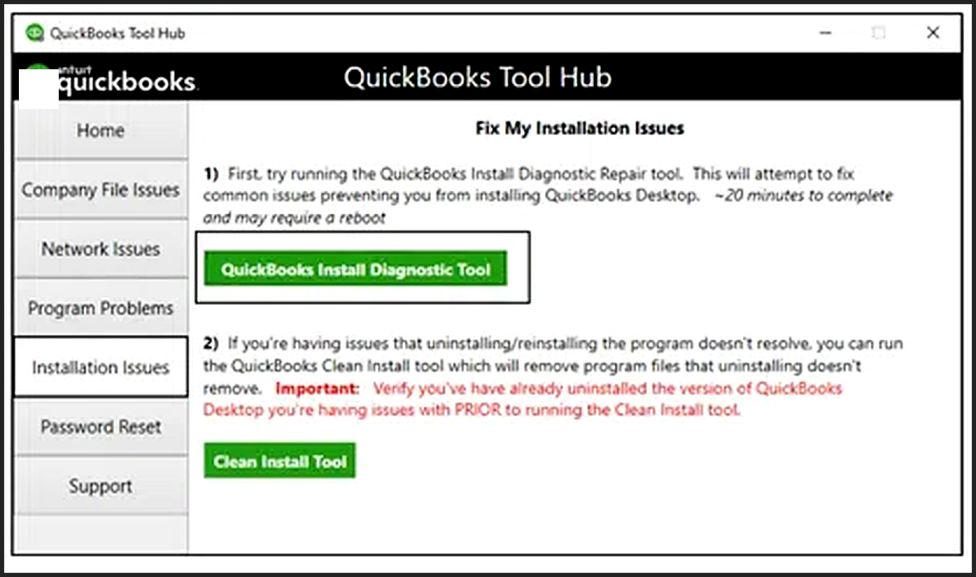
Damaged installation components can interfere with QuickBooks’ ability to communicate with subscription and licensing services. The QuickBooks Install Diagnostic Tool, available through QuickBooks Tool Hub, can identify and repair certain installation-related problems.
Steps to run the diagnostic tool:
- Download and install QuickBooks Tool Hub.
- Open QuickBooks Tool Hub.
- Select Installation Issues from the left menu.
- Click QuickBooks Install Diagnostic Tool.
- Allow the diagnostic process to complete without interrupting it.
- Close the tool after the repair finishes.
- Restart your computer.
- Open QuickBooks Desktop again.
- Check whether the subscription-lapse message has been resolved.
If the installation repair does not resolve the issue, you can also use Quick Fix My Program from the Program Problems section of QuickBooks Tool Hub.
Solution 4: Restore the QuickBooks Product and License File
QuickBooks Desktop stores product and licensing information locally. If the entitlement data becomes damaged or corrupted, QuickBooks may incorrectly treat the subscription as invalid. Before deleting the entitlement file, make sure you have your QuickBooks product and license information available because QuickBooks may ask you to register the product again.
Steps to reset the entitlement file:
- Close QuickBooks Desktop completely.
- Open the Windows Start menu.
- Type Run in the search box.
- Open the Run application.
- Enter: C:\ProgramData\Intuit\Entitlement Client\v8
- Press Enter.
- Locate EntitlementDataStore.ecml.
- Right-click the file.
- Select Delete.
- Confirm the deletion.
- Open QuickBooks Desktop again.
- Open your company file.
- Follow the on-screen instructions to register QuickBooks again if prompted.
- Enter your product and license information.
- Check whether the subscription is now recognized.
If the v8 folder isn’t available, the referenced troubleshooting instructions indicate checking the applicable v6 folder instead.
Solution 5: Check QuickBooks Internet Connection Settings
QuickBooks needs a working internet connection to communicate with Intuit’s online services for subscription verification, updates, and other connected features. Incorrect internet settings can prevent that communication.
Steps to check the connection settings:
- Make sure your computer has a stable internet connection.
- Open QuickBooks Desktop.
- Select Help.
- Choose Internet Connection Setup.
- Select Use my computer’s Internet connection settings to establish a connection when this application accesses the Internet.
- Click Next.
- Save the settings.
- Close the Internet Connection Setup window.
- Restart QuickBooks Desktop.
- Try checking the subscription status again.
If your browser also has difficulty connecting to websites, resolve the broader Windows or network connection problem before troubleshooting QuickBooks further.
Solution 6: Install or Verify the Required Digital Certificate
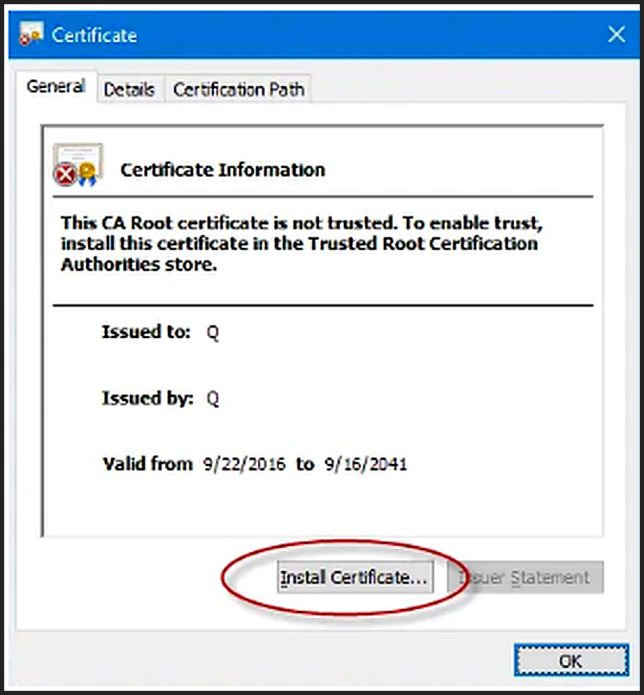
A missing, outdated, or improperly configured digital certificate can interfere with secure communication between QuickBooks Desktop and online services. The referenced troubleshooting material recommends checking the certificate used for the QuickBooks connection.
Using Google Chrome:
- Open Google Chrome.
- Navigate to the QuickBooks-related address provided by the troubleshooting source.
- Select the padlock icon in the address bar.
- Open Certificate or View Certificate.
- Go to the Certification Path tab.
- Locate the certificate specified by the troubleshooting instructions.
- Select the certificate.
- Choose the option to install it.
- Follow the certificate installation wizard using the appropriate default settings.
- Restart QuickBooks and test the subscription connection.
Certificate procedures can vary by Windows version, browser, and QuickBooks release, so I would avoid installing an unfamiliar certificate simply because an older troubleshooting page lists it.
Solution 7: Reset Internet Settings Used by QuickBooks
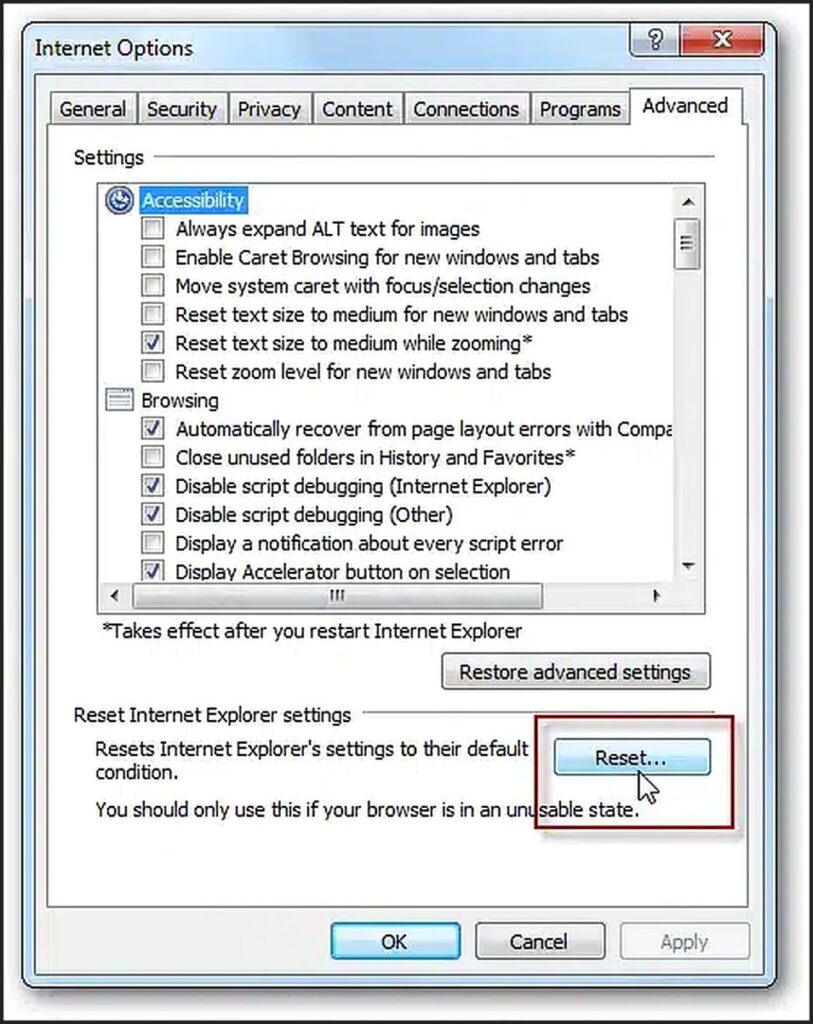
Older QuickBooks Desktop versions and certain legacy online components may depend on Windows internet settings. Incorrect or corrupted settings can prevent QuickBooks from establishing a connection with Intuit services.
- Open the applicable Windows internet settings.
- Go to Internet Options.
- Select the Advanced tab.
- Review the available reset or restore-default options.
- Select Reset or Restore Defaults, where applicable.
- Apply the changes.
- Click OK.
- Restart QuickBooks Desktop.
- Try updating QuickBooks or synchronizing the license again.
Because Internet Explorer itself has been retired, I would not recommend installing or relying on an obsolete browser solely for this troubleshooting step. The relevant Windows internet settings are the important part.
Solution 8: Check Firewall and Antivirus Settings
Firewall or antivirus software can sometimes prevent QuickBooks processes from communicating with Intuit’s servers. This can make a valid subscription appear to be unavailable. Instead of permanently disabling your security software, first check whether QuickBooks has been blocked.
- Open your Windows security or antivirus settings.
- Locate the firewall or application-control section.
- Review blocked applications and connections.
- Check whether QuickBooks processes have been blocked.
- Allow the required QuickBooks processes through the firewall when appropriate.
- Save the security settings.
- Restart QuickBooks Desktop.
- Try synchronizing the license or checking the subscription again.
If you temporarily disable security software for testing, turn it back on immediately after the test. Do not leave your computer unprotected simply to troubleshoot a QuickBooks subscription message.
Solution 9: Configure QuickBooks Folder Permissions
Windows permissions can prevent QuickBooks from reading or writing the files it needs for licensing, configuration, and company-file operations. If the appropriate QuickBooks users or services don’t have the required permissions, subscription-related functions may fail.
Steps to review folder permissions:
- Open File Explorer.
- Locate the QuickBooks folder involved in the problem.
- Right-click the folder.
- Select Properties.
- Open the Security tab.
- Review the permissions assigned to the appropriate QuickBooks service account.
- Confirm that the required read, write, and modify permissions are available.
- Apply only the permissions required for the affected QuickBooks installation.
- Click Apply and then OK.
- Restart QuickBooks Desktop.
- Test the subscription verification again.
The exact folders and permissions can vary depending on your QuickBooks Desktop version and installation configuration, so avoid broadly granting Full Control to every Windows user unless the specific troubleshooting requirement calls for it.
Solution 10: Re-enter the QuickBooks License Number and Product Information
If QuickBooks has incorrect or mismatched registration information, re-entering the correct license information can help restore product activation. Before beginning, make sure you have the correct license number and product number associated with your QuickBooks subscription.
For QuickBooks Desktop on Windows:
- Open QuickBooks Desktop.
- Select Help.
- Choose Manage My License.
- Select Change My License Number.
- Enter the correct license number.
- Click Next.
- Complete the registration process.
- Restart QuickBooks.
- Check the subscription and activation status.
For QuickBooks Desktop for Mac:
- Open QuickBooks.
- Go to the QuickBooks menu.
- Select Manage My License.
- Choose Deauthorize This Computer when applicable.
- Confirm the deauthorization.
- Quit QuickBooks.
- Relaunch the application.
- Follow the registration instructions using the correct license information.
For QuickBooks Enterprise, license and product information should be handled carefully because Enterprise registration files and product configurations can differ by version. Avoid manually editing registration files unless you have confirmed the exact procedure for your installed release.
How Do You Renew QuickBooks Subscription Safely?
If your QuickBooks subscription is expired, lapsed, or approaching its renewal date, the renewal process depends on which QuickBooks product you use. I would not treat QuickBooks Desktop, QuickBooks Payroll, QuickBooks Online, and QuickBooks Enterprise as one subscription because each product has its own account, billing, and renewal considerations.
Before you renew QuickBooks subscription, I recommend confirming the exact product and checking the subscription status in your Intuit account. That simple step can prevent you from paying for a second subscription when the real problem is a failed payment, an incorrect account, or a license synchronization issue. If your QuickBooks Desktop subscription has expired or is about to expire, follow these steps to check your account, update billing information, and refresh the Desktop license.
How Can You Renew QuickBooks Desktop Subscription?
- Sign In to Your Intuit Account: Open the Intuit account associated with your QuickBooks Desktop subscription. Make sure you use the same email address that was originally used to register your QuickBooks product. Using a different Intuit account can make an active subscription appear missing or expired.
- Open Your Desktop Subscription Details: Go to your QuickBooks Desktop products and services area and locate your current QuickBooks Desktop subscription and Check.
- Product name
- Subscription status
- Renewal date
- Payment method
- License information
- Check Your Payment Information: If your subscription has lapsed, review the payment method linked to the account. Check whether your:
- Credit card has expired
- Card has been replaced
- Billing address is incorrect
- Payment was declined
- Payment method needs updating
- Update the payment information if necessary.
- Complete the QuickBooks Desktop Renewal: If the subscription is eligible for renewal, follow the renewal instructions displayed in your Intuit account. Review the plan and billing information carefully before confirming the renewal.
- Open QuickBooks Desktop: After completing the renewal, open your QuickBooks Desktop application. Don’t immediately reinstall the software. First, allow QuickBooks to synchronize the updated subscription information.
- Sync Your QuickBooks Desktop License: If QuickBooks still displays an expired or lapsed message:
- Open QuickBooks Desktop.
- Select Help.
- Choose Manage My License.
- Select Sync License Data Online.
- Wait for the synchronization to finish.
- Close and reopen QuickBooks.
Intuit specifically recommends synchronizing license data after correcting billing information for certain lapsed Desktop subscription issues.
- Check Whether the Expiration Message Has Disappeared: Open your company file and check whether QuickBooks still reports that the subscription has expired. If the message is gone, your renewal has been recognized. If the message remains even though your Intuit account shows an active subscription, the issue may be related to license synchronization, registration, or the QuickBooks installation rather than the subscription payment itself.
How Can You Renew QuickBooks Payroll Subscription?
QuickBooks Payroll should be handled separately because your Desktop accounting subscription and payroll service can have different subscription statuses.
- Check Your Payroll Subscription: Sign in to the Intuit account associated with your QuickBooks Payroll service. Verify whether your payroll subscription is:
- Active
- Expired
- Canceled
- Lapsed
- Pending renewal
- Identify Your Payroll Product: Before renewing, determine which payroll service you currently have. This is important because some older QuickBooks Desktop Payroll products are no longer offered in their previous form. Intuit currently states that Desktop Payroll Basic and Standard are no longer available as standalone offerings, with existing customers being moved to Enhanced Payroll under applicable terms.
- Review Your Payroll Billing Information: Check the payment method associated with the payroll subscription. Make sure your billing information is current and that there are no failed-payment notifications.
- Choose the Available Payroll Renewal Option: If your existing payroll service is eligible for renewal or reactivation, select the available renewal option in your account. If your previous payroll product is no longer available, QuickBooks may present a different payroll product instead.
- Complete the Payroll Renewal: Review the payroll plan, pricing, billing frequency, and employee-related charges before completing the purchase or renewal. Don’t rely on an old pricing page because QuickBooks Payroll pricing and product availability can change.
- Open QuickBooks Desktop: After renewing the payroll subscription, open QuickBooks Desktop and allow the application to connect with the payroll service.
- Verify Payroll Service: Check whether payroll features are working correctly, You should verify that.
- Payroll subscription is active
- Payroll service is recognized
- Payroll updates can be downloaded
- Tax tables can be updated
- Payroll-related features are available
If QuickBooks still says it cannot verify your payroll subscription, investigate the payroll service and license information rather than purchasing another subscription.
What Is the QuickBooks Enhanced Payroll Subscription Renewal Process?
If you’re using QuickBooks Desktop Payroll Enhanced, first determine whether the issue is the payroll subscription itself or the Desktop license.
- QuickBooks Enhanced Payroll Subscription Renewal Price Be Different: Yes. Payroll pricing can change, and it can also depend on the billing structure and number of active employees. Intuit’s current information states that QuickBooks Desktop Payroll Basic and Standard are no longer offered as standalone offerings and that existing users are being moved to Enhanced Payroll, with a base subscription and employee-related fees. Because pricing can change, I recommend checking your current account rather than relying on an old article containing a quickbooks enhanced payroll subscription renewal price.
How Can You Renew QuickBooks Online Subscription?
QuickBooks Online uses a different renewal process because your subscription is managed directly through your online account.
- Sign In to QuickBooks Online: Sign in using the Intuit account associated with your QuickBooks Online company. If you manage multiple companies, make sure you have selected the correct company.
- Open Account and Settings: Select the Gear icon and then choose Account and settings.
- Open Billing & Subscription: Select Billing & subscription. Here you can review your:
- QuickBooks Online plan
- Subscription status
- Billing frequency
- Payment method
- Billing information
- Payment history
- Check Your Payment Method: If your subscription has expired because of a failed renewal, review your payment method. Update the card or billing information if required.
- Renew Your QuickBooks Online Subscription: Follow the renewal or reactivation option shown for your account. Review the plan and billing terms before confirming the renewal.
- Sign Out and Sign Back In: After completing the renewal, sign out of QuickBooks Online and sign back in. Then open Account and settings → Billing & subscription again.
- Confirm the Subscription Is Active: Check that the account now shows an active subscription. If the account still shows expired after a successful payment, don’t immediately create another QuickBooks Online subscription. First verify that you’re signed into the correct Intuit account and company.
How Can You Renew QuickBooks Enterprise Subscription?
QuickBooks Enterprise should be renewed separately from standard QuickBooks Desktop products because Enterprise has its own product editions, user limits, and optional services.
- Sign In to Your Intuit Account: Use the Intuit account associated with your QuickBooks Enterprise subscription. If you have multiple Intuit accounts, confirm that you’re using the account originally associated with Enterprise.
- Locate QuickBooks Enterprise: Open your Desktop products and services section and find your QuickBooks Enterprise subscription, Check.
- Enterprise edition
- Subscription status
- Renewal date
- Number of users
- Payment method
- License information
- Payroll services
- Review Your Payment Information: If Enterprise has lapsed, check whether your payment method caused the renewal failure. Update your payment information if required.
- Select the Renewal Option: Choose the available renewal option for your QuickBooks Enterprise subscription. Review the plan, billing frequency, user information, and additional services before confirming.
- Complete the Renewal: Finish the renewal process and wait for the payment confirmation. Keep the confirmation information for your records.
- Open QuickBooks Enterprise: Launch QuickBooks Enterprise after the renewal has been processed. If QuickBooks still reports that the subscription has expired, don’t purchase another subscription immediately.
- Synchronize the License: For a Desktop subscription showing a lapsed status, use, Help → Manage My License → Sync License Data Online. Then restart QuickBooks Enterprise and check the subscription status again.
- Check Enterprise Payroll Separately: If you use payroll with Enterprise, verify the payroll subscription separately. Renewing the Enterprise accounting subscription does not necessarily mean every payroll-related issue has been resolved.
- Payroll is active
- Payroll subscription is current
- Payroll service is recognized
- Payroll updates are available
- Tax tables can be downloaded
This separate check can help you determine whether the problem is with QuickBooks Enterprise Subscription Renewal or with the associated payroll service.
What Should You Know About a QuickBooks Annual Subscription?
A quickbooks annual subscription generally means you are billed on an annual cycle rather than paying month by month.
The important point is that the exact features and pricing depend on the QuickBooks product and plan you have. I would not rely on an old pricing screenshot or an outdated blog post when deciding whether to renew.
For example, QuickBooks Desktop products have changed substantially over the past few years. Intuit moved several Desktop products toward subscription-based models, while older versions have also reached service-discontinuation milestones.
- Does Annual Billing Mean the Subscription Cannot Expire? : No. An annual subscription can still lapse if the renewal payment fails or the subscription is canceled. Annual billing changes the billing interval; it does not eliminate renewal requirements.
Is QuickBooks Plus Annual Subscription the Same as Every Other QuickBooks Plan?
No. A QuickBooks Plus annual subscription is not automatically the same as every other QuickBooks plan. The plan name, included features, user capacity, billing arrangement, and available services can vary, so I recommend checking the exact product displayed in your Intuit account before renewing or purchasing anything.
This becomes especially important when you’re trying to resolve an expired subscription. I’ve seen users search for a replacement plan simply because the name contains “QuickBooks Plus,” only to discover later that the new subscription doesn’t provide the same features they were using before.
Terms such as quickbooks plus annual subscription, quickbooks plus annual subscription pro, and intuit quickbooks plus annual subscription should therefore be treated as search terms rather than proof that two subscriptions are identical.
What Does a QuickBooks Plus Annual Subscription Actually Mean?
An annual subscription generally describes the billing period, but the word “Plus” identifies a particular QuickBooks Online plan rather than a universal subscription that applies to every QuickBooks product.
In other words, you shouldn’t assume:
Annual subscription = same product + same features
Instead, think about the subscription in two parts:
- Product/plan: What QuickBooks version and plan are you using?
- Billing frequency: Are you paying monthly or annually?
The annual billing option doesn’t necessarily tell you everything about the functionality included in the plan.
Why Should You Check the Exact QuickBooks Plan Name?
Your exact plan can determine what functionality is available to you.
Before you renew, I recommend checking:
- QuickBooks product name
- Current plan
- Billing frequency
- Number of users
- Included accounting features
- Payroll availability
- Connected services
- Integrations
- Company data requirements
- Upgrade or downgrade options
For example, if your previous subscription included a particular feature that you rely on every day, purchasing another plan based only on the word “Plus” could leave you without that functionality.
Is QuickBooks Plus the Same as QuickBooks Desktop?
No. This is one of the biggest distinctions you need to understand. QuickBooks Plus is generally associated with QuickBooks Online plan terminology, while QuickBooks Desktop products have their own product names, editions, licensing, and subscription structures. If you’re currently using QuickBooks Desktop and see an expired-subscription message, you shouldn’t automatically purchase a QuickBooks Online Plus subscription simply because it contains “Plus” in the name.
The two products can involve different:
- User environments
- Company files
- Features
- Subscription structures
- Data workflows
- Connected services
- Migration considerations
Before changing products, determine whether you actually want to renew your existing Desktop subscription or move your accounting data to QuickBooks Online.
Does QuickBooks Plus Annual Subscription Include Payroll?
You shouldn’t assume that it does. Accounting software and payroll services can have separate subscription considerations. If you currently process payroll, check your payroll service specifically rather than assuming that renewing your QuickBooks Online plan automatically renews payroll. Before completing a renewal, I would verify:
- Your QuickBooks Online plan.
- Your payroll service.
- Your payroll subscription status.
- Your current employee requirements.
- Any payroll-related billing shown in your account.
This is particularly important if you’re troubleshooting an expired subscription while also trying to process payroll.
Is QuickBooks Plus Annual Subscription Pro a Separate Plan?
You should verify the exact name shown in your account rather than assuming that QuickBooks plus annual subscription pro represents a standard QuickBooks plan. QuickBooks product names and plan offerings can change over time. Third-party websites can also use shortened or outdated terminology that doesn’t exactly match the current product names. If you encounter a name such as “QuickBooks Plus Pro,” compare it against the product name shown inside your Intuit account before making a payment.
Why Is the Intuit QuickBooks Plus Annual Subscription Name Important?
The phrase intuit quickbooks plus annual subscription can appear in searches, billing references, or third-party content, but the most reliable information is the subscription associated with your actual Intuit account. Your account can tell you much more than a generic product description. I recommend checking:
- Current subscription
- Subscription status
- Billing frequency
- Renewal date
- Payment method
- Previous payments
- Company associated with the subscription
- Primary administrator
- Available plan options
If your account says your subscription is active, but QuickBooks is displaying an expiration message, you may have a synchronization or account problem rather than an actual subscription-expiration problem.
What Should You Compare Before Renewing a QuickBooks Plus Plan?
If you’re considering renewing or changing plans, compare your current subscription with the replacement before paying.
1. Features: First, determine whether the replacement plan provides the accounting features you currently use. Don’t compare plans only by price. A cheaper plan may not provide the same functionality.
2. User Access: Check how many users your business needs. If you have employees, accountants, bookkeepers, or other users accessing the company, make sure the new plan accommodates your workflow.
3. Payroll: If payroll is important to your business, verify whether payroll is included, available separately, or requires another subscription. Never assume that an accounting-plan renewal automatically renews every payroll service.
4. Integrations: Check the applications and services connected to QuickBooks. If your business relies on third-party integrations, changing plans or products could affect your workflow.
5. Billing Frequency: Compare annual and monthly billing carefully. An annual subscription may reduce the frequency of payments, but you should still understand the total amount, renewal date, and cancellation terms displayed for your account.
6. Data and Company Access: If you’re switching from one QuickBooks product to another, determine how your existing company data will be handled. Renewing your existing subscription is fundamentally different from purchasing a new QuickBooks product and moving your data.
Why Does QuickBooks Auto Renewal Not Working?
If you expected your subscription to renew automatically but received an expiration message, investigate the billing event before changing anything else.
What Can Stop Automatic Renewal?
Common possibilities include:
- Expired credit card
- Replacement card
- Incorrect billing address
- Declined transaction
- Bank security block
- Insufficient funds
- Changed payment method
- Subscription cancellation
- Account mismatch
If your payment method is correct but auto-renewal still fails, review your payment history and subscription status. Don’t assume that turning auto-renewal on again means the previous renewal was successfully processed.
How Do You Fix QuickBooks License Issue After Renewing?
A QuickBooks License Issue can sometimes look exactly like an expired subscription.
For example, you might have a valid subscription in your account but QuickBooks Desktop could still display a registration or validation message.
Intuit identifies installation files as one possible cause of license, validation, and registration errors. Its troubleshooting guidance includes using QuickBooks Tool Hub’s 3371 Error Fix for certain license-related problems.
When Should You Suspect a License Synchronization Problem?
Consider license synchronization when:
- Your account says active
- Your payment was successful
- QuickBooks still says expired
- The product is registered to the same account
- Restarting QuickBooks doesn’t update the status
At that point, refreshing the license data is more appropriate than purchasing another subscription.
Why Does QuickBooks Say It Cannot Verify Payroll Subscription?
If you see QuickBooks Cannot Verify Payroll Subscription, don’t assume that your payroll account has necessarily expired.
The verification process can be affected by:
- Incorrect login credentials
- Subscription mismatch
- License information
- Internet connectivity
- Outdated QuickBooks components
- Corrupted installation files
- Account configuration
What Should You Verify First?
Start with the basics:
- Confirm your payroll subscription is active.
- Confirm the QuickBooks Desktop product is registered correctly.
- Check your internet connection.
- Update QuickBooks Desktop.
- Synchronize license information.
- Restart QuickBooks.
- Recheck payroll status.
If the account says active but the application cannot verify it, treat it as a verification or synchronization issue rather than immediately buying another payroll subscription.
What Should You Know About the QuickBooks Enterprise 2024 Payroll Subscription Issue?
If you’re using QuickBooks Enterprise, don’t automatically apply troubleshooting steps designed for Pro or Premier.
Enterprise has its own subscription structure and payroll configurations, so you should first identify the exact Enterprise edition and payroll service attached to it.
Could an Enterprise Payroll Problem Be Separate From the Desktop Subscription?
Yes.
Your Enterprise software subscription and payroll service can involve different account or service information. If payroll is the only feature showing an issue, verify payroll separately before changing the main Enterprise subscription.
This distinction is particularly important when troubleshooting a QuickBooks Enterprise 2024 Payroll Subscription Issue because replacing the Desktop subscription may not resolve a payroll-specific verification problem.
What Does QuickBooks Desktop Has Reached the Expiration Date Mean?
The message QuickBooks Desktop Has Reached the Expiration Date generally indicates that the software no longer considers the current subscription active.
However, the message alone doesn’t tell you why.
Does the Expiration Message Mean Your Data Is Gone?
No.
Intuit specifically states that a QuickBooks Desktop subscription expiration does not mean you lose ownership of your company data. Supported versions may provide view-only access for a period after expiration.
Still, I strongly recommend making a backup and exporting important information before making major subscription changes.
Can You Use QuickBooks With No Subscription?
This depends heavily on the version.
The phrase quickbooks no subscription can be misleading because older QuickBooks Desktop products and newer subscription products operate differently.
Can QuickBooks Desktop Pro 2021 Work Without a Subscription?
Historically, some QuickBooks Desktop 2021 installations used non-subscription licenses. However, that does not mean every QuickBooks feature remains available indefinitely.
Intuit’s discontinuation information indicates that older Desktop versions can lose access to connected services and add-ons after their service-discontinuation dates. For QuickBooks Desktop Pro 2021, Intuit stated that services requiring subscriptions, such as QuickBooks Desktop Payroll and QuickBooks Payments, would no longer be supported after the applicable discontinuation date.
So if you have quickbooks desktop pro 2021 no subscription, don’t assume that the lack of a subscription message means the product is fully supported today.
How Can You Prevent Another QuickBooks Subscription Expiration?
Once you have restored your QuickBooks subscription, taking a few preventive steps can help you avoid another unexpected expiration or failed renewal.
- Keep Your Payment Method Updated: Sign in to your Intuit account and check the payment method linked to your QuickBooks subscription. Replace expired or canceled cards before the next billing date.
- Check Your Credit Card Expiration Date: Make a note of your card’s expiration date. If your card is going to expire before the next QuickBooks renewal, update your payment information in advance.
- Review Your Billing Emails: Keep an eye on emails related to QuickBooks billing, subscription changes, payment failures, and renewal notices. Don’t ignore payment-failure notifications.
- Monitor Your Subscription Status: Periodically sign in to your Intuit account and check whether your QuickBooks subscription is active. This is particularly useful before payroll processing or other important accounting deadlines.
- Keep Your Intuit Account Information Accurate: Make sure your email address, payment details, and account information are current. If your business has multiple Intuit accounts, clearly identify which account manages the QuickBooks subscription.
- Maintain Current Backups: If you use QuickBooks Desktop, maintain regular backups of your company files. A current backup gives you an additional layer of protection if you experience subscription, software, or computer problems.
- Check Your Payroll Subscription Separately: If you use QuickBooks Payroll, don’t assume that your main QuickBooks subscription automatically confirms your payroll status. Check the payroll subscription separately and verify that it remains active.
- Confirm Your QuickBooks Version Is Supported: Before your renewal date, check whether your QuickBooks Desktop version and connected services are still supported. This can help you avoid paying to renew a product that no longer provides the features or services you need.
- Don’t Wait Until Payroll Day: If you process payroll, check your subscription well before payday. A lapsed payroll subscription discovered at the last minute can create unnecessary delays with payroll processing, tax calculations, or payroll updates.
- Check Your Subscription After Renewal: After a successful renewal, sign in to your account and confirm that the subscription shows as active. If you use QuickBooks Desktop, open the application and verify that it recognizes the renewed license.
Taking these steps regularly can help you catch billing or subscription problems before they interrupt your accounting or payroll workflow.
How Can You Tell Whether You Need a Renewal or Technical Troubleshooting?
When QuickBooks shows an expiration or subscription message, it’s easy to assume that you simply need to pay for the subscription again. In my experience, that’s not always the case. Sometimes the subscription has genuinely expired, while other times you’ve already paid and QuickBooks just hasn’t recognized the updated license yet.
Before you renew anything, take a minute to compare what your Intuit account says with what you’re seeing inside QuickBooks. This can help you avoid paying for a subscription you already have.
When Is It Probably a Billing or Renewal Problem?
It’s more likely a billing problem when your Intuit account shows that the subscription is no longer active or that a payment could not be processed.
For example, you may notice that:
- Your renewal payment failed: Your bank or card provider may have declined the transaction. In this situation, QuickBooks may continue working temporarily before showing a subscription expiration message.
- Your credit card has expired: If the card saved to your account is no longer valid, automatic renewal cannot be completed. Updating the payment method may resolve the problem.
- Your account shows an unpaid balance: An outstanding balance is a strong indication that the renewal wasn’t successfully completed. Check your payment history before attempting another purchase.
- The subscription status says “Lapsed” or “Expired”: If your Intuit account itself shows that the subscription is inactive, the issue is likely related to the subscription rather than the QuickBooks installation.
- Your renewal date has already passed: If the billing date has passed and there is no successful payment recorded, you’ll generally need to renew or reactivate the subscription before subscription-dependent features become available again.
In this situation, I would start with your billing information and subscription status rather than reinstalling QuickBooks or changing files on your computer.
When Is It More Likely a Technical Problem?
The situation is different when your Intuit account says that everything is active and your payment has already gone through, but QuickBooks continues to display an expiration message.
That’s when I would start looking at the application itself.
You may be dealing with a technical or synchronization issue when:
- Your account shows an active subscription: If the online account says your subscription is active but the Desktop application says it has expired, QuickBooks may not have synchronized the latest license information.
- Your renewal payment was successful: If you’ve received confirmation that the payment went through, don’t immediately pay again. First determine why QuickBooks hasn’t recognized the renewal.
- QuickBooks still displays an expired message: A stale license status can sometimes remain inside the application even after the account has been renewed.
- Payroll is active online but unavailable in QuickBooks Desktop: This can point toward a payroll service, license, or synchronization problem rather than an expired subscription.
- Your license information looks incorrect: If the product number, license information, or registered account doesn’t match what you expect, QuickBooks may be identifying the wrong subscription.
- You see registration or validation errors: Messages related to license validation, registration, or subscription verification can indicate an application or licensing problem that needs troubleshooting.
In this situation, renewing QuickBooks subscription again may not solve anything. If you’ve already paid for an active subscription, the better approach is to troubleshoot why QuickBooks isn’t recognizing it.
What Is the Easiest Way to Tell the Difference?
I usually recommend starting with one simple comparison:
Check your Intuit account first, then compare it with the message inside QuickBooks.
If the account says Expired/Lapsed and your payment hasn’t gone through, you’re probably dealing with a renewal or billing problem.
If the account says Active, your payment was successful, but QuickBooks still says Expired, you’re more likely dealing with a license, registration, or synchronization problem.
That small distinction can save you from purchasing the same subscription twice. It also gives you a much clearer idea of what to troubleshoot next.
What Should You Do Before Calling QuickBooks Support?
If you’ve tried the basic renewal steps and QuickBooks still shows an expired or lapsed subscription message, contacting support can be the next practical step. Before you call, I recommend keeping a few basic details ready. You don’t need to prepare anything complicated—just have the information that helps explain what happened.
If you want to access your support account, you can also visit your support login page.
Which Details Should You Keep Ready?
Have these details available before contacting support:
- QuickBooks product and version: Tell the support representative whether you’re using QuickBooks Desktop, QuickBooks Online, QuickBooks Enterprise, or another version.
- Intuit account email: Keep the email address you use to sign in to your QuickBooks account handy.
- Subscription status: Check whether your account shows Active, Expired, Lapsed, or another status.
- Renewal date: If you know when the subscription was supposed to renew, mention that date.
- Payment information: Keep the payment date and the last four digits of the payment method available. Never share your complete card number or other sensitive payment information.
- Exact error message: If QuickBooks displays “Your QuickBooks Subscription Has Expired” or another message, write down the exact wording.
- Payroll information: If payroll is involved, mention whether your payroll subscription is active, expired, or unable to verify.
- License or validation error: If QuickBooks provides an error code, keep that code available.
How Can You Explain the Problem to Support?
Try to describe the problem in a simple sequence. For example: “My QuickBooks subscription was renewed, and the payment was successful, but QuickBooks still shows that my subscription has expired.”
This is much more useful than simply saying that QuickBooks isn’t working. It tells the support representative that you’ve already completed the payment and that the problem may involve license synchronization or account verification.
When Should You Contact Support?
If your account shows an expired subscription and you haven’t renewed it, you may be able to resolve the issue by updating your billing information and completing the renewal yourself.
However, if your payment has already gone through but QuickBooks still shows an expired subscription, or your account is active while the application says expired, getting assistance can save you time.
For additional assistance, you can call +1-888-820-7278 and keep your QuickBooks account and subscription details nearby.
FAQs of QuickBooks Subscription Has Expired:
It depends on the product and services associated with the subscription. An expired subscription does not automatically mean your company file has been deleted, but older QuickBooks Desktop releases may have limitations on updates, payroll, and connected services. Before paying for a renewal, check whether your specific Pro 2021 product is still eligible for the service you need.
This can happen when the payment is associated with a different Intuit account, the Desktop license has not synchronized, or the application is using outdated registration information. First confirm the subscription under the Intuit account used to purchase QuickBooks Pro 2023. If the account shows active but Desktop does not, the problem is more likely related to license recognition than a missing subscription.
Yes, Pro Plus is a subscription-based Desktop product rather than the older one-time-license model. The subscription provides access to the applicable product updates and connected services during the active subscription period. The exact features and availability can depend on the particular QuickBooks Desktop release and subscription terms.
An expired QuickBooks Desktop Enterprise subscription can affect access to subscription-based features and connected services. The exact impact depends on the Enterprise version, subscription plan, and services attached to the account. If Enterprise has expired, check the subscription status before attempting to reinstall the software or create a new company file.
QuickBooks Payroll and the underlying QuickBooks Desktop product can have separate subscription considerations. If you’re using QuickBooks Enhanced Payroll, verify the payroll service status independently instead of assuming that renewing the Desktop product automatically renews payroll. The available renewal options can also depend on your QuickBooks version and current Intuit offerings.
If QuickBooks Enterprise 2024 Payroll cannot verify the subscription, the problem may involve the payroll service status, account information, payment status, or communication between QuickBooks and Intuit’s payroll services. Check that the Enterprise subscription and payroll service are associated with the same account and that the payroll plan is active before attempting technical repairs.
Yes, if the account still provides a renewal or reactivation option. QuickBooks Online Plus is a subscription-based plan, so access depends on maintaining an active subscription. If your annual plan has expired, sign in to the correct Intuit account and review the billing and subscription options rather than creating another company.
A lapsed QuickBooks Online subscription does not mean you should immediately create a new QuickBooks Online company. Your first step should be to sign in to the Intuit account associated with the company and check its subscription status and available reactivation options. The appropriate recovery path depends on the current status of that specific company.
No. QuickBooks Online annual pricing can depend on the specific plan, promotions, region, billing arrangement, and other account-specific factors. If you’re comparing an annual subscription with monthly billing, review the current pricing presented for your account instead of relying on an older price shown on a third-party website.
The accounting subscription and payroll service should be checked separately. If QuickBooks Online Advanced shows an expired status while payroll appears active, don’t assume that both services have the same billing status. Review the individual subscriptions connected to the account to determine which service actually needs attention.
Older QuickBooks Desktop Pro or Premier products can behave differently depending on whether they use a subscription-based product or an older license model. If QuickBooks reports “No Subscription,” first identify the exact edition and year, such as Pro 2021, Pro 2023, Premier, or Pro Plus. The licensing model for that release determines whether you should renew a subscription or use existing product-registration information.
Not necessarily. Your QuickBooks Desktop subscription and QuickBooks Payroll subscription should be treated as separate services when troubleshooting an expiration problem. After renewing Desktop, check Payroll separately to confirm that its service status, billing, and payroll features are active.
You can consider moving to another QuickBooks product, but an expired Pro Plus subscription does not automatically convert into an Enterprise subscription. Before switching, compare the editions, user requirements, features, company-file compatibility, and connected services. A product change may also require a different subscription and migration process.
An annual QuickBooks subscription may be set up for automatic renewal depending on the subscription and billing arrangement. However, a failed payment, expired card, or billing issue can prevent the renewal from completing. If you expected automatic renewal but received an expiration notice, check the account’s renewal and payment status rather than assuming the subscription renewed successfully.
If the renewal date has not arrived but QuickBooks displays an expiration message, check whether you’re signed into the correct Intuit account and whether the Desktop application is recognizing the correct license. This situation can indicate an account, registration, entitlement, or synchronization mismatch rather than an actual end of the annual subscription.
Payroll should be reviewed separately from the Desktop accounting subscription. If your goal is specifically to restore payroll functionality, check the available QuickBooks Payroll plan and renewal options associated with your account. The options can vary based on the Desktop edition, payroll product, and current Intuit product availability.



