
When you find missing transactions in QuickBooks Online, the first step is to determine whether the transaction was never downloaded, was placed in another tab, was categorized incorrectly, or needs to be entered manually. A missing transaction does not always mean that your bank connection has failed.
QuickBooks Online generally downloads posted transactions from connected financial institutions, but pending transactions may not download, and some transactions can take time to become available. Intuit also notes that QuickBooks Online may take up to 48 hours for transactions to come through in some situations.
This guide walks you through the most practical ways to locate missing bank or credit card transactions, update your bank feed, add transactions manually, and resolve missing items during reconciliation.
Why Are My Bank Transactions Not Showing in QuickBooks Online?
A transaction can appear to be missing for several different reasons. It may not have been downloaded yet, or it may already be in QuickBooks but sitting in a different section.
Common causes include:
- The transaction is still pending at the bank.
- The bank feed has not updated recently.
- The financial institution has not yet sent the transaction to QuickBooks.
- The transaction is waiting for review.
- It was already posted or categorized.
- It was matched with an existing QuickBooks transaction.
- Someone accidentally excluded it.
- The transaction was recorded in the wrong account.
- The bank connection needs attention.
- The transaction is more than 90 days old.
- The transaction needs to be imported from a bank file.
QuickBooks Online does not download pending transactions, and the information available through automatic updates depends partly on what the financial institution sends to QuickBooks. Some financial institutions may send information on a different schedule.
Troubleshooting Steps to Find Missing Transactions in QuickBooks Online
If a transaction appears on your bank or credit card statement but you cannot find it in QuickBooks Online, don’t add it again right away. First, check whether the transaction was downloaded but moved to another section, already added to your books, or left out of the bank feed. The steps below give you a practical way to track down the missing entry while reducing the risk of creating a duplicate.
Step 1: Update Your Bank Connection
Start by asking QuickBooks Online to retrieve the latest transactions available from your connected bank or credit card account.
- Go to All apps and select Accounting.
- Open Bank transactions.
- Select the affected bank or credit card account.
- Select Update.
- If your bank asks you to verify your account, complete the requested security steps.
After the update finishes, look for the missing transaction again. A manual update can help when the latest posted transactions have not yet appeared in QuickBooks. However, it will not necessarily retrieve a transaction that your financial institution has not made available to QuickBooks. Also, pending transactions generally won’t appear until the bank posts them. If the transaction still isn’t there, move on to the next step rather than entering it manually.
Step 2: Check the Different Bank Transaction Sections
A transaction that seems to be missing may already have been downloaded and processed. That’s why I recommend checking the available transaction sections before creating a new entry. Depending on your QuickBooks Online interface, review the areas for transactions that are awaiting review, have already been posted, or have been excluded.
A. For Review
Transactions that QuickBooks has downloaded but has not yet added to your books can appear in the For review area. Search for the transaction using its:
- Amount
- Date
- Payee or description
- Transaction type
If you find it, compare the details with your bank statement. If QuickBooks suggests a match, make sure the suggested transaction is actually the same transaction before accepting it. If no existing QuickBooks transaction matches it, review the category and other details before adding it to your books.
B. Posted or Categorized
If you don’t see the transaction in For review, check transactions that have already been posted or categorized. A transaction may have already been added to your books, even if you expected it to remain in the review area. It could also have been matched with an existing QuickBooks transaction or assigned to an unexpected category.
Search by the amount and date first. Then open the transaction and verify the account, payee, category, and other details. If you find the original transaction, correct it rather than creating another one.
C. Excluded
Also check the Excluded section. A downloaded transaction can be excluded from the bank feed, either intentionally or by mistake. Excluded transactions are not added to your books through the bank-feed workflow.
If you find the missing transaction there and it was excluded accidentally, select the appropriate option to Undo the exclusion. QuickBooks can then return the transaction to the review area so you can process it normally. Before doing this, make sure the transaction isn’t already recorded elsewhere in QuickBooks. This simple check can help prevent duplicates.
Step 3: Review the Account Register
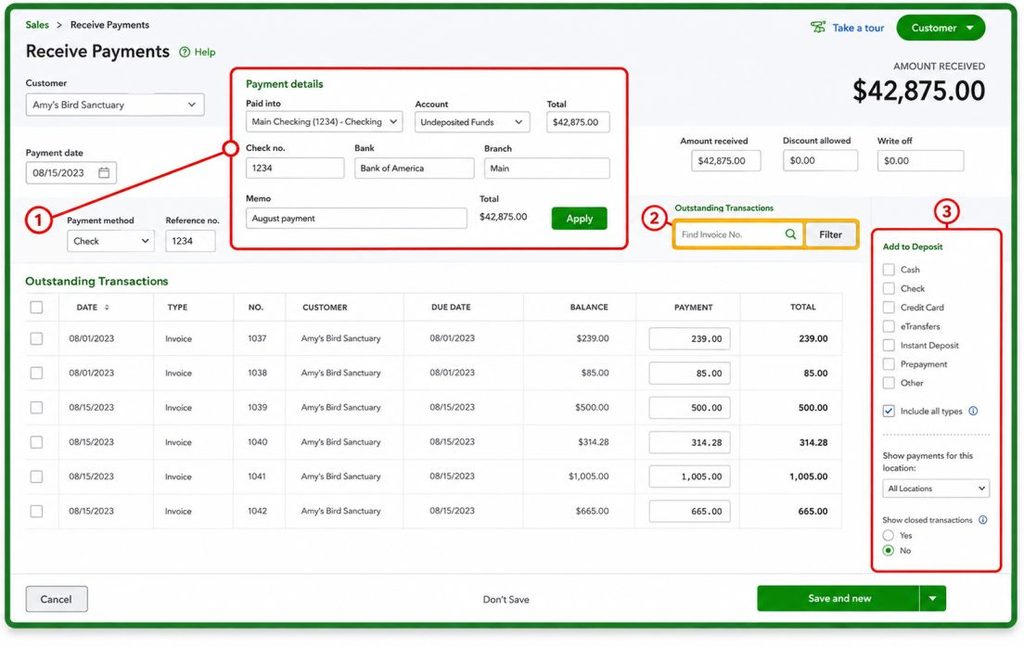
If the transaction still doesn’t appear in the bank transaction screen, check the register for the affected account. The register is useful when you suspect the transaction has already been recorded but isn’t appearing where you expected.
- Select Settings.
- Choose Chart of accounts.
- Find the relevant bank or credit card account.
- Select View register.
Search around the transaction date and compare the entries with your bank statement. Pay particular attention to:
- The transaction amount
- Transaction date
- Payee
- Bank or credit card account
- Transaction type
- Whether the transaction has already been reconciled
If you find the transaction in the register, determine why it did not appear where you expected before making any changes. It may simply have been categorized, matched, or recorded through another workflow. For older transactions, the register can be particularly helpful because it shows transactions that are already part of your QuickBooks records, regardless of whether they are currently waiting in the bank feed.
Step 4: Check Uncategorized Accounts and Other Possible Posting Locations
If the transaction isn’t in the bank feed or the expected account register, check whether it was recorded under a different account or category.
For example, depending on how your books are configured, you may want to review Uncategorized Income or Uncategorized Expense for transactions that have not yet been assigned to their intended category. You can also search relevant reports and account registers for the exact amount and approximate date shown on your statement. If you locate the transaction:
- Open the existing transaction.
- Confirm that it belongs to the correct bank or credit card account.
- Review the category and other transaction details.
- Correct the information if necessary.
- Save the changes.
Don’t create a second transaction simply because the original was categorized incorrectly. Correcting the existing entry is usually the better approach.
How to Fix Bank Feed and Connection Problems in QuickBooks Online
If updating the bank feed does not bring in the missing transaction, the issue may be with the financial institution, your bank credentials, or the connection between the bank and QuickBooks Online.
Step 1: Check the Transaction on Your Bank’s Website
Sign in directly to your bank or credit card provider’s website and confirm that:
- The transaction appears on the account.
- It is posted rather than pending.
- You can sign in without an error.
- There are no security or verification requests waiting for you.
- The bank is not reporting maintenance or an outage.
- The account or credit card is still active.
If the transaction is visible on the bank’s website but missing from QuickBooks, return to Bank transactions and select Update again. Also check the posting date. The date shown on a bank statement may differ from the date the transaction was initiated, so searching only by the purchase or payment date can make an existing transaction harder to find.
Intuit recommends checking the bank’s website for messages, alerts, or connection issues when downloads appear delayed or stuck.
Step 2: Update Your Bank Sign-In Information
If you recently changed your bank username, password, or other online banking information, QuickBooks may need the updated credentials.
- Go to All apps → Accounting → Bank transactions.
- Locate the affected bank account.
- Select Edit.
- Choose Edit sign-in info.
- Enter the updated information.
- Select Save and connect.
Depending on your financial institution, QuickBooks may also require additional authentication or authorization. Follow the instructions shown on screen.
Step 3: Check for a Bank Connection Error
QuickBooks may display a message when there is a known problem with a connected bank account. If you see an error, read the message carefully before disconnecting the account. Depending on the problem, you may need to:
- Sign in to your bank again.
- Complete additional security verification.
- Reauthorize the connection.
- Update your bank credentials.
- Wait for a temporary bank-side issue to be resolved.
Don’t disconnect the account simply because transactions are missing. First use the recovery or reauthorization option provided by QuickBooks when one is available.
Step 4: Check Existing Transactions Before Reconnecting
Before making major changes to a bank connection, review the transactions already recorded in QuickBooks. This is especially important if you are trying to recover transactions that were missed while a connection was unavailable. Compare the existing QuickBooks records with the transactions you expect to download.
- Dates
- Amounts
- Payees
- Deposits
- Withdrawals
- Credit card charges
- Transfers
If the same transaction already exists in QuickBooks, don’t add another copy. Match the downloaded transaction to the existing record when it is genuinely the same transaction. If a match is incorrect, QuickBooks provides options to undo or correct it.
Step 5: Import Older or Unavailable Transactions
If the missing transactions are more than 90 days old or are otherwise unavailable through the connected bank feed, repeatedly selecting Update may not retrieve them.
QuickBooks Online does not download transactions older than 90 days through the standard bank connection. When QuickBooks cannot download the transactions, Intuit recommends using a supported file-import method rather than entering the transactions manually one by one.
- Obtain the transaction file from your financial institution.
- Check the date range and transaction details.
- Compare the file with transactions already recorded in QuickBooks.
- Import only the transactions you actually need.
Be careful when importing because transactions that are already recorded can result in duplicates.
Step 6: Add Missing Transactions Manually
If you have confirmed that a transaction is genuinely missing from QuickBooks Online and cannot be retrieved through the bank feed or a supported import, you may need to enter it manually.
For a single missing transaction, go to + Create and select the appropriate transaction type, such as Expense, Check, Deposit, Invoice, or Sales Receipt. Enter the information shown on your bank or credit card statement, including:
- Date
- Amount
- Payee or customer
- Payment account
- Category or account
- Payment method
- Memo or reference information, if useful
Review the details carefully and save the transaction. If you have multiple missing transactions, importing them from a supported bank file can be more efficient than entering each transaction individually. Before adding or importing anything, compare it with your existing QuickBooks records to make sure the transaction has not already been recorded and to avoid creating duplicates.
Step 7: Review the Bank Feed After the Connection Is Restored
Once the connection is working again, return to Bank transactions and review the available transactions. Check the relevant review, posted, or excluded sections and confirm that the missing entries have been handled correctly. For each transaction, verify:
- Date and amount
- Payee or description
- Suggested match
- Bank or credit card account
- Category
Then add, match, or categorize the transaction as appropriate. If the transaction still does not appear even though it is posted at the bank and the connection is working, investigate the transaction further before creating another entry. This helps prevent duplicate transactions and reconciliation problems.
How to Find Missing Transactions During QuickBooks Reconciliation
Reconciliation is often where a missing transaction becomes obvious. If the ending balance in QuickBooks Online does not match your bank or credit card statement, a missing or duplicate transaction may be one possible cause.
Start by comparing the statement with the transactions recorded in QuickBooks for the same period.
| What to compare | What to check |
| Date | Is the transaction recorded in the correct period? |
| Amount | Does the amount exactly match the statement? |
| Payee | Is the transaction recorded under a different name? |
| Deposits | Is a deposit missing or recorded in another account? |
| Withdrawals | Is an expense or payment missing? |
| Credit card charges | Was the purchase recorded in the correct credit card account? |
| Fees | Is a bank or credit card fee missing from QuickBooks? |
| Duplicates | Was the same transaction recorded more than once? |
If a transaction appears on the statement but not in QuickBooks, first check the relevant account register and confirm that it was not recorded under another account. If it is genuinely missing, add or import the transaction using the appropriate method described above.
How Can You Prevent Missing Transactions in QuickBooks Online?
You can reduce future missing-transaction problems by making bank-feed review and reconciliation part of your regular bookkeeping routine.
Review the bank feed regularly: Don’t wait until reconciliation to find missing transactions. Review new bank and credit card transactions regularly and resolve items that need attention.
Reconcile against your statement: Use your actual bank or credit card statement when reconciling. Compare the transactions and ending balance in QuickBooks Online with the financial institution’s records.
Be careful with bank rules: Bank rules can save time, but they may automatically categorize or add transactions, making them easier to overlook. Review your rules regularly to make sure they are working correctly.
Keep supporting records: Keep bank statements, receipts, invoices, and other relevant documents. These records make it easier to investigate and verify a transaction if you cannot find it later.
Final Thoughts
When you find missing transactions in QuickBooks Online, the safest solution is to investigate before entering anything new. Start by confirming the transaction is posted at your bank, then update the bank connection and check the transaction review, posted, and excluded areas. If the transaction still cannot be found, review the account register and other relevant accounts. For older transactions or transactions that the bank connection cannot retrieve, a supported file import may be the better option.
Most importantly, don’t treat every missing transaction as a new transaction. Search, verify, and then add or import only what is genuinely missing. This keeps your books cleaner, reduces duplicate entries, and makes your next reconciliation much easier.
Frequently Asked Questions
If your transactions are hidden in QuickBooks Online, you can locate them by reviewing the account registers and ensuring filters like date range or transaction type aren’t limiting your view. You can also check the Excluded and For Review sections in the Banking area to make sure nothing is overlooked.
Once a transaction is deleted in QuickBooks Online, it is permanently removed and cannot be recovered directly. However, you can review your audit log to see who deleted the transaction and when. You may then manually recreate the deleted transaction if necessary.
No, QuickBooks Online does not have a traditional “recycle bin” like some other software. Deleted transactions are permanently removed. However, you can use the audit log to track changes and deletions, and you may manually restore deleted entries if needed.
If you’re experiencing a bank error or cannot download transactions, try the following:
1. Refresh your bank connection by selecting the Update button in the Banking section.
2. Check for any issues on your bank’s website that could be preventing the download.
3. Ensure your bank login credentials are correct and up to date in QuickBooks.
4. If the issue persists, contact QuickBooks support or your bank for assistance.
To manually download transactions in QuickBooks Online, go to the Banking section, select Update to refresh your connection. If this doesn’t work, you can manually download transactions from your bank’s website as a .CSV or .QBO file and then upload them into QuickBooks Online.
If you’re missing transactions while reconciling an account, check the following:
1. Ensure your bank feed is updated and synchronized with QuickBooks.
2. Review the Excluded and For Review sections for unaccounted transactions.
3. Check if the missing transactions are categorized incorrectly or placed in the wrong account.
4. Manually add any missing transactions if they were not downloaded from the bank feed.
If missing transactions are not found after updating:
1. Check your bank’s website for any issues preventing the download.
2. Verify your bank login credentials: Ensure they are up to date in QuickBooks.
3. Manually upload transactions: If your bank supports it, download a .CSV or .QBO file from your bank’s website and upload it into QuickBooks.
Syncing issues may arise due to:
1. Outdated or incorrect login information.
2. Changes in your bank’s online banking setup or security protocols.
3. Temporary issues with the bank’s connection to QuickBooks.
To resolve syncing issues, update your bank login information in QuickBooks or reconnect your bank account.
Missing bank transactions can occur for several reasons, including:
1. Connectivity issues between QuickBooks and your bank.
2. Bank transactions that have not yet been posted or are pending.
3. Filters applied to your Banking feed, such as date ranges or account filters.
4. Transactions that are categorized incorrectly or excluded from the bank feed.



