If you’re trying to update QuickBooks Desktop to the latest release, the first thing to know is that an update doesn’t always mean installing a completely new version. A release update improves the QuickBooks Desktop version already installed on your computer, while an upgrade moves you to a different version or product level.
Keeping QuickBooks updated can help you receive current security improvements, product fixes, feature enhancements, and applicable payroll or tax-compliance updates. In 2026, this process looks different from the old annual-release model because Intuit has moved QuickBooks Desktop toward continuous updates. This guide covers the current update process for QuickBooks Desktop for Windows, QuickBooks Desktop for Mac, and QuickBooks Enterprise, along with older versions, update errors, automatic updates, manual downloads, and common troubleshooting steps. According to the official Intuit Documentation, QuickBooks Latest Releases (As of August 21, 2026):
- Windows (2024 Version): Release R21_65
- Mac (2024 Version): Release R13
- Mac (2023 Version): Release R7.6
Note: Intuit changes these frequently. Always check their official page for the final reference.
What Is the Latest QuickBooks Desktop Release in 2026?
QuickBooks Desktop’s release system has changed, so older articles can easily cause confusion. Instead of assuming there is a brand-new 2025 or 2026 Desktop version, check the release available for the version you’re actually using.
1. Current QuickBooks Desktop Version: For the current Windows Desktop release process, QuickBooks Desktop 2024 is the latest annual platform version listed by Intuit. This includes supported Desktop products such as Pro Plus and Premier Plus, while Enterprise uses the 24.0 platform. Intuit has moved these products to a continuous-update model rather than introducing a new annual platform every year. That means seeing 2024 in the product information window does not automatically mean the software is outdated. The release number matters too.
2. Latest QuickBooks Desktop Release Number: As of the latest Intuit documentation checked on August 21, 2026, the current Windows release is:
- QuickBooks Desktop 2024 — R21_65: You can check your own release by opening QuickBooks and pressing F2 or Ctrl + 1. Intuit’s August 5, 2026 update instructions list R21_65 as the latest available release.
- For Mac, Intuit currently lists:
- QuickBooks Desktop Mac Plus 2024 — R13
- QuickBooks Desktop Mac Plus 2023 — R7.6
These release numbers are different from the Windows releases, so don’t compare a Mac release directly with a Windows R-number.
3. Current Release Model Works
QuickBooks Desktop 2024 is being handled differently from previous annual versions. Intuit says QuickBooks Desktop Plus 2024 and QuickBooks Desktop Enterprise 24.0 were the last annual platform releases. The company has moved toward continuous updates, allowing new features, security improvements, tax-compliance changes, and other maintenance updates to be delivered throughout the year. So, instead of waiting for a new “QuickBooks 2026” product year, you should keep the supported 2024 platform updated when Intuit releases new maintenance updates.
4. Check the Latest Release From Intuit: If you want the most accurate release information, check Intuit’s current Update QuickBooks Desktop to the latest release guidance. There you can compare your product’s version and release number with the latest release listed for Windows or Mac.
Why Updating QuickBooks Desktop Matters
Keeping QuickBooks Desktop updated is an important part of maintaining a smooth and reliable accounting workflow. Updates are released to improve the existing version and address issues that may affect everyday use.
- Fixes bugs and common issues: QuickBooks updates can address known bugs, errors, and other issues reported in the existing version. Installing the latest release can help prevent problems that may already have a known fix.
- Improves performance and stability: Updates may include changes that help QuickBooks run more smoothly. If you notice slow performance, unexpected behavior, or problems with certain features, installing the latest available release can be a useful first step.
- Provides security improvements: Supported QuickBooks Desktop releases may receive security-related fixes and other improvements. Keeping your software updated helps ensure you’re using the latest supported release available for your product version.
- Keeps supported features current: Updates can include improvements to existing features and changes needed to keep QuickBooks working properly with supported services and requirements. This helps you get the most out of the version you already use.
- Helps avoid issues caused by outdated releases: Running an older release for too long can sometimes lead to compatibility or functionality problems. Regularly checking for updates helps you stay closer to the current release for your QuickBooks version.
Keeping QuickBooks Desktop updated doesn’t mean you have to move to a newer product year. In most cases, it simply means making sure your current supported version has the latest available release and improvements.
QuickBooks Desktop Update vs. Upgrade: What’s the Difference?
Before you start the installation, it’s important to know whether you need a QuickBooks Desktop update or an upgrade. Although these terms sound similar, they refer to two different processes.
- Update: An update installs a newer release of the same QuickBooks Desktop version. For example, moving from an earlier QuickBooks Desktop 2024 release to R21_65 is an update. You remain on the 2024 platform while getting the latest fixes, improvements, and applicable compliance changes.
- Upgrade: An upgrade moves you from an older QuickBooks Desktop version or product year to a newer one. For example, moving from an older version to QuickBooks Desktop 2024 is considered an upgrade rather than a regular update.
Which One Do You Need?
Use an update if:
- You already have a supported QuickBooks Desktop version.
- You want to install the latest release available for that version.
- Your current release is older than the latest release.
You may need an upgrade if:
- You’re using an older QuickBooks Desktop product year.
- Your current version is no longer supported.
- You want to move to a newer supported QuickBooks platform.
- You’re replacing an older Desktop version with a newer product year.
What If You’re Moving From an Older Version to 2024?
If you’re moving from an older QuickBooks Desktop year to QuickBooks Desktop 2024, you’re not performing a regular maintenance update. You’re upgrading to a newer product version, so the upgrade process applies.
In simple terms, an update keeps you on the same QuickBooks version, while an upgrade moves you to a newer product year or platform. Knowing which process applies to your situation can help you avoid installation problems and make the transition easier.
What’s New in the Latest QuickBooks Desktop Release?
QuickBooks Desktop 2024 receives improvements through regular releases, so you can get new features, fixes, and performance updates without moving to a completely new yearly version. Recent releases have improved reporting, account management, email workflows, payroll compliance, and inventory tools.
- Faster Account Search and Management: With recent updates, you can find accounts and records more easily. You can also search account descriptions, create duplicate records faster, and use additional reporting columns to understand your financial data more clearly.
- Improved Invoice Profitability Reports: The Invoice Profitability report has been improved to give you more detailed information. You can review profit by invoice line, apply filters, view subtotals, and open invoices directly from the report.
- Easier Email and Transaction Workflows: Recent releases make it simpler to email invoices, statements, and other transactions. You can select customer contacts from the transaction screen, while QuickBooks can remember the email address you used previously.
- Payroll and Tax Improvements: QuickBooks Desktop Payroll updates also include changes needed for current tax and payroll requirements. For example, recent releases added support for certain 2026 W-2 reporting requirements.
- More Enterprise Inventory and Reporting Tools: QuickBooks Enterprise users can benefit from improvements to vendor management, inventory receiving, profitability reporting, and custom-field filtering. These changes can make inventory and reporting tasks easier to manage.
- Better Inventory and List Searching: Updates have also improved tools such as the Inventory Turnover report and Landed Cost Calculator. Search fields in lists and reports can help you find customers, items, and transactions without scrolling through long lists.
Keep in mind: Features can vary by QuickBooks Desktop edition and release. Before relying on a particular feature, check the release notes for the specific version and release installed on your computer.
Before You Update QuickBooks Desktop: What to Do First
A few checks before updating can make the process much easier. Before you update QuickBooks Desktop, complete a few quick checks to avoid common problems.
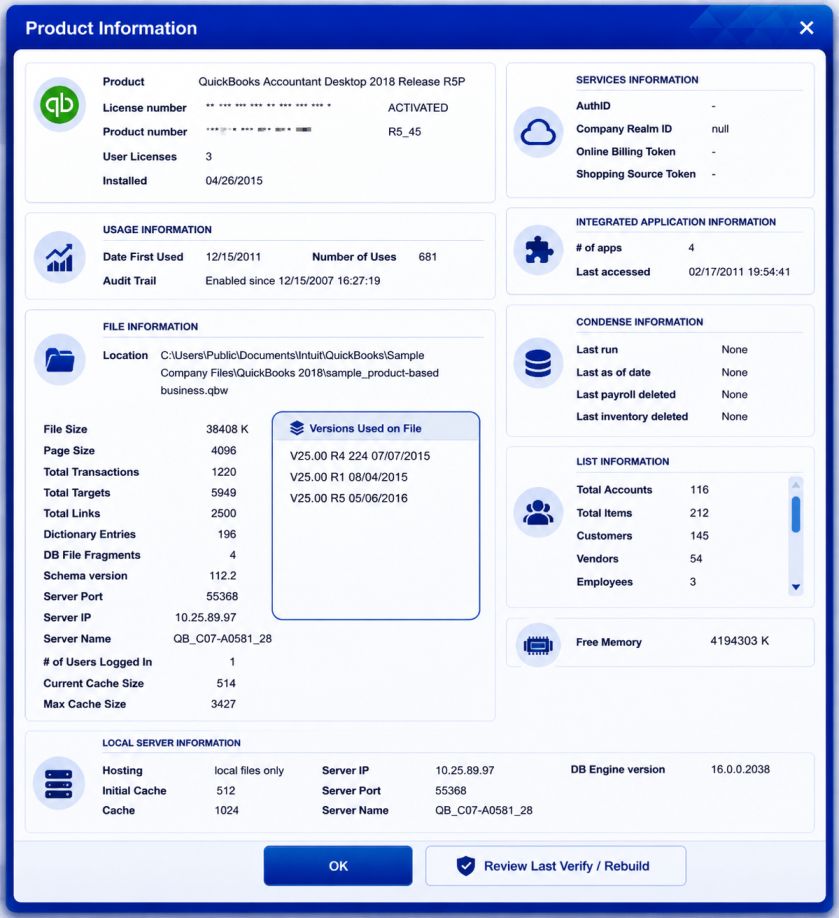
- Check Your QuickBooks Version and Release Number: Press F2 or Ctrl + 1 in QuickBooks. You’ll see your product name, version, and release number. Note these details so you can compare them after updating.
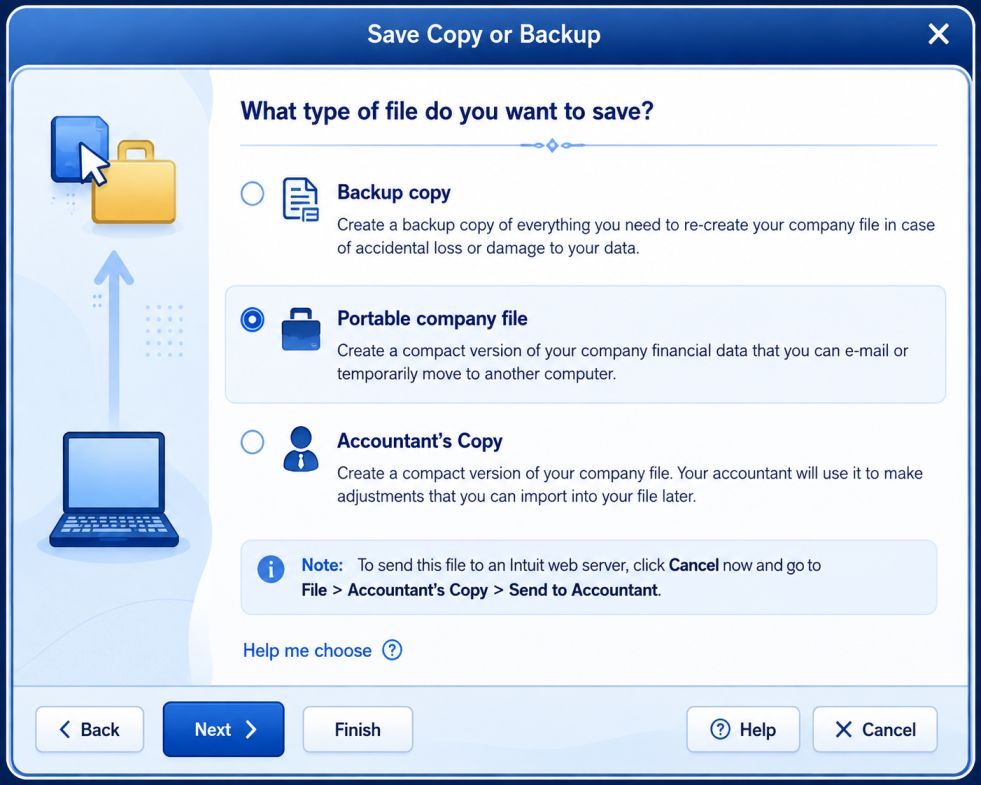
- Back Up Your Company File: Create a recent backup before a major upgrade. Even for a regular update, keeping a backup gives you an extra layer of protection.
- Check Your Company File: Open your company file and make sure recent transactions are available. If the file already has errors, fix them separately because an update will not automatically repair company-file damage.
- Make Sure You Have Admin Access: Some update tasks may need Windows administrator permissions. If QuickBooks cannot install an update, try the administrator troubleshooting steps recommended by Intuit.
- Check Your Internet and System Requirements: You need a stable internet connection to download updates. Also check that your computer meets the requirements for your QuickBooks version.
- Close QuickBooks on Other Computers: If you use QuickBooks in multi-user mode, ask other users to close the company file when an update requires exclusive access. Some troubleshooting steps require Single-User Mode.
- Check Payroll Updates Separately: If you use QuickBooks Desktop Payroll, remember that the QuickBooks program update and payroll tax-table update are different. After updating QuickBooks, check for the latest available payroll update as well.
How to Update QuickBooks Desktop to the Latest Release on Windows
There are two main ways to perform a QuickBooks Desktop update on Windows: update from inside QuickBooks or download the release manually.
Method 1: Automatic QuickBooks Desktop Update
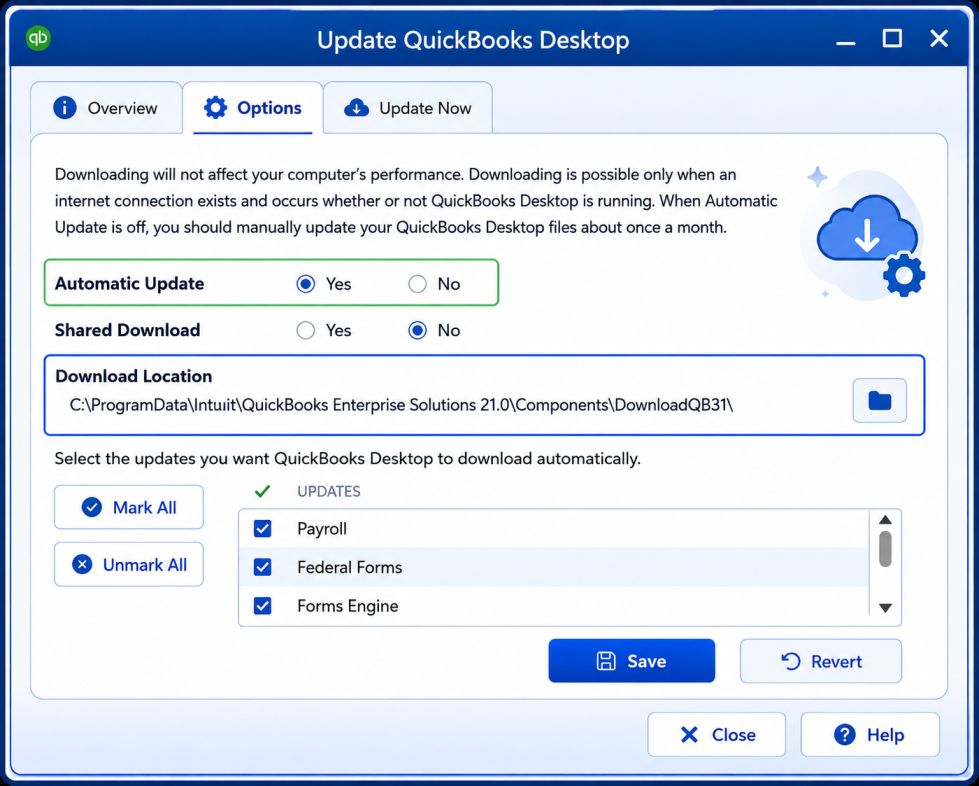
You can configure QuickBooks to download available updates automatically.
A. Turn On Automatic Updates
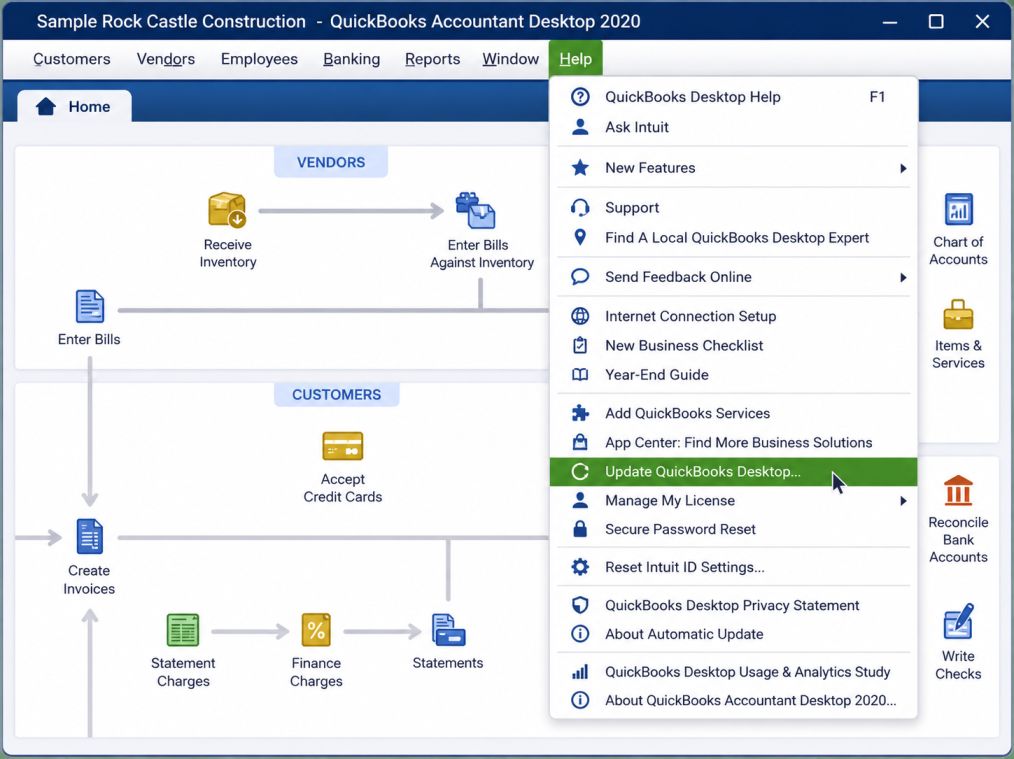
- Open QuickBooks Desktop.
- Select Help.
- Select Update QuickBooks Desktop.
- Open the Options tab.
- Select Yes to enable automatic updates.
- Select Close.
These are the current steps provided by Intuit for scheduling automatic updates.
B. Download and Install the Available Update
You can also start the update immediately:
- Go to Help → Update QuickBooks Desktop.
- Select Update Now.
- Select Get Updates.
- Wait for the download to finish.
- Close and reopen QuickBooks when prompted.
- Select Install Now when QuickBooks asks you to install the downloaded update.
C. Restart QuickBooks After the Update
After installation, reopen QuickBooks and check the Product Information window again.
Press F2 or Ctrl + 1 and confirm that the release number has changed to the expected release.
Method 2: Manually Update QuickBooks Desktop
If the QuickBooks Desktop update is not working from inside the software, a manual update can be useful.
A. Use Help > Update QuickBooks Desktop
Start with:
Help → Update QuickBooks Desktop → Update Now
Select Get Updates and let QuickBooks complete the download. If the update still fails, use Intuit’s manual download process instead.
B. Select Update Now and Get Updates
The Update Now tab lets you manually initiate the release download without waiting for the automatic schedule.
After the download finishes, restart QuickBooks and install the update when prompted.
C. Install the Downloaded Update
If you download an update file manually, close QuickBooks first and open the downloaded file to begin installation. Restart the computer afterward if requested.
Method 3: Downloads & Updates Page
When the in-product process doesn’t work:
- Close QuickBooks Desktop.
- Open Intuit’s Downloads & Updates page.
- Select the appropriate country.
- Select your QuickBooks product.
- Select the correct version or year.
- Select Search.
- Select Get the latest updates.
- Open the downloaded file.
- Complete the installation.
- Restart your computer if prompted.
The product and version selection matters because different QuickBooks editions and years can have different update files.
Method 4: Confirm the Update Was Installed
Open QuickBooks and press F2 or Ctrl + 1.
Check the Product Information window and compare the displayed release number with the current Intuit release. If the number hasn’t changed, the update may not have installed successfully.
How to Check Your QuickBooks Desktop Version and Release
Knowing your release number is one of the easiest ways to avoid unnecessary updates.
- Check QuickBooks Release With F2: Open QuickBooks Desktop and press F2. The Product Information window will appear with your version and release details.
- Check QuickBooks Release With Ctrl + 1: If pressing F2 isn’t convenient, press Ctrl + 1 instead. It opens the same Product Information window on Windows.
- Product Information Window Tells You: The window can show information such as:
- QuickBooks product name
- Product year or platform
- Release number
- Product number
- License information
- Company-file information
For troubleshooting, the version and release number are especially useful.
- Compare Your Release With the Latest Available Release: First, note your current release number. Then check Intuit’s latest update documentation for your product. For example, if your QuickBooks Desktop 2024 installation shows an older R21 release while Intuit lists R21_65, your software isn’t on the latest listed Windows release.
How to Update QuickBooks Desktop for Mac
The Mac update process is different from Windows, so don’t follow Windows instructions if you’re using QuickBooks Desktop for Mac.
Step 1: Check Your QuickBooks Mac Version and Release
Open QuickBooks Desktop for Mac and press Command + 1.
Intuit’s current documentation lists:
- QuickBooks Desktop Mac Plus 2024: R13
- QuickBooks Desktop Mac Plus 2023: R7.6
Step 2: Update QuickBooks Desktop for Mac Automatically
For an in-product update:
- Open QuickBooks Desktop for Mac.
- Select QuickBooks from the menu.
- Select Check for QuickBooks Updates.
- Select Install and Relaunch.
You can also choose the option to automatically download and install future updates when it appears in the update window.
Step 3: Manually Update QuickBooks Desktop for Mac
If the Mac update doesn’t work:
- Open Intuit’s Downloads & Updates page.
- Select the country.
- Select the QuickBooks Mac product.
- Select the appropriate version.
- Search for the latest update.
- Select Get the latest updates.
- Open the downloaded file.
- Complete the installation.
- Restart the Mac if required.
Step 4: Verify the Mac Update
Press Command + 1 again and check the release number.
If your release number hasn’t advanced after the installation, try downloading the update again or use the manual method. Intuit specifically recommends the manual download when the in-product update fails or doesn’t advance the release number.
- What to Do If QuickBooks Mac Won’t Update: Start with the simplest approach:
- Try the in-product update again.
- Restart QuickBooks.
- Check your current release.
- Download the update manually.
- Restart the Mac and verify the release again.
Also make sure your Mac meets the requirements for the QuickBooks Mac version you’re using.
How to Update QuickBooks Desktop Enterprise
QuickBooks Enterprise requires extra care when multiple users and a networked company file are involved.
- Prepare the Company File: Before a major Enterprise upgrade, make sure all users are out of the company file and create a current backup. You should also confirm which computer acts as the server and which computers are workstations. This helps you avoid updating one part of the network while leaving other installations behind.
- Back Up and Verify the Company File: Create a current backup before an Enterprise upgrade. If you notice company-file problems before the upgrade, verify the file and address those problems first rather than assuming the upgrade will resolve them.
- Update QuickBooks Enterprise on the Server: If Enterprise is installed on a server, the server installation and database components need to remain compatible with the workstations. Intuit provides separate guidance for updating the QuickBooks Desktop Server Manager, so follow the instructions for the specific Enterprise environment rather than treating the server like an ordinary workstation.
- Update QuickBooks Enterprise on Workstations: After the server environment is updated as required, update the QuickBooks Desktop installation on the workstations that use the company file. Keep the Enterprise installations aligned with the supported release to reduce compatibility and network problems.
- Configure QuickBooks Database Server Manager: The QuickBooks Database Server Manager supports company-file access in a multi-user environment. If the update changes or repairs the Desktop installation, check that the database server components are still configured correctly and that the company file folder remains properly accessible.
- Switch Between Single-User and Multi-User Mode: Some update troubleshooting requires Single-User Mode, especially when resetting updates. If you’re working in a multi-user environment, have users exit the company file before performing these steps. Intuit specifically recommends Single-User Mode for certain update-error troubleshooting.
How to Update Older QuickBooks Desktop Versions
Older QuickBooks Desktop versions may require an upgrade instead of a normal update. Here’s what to know about each version:
- QuickBooks Desktop 2018 to 2024: QuickBooks Desktop 2018 is a discontinued version. Its support and updates ended on May 31, 2021, so you can’t install current maintenance updates for this version. If you still use 2018, consider upgrading to a supported version.
- QuickBooks Desktop 2019 to 2024: QuickBooks Desktop 2019 is also a discontinued version. Regular support and updates are no longer available, so moving to a newer supported version is recommended instead of looking for a current 2019 update.
- QuickBooks Desktop 2020 to 2024: QuickBooks Desktop 2020 is no longer supported. If you’re still using it, you should consider upgrading rather than relying on old maintenance releases.
- QuickBooks Desktop 2021 to 2024: QuickBooks Desktop 2021 is an older version and is no longer part of Intuit’s current supported platform. If you need current security and product updates, upgrading to a supported version is the better option.
- QuickBooks Desktop 2022 to 2024: QuickBooks Desktop 2022 is no longer supported under the previous support lifecycle. However, Intuit states that active 2022 subscriptions are eligible to upgrade to the 2024 platform.
- QuickBooks Desktop 2023 to 2024: QuickBooks Desktop 2023 was discontinued after May 31, 2026. Existing users should upgrade to QuickBooks Desktop 2024 to continue receiving supported services and updates.
QuickBooks Desktop Update Problems and How to Fix Them
If your QuickBooks Desktop update is not working, first identify the exact problem and then try the matching fix.
- QuickBooks Desktop Update Is Stuck: If the update appears frozen, wait briefly. If QuickBooks is unresponsive, close it, restart your computer, and try again. If it still fails, use the manual update method.
- QuickBooks Desktop Update Is Not Downloading: Check your internet connection first. If your internet works but QuickBooks cannot download the update, firewall, antivirus, or security settings may be blocking it.
- QuickBooks Desktop Update Is Not Installing: If the update downloads but will not install, check your Windows permissions and security settings. For 15XXX errors, you may also need to repair QuickBooks or reinstall it.
- QuickBooks Desktop Won’t Update: If the normal update keeps failing, check your release number and try downloading the update manually from Intuit.
- QuickBooks Keeps Asking for the Same Update: Check your release number after updating. If it has not changed, the update may not have installed correctly. Try the update again or use the manual method.
- QuickBooks Release Number Isn’t Changing: Restart QuickBooks and check the release number again. If it remains unchanged, download and install the update manually.
- QuickBooks Update Is Crashing: If QuickBooks crashes during the update, back up your company file if possible. Then try Quick Fix my Program through QuickBooks Tool Hub.
- QuickBooks Update Download Is Taking Too Long: First, test your internet connection. If it works normally, check whether your firewall or security software is slowing or blocking the QuickBooks update.
QuickBooks Automatic Update Is Greyed Out: How to Fix It
A greyed-out option can indicate a permissions, installation, or product-environment problem. Don’t assume that changing random Windows settings will fix it. First, check whether the product is supported and whether you can update it manually.
- Check QuickBooks Administrator Permissions: Close QuickBooks, right-click the QuickBooks Desktop icon, and select Run as administrator when appropriate. Then open the update window and check whether the automatic-update settings are available. Intuit also recommends administrator access for some update-error troubleshooting.
- Turn Automatic Updates Back On: If the option becomes available:
- Open Help.
- Select Update QuickBooks Desktop.
- Select Options.
- Choose Yes for automatic updates.
- Select Close.
- Repair QuickBooks Installation: If the update options remain unavailable or QuickBooks has other installation problems, use the QuickBooks Tool Hub. Intuit’s current Tool Hub guidance recommends Quick Fix my Program for common program problems and the QuickBooks Install Diagnostic Tool for installation-related issues.
- Use Manual Update as an Alternative: You don’t have to depend on automatic updates. If automatic updating isn’t working, download the appropriate release manually from Intuit’s Downloads & Updates page.
QuickBooks Says “Cannot Complete Your Update Request Because It Is Busy With Another Update”
This message usually means QuickBooks detects another update process running. Try these steps before starting another update. QuickBooks may think another update is still active. Close the program and clear any running QuickBooks processes before trying again.
- Close Background QuickBooks Processes: Close all QuickBooks windows. If the message remains, restart your computer to clear any background QuickBooks processes.
- Restart QuickBooks and Your Computer: After restarting Windows, open QuickBooks and go to Help → Update QuickBooks Desktop. Then try the update again.
- Run QuickBooks as Administrator: Close QuickBooks, right-click its icon, and select Run as administrator. Then try updating again.
- Reset the QuickBooks Update: If the problem continues, you can reset the update from the Update QuickBooks Desktop window when the reset option is available. For some update issues, Intuit also recommends using Single-User Mode before resetting.
- Try a Manual Update: If QuickBooks still shows the same message, use the appropriate manual update instead. This lets you download and install the release without relying on the in-product update process.
How to Fix QuickBooks R17 Update Problems
- Check Your QuickBooks Version: Open QuickBooks and press F2 or Ctrl + 1. Check the product year, edition, and current release number.
- Confirm That R17 Applies to Your Version: Before updating, make sure the R17 release belongs to your specific QuickBooks Desktop product year and edition.
- Back Up Your Company File: Create a backup of your company file before updating. This gives you a recovery option if something goes wrong.
- Try the Built-In Update: Go to Help → Update QuickBooks Desktop and check whether the correct update is available for your version.
- Restart QuickBooks and Your Computer: If the update fails, close QuickBooks and restart your computer. Then open QuickBooks and try the update again.
- Use the Manual Update Method: If the built-in update still does not work, use the correct manual update for your QuickBooks version instead.
- Check the Release Number Again: After updating, press F2 or Ctrl + 1 again. Confirm that the release number has changed as expected.
- Consider an Upgrade if Needed: If your QuickBooks version is no longer supported, an upgrade may be more appropriate than continuing to troubleshoot an outdated R17 release.
QuickBooks Desktop Update Errors
QuickBooks update errors can have different causes, so start by checking the exact error code before choosing a fix.
QuickBooks Error 15215
Error 15215 can occur when QuickBooks has trouble verifying a downloaded update file.
Cause: Update components, security settings, or digital-signature verification issues.
Symptoms: The update fails during download or installation.
Fix: Run QuickBooks as an administrator, check security settings, and repair QuickBooks if needed.
If it still fails: Try the manual update or use QuickBooks Tool Hub to repair the program.
QuickBooks Update Error 12002
Error 12002 usually indicates a problem connecting QuickBooks to the internet.
Cause: Network, firewall, antivirus, or security settings.
Symptoms: QuickBooks cannot download the update.
Fix: Check your internet connection and security settings, then try again.
If it still fails: Reset the update or try updating QuickBooks in Selective Startup.
QuickBooks Update Error 12007
Error 12007 can occur when QuickBooks cannot establish the required internet connection.
Cause: Network or security settings.
Symptoms: The QuickBooks or payroll update does not complete.
Fix: Check your connection, firewall, and security software before retrying.
If it still fails: Reset the update or use the manual update method.
QuickBooks Update Error 15227
Error 15227 is an older update-related error and is not prominently covered in Intuit’s current update-error guidance.
Cause: Older update components or connection and security issues may be involved.
Symptoms: QuickBooks may fail while updating.
Fix: Check your QuickBooks version, security settings, and available updates.
If it still fails: Use the manual update method and consider moving to a currently supported QuickBooks version.
Note: Other errors may be caused by firewall restrictions, incorrect system date and time, network problems, or multiple installations of the same QuickBooks year.
How to Reset QuickBooks Desktop Updates
Resetting the update can help when QuickBooks repeatedly fails to download or install an update. Keep a recent company-file backup before starting. If the update keeps failing or gets stuck, resetting it can help. Intuit recommends this for some errors, including 12002, 12007, 12009, 12029, and 12031.
- How to Reset the Update
- Restart your computer.
- Open QuickBooks in Single-User Mode.
- Go to Help → Update QuickBooks Desktop.
- Select Reset Update.
- Download the update again.
- Download the Update Again: If resetting doesn’t work, try the manual update method to download the correct release.
- Check the QuickBooks Release: After updating, restart QuickBooks and press F2 or Ctrl + 1. Check whether the release number has changed.
- Use QuickBooks Tool Hub: If the problem involves the QuickBooks installation, use QuickBooks Tool Hub. Quick Fix my Program and QuickBooks Install Diagnostic Tool can help with common program issues.
What to Do If QuickBooks Update Still Doesn’t Work
If your QuickBooks update still fails, try these steps in order rather than repeating the same update.
- Repair QuickBooks Desktop: If QuickBooks has damaged or missing program components, repairing the installation may fix the update problem. QuickBooks Tool Hub can help with common program issues.
- Run QuickBooks Tool Hub: On Windows, use Program Problems → Quick Fix my Program. It closes QuickBooks processes and performs a quick program repair.
- Check Firewall and Security Software: Your firewall or antivirus may block QuickBooks from connecting to update services. Check these settings, especially with errors such as 12002 or 12007.
- Check Your Internet Connection: Open a few secure websites outside QuickBooks. If your internet works but QuickBooks cannot update, security or network settings may be blocking the connection.
- Perform a Clean Install if Needed: A clean installation should be a later step. If repair tools and manual updates do not work, reinstalling QuickBooks may fix damaged program components.
When to Contact Intuit Support
Contact Intuit if the update continues to fail, payroll updates are affected, the installation cannot be repaired, or the issue involves a complex QuickBooks Enterprise multi-user setup. Before contacting support, keep your QuickBooks version, release number, error code, and troubleshooting steps ready.
QuickBooks Desktop Update Safety and Data Protection
Before updating QuickBooks, a few simple precautions can help protect your company data.
- Updating QuickBooks Delete Company File: A regular update changes the QuickBooks program, not your company file. However, an upgrade to a newer version may convert the file, so creating a backup first is important.
- Back Up Before Updating: Yes. Keep a recent backup before an update, especially before an upgrade, repair, reinstall, or company-file conversion.
- Update Corrupt a Company File: A normal update is not meant to damage your data. However, existing file problems, installation issues, or interruptions can cause complications. Back up your file before troubleshooting.
- Avoid Interrupting a File Conversion: If QuickBooks is converting your company file during an upgrade, don’t close the program or shut down your computer. An interrupted conversion can cause additional problems.
- Restore a QuickBooks Backup: If something goes wrong, restore a known-good backup using QuickBooks’ restore process for your version. Before restoring, keep a copy of the current company file so newer data is not lost.
Final Takeaway
When you update QuickBooks Desktop to the latest release, first check your current version and release number. This helps you know whether you need a regular update or a full version upgrade. For supported Windows installations, check Intuit’s current release information for the latest available release. Before an upgrade or major installation change, create a backup of your company file.
If the QuickBooks Desktop update is stuck, not downloading, or failing, try the manual update method before moving to advanced troubleshooting. Also, remember that moving from QuickBooks 2018, 2021, or 2022 to 2024 is an upgrade, not a regular update. Understanding this difference helps you choose the right process and protect your accounting data. If you need help with the updating process, feel free to contact us at our toll-free number: 1-888-820-7278!
Frequently Asked Questions
Steps to Download Any QuickBooks Version:
1. Visit the official QuickBooks Downloads & Updates page.
2. Choose your country from the dropdown.
3. Select the QuickBooks product you want to download (Pro, Premier, Enterprise, Mac).
4. Choose the version/year you need.
5. Click Search.
6. Select Download to start saving the installer to your computer.
7. Once downloaded, double-click the file to begin installation.
Steps to Upgrade QuickBooks Desktop 2019 → 2024:
1. Open QuickBooks Desktop 2019.
2. Sign in as the Admin user.
3. Go to Help > Upgrade QuickBooks.
4. Select QuickBooks Desktop 2024 as your new version.
5. Choose the option to move your existing company file.
6. Follow the on-screen prompts to install the new version.
7. Open QuickBooks Desktop 2024.
8. When prompted, allow QuickBooks to update your company file.
9. Create a backup when asked.
Steps to Update QuickBooks Desktop to 2025:
1. Open QuickBooks Desktop.
2. Go to Help > Update QuickBooks Desktop.
3. Select the Update Now tab.
4. Check Reset Updates, then click Get Updates.
5. Close and reopen QuickBooks once the update downloads.
6. Click Install Now when prompted.
7. Restart QuickBooks to complete installation.
If you choose not to upgrade:
1. You may lose access to security updates.
2. Features may no longer work.
3. Payroll, payments, and online banking may become unsupported.
4. Your system may become vulnerable to data errors or compatibility issues.
5. Intuit may restrict access to certain services after the product is sunsetted.
QuickBooks has announced discontinuations for several older Desktop versions. While Desktop products still exist, Intuit is gradually pushing users toward QuickBooks Online and subscription-based Desktop Plus versions.
The traditional one-time-purchase Desktop products have already been discontinued.
Yes—if automatic updates are enabled. To Check or Enable Automatic Updates:
1. Open QuickBooks.
2. Go to Help > Update QuickBooks Desktop.
3. Select the Options tab.
4. Choose Yes to enable automatic updates.
5. Click Save.
QuickBooks will now download and install updates in the background.
Steps to Upgrade to QuickBooks Desktop Pro 2025:
1. Purchase or download QuickBooks Desktop Pro 2025.
2. Close all programs on your computer.
3. Run the QuickBooks Pro 2025 installer.
4. Choose Upgrade Existing Version when prompted.
5. Open the new version after installation.
6. Sign in as Admin and update your company file.
7. Create a backup when QuickBooks requests it.
QuickBooks Online 2025 updates may include:
1. Improved mobile app features
2. Faster bank reconciliation
3. Smarter AI-driven categorization
4. Enhanced invoice tracking and batching
5. Better multi-user collaboration tools
6. New automation for workflows and reporting
Features may vary based on region and subscription level.
Yes. Existing QuickBooks Desktop Pro Plus 2024 subscribers can receive applicable product and security updates while their subscription remains active and supported.
It depends on the product and subscription status. Moving from QuickBooks Desktop 2022 to 2024 is an upgrade rather than a regular release update, so the company file may need to be converted.
Enterprise follows its own supported release and update process. Some updates and features can also vary by the Enterprise edition being used.
The core Enterprise program updates apply to supported editions, but some features are edition-specific. Always check the requirements for a particular feature before updating.
Existing QuickBooks Desktop Mac Plus 2024 subscriptions can receive applicable updates while the product remains supported. Mac and Windows releases should not be treated as interchangeable.
For current subscription-based editions, an active subscription is generally required for ongoing updates and connected services. Older one-time-purchase versions follow different support rules.
No. Enterprise now follows Intuit’s continuous-update approach for supported products, so users do not necessarily need to move to a completely new annual version just to receive every release.