
Moving QuickBooks Desktop to a new computer involves more than installing the software again. You also need to make sure your company files, customized forms, payroll information, reports, and other important data are available on the new system. If you are replacing an old PC, upgrading hardware, or moving QuickBooks to a new laptop, using the right transfer method can help prevent missing data and activation problems.
This guide explains how to move QuickBooks from one computer to another, including when to use QuickBooks’ built-in migration tools, when to restore a backup, and what to check after the move.
Important: Before starting, create a current backup of your QuickBooks company file and keep the original computer untouched until you have confirmed that everything works correctly on the new computer.
Top Reasons to Move QuickBooks to a New Computer
There are several practical reasons you may decide to move QuickBooks Desktop to a new computer. In most cases, the move happens because the existing computer is no longer reliable, your work environment has changed, or you need a more convenient way to access your company files. Here are three common situations where transferring QuickBooks makes sense.
- Device Upgrade: If your current computer has become slow, runs out of storage, or struggles when you work with QuickBooks, upgrading to a newer device can make everyday accounting tasks much easier. A modern computer can provide better performance and enough storage for your QuickBooks installation and company files. When you replace the old computer, you’ll need to properly install QuickBooks on the new one and transfer or restore your company data. Before making the switch, create a current backup of your company file so you have a reliable copy if anything goes wrong during the transfer.
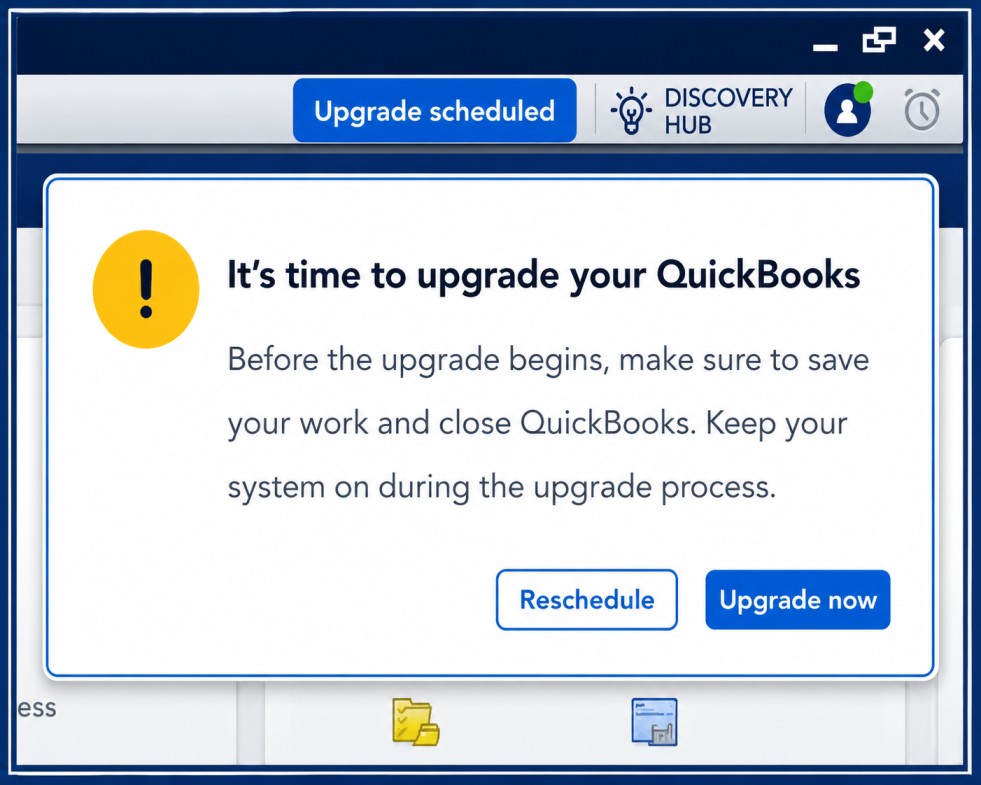
- Technical Problems With Your Current Computer: Frequent freezing, crashes, system errors, or other computer-related problems can make it difficult to work efficiently with QuickBooks. If the problem is caused by the existing computer rather than the company file itself, moving to a properly configured system may help you get back to work. However, moving QuickBooks should not be treated as a guaranteed fix for every error. Before transferring everything, it’s worth identifying whether the problem is related to QuickBooks, the company file, Windows, or another component of your setup. If you do move to a new computer, keep a recent backup and verify the company file after the transfer.
- Working Remotely or From Multiple Locations: Your work setup may also change over time. For example, if you regularly travel between offices or work from different locations, you may need access to your QuickBooks Desktop installation and company data from another computer. Moving QuickBooks to a laptop can make sense when the laptop is intended to replace the primary computer or when your QuickBooks setup and licensing support the way you plan to work. Before using QuickBooks from multiple computers, make sure your license, company-file access, and multi-user or network configuration support that arrangement. The key is to plan the transfer carefully rather than simply copying the QuickBooks program from one computer to another. A proper installation, secure company-file transfer, and post-migration checks can help ensure that your accounting data remains available and accurate.
What You Need Before You Move QuickBooks Desktop to Another Computer?
A successful transfer starts with preparation. Before you uninstall or change anything on the old computer, gather the information and files you may need.
1. Check Your QuickBooks Version
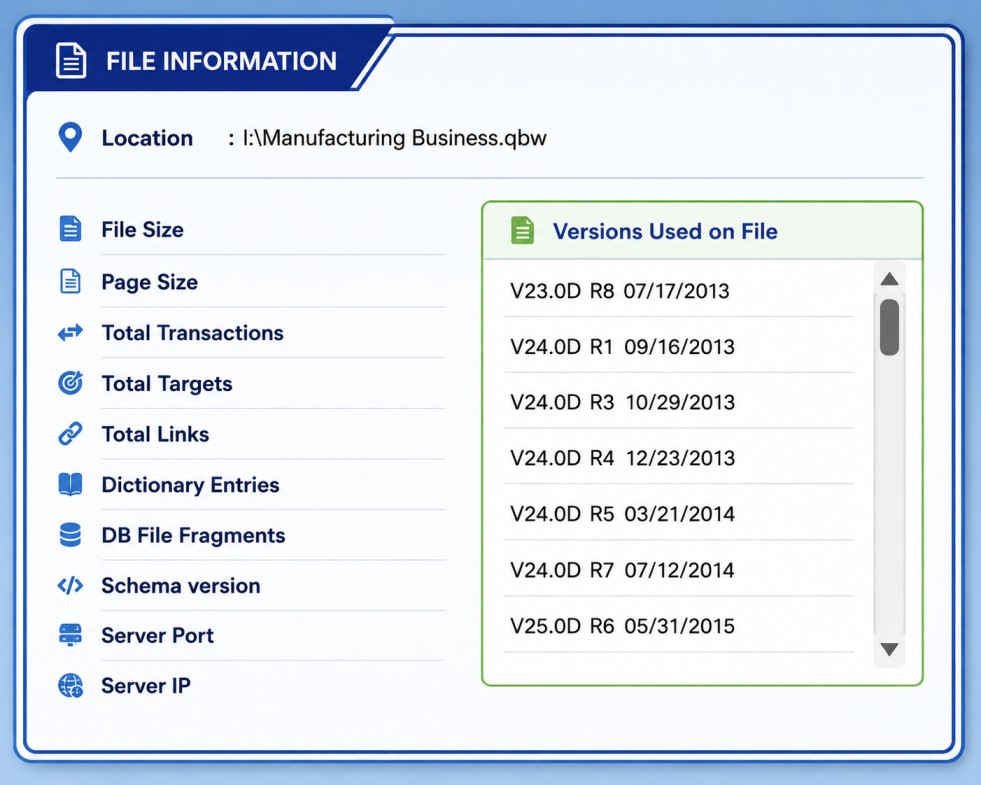
Find the QuickBooks Desktop version and year currently installed. The installation process and available migration options can vary depending on the product and version you use.
You should also determine whether you are using:
- QuickBooks Pro
- QuickBooks Premier
- QuickBooks Enterprise
- QuickBooks Accountant
- A supported QuickBooks Desktop subscription or license
If you use QuickBooks with payroll or other connected services, note those services before beginning the transfer.
2. Create a Fresh Backup
Open your company file on the old computer and create a new backup before moving anything.
A backup gives you a recovery option if:
- The transfer is interrupted.
- The company file does not open correctly.
- Data is missing after migration.
- The new computer develops a problem.
- You accidentally overwrite the wrong file.
Do not rely only on an old backup when a current one is available.
3. Gather Your Account Information
Keep your QuickBooks account credentials, product information, and licensing details available. You may need to sign in or activate QuickBooks again on the new computer.
If you work with multiple users, also make sure you know which users require access and whether your QuickBooks setup uses a multi-user environment.
How to Move QuickBooks Desktop From One Computer to Another?
Moving QuickBooks Desktop to a new computer is easier when you follow each step in the right order. Use the steps below to protect your company data and make sure QuickBooks works properly on the new system.
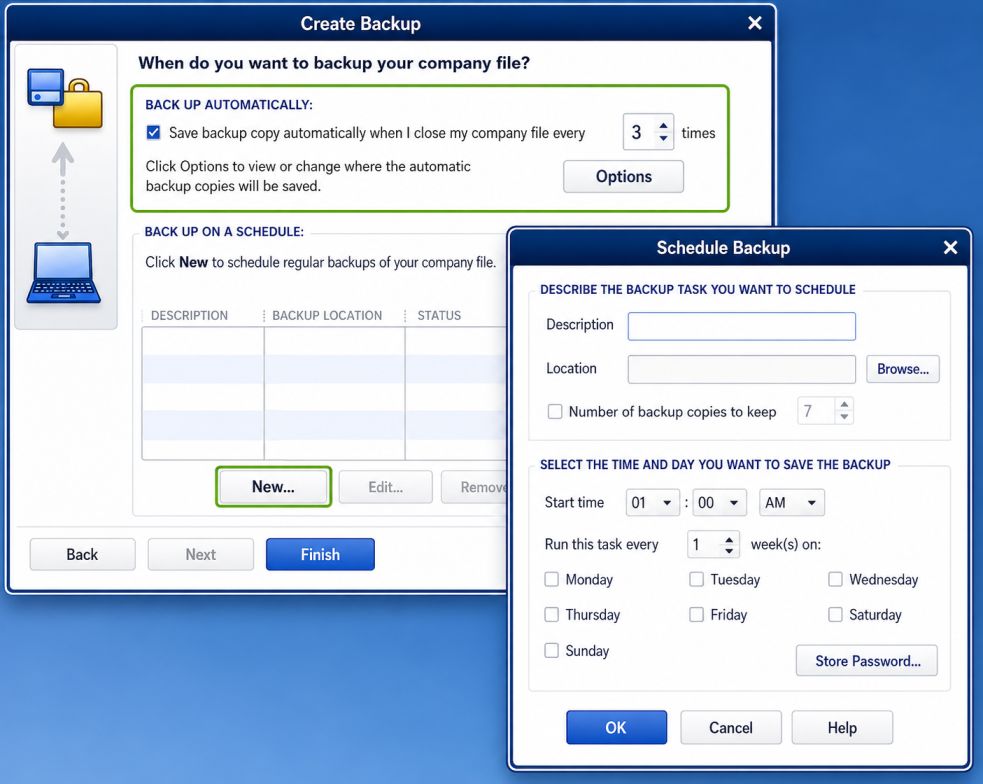
1. Create a Backup: Before moving anything, create a fresh backup of your QuickBooks company file on the old computer. Save the backup in a secure location so you can restore your data if anything goes wrong during the transfer.
2. Prepare the New Computer: Make sure your new computer meets the requirements for your QuickBooks Desktop version and has enough available storage. Keep your QuickBooks account or license information ready before starting the installation.
3. Install QuickBooks Desktop: Download or install the correct QuickBooks Desktop version on the new computer. During installation, use the appropriate license or account information when QuickBooks asks you to activate the software.
4. Transfer or Restore Your Company Data: Move your QuickBooks backup or supported company files from the old computer to the new one. If you created a backup, use QuickBooks to restore it and save the restored company file in an appropriate location.
5. Update QuickBooks: After installing QuickBooks, check for available updates before you start working with your company file. Keeping the installation updated can help ensure you are using the latest available fixes and supported components for your version.
6. Verify Your Company File: Open the company file on the new computer and check recent transactions, customers, vendors, accounts, and important reports. Compare key information with the old computer or your latest records to make sure the correct data was transferred.
7. Check Connected Services: If you use payroll, online banking, email, printing, or other QuickBooks features, test them on the new computer. Some services may require you to sign in again or review their settings after the move.
8. Test Before Removing the Old Setup: Perform a few normal QuickBooks tasks, such as creating an invoice, running a report, or making a backup. Keep the old computer and original backup available until you are confident that everything works correctly on the new system.
How to Manually Move QuickBooks to a New Computer?
If you prefer to move QuickBooks Desktop manually, you can do so by backing up your company data, installing the appropriate QuickBooks version on the new computer, and restoring the backup. The steps below keep the process simple while helping you protect your financial records.
Step 1: Prepare QuickBooks for the Move
- Create a Backup: Open QuickBooks on your old computer and create a fresh backup of your company file. Save the backup to a secure external drive or another reliable location so you have a copy available if anything goes wrong during the transfer.
- Record Your License Details: Keep your QuickBooks license or account information available before moving to the new computer. Depending on your QuickBooks version and account setup, you may need to sign in or provide product information during installation or activation.
- Review the Old Computer: Before removing QuickBooks, make sure you know which company files you currently use and that your latest transactions are included in the backup. Keep the old computer or original backup available until you have verified the new setup.
Step 2: Install QuickBooks on the New Computer
- Get the Appropriate QuickBooks Version: Install the QuickBooks Desktop version that matches the company file and your existing setup. Avoid assuming that installing a newer or different version is always the right choice, because company-file compatibility can depend on the QuickBooks version.
- Install QuickBooks: Run the QuickBooks installer on the new computer and follow the instructions on the screen. Sign in or enter the required product information when prompted, then complete the installation before transferring your company data.
Step 3: Transfer Your QuickBooks Data
- Move the Backup File: Copy your QuickBooks backup file from the external drive or other secure storage to the new computer. Save it somewhere easy to locate, but keep the original backup untouched as an additional safety copy.
- Restore the Backup: Open QuickBooks on the new computer and select File > Open or Restore Company. Choose Restore a backup copy, select the appropriate backup file, and follow the prompts to create the working company file.
- Verify Your Data: Open the restored company file and review important information such as transactions, customers, vendors, accounts, and financial reports. Compare key details with your records from the old computer to confirm that the correct company file was restored.
Step 4: Activate and Update QuickBooks
- Complete Activation: If QuickBooks asks you to activate the product, open the activation window and follow the instructions provided. Sign in with the appropriate account or provide the requested product information to complete the process.
- Check for Updates: After activation, check for available QuickBooks updates and install applicable updates for your version. Once updated, reopen your company file and test the features you normally use.
- Test the New Setup: Before retiring the old computer, try everyday tasks such as opening reports, creating transactions, printing forms, and creating a new backup. If you use payroll, banking, or multi-user features, verify those functions as well.
What Does the QuickBooks Migrator Tool Transfer?
The QuickBooks Migrator Tool can simplify the move to a new computer by transferring supported QuickBooks Desktop files and settings. However, it does not move every part of your QuickBooks environment, so it’s important to know what will and won’t be included before you begin.
1. Files and Settings That Are Transferred
Depending on your QuickBooks Desktop version and setup, the Migrator Tool can transfer supported items such as:
- QuickBooks Desktop application information and version details
- Up to three recently opened company files, including sample company files
- Custom templates, letters, and forms
- Memorized and scheduled reports
- Local attachments and printer settings
- Spell-checker files and custom dictionaries
- Financial Statement Designer (FSD) clients and related data
- Cash Flow Projector (
.cfp) and Business Planner (.bpw) files - Loan Manager (
.lmr) files - Advanced reports used with supported QuickBooks Enterprise editions
2. What the Migrator Tool Does Not Transfer
Some QuickBooks information requires additional setup after the migration. Items that may not be transferred include:
- Multi-user configurations
- Payroll and payment service settings, which may require you to sign in again
- Company files that were not among the recently opened files selected for migration
- Manually created backup files
- Intuit Data Protect, which may need to be installed and configured separately
3. Check Your Files Before Starting
The Migrator Tool is designed to make a computer change easier, but you should still review your QuickBooks setup before relying on the transfer alone. Create a current backup of your company files and make a list of important files or services that may require separate setup.
After the migration, open your company files and verify your reports, forms, attachments, payroll access, printing, and other features you use regularly. This final check helps ensure that your new computer is ready for normal business work.
How to Check QuickBooks After the Move
Getting your company file to open on the new computer is only the first step. Before you stop using the old computer, take a few minutes to confirm that your financial data, settings, and regular QuickBooks tasks are working as expected. I recommend comparing important information with the old computer or your most recent records. This simple check can help you catch missing data or configuration problems before they affect your day-to-day accounting.
1. Run a Basic Data Check
Start by opening the reports and account records you use most often. Compare the results with your previous records and look for unexpected differences.
Pay particular attention to:
- Balance Sheet: Confirm that your assets, liabilities, and equity are consistent.
- Profit and Loss: Check that income and expenses appear correctly.
- Accounts Receivable: Review outstanding customer balances.
- Accounts Payable: Make sure unpaid bills and vendor balances are still accurate.
- Customer balances: Check several customer accounts and recent transactions.
- Vendor balances: Review vendor records and recent bills or payments.
- Bank account registers: Compare recent transactions and ending balances with your previous records.
You do not need to inspect every transaction immediately. Focus first on key balances and recent activity. If something looks different, stop and investigate before making additional changes to the company file.
2. Test Everyday Tasks
Next, perform a few routine tasks that you normally handle in QuickBooks. This confirms that the new computer is ready for actual business use rather than simply proving that the software launches.
Try tasks such as:
- Creating and saving an invoice
- Entering a bill
- Recording a customer payment
- Running a commonly used report
- Printing or previewing a document
- Creating a new QuickBooks backup
If you use QuickBooks in a multi-user environment, have the appropriate users sign in and test their normal workflows. This can reveal permission, network, or multi-user configuration issues that may not appear when you test QuickBooks by yourself.
Once these checks are complete, create a fresh backup from the new computer and keep it in a secure location.
Common Problems When Moving QuickBooks to a New Computer
Moving QuickBooks to a new computer can sometimes cause issues with company files, banking, payroll, printing, or user access. Below are the most common problems, along with simple steps you can take to identify and resolve them.
Step 1: Company File Cannot Be Found
If QuickBooks opens but you cannot find your company file, the file may not have been transferred or restored to the new computer correctly.
- Check the folder where your QuickBooks company files are normally stored.
- Use QuickBooks to browse for and open the correct company file.
- If you are using a backup, restore the most recent
.QBBfile and save the restored company file in an easy-to-find location.
Step 2: QuickBooks Cannot Open the Company File
QuickBooks may fail to open a company file if the installed version is incorrect or if there is an issue with the company file.
- Confirm that the appropriate QuickBooks Desktop version is installed on the new computer.
- Make sure you are opening the correct company file rather than an older copy.
- If the file still will not open, use a verified backup instead of repeatedly making changes to the original file.
Step 3: Customized Forms Are Missing
Invoices, sales receipts, reports, and other customized forms may look different or be missing after the transfer.
- Check whether the required customization files and settings were included in your migration.
- Compare the forms on the new computer with those available on the old computer.
- If necessary, transfer or restore the relevant supporting files before using the customized forms for business transactions.
Step 4: Banking Works Differently
Your online banking setup may require attention after you move QuickBooks to another computer.
- Open the relevant bank account and review existing transactions before reconnecting the account.
- Check carefully for downloaded transactions that may already exist in the register.
- If the bank connection needs to be established again, follow the banking setup process provided by your QuickBooks version.
Step 5: Payroll Needs Attention
Payroll can require additional verification after moving QuickBooks, particularly when payroll services or account sign-in are involved.
- Open the company file and review employee and payroll information.
- Check whether QuickBooks is requesting an account sign-in, activation, or update.
- Complete any required payroll setup before processing a new payroll to avoid unnecessary interruptions.
Step 6: Other Users Cannot Connect
If you use QuickBooks in multi-user mode, other workstations may lose access after the computer or network setup changes.
- Confirm that the company file is stored in the correct shared location.
- Check the QuickBooks multi-user and network configuration on the new computer.
- Have each required user test their access before returning to normal multi-user operations.
Step 7: Printing Does Not Work Correctly
Printing issues are common when moving QuickBooks to a computer with different printer drivers or settings.
- Make sure the required printer is installed and can print successfully from Windows.
- Test printing an invoice, report, or other commonly used QuickBooks document.
- If the output is incorrect, review the printer and form settings in QuickBooks and make any necessary adjustments.
Step 8: Data Does Not Match the Old Computer
If balances, transactions, or reports do not match your previous records, you may have opened the wrong company file or restored an outdated backup.
- Compare the company name and recent transaction dates with your latest records.
- Review important reports such as the Balance Sheet and Profit and Loss.
- If the information is incorrect, stop entering new transactions and identify the correct company file or most recent verified backup.
Once these problems have been checked, create a new backup from the working QuickBooks installation. Keep the old computer and your original backup available until you have confirmed that all important data, settings, and daily accounting tasks work correctly on the new system.
Tips for Smoothly Transferring QuickBooks to a New Computer
Moving QuickBooks to a new computer becomes easier when you prepare everything before starting the transfer.
Taking a few basic precautions can help protect your company data and prevent installation or access problems.
Follow these steps to make the process smoother and more reliable.
1. Back Up Your Data: Create a fresh backup of your QuickBooks company file before starting the transfer.
Keep the backup in a safe location separate from your old computer.
This gives you a recovery option if anything goes wrong during the move.
2. Check Your New Computer’s Compatibility: Make sure your new computer meets the system requirements for your QuickBooks Desktop version.
Check the operating system, available storage, memory, and other required specifications.
Good compatibility helps reduce installation issues, crashes, and performance problems.
3. Review Your QuickBooks License and Activation: Keep your QuickBooks account information and required product details ready for the new installation.
Install and activate QuickBooks on the new computer according to your product or subscription terms.
Don’t remove the old installation until you’ve confirmed that the new computer works correctly.
4. Install and Update QuickBooks Properly: Install the appropriate QuickBooks Desktop version directly on the new computer.
After installation, check for available updates that apply to your QuickBooks version.
Using the correct and updated installation can help avoid compatibility and software issues.
5. Transfer the Files You Need: Transfer or restore your QuickBooks company files using a reliable backup or supported migration method.
Also check whether you need customized forms, templates, reports, attachments, or other supporting files.
Review your files carefully so important business information isn’t left behind on the old computer.
6. Take Your Time and Verify Everything: Don’t rush through the transfer, and keep the original computer or backup available until testing is complete.
Open your company file and check important transactions, balances, reports, and frequently used features. Once everything works correctly, create a fresh backup from the new computer.
Conclusion
Transferring QuickBooks Desktop to a new computer doesn’t have to be complicated. By using either the QuickBooks Migrator Tool or the manual backup and restore method, you can securely move all your financial data with minimal risk. Following these steps ensures your business records remain intact, allowing you to continue managing your finances seamlessly on your new system.
Frequently Asked Questions
To download the QuickBooks Desktop Migration Tool, visit the official QuickBooks website and navigate to the “Downloads & Updates” section. You’ll find the latest version of the Migration Tool there. Ensure your system meets the requirements for the tool before downloading.
Yes, you can install QuickBooks Desktop on more than one computer, but each installation requires a separate license. If you plan to use QuickBooks on multiple machines, you’ll need to purchase the appropriate number of licenses.
To access QuickBooks Desktop remotely, you can use tools like QuickBooks Desktop’s remote access feature or third-party services like Remote Desktop or hosting solutions. You will need to set up QuickBooks and your file to be accessible remotely.
To move QuickBooks Desktop to a new Windows 10 computer, you need to install QuickBooks on the new system, then use the Backup and Restore method or the QuickBooks Desktop Migration Tool to transfer your company files and settings.
If you don’t have a disk for QuickBooks installation, you can download the installer from the official QuickBooks website. Make sure you use the same version of QuickBooks that you previously had, and enter your license details during the installation process.
The “Move QuickBooks to Another Computer” option may be greyed out if QuickBooks is not installed correctly, or if you’re not using the proper version of the software. Check that you are using an administrator account and that all necessary QuickBooks services are running.
To transfer QuickBooks Desktop to a new Mac, first download and install the correct version of QuickBooks for Mac. Then, move your company files using a backup or the QuickBooks File Transfer Tool.
You can transfer your QuickBooks Desktop data to QuickBooks Online by using the built-in “Export to QuickBooks Online” option in QuickBooks Desktop. Follow the prompts in the export tool, and your data will be transferred to your QuickBooks Online account.
To copy a company file from one QuickBooks file to another, use the “Create Backup” option to back up your company file. Then, restore the backup in the new QuickBooks company setup. You can also use the “Copy Company File” feature for this purpose.
This error usually occurs if the MoveQuickBooks.exe file is missing or corrupted. Try reinstalling QuickBooks or using the QuickBooks Repair Tool to fix any installation issues. If the error persists, contact QuickBooks support for further troubleshooting.
Yes, you can move QuickBooks to a new laptop by first installing QuickBooks on the new laptop, then transferring your company files using a backup or the QuickBooks Migration Tool. Be sure to deactivate QuickBooks on the old laptop if you’re planning to uninstall it, and ensure that the new laptop meets QuickBooks’ system requirements.
Moving QuickBooks Desktop 2021 to a new computer does not require a new subscription. You can simply reinstall QuickBooks Desktop on the faster computer using your existing license information, then transfer your company files via a backup or the QuickBooks Migration Tool. Make sure to deactivate QuickBooks on the old computer to ensure compliance with licensing.
To transfer QuickBooks Desktop 2019 Pro to a new computer, first install QuickBooks 2019 on the new system. Then, use the backup and restore method or the QuickBooks Migration Tool to move your company files. You’ll need your license and product number to complete the installation and activation process on the new machine.



