If you want to Migrate Sage 50 to Cloud Hosting, the process involves more than simply moving your company files to another computer. You need to review your current Sage 50 setup, create a reliable backup, choose the right cloud environment, restore your data, and test important accounting functions before making the full switch.
For U.S. users, Sage now offers Sage 50 Cloud, including a hosted cloud deployment. Sage’s current documentation provides a specific process for moving an existing Sage 50 Desktop company into Sage 50 Cloud by creating a backup, uploading it to the cloud environment, and restoring the company data.
It is also important to understand the terminology. Sage 50 Cloud, hosted Sage 50, and third-party Sage 50 hosting are not necessarily the same setup. The exact migration steps can depend on which Sage 50 edition, region, and hosting arrangement you use.
Why Moving Sage 50 to the Cloud Can Make Accounting Easier?
Businesses may move Sage 50 from a local computer to a cloud environment for greater flexibility and easier access. Instead of keeping the accounting system tied to one office computer, a suitable cloud setup can make it easier for authorized users to work from different locations.
- Access your accounting work remotely: With a locally installed Sage 50 setup, your work typically depends on your computer or office network. Cloud hosting lets authorized users access the Sage 50 environment from different locations.
- Work more easily with your team: A cloud-based setup can make it easier for authorized users to collaborate without being tied to a single office computer.
- Get updates and backups more easily: Depending on the cloud option you choose, features such as automatic updates and backups may be included, helping reduce the need for manual maintenance.
- Understand that cloud options can differ: Moving Sage 50 to the cloud does not mean every setup works the same way. Your available features and migration process can depend on your Sage 50 edition, region, and hosting arrangement.
- Choose the right cloud setup before migrating: Before you move your data, confirm which Sage 50 cloud or hosting option you plan to use. This helps you understand what features are available and what migration steps you need to follow.
Sage 50 Cloud and Third-Party Hosting Are Different
When you research ways to move Sage 50 to the cloud, you may come across terms such as Sage 50 Cloud, hosted Sage 50, and third-party Sage 50 hosting. These terms can sound similar, but they may refer to different services. For U.S. users, Sage’s documentation uses Sage 50 Cloud and Sage 50 Hosted for its cloud-hosted service, with “Hosted” being the earlier name.
Third-party hosting is different. In this type of setup, a hosting provider runs a compatible Sage 50 installation on its own cloud infrastructure and manages the hosting environment. Before choosing a cloud hosting option, make sure you understand:
- Where will Sage 50 be hosted?
- Who manages the cloud server and technical support?
- Who is responsible for backups?
- Who installs Sage 50 updates?
- Which Sage 50 version and edition are supported?
- How will you and your employees access Sage 50?
- What happens to your data if the hosting service is unavailable or you cancel the service?
Checking these details before you migrate can help you choose a cloud setup that matches your Sage 50 version, users, and business needs.
What You Should Check Before Moving Sage 50 to the Cloud?
A successful Sage 50 cloud migration starts with good preparation. Before moving your company data, review your current Sage 50 setup so you know what needs to be transferred and what needs to be tested after the migration.
Check Your Current Setup
Start by recording the important details of your existing Sage 50 installation, including:
- Sage 50 edition and version
- Company file location
- Number of companies
- Number of users
- User permissions
- Multi-user settings
- Customized forms
- Important reports
- Payroll requirements
- Banking connections
- Email settings
- Printer requirements
- Third-party applications
Use this information as a checklist when setting up and testing Sage 50 after the migration.
Make Sure Your Data Is in Good Shape
Before creating the migration backup, open your company file and review important accounting information, such as:
- Customer balances
- Vendor balances
- Bank account balances
- Open invoices
- Outstanding bills
- Inventory
- Recent transactions
- Financial reports
If you already know about a data issue, address it before migrating if possible. This makes it easier to determine whether a problem existed before the migration or occurred during the migration process.
Create a Backup of Your Sage 50 Data
Before making changes to your Sage 50 setup, create a current backup of your company data. This gives you a recovery point if something goes wrong during the migration.
Use Sage 50’s built-in backup process to create the backup file, and store it in a safe location that you can access when needed. If your hosting or backup service provides additional backup options, understand how those backups are created, stored, and restored. Before continuing with the migration, make sure the backup was created successfully and can be used for the restore process.
Choose the Right Sage 50 Hosting Service
If you are comparing third-party Sage 50 hosting providers, do not choose a service based only on price. Find out exactly what the provider includes and how it handles your Sage 50 environment. Check the following:
- Sage 50 compatibility: Make sure your Sage 50 version and edition are supported.
- Backups: Understand how often your data is backed up and how it can be restored.
- Security: Ask how your accounting data and user access are protected.
- User management: Make sure each user can have the appropriate level of access.
- Technical support: Check when support is available and how you can contact the provider.
- Updates: Confirm who installs Sage 50 updates and maintains the hosted environment.
- Printing: Check whether you can print invoices, checks, reports, and other documents from the hosted setup.
- Email: Confirm whether your existing email workflow requires additional configuration.
- Integrations: Check whether your connected applications and services are compatible with the hosted environment.
- Data recovery: Understand what happens to your data if the hosting environment fails or becomes unavailable.
If you are using Sage’s own cloud service, follow the current Sage documentation for your specific product and region. Do not rely on instructions written for an older hosting arrangement.
How to Back Up Sage 50 Before Migration?
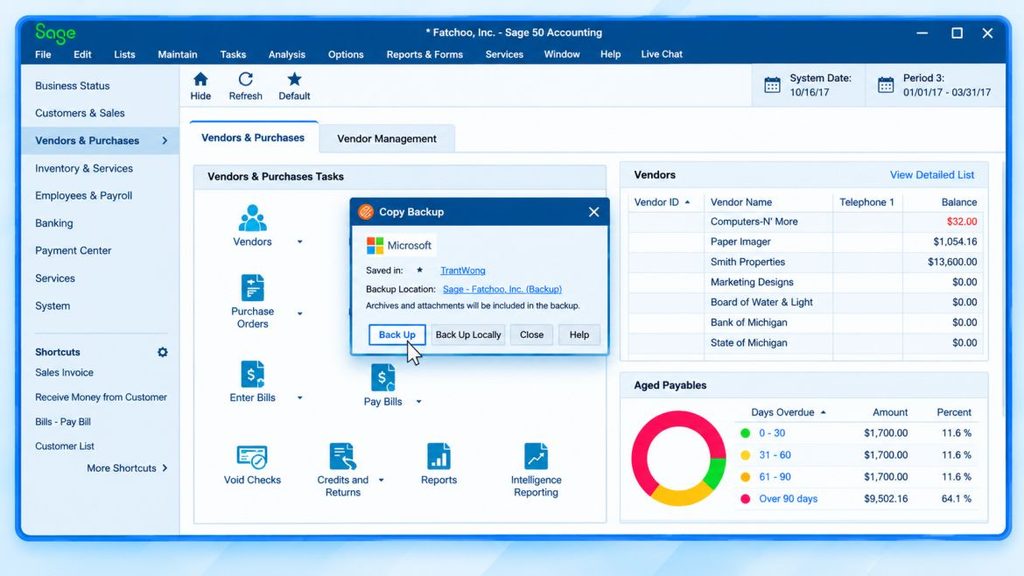
Before making any major change to your Sage 50 setup, create a current backup of your company data. This backup gives you a safety copy that you can use for recovery if something goes wrong during the migration.
Sage’s current U.S. migration instructions begin by creating a backup of the Sage 50 Desktop company before uploading it to the cloud environment. After creating the backup:
- Confirm that the backup completed successfully.
- Make sure you know where the backup file is stored.
- Keep a separate copy in a safe location.
- Do not delete or change your original Sage 50 company until the migrated data has been restored and tested.
Keeping the original environment available until testing is complete gives you an additional recovery option if you discover a problem after migration.
How to Migrate Sage 50 to Cloud Hosting Step by Step?
Once your Sage 50 backup is ready and the cloud environment is set up, you can begin the migration. The exact screens and steps can vary depending on your Sage 50 edition, region, and hosting arrangement. In general, the process involves preparing the cloud environment, transferring your backup, restoring the company, reviewing the setup, and testing the migrated data.
1. Prepare the Cloud Environment
Before transferring your company data, make sure the destination environment is ready for Sage 50. The cloud environment should meet the requirements of your Sage 50 version and provide the access and services your business needs. If you are using a third-party Sage 50 hosting service, follow the provider’s instructions for preparing the hosted environment. Before moving forward, confirm:
- Your Sage 50 edition and version are supported.
- The required users have access to the cloud environment.
- The appropriate Sage 50 software is available in the destination environment.
- Your company has enough storage and resources for the intended setup.
- Required printers, email settings, and integrations can be configured.
- The provider has explained how backups and data recovery are handled.
Do not install software or upload Sage files to a hosted server without first confirming that the setup is supported.
2. Upload Your Sage 50 Backup
After the cloud environment is ready, transfer the Sage 50 backup you created during the preparation stage. For the current U.S. Sage 50 Cloud migration process, Sage provides instructions for placing the backup in the designated Sage 50 US Backup folder within the cloud environment.
If you are using a third-party hosting service, the upload process may be different. The provider may give you a specific folder, portal, or transfer method.
Before restoring the backup:
- Confirm that you are using the latest backup.
- Check that the backup file was created successfully.
- Make sure the correct company is included in the backup.
- Verify that the backup has been transferred completely.
- Keep your original backup in a safe location.
The goal is not simply to upload a file. You need to make sure that the correct, usable backup has reached the correct cloud environment.
3. Restore the Company Data
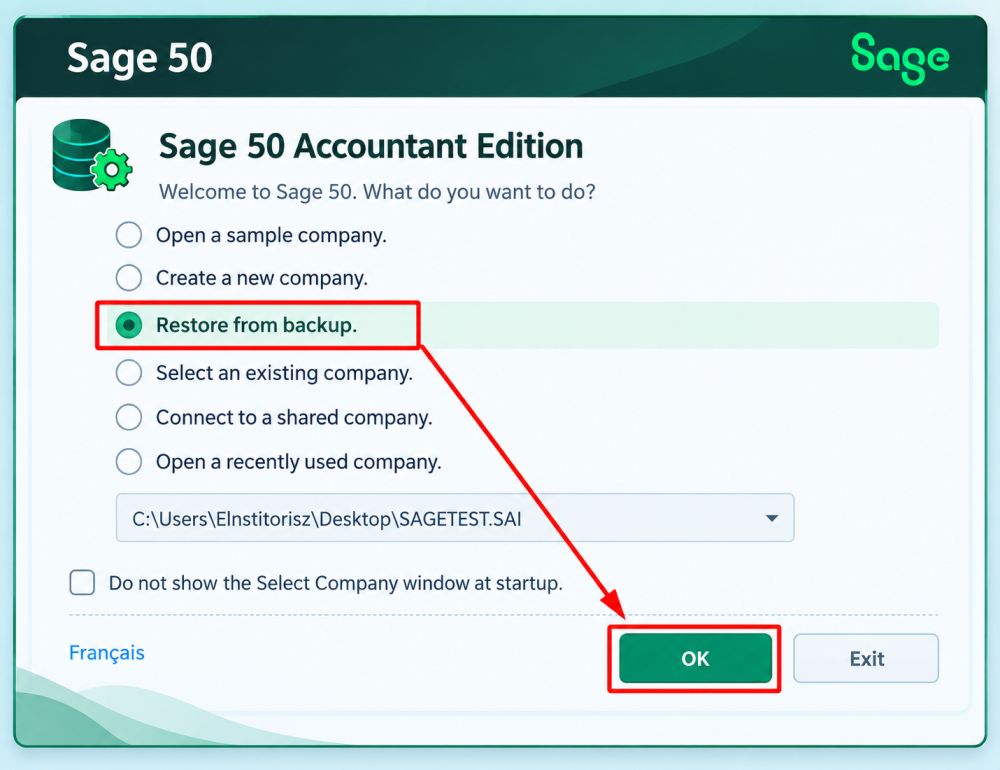
Once the backup is available in the cloud environment, open Sage 50 and restore the company data. Sage’s current migration guidance uses the standard File > Restore process. Depending on the backup and Sage 50 version, you may also have options for restoring customized forms and other company information. During the restore process:
- Select the correct backup file.
- Verify the company name before continuing.
- Choose the appropriate restore options.
- Restore customized forms if they are included and required.
- Avoid overwriting the wrong company or existing data.
- Allow the restore process to finish before opening or changing the company.
If you have more than one Sage 50 company, do not assume that restoring one backup completes the entire migration. Restore and verify each company separately.
4. Review the Cloud Settings
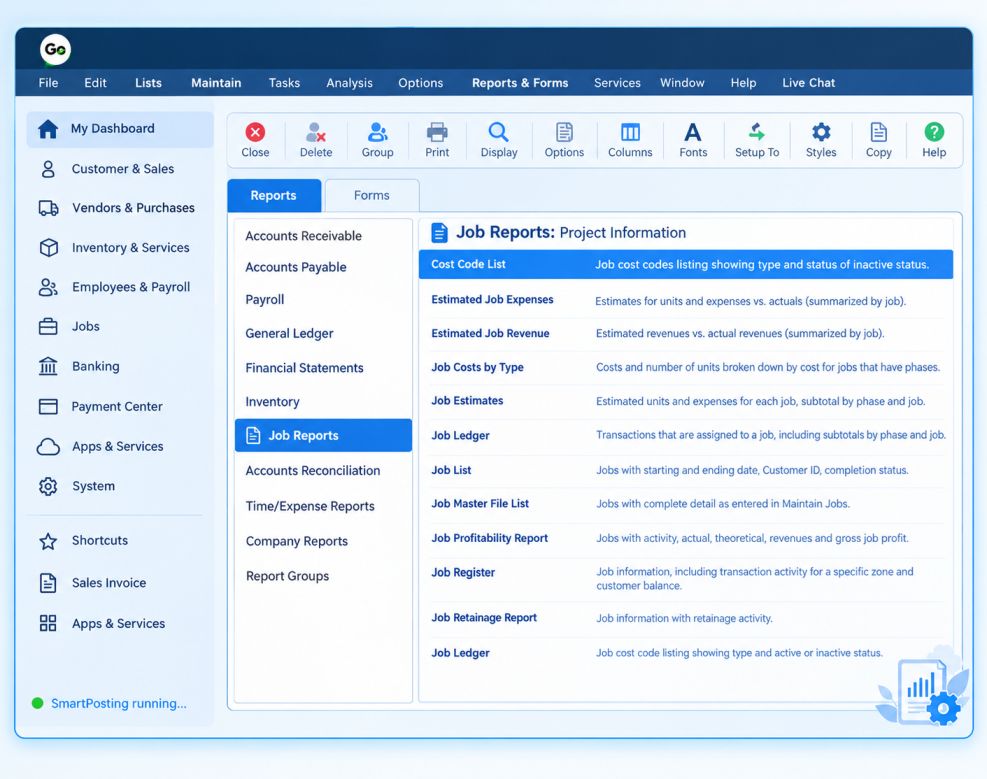
Do not start entering new transactions immediately after the restore. First, review the Sage 50 setup to make sure important settings and workflows are working as expected in the cloud environment. Start with the basic company and user settings:
- Company name and information
- Accounting period and preferences
- Users and permissions
- Multi-user settings
- Customized forms
- Reports and report layouts
Then check the features your business relies on every day:
- Printing: Confirm that invoices, checks, reports, and other required documents print correctly.
- Email: Check whether Sage 50 can send the emails your business uses and whether any additional configuration is required.
- Banking: Verify banking connections and related settings if your business uses connected banking services.
- Integrations: Test third-party applications or services that exchange data with Sage 50.
- Backups: Confirm how backups are created and where they are stored in the new environment.
For U.S. Sage 50 Cloud users, also review the current Sage documentation for product-specific differences. For example, Sage states that SmartPosting is not available in Sage 50 Cloud and recommends using real-time posting instead.
5. Test the Migrated Sage 50 Company
After reviewing the settings, test the company before treating the migration as complete. Compare important information with your original Sage 50 installation, including:
- Customer and vendor balances
- Bank account balances
- Open invoices and bills
- Inventory information
- Recent transactions
- Key financial reports
Also perform a few normal tasks that your users complete regularly. For example, test creating or opening transactions, running reports, printing documents, sending emails, and using important integrations.
If something does not match the original environment, investigate it before starting normal accounting work in the cloud. Keep the original Sage 50 environment and backup available until you are satisfied that the migrated company is working correctly.
6. Train Your Team
After the migration is complete and the cloud environment has been tested, train your team before fully switching to the new setup. This helps users understand how to access Sage 50, work with financial data, and follow the new cloud-based workflow.
Provide training on:
- Accessing Sage 50: Show users how to sign in to the cloud environment and open the company they need.
- Managing financial data: Explain how to enter, update, and manage transactions in the new environment.
- Finding reports: Make sure users know where to find and run the reports they use regularly.
- Printing documents: Show users how to print invoices, checks, reports, and other required documents.
- Using integrations: Explain how to use any supported integrations that are part of their normal workflow.
- Handling access problems: Make sure users know what to do if they cannot sign in or access the company.
- Getting technical support: Tell users who to contact when they have technical or hosting-related problems.
Give users an opportunity to practice common tasks before the business fully switches to the cloud environment. A short demonstration and simple written checklist may be enough for many teams to become comfortable with the new setup.
What to Do After Moving Sage 50 to the Cloud?
Once the migration has been tested and your team is comfortable with the new environment, establish a basic maintenance routine. This helps keep your Sage 50 setup reliable and makes it easier to respond to access, backup, or performance issues.
Review Your Backup Process
Find out exactly how your cloud or hosting environment handles backups. Backup frequency, retention, and recovery procedures can vary depending on the cloud or hosting service you use.
Make sure you understand:
- How often backups occur
- How long backups are retained
- How data restoration works
- Who can request a recovery
- What happens if your data needs to be restored
A backup is useful only if you understand how to recover your data when necessary.
Keep User Access Under Control
Review user accounts and permissions regularly. If someone leaves your company or changes responsibilities, update or remove their access as appropriate.
Give each user only the permissions they need to perform their job. Regular access reviews can help prevent unnecessary access to your accounting data.
Monitor Performance
If Sage 50 becomes slow after migration, do not immediately assume that the company data is damaged. Check whether the problem may be related to:
- Internet speed
- Connection stability
- The cloud or hosting environment
- Too many simultaneous users
- A third-party application
- A particular computer
If multiple users experience the same problem, the hosting environment or network connection may need investigation. If only one user is affected, check that user’s computer and connection first.
Common Problems You May Face After Migration
Even a well-planned Sage 50 cloud migration can sometimes cause minor issues. Instead of immediately changing your company data, first identify whether the problem is related to the backup, user setup, internet connection, cloud environment, or another part of the migration.
- Sage 50 will not restore the backup: Start by confirming that you are using the correct and most recent backup file. If the backup appears incomplete or cannot be restored, create a new backup from the original Sage 50 installation and try the supported restoration process again. If you are using Sage 50 Cloud, follow Sage’s current backup upload and restore instructions for your specific product and region.
- Sage 50 is running slowly in the cloud: First, check your internet connection and determine whether the slowdown affects one user or several users. If multiple users are experiencing the same issue, the cloud or hosting environment may need to be checked by your hosting provider or support team. If only one user is affected, check that user’s computer and network connection first.
- A user cannot access Sage 50: Check the user’s account, login credentials, permissions, and access settings. In a hosted environment, use the applicable support process for tasks such as adding users, recovering usernames, or resetting passwords. Avoid giving a user unnecessary administrator access just to bypass a login problem.
- Printing does not work as expected: A printer that worked normally on a local computer may need additional configuration in a cloud-hosted environment. Check the cloud environment’s printer settings and confirm that the printer is supported. Then test the setup by printing an actual invoice, check, report, or other document you regularly use.
- An integration stops working: If you use another application with Sage 50, first confirm that the application is compatible with your cloud or hosting setup. Migration can change file locations, permissions, or the way an application connects to Sage 50. Check the integration’s requirements before making changes to your Sage 50 company data.
- Identify the source before making changes: Many post-migration issues are related to the surrounding environment rather than the company data itself. Checking the affected component first can help you troubleshoot safely and avoid unnecessary changes.
Is a Cloud Server Always Better Than Sage 50 Desktop?
Not necessarily. The right choice depends on how your business works and what your accounting team needs. A local Sage 50 Desktop installation may be suitable if your accounting team works from one location and your existing computer or network setup is reliable.
Cloud hosting may be more useful if you need remote access or want authorized users in different locations to access the same Sage 50 environment. Before deciding to migrate, compare your actual business requirements, users, Sage 50 version, and existing setup. Cloud hosting can offer greater flexibility, but it is not automatically the better option for every business.
Conclusion
Hosted Sage 50 Cloud offers numerous advantages for businesses looking to streamline their accounting and financial operations. By following the steps outlined in this guide and ensuring proper preparation, execution, and post-migration best practices, you can ensure a successful transition to the cloud. With Sage 50 Cloud Hosting, your team will have the flexibility, security, and efficiency needed to manage financial data effectively in the modern digital world.
For personalized assistance and expert guidance, call us today at +1-888-820-7278. Our team is ready to help you get started and answer any questions you may have!
Frequently Asked Questions
Sage 50 Cloud allows users to access their financial data remotely with real-time updates, while Sage 50 Local is a desktop-based solution that requires users to be physically present at a specific location to access the software.
No, Sage 50 is not being phased out. However, Sage is pushing more businesses toward cloud solutions, such as Sage 50 Cloud, to enhance flexibility, security, and scalability.
Sage 50 Cloud Hosting pricing varies based on the number of users, features, and the hosting provider. Typically, plans are subscription-based, and the costs can range from a few dollars per user per month to more, depending on the service level and resources required.
Yes, Sage 50 hosted on the cloud works the same way as the desktop version, but with added benefits like remote access, automatic backups, and the ability to collaborate in real-time with team members from different locations.
Yes, Sage 50 Cloud Hosting supports the integration of add-ons, third-party applications, and custom tools to enhance the software’s functionality and meet your business’s specific needs.
Yes, many hosting providers offer a trial period for Sage 50 Cloud Hosting, allowing you to test its features and functionality before making a long-term commitment.
Setting up multi-user access in Sage 50 Cloud Hosting is straightforward. You’ll need to configure user accounts and permissions in the hosting environment, ensuring each user has the appropriate level of access based on their role within your business.