A Sage 50 Payroll Tax Update keeps Sage-maintained payroll formulas and tax information current for the applicable payroll year. Without the appropriate update and an active payroll tax service subscription, Sage 50 may not calculate federal, state, and local payroll taxes correctly. Sage’s 2026 documentation specifically states that payroll formulas and updates are not included with the base software and require a plan that includes payroll.
For 2026, Sage has released multiple payroll tax updates for Sage 50 U.S. Edition. The January 2026 update used tax-service version 20260101, followed by another January update using 20260102. Sage also released a July 2026 update with state and local tax changes, and a second July update replaced the earlier July Payroll Solutions Update because of an installation-related TaxInfoExt.dat issue.
That means checking whether an update is installed is more reliable than assuming Sage 50 is current simply because the main program itself was recently updated.
Why Is the Sage 50 Payroll Tax Update Important?
Sage 50 uses Sage-Maintained Payroll Formulas for federal, state, and some local payroll calculations. These formulas can contain tax rates, limits, percentages, and other calculation rules. User-Maintained Formulas are separate and are used for company-specific or customized calculations.
A payroll tax update can therefore affect more than the tax amount shown on a paycheck. Sage’s year-end documentation says the tax service update can also provide changes to payroll tax tables or formulas, W-2 and W-3 forms, 1099 forms, and other maintenance changes.
| What you notice | What to check first |
| Payroll tax update is not showing | Payroll subscription and Check for Updates |
| Update downloads but will not install | Administrator rights and installation sequence |
| Tax version is old | Help → About Sage 50 Accounting |
| Payroll deductions are missing | Installed tax service and payroll formulas |
| Taxes calculate as zero | Payroll subscription/formulas |
| 2026 taxes are incorrect | Current tax-service version |
| Update is unavailable | Supported Sage 50 release and subscription |
| Server is updated but workstation is not | Network installation sequence |
| Update fails after another update | Correct update/release order |
| Tax tables still appear outdated | Verify installed tax-service version |
How to Install Sage 50 Payroll Tax Update
The normal installation process can be completed from inside Sage 50 when the payroll tax service is active.
1. Confirm Your Payroll Tax Subscription
Before looking for a download, confirm that your Sage 50 subscription includes the payroll tax service.
Sage states that a subscription to the payroll tax service is required to install payroll tax updates. Without the appropriate subscription, Sage 50 can still allow manual payroll deductions, but automatic payroll tax calculations are not available in the same way.
This is important when the Sage 50 payroll tax update is not available in the program. An unavailable update does not necessarily mean that the update server is failing.
2. Check for the Update in Sage 50
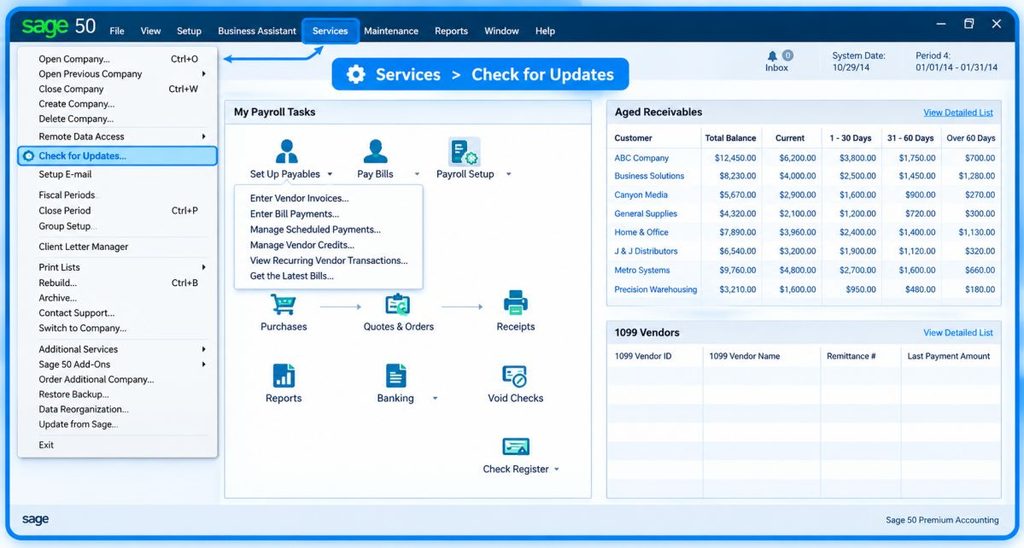
Open Sage 50 and use the update-checking function:
- Go to Services.
- Select Check for Updates.
- Select Check Now.
- If a payroll tax update is available, select Download.
- Close Sage 50 when prompted so the installation can begin.
- Follow the installation instructions.
These are Sage’s documented steps for installing payroll updates through the program. If the Download option does not appear, do not immediately assume that no update exists. Continue with the troubleshooting steps below.
3. Run Sage 50 as Administrator if the Download Option Is Missing

Sage’s installation guidance states that if the Download prompt does not appear, close Sage 50, right-click the Sage 50 program icon, select Run as administrator, and then check for updates again.
This can help when Windows permissions prevent the update process from completing correctly. After starting Sage 50 with administrative rights, return to Services → Check for Updates → Check Now. If the update appears, download and install it normally.
4. Verify the Installed Tax Update
Do not rely only on the Sage 50 program version to determine whether your payroll tax tables are current. To check the installed tax-service version:
- Open Sage 50.
- Open your company.
- Select Help.
- Select About Sage 50 Accounting.
- Locate the installed tax-service information.
Sage’s 2026 documentation explains that the installed payroll formula version can be checked through Help → About Sage 50 Accounting. The first four digits of the tax version identify the applicable payroll tax year. For example, Sage’s first January 2026 update used 20260101, while the second January 2026 update used 20260102. The July 2026 update announcement identified 20260701 as its tax-update version.
Because Sage can release multiple updates during a tax year, always verify the version against Sage’s current update announcement rather than assuming that any 2026 version is automatically the latest.
Read More: Sage 50 Printing Issues
How to Download Sage 50 Payroll Tax Update Manually
If the update does not download through Sage 50, Sage provides a download portal for supported Sage 50 U.S. Edition payroll tax updates. The general manual process is:
- Obtain the applicable payroll tax update from Sage’s official Sage 50 U.S. Edition download portal.
- Download the update for your supported Sage 50 release.
- Run the downloaded installation file.
- Follow the on-screen installation instructions.
- Open Sage 50 after installation.
- Go to Help → About Sage 50 Accounting.
- Verify the installed tax-service version.
Sage’s current payroll-update instructions specifically provide both an in-program update method and a manual download method. Do not install a tax update intended for a different Sage 50 release simply because the year appears correct. The applicable release matters.
Sage 50 Payroll Tax Update 2026: What to Know
The Sage 50 payroll tax update 2026 is not a single update that remains unchanged throughout the entire year. Sage released a January 2026 update for supported Sage 50 U.S. Edition releases, followed by another January update. The first January update included federal, state, and local tax changes.
Sage subsequently released the July 2026 update with additional state and local tax changes, including changes affecting states such as Arkansas, Colorado, Georgia, Philadelphia, Utah, and West Virginia.
Sage also published a second July 2026 Payroll Solutions Update. It replaced the earlier July update because the first version contained an outdated TaxInfoExt.dat file that could cause installation failures for the Sage 50 2026.1 update when installed in a particular sequence. Therefore, if you are searching for a Sage 50 payroll tax update 2026 download, use Sage’s current download information for your specific release rather than relying on an old installer.
Sage 50 Payroll Tax Update Not Working
When the Sage 50 payroll tax update is not working, first determine whether the problem is downloading, installing, or applying the new payroll formulas. These are different situations.
A. Update Does Not Appear:
- Your payroll tax service subscription
- Sage 50 release
- Internet connection
- Administrator permissions
- Services → Check for Updates
Sage’s installation documentation specifically identifies the payroll subscription and administrator-rights checks when the download option does not appear.
B. Update Downloads but Does Not Install
Close Sage 50 and run the update installation as instructed. If you are working in a network environment, installation order can also matter. Sage Community guidance for the January 2026 update indicates that network users should install the update on the server first and then on workstations.
If an update fails after another Sage update, check Sage’s release-specific instructions before retrying. The second July 2026 update is an example where installation order mattered because of an issue with the earlier July package.
C. Update Installs but Taxes Are Still Wrong
Verify the installed tax-service version under Help → About Sage 50 Accounting.
Then check whether the payroll calculation uses a Sage-Maintained Formula or a User-Maintained Formula. Sage explains that these are separate formula categories, and installing a tax update updates Sage-maintained formulas.
Sage 50 Payroll Deductions Not Showing After Tax Update
If Sage 50 payroll deductions are not showing after a tax update, first verify that the tax update actually installed. Open: Help → About Sage 50 Accounting, Check the installed tax-service version. If the version is current, the next question is whether the missing deduction is controlled by a Sage-Maintained Formula or a User-Maintained Formula.
Sage explains that Sage-Maintained Formulas contain predefined federal, state, and some local calculations, while User-Maintained Formulas are used for customized or company-specific calculations. A missing deduction can therefore be caused by more than an outdated tax update.
For example, a state unemployment calculation can also depend on employee state information, taxable gross settings, applicable limits, tax-field assignments, or the underlying formula. Sage’s troubleshooting documentation lists these as areas to check when unemployment taxes are not calculating.
Sage 50 Payroll Tax Service Update on a Network
Network installations require additional care because Sage 50 may be installed on a server and accessed from multiple workstations. When a payroll tax update is released, check Sage’s instructions for the specific release.
For the January 2026 update, Sage Community guidance stated that users on a network should install the update on the server first, followed by the workstations. If the server and workstation show different tax-service versions, do not assume that the installation completed consistently across the network. Check the tax-service version on the appropriate installation and follow the current Sage instructions for that release.
Prevent Sage 50 Payroll Tax Update Problems
- Check the Tax Version Regularly: Do not assume that updating Sage 50’s main program also means the payroll tax tables are current. Check the installed tax-service version separately.
- Maintain the Payroll Subscription: Sage requires a payroll tax-service subscription for the current Sage-maintained payroll formulas and tax updates.
- Use Sage’s Current Download: When a manual installation is necessary, download the tax update intended for your Sage 50 U.S. Edition release. Avoid using old installers simply because they contain the same tax year.
- Back Up Before Major Changes: Keep a current company backup before performing significant payroll or software maintenance. This is particularly important before troubleshooting company-specific formula or configuration problems.
- Verify the Update Before Processing Payroll: After installing a tax update, check Help → About Sage 50 Accounting and confirm the installed tax-service version before relying on the new payroll calculations.
Conclusion
The Sage 50 Payroll Tax Update is essential for keeping Sage-maintained payroll formulas and tax information current. For 2026, Sage has released multiple updates, so checking the actual installed tax-service version is more reliable than simply checking whether Sage 50 itself was recently updated.
If the update is missing, start with the payroll tax subscription and Services → Check for Updates. If the download option does not appear, Sage recommends running Sage 50 as administrator and checking again. For manual installations, use the applicable Sage download and verify the result through Help → About Sage 50 Accounting.
When taxes or deductions remain incorrect after an update, look beyond the update itself. Employee tax information, wage limits, payroll formula assignments, User-Maintained Formulas, and the installed tax-service version can all affect payroll calculations.
FAQs of Sage 50 Payroll Tax Update
To manually install updates in Sage 50, you can use the built-in update function:
1. Open Sage 50 Accounting.
2. Go to the Services or Help menu.
3. Choose Check for Updates (sometimes labeled “Check Now”).
4. If updates are listed, select the ones you want and click Download.
5. Once the download finishes, close Sage 50.
6. Allow the installer to run and follow any prompts to install the update.
This method lets you install updates even if the automatic prompt hasn’t appeared.
Sage 50 will download payroll tax updates automatically when connected to the internet if you have enabled automatic updates and have an active payroll subscription (such as Sage Business Care). When the update finishes downloading, you’ll be prompted to install it when you close the software. However, the tax tables don’t automatically apply without user confirmation — you must install the update once downloaded for the changes to take effect.
For Sage 50 (U.S. Edition) Online:
1. Log in to your Sage 50 software while connected to the internet.
2. When a tax update is released, you’ll automatically receive a prompt when closing the application.
3. If you don’t see the prompt, go to Help > Check for Updates to look for the latest tax update.
4. Download the update and close Sage 50 to trigger installation.
5. Open Sage 50 and go to Help > About Sage 50 to verify the updated tax version number.
For cloud-hosted versions, updates may be applied without manual action — check specific offerings with your service plan.
The payroll tax updates for Sage 50 2025 are distributed through the software’s update mechanism. When available, you’ll receive them automatically, and on closing the program you’ll be prompted to install. If not prompted, you can check for updates via Help > Check for Updates within Sage 50. The specific update versions (e.g., 20250102, 20250201, 20250701) can be confirmed after installation under Help > About Sage 50 Accounting.
Sage doesn’t typically publish direct external download links for tax updates — they are delivered through the software’s update system or your Sage account area.
The 2026 payroll tax update (version 20260101) for Sage 50 U.S. Edition has been released and includes updated federal, state, and local tax tables. To download and install it:
1. Open your Sage 50 company file.
2. If the update has been delivered, you’ll be notified when you close the program that a tax update is ready to install.
3. If not notified, go to Help > Check for Updates and download the available tax update.
4. After download, close Sage 50 to start installation.
5. Open Sage 50 again and check Help > About Sage 50 Accounting to confirm the tax update version (e.g., 20260101).
For hosted or cloud-based setups, the tax update may be applied automatically without manual approval, depending on your plan.