Sage 50 Printing Issues can interrupt important accounting tasks such as printing invoices, paychecks, pay stubs, reports, checks, and financial documents. The problem may be as simple as an incorrect Windows printer selection, but it can also involve a damaged printer driver, outdated Sage settings, a network printer, PDF components, or a form that is still linked to an old printer.
The fastest way to fix the problem is to identify where printing fails. If Windows cannot print from another application, start with the printer and Windows. If other applications print normally but Sage 50 does not, focus on Sage’s printer settings, forms, drivers, and printing components.
What Can Trigger Printing Problems in Sage 50?
Printing involves several components working together. Sage 50 creates the document, Windows manages the print request, the printer driver interprets it, and the printer produces the final output. A problem at any point can stop or change the printed result.
Common causes include:
- Incorrect or unavailable default printer
- Damaged or outdated printer drivers
- Windows or Sage 50 updates changing printer configurations
- Network printer connection problems
- Sage 50 forms or temporary printer files becoming damaged
- Sage 50 E-mail Writer or PDF printing problems
- Windows permissions or User Account Control settings
- Customized reports retaining an old printer assignment
- Problems with a specific report, form, or company file
- Printer-driver conflicts
Sage’s troubleshooting documentation also identifies damaged PTR files, printer drivers, Windows updates, UAC settings, and the Sage 50 E-mail Writer as possible causes of printing failures.
What Sage 50 Printing Problems Might You Encounter?
Not every printing problem has the same cause. Identifying the exact symptom can help you choose the right troubleshooting path.
Common Sage 50 Printing Issues include:
- Sage 50 cannot find the printer
- Sage 50 cannot print paychecks
- Sage 50 is not printing pay stubs
- Sage 50 reports are not printing
- Invoices print incorrectly or with poor alignment
- Blank pages are produced
- Print previews do not appear correctly
- Sage 50 freezes when you select Print
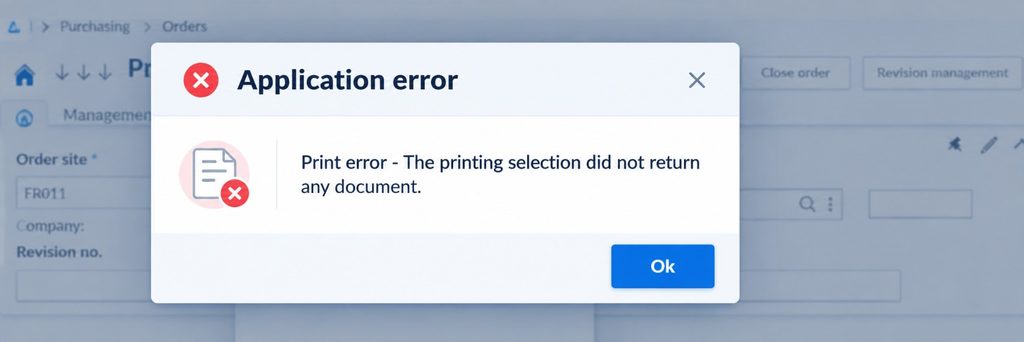
- Sage 50 shows a printer driver error
- Printer Not Activated Error Code 20
- Printer Not Activated Error Code 41
- Sage 50 cannot print to PDF
- Sage 50 printing stops after a Windows or software update
- Network printers do not respond
- Printed forms use incorrect margins, paper sizes, or layouts
The solution depends on whether the problem affects one document, all Sage documents, PDF output, or printing throughout Windows.
Important Steps to Take Before Troubleshooting Sage 50
Before changing Sage 50 settings, perform a few simple tests. These checks can quickly tell you whether the problem is caused by Sage or by Windows and the printer.
Restart the basics
Close Sage 50 and restart the computer. Turn the printer off, wait briefly, and turn it back on.
Then check that:
- The printer has power.
- Paper is loaded.
- There is no printer error displayed on the device.
- The printer is connected by USB or network.
- Windows recognizes the printer.
- The printer is not paused or offline.
Test another Windows application
Try printing a simple document from Notepad or another application.
If that application also cannot print, the issue is probably with Windows, the printer, the connection, or its driver rather than Sage 50. Sage recommends this test as an initial way to determine whether the issue is limited to Sage.
If Windows prints successfully but Sage does not, continue with the Sage-specific troubleshooting below.
Easy Steps to Resolve Printing Problems in Sage 50
Once you know the printer works outside Sage 50, work through the following steps in order. There is no need to change several settings at the same time; testing after each major step makes it easier to identify the actual cause.
Step 1: Check the Printer Connection and Status
Start with the physical or network connection.
A. Check Physical Connections
- Ensure the printer is powered on.
- Verify USB or network cables are securely connected.
- Confirm the printer has paper and ink/toner.
B. Confirm Printer is Online
- Open Control Panel.
- Select Devices and Printers.
- Right-click the printer.
- Ensure “Use Printer Offline” is unchecked.
If the printer shows offline, restart both the printer and the computer.
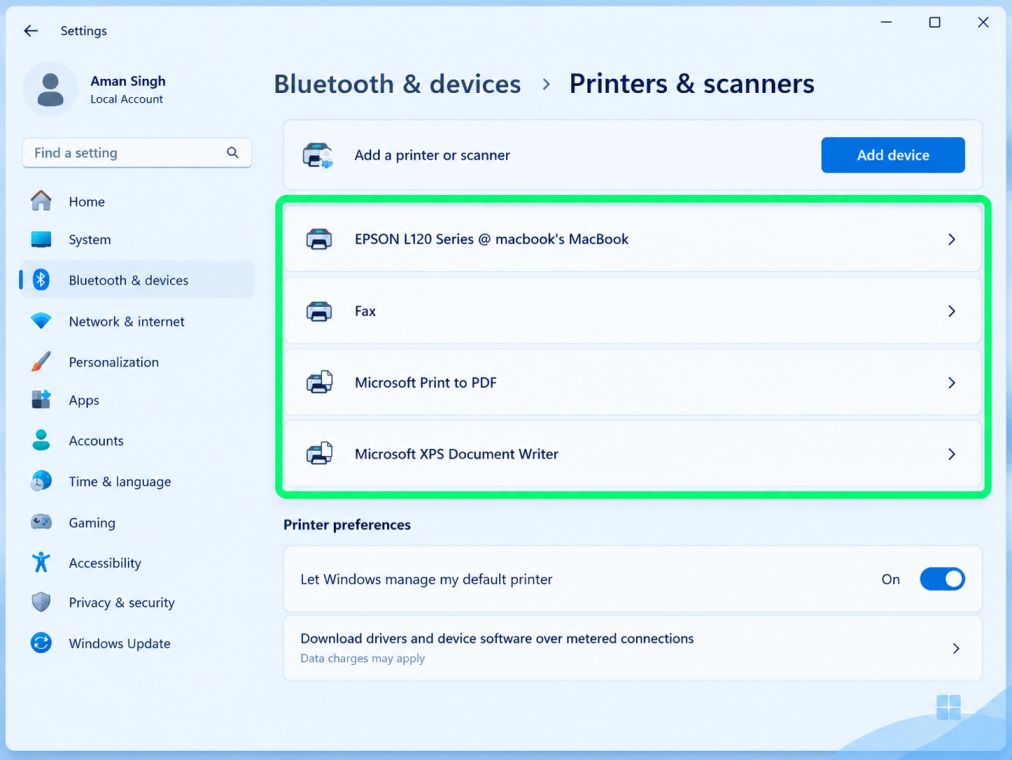
Step 2: Make Sure the Correct Windows Printer Is Selected
Sage 50 may attempt to print to a printer that is no longer available.
- Open Settings.
- Navigate to Devices > Printers & Scanners.
- Select the desired printer.
- Click Set as Default.
Make sure “Let Windows manage my default printer” is turned off. Restart Sage 50 after making changes.
Sage 50 prints to the default printer. If Windows switches your default printer automatically, Sage 50 may try printing to a non-existent device. It’s like sending mail to the wrong address.
Step 3: Restart the Windows Print Spooler
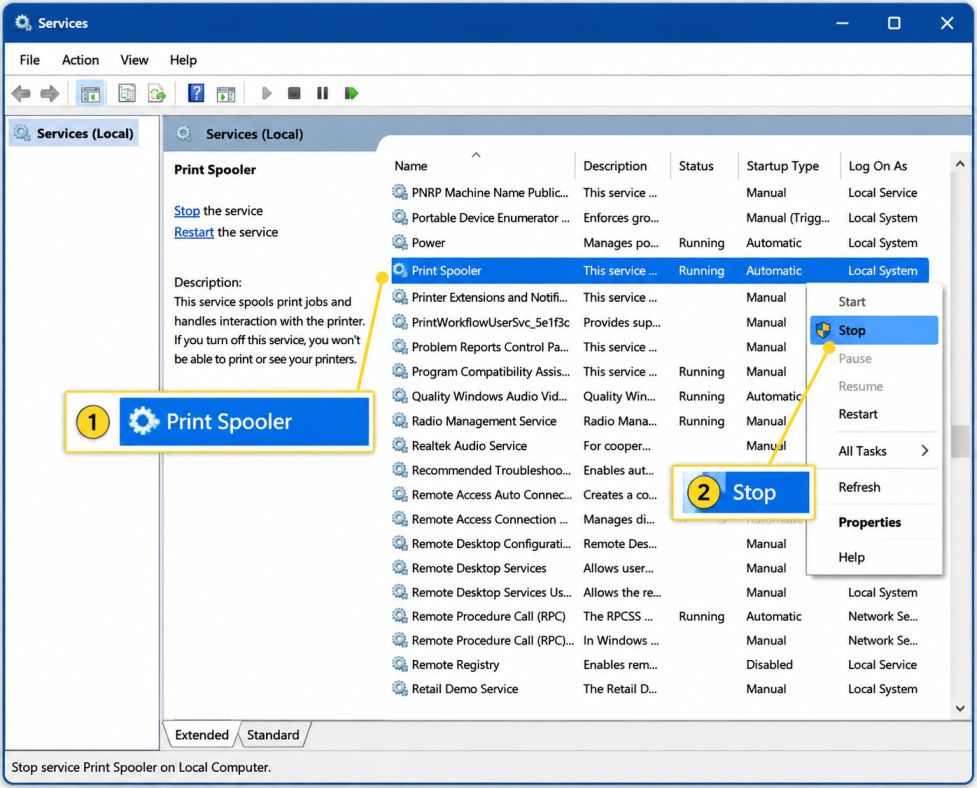
The Print Spooler manages print jobs in Windows. If it becomes stuck, Sage 50 may appear to send the document for printing without producing the expected output. To restart it:
- Press Windows + R.
- Enter services.msc.
- Press Enter.
- Find Print Spooler.
- Right-click it.
- Select Restart.
After restarting the service, try printing from Sage 50 again. If a specific print job remains stuck, clear the Windows print queue first. Avoid deleting system files unless you understand exactly what you are removing.
Step 4: Update or Reinstall Printer Drivers
Outdated or corrupted printer drivers often cause Sage 50 printing errors.
A. Update Printer Driver
- Open Device Manager.
- Expand Printers.
- Right-click your printer.
- Select Update Driver.
- Choose Search automatically for drivers.
Outdated drivers are one of the biggest culprits behind Sage 50 printing issues. If issues persist:
B. Reinstall Printer Driver
- Uninstall the printer from Devices and Printers.
- Restart the computer.
- Download the latest driver from the printer manufacturer’s official website.
- Install and reconnect the printer.
After reinstalling, test printing from Notepad before testing in Sage 50.
Fresh drivers often solve mysterious printing errors instantly.
Step 5: Verify Sage 50 Printer Settings
Sage 50 has internal printer configuration settings that may need adjustment.
- Open Sage 50.
- Navigate to File > Printer Setup.
- Select the correct printer from the dropdown.
- Ensure paper size and orientation match printer settings.
- Click OK.
For report-specific settings:
- Open the report.
- Choose Print.
- Select proper printer options.
- Verify scaling is set to 100%.
Step 6: Run Sage 50 as Administrator
Insufficient permissions can prevent Sage 50 from accessing printer resources.
- Close Sage 50.
- Right-click the Sage 50 icon.
- Select Run as Administrator.
- Attempt printing again.
If this resolves the issue permanently:
- Right-click the Sage 50 shortcut.
- Go to Properties > Compatibility.
- Check Run this program as an administrator.
Step 7: Repair Sage 50 Installation
Corrupted program files may interfere with print functionality.
- Close Sage 50.
- Open Control Panel > Programs and Features.
- Locate Sage 50.
- Click Uninstall/Change.
- Select Repair.
Follow on-screen prompts and restart the system after repair completes.
This fixes corrupted program files without deleting your data. If repair doesn’t work, you may need a full reinstall. Always back up your company data first.
Step 8: Check Windows Updates
Missing system updates can affect compatibility between Windows and printer drivers.
- Open Settings.
- Go to Update & Security.
- Click Check for Updates.
- Install pending updates.
- Restart the computer.
After updating, test printing again.
Step 9: Disable Antivirus Temporarily
Security software can block print processes.
- Disable real-time protection.
- Attempt printing from Sage 50.
- Re-enable antivirus immediately after testing.
If printing works, add Sage 50 as an exception in antivirus settings.
Step 10: Verify Company File Integrity
Corrupted company files may affect report printing.
- Open Sage 50.
- Go to File > Data Verification.
- Run the verification process.
- Repair any detected errors.
After repair, reopen the company file and test printing.
Step 11: Test Print to PDF
Testing PDF printing isolates hardware issues from software problems.
- Select Microsoft Print to PDF.
- Attempt printing from Sage 50.
- Save the file.
If PDF printing works but physical printing fails, the issue is printer-related.
Step 12: Configure Network Printer Settings
For shared or network printers:
- Ensure printer IP address is correct.
- Ping the printer IP using Command Prompt.
- Verify firewall rules allow printer communication.
- Re-add the printer using TCP/IP port setup.
Network misconfigurations are a common cause of printing failures in Sage 50 multi-user environments.
Also Find: How to Fix Slow Performance issue in Sage 50?
How to Fix Sage 50 Printer Not Activated Error Codes 20 and 41?
If Sage 50 displays Printer Not Activated Error Code 20 or 41, the problem may be related to the Sage 50 E-mail Writer, Windows default printer, or printer configuration rather than the physical printer itself.
Start with these checks:
- Make sure the correct printer is set as the Windows default printer.
- Check whether the affected form or report is configured to use Sage 50 E-mail Writer.
- Confirm that the printer is properly installed and available in Windows.
- Check whether the problem affects only one form or report or multiple Sage 50 documents.
- Verify that Sage 50 is not running in compatibility mode.
Sage’s troubleshooting guidance identifies Sage 50 E-mail Writer and temporary PTR files as possible causes of these printer-not-activated errors. In certain cases, removing temporary PTR files from the Sage Forms folder may help resolve the issue. Create a reliable backup before modifying or deleting these files.
Avoid changing registry entries or replacing printer drivers without first checking the documented printer, form, and E-mail Writer settings. If these checks do not resolve the error, continue with the other troubleshooting steps in this guide.
How to Fix Sage 50 Cannot Print Paychecks or Pay Stubs?
Payroll printing deserves separate attention because the problem may affect checks or pay stubs while other Sage documents continue to print normally.
If Sage 50 cannot print paychecks, first determine whether:
- The paycheck was created correctly.
- Other payroll forms print.
- Other Sage documents print.
- The selected printer works in Windows.
- The problem occurs with one employee or every paycheck.
If Sage 50 is not printing pay stubs, test another payroll document and, when appropriate, test PDF output.
If only payroll forms fail, review the payroll form and printer configuration rather than reinstalling Sage immediately.
How to Fix Sage 50 Reports Not Printing?
Sage 50 reports may have printing problems when a customized report retains an old printer or driver configuration. If Sage 50 reports are not printing, test a standard report first. If the standard report prints but a customized report does not, check that report’s printer assignment and layout.
This can happen after replacing a printer, upgrading Sage 50, or moving the software to another computer. The affected report may continue looking for a printer or driver that is no longer available. If only one customized report fails to print, troubleshoot its printer and layout settings rather than assuming the entire printer setup is defective.
How to Fix Sage 50 Invoice Not Printing Correctly?
If a Sage 50 invoice prints but the information is shifted, cut off, too small, or otherwise misaligned, the problem may be related to the invoice form or printer settings rather than the physical printer.
Check the following:
- Paper size
- Page orientation
- Printer driver
- Invoice form
- Form margins
- Printer-specific settings
- Custom form configuration
If other invoices print correctly, compare the affected invoice form with a standard form. A problem limited to one invoice form should be handled differently from a complete printer failure.
How to Fix Sage 50 Printer Connection Errors?
A Sage 50 printer connection problem is more likely to be network-related when multiple computers use the same printer.
Check whether:
- The printer is visible in Windows.
- Other computers can print to it.
- The printer’s network connection is working.
- The correct printer port is being used.
- The printer was recently assigned a new network address.
For persistent network problems, an IT administrator may need to review the printer’s network configuration and Windows permissions.
Sage also documents cases where printers installed through WSD ports can cause inconsistent printing behavior. For affected configurations, using a standard TCP/IP port with the manufacturer’s printer driver may help.
What If Sage 50 Printing Stopped After an Update?
Sage 50 printing problems can occur after a Windows, Sage 50, or printer-software update changes an existing configuration.
If printing worked before the update, start by checking:
- Restart Windows and the printer.
- Confirm that Windows still recognizes the printer.
- Check the current printer driver.
- Verify Sage 50’s printer settings.
- Test a standard Sage 50 report.
- Test printing from another Windows application.
Sage recommends restarting the computer and printer after a Windows update when printing stops working. If the problem continues, check for an updated printer driver from the printer manufacturer.
How to Troubleshoot Sage 50 Printing Problems on Windows 11?
If you are experiencing Sage 50 printing problems on Windows 11, first confirm that your Sage 50 version is compatible with your Windows version.
If the printing problem started after upgrading from Windows 10 to Windows 11, check:
- Sage 50 version compatibility
- Printer driver compatibility
- Windows printer installation
- Default printer
- Customized report printer settings
- Sage PDF and E-mail Writer functionality
Sage also documents cases where Windows 11 updates can contribute to Sage freezing when printing or emailing forms. If the problem started after a Windows update, check for available Sage and printer-driver updates before making major configuration changes.
What Should You Do When Sage 50 Keeps Freezing During Printing?
If Sage 50 freezes or stops responding when you select Print, avoid repeatedly force-closing the program without first checking what may be causing the problem.
Possible causes include:
- Windows 11 updates
- UAC settings
- Damaged PTR or FRM files
- Antivirus interference
- Sage 50 E-mail Writer being set as the Windows default printer
- Other software interfering with printer or email communication
Start with the basic checks: confirm the correct printer is selected, test printing from Windows, verify Sage 50’s printer settings, and check whether the problem started after a recent update.
If Sage 50 continues to freeze, further troubleshooting of the affected files, E-mail Writer, security software, or Windows configuration may be necessary.
Advanced Troubleshooting for Persistent Sage 50 Printing Issues
If basic troubleshooting does not resolve the issue, try these advanced checks. Back up your Sage 50 company data before making changes.
- Check PTR files: In some cases, PTR files in the Forms folder can cause printing problems. Confirm the correct Sage data path before removing them.
- Test another Windows profile: If printing works for another Windows user, the issue may be related to your current Windows profile. Creating a new profile may help.
- Check security software: Antivirus or security tools may interfere with Sage 50. Instead of disabling protection, ask your IT or security provider about an appropriate exclusion.
- Repair Sage 50: If program files are damaged, a repair installation may help. Make sure your company data is backed up before repairing or reinstalling Sage 50.
- Make changes carefully: If you are unsure about an advanced step, verify the recommended procedure before changing Sage files or settings.
How Can You Prevent Future Sage 50 Printing Issues?
You cannot prevent every printer problem, but a few habits can reduce avoidable interruptions.
- Keep Sage 50 updated within your supported environment.
- Keep Windows and printer drivers maintained.
- Avoid replacing printer drivers without checking compatibility.
- Keep the correct Windows default printer configured.
- Review customized report printer settings after changing printers.
- Test printing after moving Sage 50 to another computer.
- Maintain reliable company-file backups.
- Document printer names and network configurations in multi-user environments.
- Test a standard Sage report when a new printing problem appears.
After changing a printer or computer, it is especially important to test both standard documents and customized reports.
When Should You Get Professional Help With Sage 50 Printing?
If Sage 50 still cannot print after basic troubleshooting, seek professional help when:
- Multiple computers have the same issue.
- Network printing fails across systems.
- Sage 50 repeatedly freezes.
- Company or form files appear damaged.
- PDF or E-mail Writer issues remain unresolved.
- Advanced Windows changes are required.
Avoid changing registry settings or deleting Sage 50 files without proper guidance.
Conclusion
By systematically diagnosing the root cause whether printer configuration, Windows services, driver compatibility, Sage 50 settings, or company file integrity—we can restore full printing functionality. Following these structured steps ensures accurate document output, smooth accounting operations, and uninterrupted business workflow.
Reliable printing is essential for invoicing, payroll, tax forms, financial reporting, and daily transaction records. Applying the procedures outlined above guarantees a stable and optimized Sage 50 printing environment.
Frequently Asked Questions
1. Incorrect default printer selected in Windows
2. Outdated or corrupted printer drivers
3. Damaged or customized invoice template
4. Printer not connected properly (USB or network)
5. Sage 50 installation needs repair
1. Windows printer settings are corrupted
2. Selected printer is no longer available
3. Network printer connection is broken
4. Recent Windows update changed printer configuration
5. Print Spooler service needs restarting
1. Insufficient system RAM available
2. Large or complex report layout
3. Too many background programs running
4. Corrupted or outdated printer driver
5. Damaged Sage 50 report template
1. Network printer delays or weak connectivity
2. Large company data file
3. Print queue overloaded with pending jobs
4. Outdated printer driver
5. System performance issues
1. Switch to a default report template
2. Repair Sage 50 from Control Panel
3. Restore a recent company file backup
4. Check user permissions
5. Reinstall Sage 50 if necessary
1. Verify correct printer selection
2. Check check stock format settings
3. Adjust alignment and margin settings
4. Update or reinstall printer driver
5. Restart Print Spooler service
1. PDF converter driver is corrupted
2. Printer driver conflicts
3. Insufficient system permissions
4. Antivirus or firewall interference
5. Sage 50 installation requires repair