
QuickBooks Multi User Mode Not Working can stop your accounting team from accessing the same company file from different computers. You may find that the company file opens normally on the server but not on a workstation, QuickBooks switches back to single-user mode, or another computer cannot connect to the shared file. These problems are usually related to hosting configuration, network connectivity, firewall settings, folder permissions, or the QuickBooks Database Server Manager.
Before changing advanced settings, I recommend starting with the basic checks and then moving through the solutions below one at a time. This helps you identify the actual cause without making unnecessary changes to your QuickBooks setup.
What Does QuickBooks Multi-User Mode Do?
QuickBooks Desktop Multi-User Mode allows multiple authorized users to work with the same company file over a network. It is useful when accountants, bookkeepers, managers, or other employees need to work with company data at the same time. In a properly configured setup, one computer or server hosts the company file while other workstations connect to it through the network.
When multi-user access stops working, you may notice:
- QuickBooks opens the company file only on one computer.
- A workstation cannot find or open the company file.
- QuickBooks switches from Multi-User Mode to Single-User Mode.
- Other computers cannot connect to the host.
- An H-series error appears, such as H101, H202, H303, or H505.
- The company file works locally but not from another computer.
- QuickBooks reports a problem with hosting or network connectivity.
These symptoms help narrow down where to start troubleshooting.
Why Is QuickBooks Multi-User Mode Not Working on Your Computers?
There isn’t one universal cause of a QuickBooks multi-user problem. The issue can occur at several points between the workstation and the company file. Common causes include:
| Possible cause | What it can affect |
| Incorrect hosting | Workstations may try to act as hosts or the intended host may not be hosting correctly |
| Database Server Manager | The database service may not be installed, running, or configured correctly |
| Network problems | Workstations may be unable to communicate with the host |
| Firewall restrictions | Required QuickBooks communication can be blocked |
| Folder permissions | QuickBooks may not have sufficient access to the company-file folder |
| .ND file problems | Network configuration information may no longer match the current setup |
| Damaged installation | Missing or damaged QuickBooks components can interfere with connectivity |
| Incorrect network path | A changed server name, mapped drive, or network location can prevent access |
| Windows permissions | Local security settings can interfere with file access |
The best approach is to identify whether the problem affects all workstations or only one. If every workstation has stopped connecting, investigate the host, database service, firewall, and network first. If only one computer is affected, focus more closely on that workstation.
What Should You Check Before Changing QuickBooks Settings?
A few basic checks can eliminate temporary problems before you make configuration changes.
- Restart the computers: Close QuickBooks on every workstation and restart the host/server and affected computers. A restart can clear temporary Windows service, network, or application problems. It is a simple step, but it is worth trying before making more complicated changes.
- Create a current backup: Before renaming network files, moving a company file, or performing repair procedures, make sure you have a current backup of your QuickBooks company data. A backup gives you a recovery option if a troubleshooting step does not produce the expected result.
Identify the affected computers:
- The company file opens on the host.
- One workstation cannot connect.
- Several workstations cannot connect.
- Nobody can access the file in multi-user mode.
This distinction can save considerable troubleshooting time.
12 Ways to Fix QuickBooks Multi User Mode Not Working
The following solutions cover the most common hosting, network, permissions, and company-file access problems. Work through them in order rather than changing several settings simultaneously.
1. Check QuickBooks Hosting Configuration on Every Computer
Hosting configuration is one of the first things to verify when QuickBooks will not work in multi-user mode. In a typical QuickBooks Desktop network setup, the computer hosting the company file needs the appropriate hosting configuration, while workstations should not unintentionally be configured to host the same file.
A. Check a Workstation:
- Open QuickBooks Desktop.
- Select File > Utilities.
- Look at the hosting options.
- If Stop Hosting Multi-User Access appears on a workstation that should not host files, select it.
Repeat the check on other workstations.
B. Check the Host:
On the computer intended to host the company file.
- Open QuickBooks Desktop.
- Select File > Utilities.
- Check the hosting option.
- Enable Host Multi-User Access when the computer is intended to host the company file and the option is available.
Do not enable hosting on every computer simply because multiple people use QuickBooks. The hosting arrangement should match the way your company file is stored and shared.
2. Check QuickBooks Database Server Manager
QuickBooks Database Server Manager is an important component of a networked QuickBooks Desktop installation. It allows the host computer to provide network access to company files. If the database server component is not working correctly, workstations may be unable to connect even though the company file itself opens successfully on the host.
On the computer hosting the company file:
- Open QuickBooks Tool Hub.
- Select Network Issues.
- Open QuickBooks Database Server Manager.
- Verify the company-file folder.
- Rescan the folder when appropriate.
- Allow the scan to complete before testing the workstation again.
If the Database Server Manager does not recognize the folder containing the company file, verify that you have selected the correct folder rather than assuming the company file itself is damaged.
3. Verify the QuickBooks Database Services in Windows
Windows services provide another important part of the QuickBooks network environment. The exact database service name depends on your QuickBooks Desktop version. You may see a service with a name such as QuickBooksDBXX, where the number corresponds to the installed version. You may also see QBCFMonitorService.
Check the services:
- Press Windows + R.
- Type services.msc.
- Press Enter.
- Find the QuickBooks database service associated with your installed version.
- Check whether it is running.
- Review its startup configuration.
- Check QBCFMonitorService as well if it is installed.
If a required QuickBooks service repeatedly stops, don’t simply keep restarting it. Look for an underlying installation, permissions, Windows, or network problem.
4. Check Your Network Connection and Firewall
QuickBooks multi-user access depends on communication between the workstation and the computer hosting the company file. A Windows firewall or third-party security product can interfere with that communication. First determine whether the affected workstation can reach the host computer through the network. If Windows cannot communicate reliably with the host, changing QuickBooks settings alone will not solve the problem.
Review firewall configuration: Check the firewall on the host and affected workstations for rules that may be blocking QuickBooks. Depending on your QuickBooks Desktop version and configuration, the required firewall ports can differ. Because Intuit can change supported versions and networking requirements, use the port information associated with your specific QuickBooks release rather than copying a port list intended for another version. Also review whether the appropriate QuickBooks applications are permitted through Windows Firewall or your security software.
Common QuickBooks-related executable names can include:
- QBW32.exe
- QBDBMgrN.exe
- QBCFMonitorService.exe
The exact files present depend on the installed QuickBooks version and components. Do not permanently disable your firewall just to test multi-user mode. If disabling a security product appears to fix the connection, configure an appropriate exception instead and restore normal protection.
5. Verify Permissions for the Company-File Folder
QuickBooks needs appropriate access to the folder containing the company file. Problems can occur after moving the file, changing Windows security settings, reinstalling QuickBooks, or modifying user accounts.
To inspect the folder:
- Browse to the folder containing the company file.
- Right-click the folder and select Properties.
- Open the Security tab.
- Review the users and groups that have access.
- Confirm that the QuickBooks database service account associated with your installation has the permissions it requires.
The account name can vary according to your QuickBooks version, so you may see an account such as QBDataServiceUserXX. Avoid automatically granting unrestricted access to everyone simply because a permissions problem exists. Review the folder’s current security configuration and apply the permissions appropriate for your QuickBooks installation and Windows environment.
6. Run QuickBooks Tool Hub and File Doctor
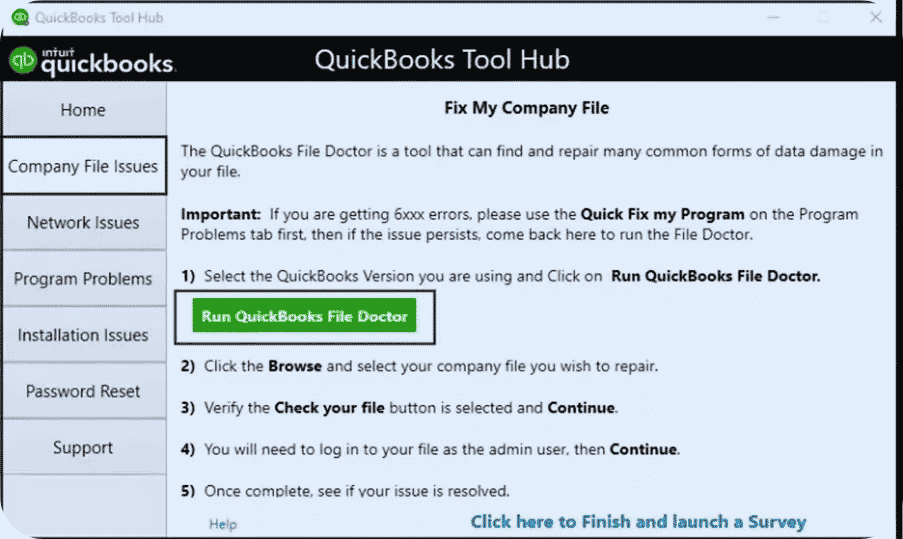
QuickBooks Tool Hub includes troubleshooting utilities that can help identify certain company-file and network problems. If your version of QuickBooks Tool Hub includes QuickBooks File Doctor, you can use it to check the affected company file and network configuration.
Run File Doctor:
- Open QuickBooks Tool Hub.
- Select Company File Issues.
- Choose Run QuickBooks File Doctor.
- Select the affected company file.
- Choose the option that checks the file and network.
- Enter your credentials if requested.
- Allow the diagnostic process to finish.
File Doctor is not a solution for every multi-user problem. If the underlying issue is a firewall, DNS, hosting, or Windows permissions problem, you may still need to correct that configuration separately.
7. Rebuild the Network Descriptor Information
QuickBooks uses a network data file with the .ND extension alongside the company file. This file contains information QuickBooks uses for network access. If the network configuration has changed, the .ND file may no longer reflect the current setup. Before changing it, close QuickBooks and make sure you have a current backup.
Rename the .ND file:
- Open the folder containing the company file.
- Locate the corresponding file with the .ND extension.
- Right-click it and choose Rename.
- Add .old to the existing filename.
- Use QuickBooks Database Server Manager to rescan the company-file folder.
QuickBooks can recreate the network descriptor information when the folder is rescanned. If you have multiple company files, make sure you are modifying the .ND file associated with the correct company file.
8. Check the Network Path Instead of Assuming the Drive Is Working
A mapped network drive can stop working after changes to the server, Windows account, network configuration, or drive mapping. For example, a company file that was previously available through a mapped drive may no longer be reachable even though the QuickBooks shortcut still exists. Check whether Windows can access the host and shared folder first.
A UNC path may look like: \\ServerName\QuickBooksData\CompanyFile.qbw
The exact server and folder names will depend on your network. If the server name no longer resolves correctly, test the network connection and name resolution before changing the QuickBooks company file location.
9. Update QuickBooks Desktop on the Computers That Use the File
Running different releases or having an outdated QuickBooks installation can create compatibility and connectivity problems.
Check for available QuickBooks Desktop updates:
- Open QuickBooks Desktop.
- Select Help.
- Choose Update QuickBooks Desktop.
- Review the available update options.
- Install the appropriate update.
- Restart QuickBooks when prompted.
If your business uses multiple installations, keep the environment consistent with the supported requirements for your QuickBooks version. Also remember that updating QuickBooks is not the same as upgrading to a newer product year. If you are using a discontinued version, an update may not be available.
10. Review Windows User and Account Permissions
QuickBooks multi-user access involves more than the QuickBooks login. Windows permissions can affect the database service, shared folder, network access, and QuickBooks installation.
Review:
- The Windows account being used.
- Access to the company-file folder.
- Permissions assigned to the QuickBooks database service account.
- Whether security software is restricting QuickBooks.
- Whether recent Windows policy changes affected the server.
If your environment is managed by an IT administrator, involve them before changing Windows security policies or administrative permissions.
11. Test Server Name and DNS Resolution
Sometimes the QuickBooks installation is fine, but the workstation cannot correctly resolve the name of the computer hosting the company file. You can perform a basic connectivity test from an affected workstation.
- Open Command Prompt.
- Enter a command such as: ping Server Name
- Replace ServerName with the actual hostname of your QuickBooks server.
- Review the response.
A successful ping does not prove that QuickBooks is fully configured. It only helps determine whether basic network communication and name resolution are working. If the server name cannot be resolved, work with your network administrator to investigate DNS, hostname, or Windows network configuration.
12. Move the Company File Only When the Existing Folder Is the Problem
Moving a company file should not be your first troubleshooting step. However, if you have identified a problem with the existing folder, path, or permissions, creating a properly configured folder can help isolate the issue. Before moving anything, make sure you have a reliable backup and understand where the company file is currently being used.
A controlled approach is:
- Create an appropriate folder on the intended host.
- Apply the necessary Windows permissions.
- Place the company file in the new location using a safe file-management process.
- Use QuickBooks Database Server Manager to scan the new folder.
- Confirm that the host can access the company file.
- Test access from a workstation.
Do not move a company file simply because another solution has not worked. An unnecessary move can introduce a new network-path or permissions problem.
What Do QuickBooks H101, H202, H303, H505, and 6175 Errors Mean?
When QuickBooks Multi-User Mode stops working, the error code can help you identify where to begin troubleshooting. Each error can have different causes, so it is better to check the related network, hosting, or database settings instead of applying the same fix to every error.
| QuickBooks Error | What the Error Means | What You Should Check |
| QuickBooks Error H101 | H101 usually points to a hosting or network issue. QuickBooks may be having trouble communicating with the computer that stores and hosts the company file. | Start by checking the host computer and making sure it is set up correctly for Multi-User Mode. Then confirm that your workstation can connect to the host over the network. |
| QuickBooks Error H202 | H202 means a workstation is having trouble connecting to the company file. This often involves the host computer, network connection, firewall, or QuickBooks Database Server service. | Check that the host computer is available and that the QuickBooks Database Server service is running. You should also check the network and firewall settings. If only one computer is affected, focus your troubleshooting on that workstation. |
| QuickBooks Error H303 | H303 can occur when QuickBooks cannot properly access the company file over the network. A problem with the shared folder or hosting setup may be preventing the connection. | Make sure the company file is stored in the correct shared folder and that the host computer is configured properly. Also check the Multi-User Mode settings on the workstations. |
| QuickBooks Error H505 | H505 is commonly related to hosting or network communication. It can appear when a workstation cannot properly connect to a company file stored on another computer. | First, identify which computer is hosting the company file. Then check that the QuickBooks Database Server service is working and that the workstation can access the host and shared folder. |
| QuickBooks Error 6175 | Error 6175 is often related to the QuickBooks Database Server or hosting setup. QuickBooks may not be able to access the database service it needs to open the company file. | Check that the appropriate QuickBooks Database Server service is running on the host computer. It is also important to make sure a workstation has not been incorrectly set up to host the company file. |
Note: Don’t Treat Every Error the Same Way, These error codes are troubleshooting clues rather than final diagnoses. If you receive one of them, identify which computer is affected and whether other users can still access the company file.
Is QuickBooks 2022 Multi-User Mode Still Supported?
If you are using QuickBooks Desktop 2022 and Multi-User Mode is not working, it is important to consider the age and support status of your QuickBooks version. QuickBooks Desktop 2022 is a discontinued version, so troubleshooting it in 2026 is different from troubleshooting a currently supported release. Intuit discontinued QuickBooks Desktop 2022 products after May 31, 2025. After discontinuation, affected Intuit services, live technical support, and critical security updates are no longer available for that version. This does not necessarily mean that a locally stored company file will suddenly stop opening or that every multi-user connection will fail.
If your QuickBooks 2022 company file still opens on the host but other computers cannot connect, you should first check the usual multi-user causes, such as hosting settings, the Database Server Manager, network connectivity, firewall restrictions, and folder permissions. At the same time, keep in mind that you are working with a discontinued product that no longer receives the same support as a current version. For a business that continues to depend on QuickBooks Desktop 2022, it is worth reviewing your upgrade and data-access plans. That way, you can separate a genuine network or multi-user configuration problem from limitations that may result from using an unsupported QuickBooks version.
How Can You Tell Whether Multi-User Mode Is Working Again?
After troubleshooting, don’t test only by checking whether QuickBooks opens. Perform a practical multi-user test.
- The host can access the company file.
- A workstation can connect to the same company file.
- Multiple authorized users can sign in as intended.
- QuickBooks remains in the appropriate multi-user mode.
- The connection remains stable during normal work.
- Network-related errors do not reappear.
- Users can perform the tasks permitted by their QuickBooks roles.
If only one workstation still fails, compare its configuration with a workstation that works. That comparison can quickly reveal whether the remaining issue is local to that computer.
How Can You Prevent QuickBooks Multi-User Problems From Returning?
Once you’ve restored multi-user access, a few maintenance habits can reduce the likelihood of recurring problems.
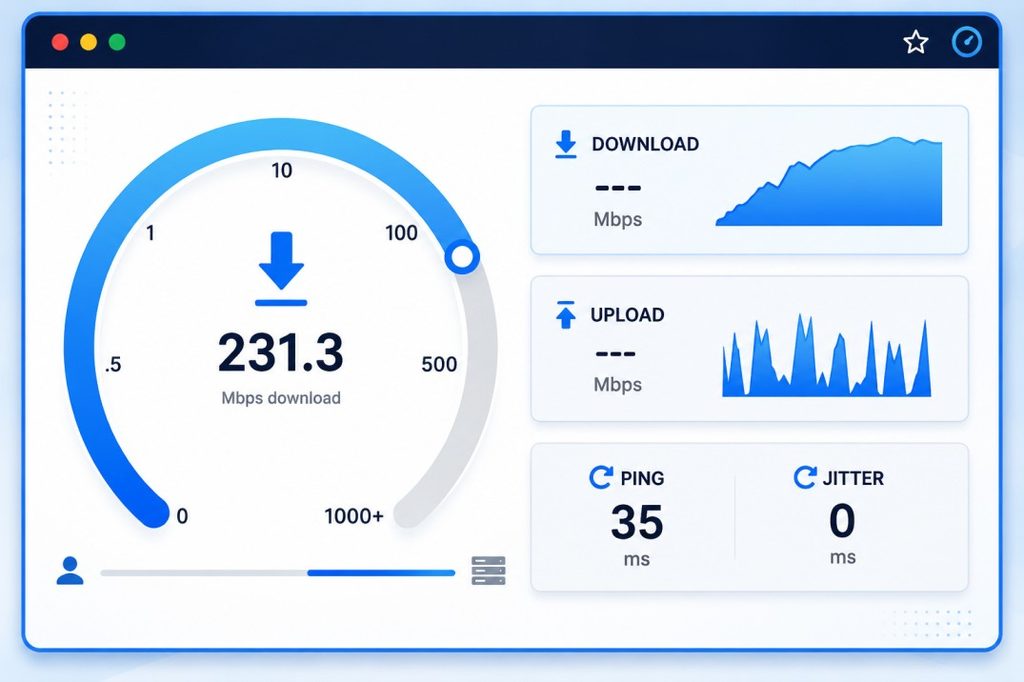
- Keep the network stable: QuickBooks Desktop multi-user access depends on reliable communication between workstations and the host.
- Monitor:
- Network connectivity
- Server availability
- Network hardware
- Shared-folder accessibility
- Windows security changes
If users regularly lose access to the company file, investigate the network rather than repeatedly repairing QuickBooks.
- Maintain appropriate permissions: Avoid changing folder permissions casually. Keep the company-file folder configured for the QuickBooks database service and authorized users. If your Windows environment is managed centrally, document any permission changes so future troubleshooting is easier.
- Keep QuickBooks maintained: Use supported QuickBooks Desktop releases and install applicable updates when appropriate. For businesses running older or discontinued versions, review the product’s current support status and plan accordingly rather than assuming older configurations will continue to receive the same services and support.
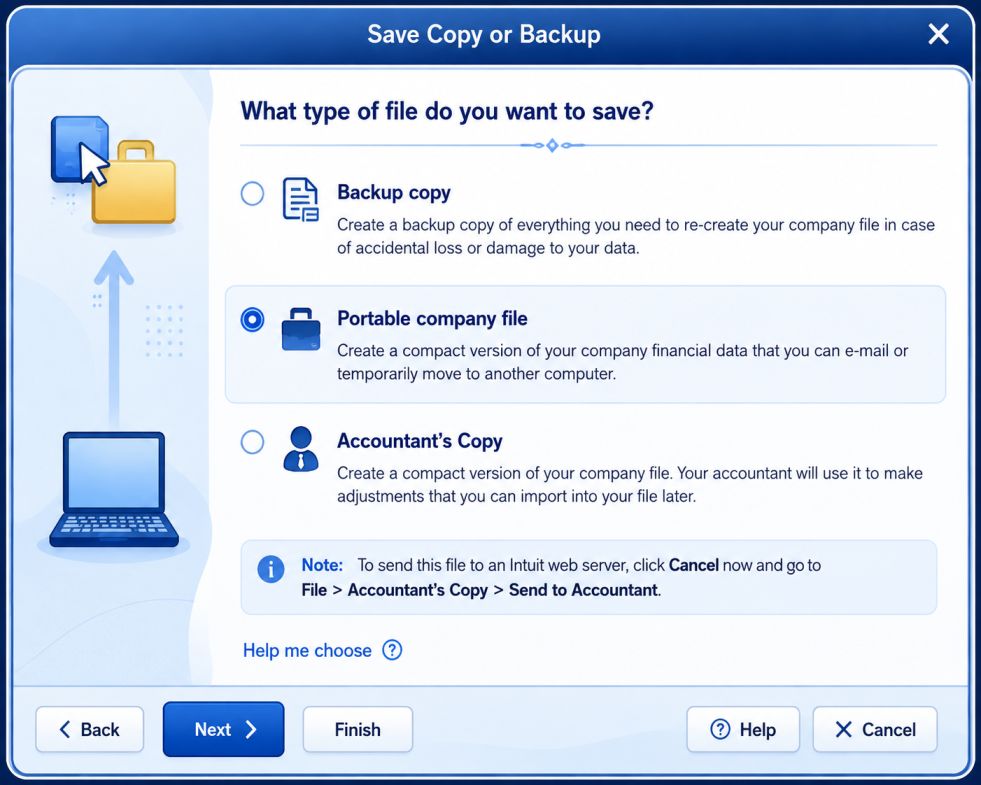
- Back up company data regularly: A reliable backup strategy is separate from multi-user mode. Multi-user access allows people to work simultaneously; it does not protect your company file from every type of data loss, corruption, hardware failure, or other unexpected event. Maintain backups according to your organization’s recovery requirements and periodically verify that the backup process is actually producing usable files.
- Avoid unnecessary hosting changes: Don’t switch hosting configurations from computer to computer without a reason. A clearly defined host and consistently configured workstations make a multi-user environment easier to manage and troubleshoot.
When Should You Stop Troubleshooting and Get Technical Help?
You should be more cautious when the problem involves the company file itself rather than only network connectivity.
Consider getting qualified technical assistance when:
- The company file shows signs of corruption.
- Multiple users receive different errors.
- The host computer repeatedly loses database connectivity.
- Windows permissions have become complicated.
- The company file is stored on an unusual network configuration.
- Your business depends on the file being available continuously.
- You are working with QuickBooks Enterprise in a larger network.
- You are considering moving the company file to another server.
- You are troubleshooting a discontinued QuickBooks version.
Do not delete, rename, or rebuild company-file components without understanding their purpose and creating a reliable backup first.
Final Thoughts
QuickBooks Multi User Mode Not Working is usually a configuration problem rather than a reason to immediately assume that your company file is damaged. Hosting settings, QuickBooks Database Server Manager, Windows services, firewall rules, network paths, permissions, and .ND files can all affect whether workstations connect successfully.
Start with the simplest checks, identify whether the problem affects one computer or the entire network, and then work through the relevant solutions systematically. Always protect your company data with a current backup before making significant changes.
A stable host, correctly configured database service, reliable network, appropriate permissions, and properly maintained QuickBooks installation give your team a much stronger foundation for dependable multi-user access.
FAQ of QuickBooks Multi User Mode Not Working
1. Check Network Connectivity – Make sure all computers are on the same network and that Network Discovery and File Sharing are turned on.
2. Install or Run QuickBooks Database Server Manager on the Server – Scan the folder where your company file is stored.
3. Verify Hosting Settings – Ensure only the host computer has “Host Multi-User Access” turned on, and workstations do not.
4. Check File Permissions – Confirm the folder with the company file allows shared access (Read/Write) for all users.
5. Use QuickBooks File Doctor from the QuickBooks Tool Hub to diagnose and fix network or data issues.
1. Open QuickBooks Tools Hub and go to Network Issues.
2. Run the QuickBooks Database Server Manager on your server and Start Scan for your company file folder.
3. Run QuickBooks File Doctor from the Tool Hub and choose “Check your Network.”
4. Confirm hosting setup – ensure only the host computer is set to host multi-user access.
5. If still unresolved, check Windows firewall and security settings to make sure QuickBooks is allowed through.
1. Choose a computer to act as the host – this will store the company file and run Database Server Manager.
2. Install QuickBooks Database Server Manager on that computer if it’s not already installed.
3. Share the company file folder with appropriate permissions (Read/Write) for all users.
4. Enable hosting only on the host machine, and make sure workstations do not host.
5. From each workstation, open QuickBooks and select Switch to Multi-User Mode.
1. Run QuickBooks Database Server Manager to scan the company file folder and repair firewall permissions.
2. Verify the host setup – ensure only the server computer is hosting multi-user access.
3. Check that key services are running – QuickBooksDBXX and QBCFMonitorService should be set to Automatic and running.
4. If needed, restart QuickBooks on all machines and try switching to multi-user mode again.
5. Run QuickBooks File Doctor if the error persists to diagnose deeper network or file issues.
1. Open QuickBooks on the host machine and ensure Host Multi-User Access is enabled.
2. Confirm that workstations are not hosting – if a non-host PC is set to host, it can block multi-user mode.
3. Ensure network sharing is enabled and the folder with the company file is accessible to all users.
4. Restart QuickBooks Database Server Manager to refresh network communication.
1. Confirm the hosting computer is the one with the company file and is properly configured.
2. Run Database Server Manager to scan and re-establish communication permissions.
3. Ensure Windows network settings (sharing, discovery) allow multi-user access.
4. Check firewall and antivirus settings so that QuickBooks traffic is not blocked.
5. Use QuickBooks File Doctor to diagnose any deeper network or file integrity issues.
1. Check for Automatic Processes – Backups or scheduled tasks can force QuickBooks into single-user mode.
2. Ensure a Stable Network Connection – Network drops can interrupt multi-user sessions.
3. Verify File Permissions and Hosting Setup – Conflicts here can result in mode switching.
1. Check Network Performance – Slow or unstable connections will slow QuickBooks in multi-user mode.
2. Update QuickBooks – Running the latest release can improve performance and compatibility.
3. Ensure Adequate System Resources – The host machine should have enough memory and CPU to support multiple users.
4. Optimize your Company File – Large files can slow performance, so consider condensing or rebuilding data if appropriate.
1. Restart QuickBooks services on the server to clear any communication hang-ups.
2. Recreate Network Data Files (.ND) – Renaming them forces QuickBooks to rebuild them.
3. Check File Integrity – Run Verify and Rebuild data in QuickBooks or use File Doctor to fix corruption.
4. Ensure stable network connectivity so that the mode switch doesn’t get interrupted mid-process.
QuickBooks Pro and Premier can both support multi-user workflows, but the exact features and capabilities depend on the specific QuickBooks Desktop version. If you’re having trouble with multi-user access in Pro or Premier, first check whether all computers are running compatible releases and whether the company file is being hosted from the correct computer. If the problem is limited to one workstation, compare its QuickBooks version and network configuration with a computer that connects successfully.
QuickBooks Enterprise is designed for businesses that need a larger-scale QuickBooks Desktop environment, including support for more simultaneous users than certain other Desktop editions. However, the maximum number of users and available features depend on the specific Enterprise subscription and version. If Enterprise Multi-User Mode is not working, check the hosting computer, database service, network connection, and user permissions before assuming that the user limit is the cause.
Yes, supported QuickBooks Desktop Pro Plus and Premier Plus editions can be used in multi-user environments when the required network and hosting configuration is properly set up. Your subscription plan does not by itself eliminate the need for a correctly configured host, database service, company-file folder, and network connection. If multi-user access fails after a subscription or version change, verify that the installations and company-file environment are compatible.
An upgrade can change the QuickBooks version, database components, services, or network configuration used by the company file. If some computers are running a different release than the host, multi-user access may not work as expected. After upgrading Enterprise, check the QuickBooks version on the host and workstations, verify the corresponding database service, and make sure the company-file location and hosting configuration are still correct.
No. QuickBooks Online and QuickBooks Desktop use different access models. QuickBooks Desktop Multi-User Mode is designed for users connecting to a shared company file through a configured network environment. QuickBooks Online is cloud-based, so users access the company through their individual user accounts and permissions rather than switching a locally stored company file between Single-User and Multi-User Mode. If you’re moving from Desktop to Online, you should therefore troubleshoot user access differently rather than applying Desktop multi-user fixes.



