If you want to convert from QuickBooks Enterprise to QuickBooks Online. The move can give you easier remote access, smoother collaboration, and the convenience of managing your accounting data in the cloud. However, converting QuickBooks Enterprise to Online is not something you should rush. Proper preparation and a step-by-step migration process can help protect your financial data and reduce problems after the conversion.
Before you begin, review your company file and identify the information and features you need to carry forward. Depending on your file and the supported migration process, important accounting data may transfer to QuickBooks Online, but not every Desktop feature works exactly the same way in Online. That is why it is important to understand the conversion requirements and check your data after the migration.
Once the conversion is complete, you can take advantage of cloud-based access, easier collaboration, and the ability to work with your accounting data without relying on a single Desktop computer. If you are preparing to convert QuickBooks Enterprise to Online, following a careful process can make the transition more organized and give you greater confidence in your new QuickBooks Online setup.
Why You Might Move QuickBooks Enterprise Data to Online?
QuickBooks Online makes accounting easier by giving you access to your business data through the cloud. You, your accountant, and your team can work from different locations without relying on the same desktop computer.
Here are the main benefits of choosing QuickBooks Online:
- Access From Anywhere: You can sign in from a supported browser and check your business information wherever you work.
- Easy Team Collaboration: You can give employees, bookkeepers, and accountants access based on their user permissions.
- Automatic Updates: You do not have to manually install traditional desktop updates to keep using the online service.
- Automatic Bank Transactions: Connected bank and credit-card accounts can download transactions, making it easier to review and organize your books.
- Online Invoicing: You can create and send invoices electronically and manage customer payments through available features.
- Financial Reports: QuickBooks Online provides useful reports to help you track income, expenses, balances, and business performance.
- Inventory Tracking: Eligible QuickBooks Online plans include inventory features to help you track products and inventory values.
- Mobile Access: You can use supported mobile apps to access and manage many accounting tasks while away from your computer.
- Electronic Payments: Depending on the services you use, customers can pay invoices through available electronic payment options.
- Cloud-Based Data: Your QuickBooks Online company is hosted in the cloud, reducing your dependence on a locally stored company file.
Before you migrate QuickBooks Enterprise to Online, compare the features you currently use in Enterprise with the QuickBooks Online plan you want. This helps you choose the right plan and avoid problems after migration.
Which QuickBooks Online Plan Should You Choose After Enterprise?
One of the biggest decisions when migrating QuickBooks Enterprise to Online is selecting an Online subscription that matches your business requirements. QuickBooks Online plans differ in areas such as users, custom fields, and class and location tracking. Current Intuit documentation lists different user limits across QuickBooks Online plans, with Advanced supporting substantially more users and customization than lower-tier plans.
QuickBooks Online plan | When it may make sense |
| Essentials | Smaller teams that need core accounting and multiple users |
| Plus | Businesses needing additional tracking and inventory-related capabilities |
| Advanced | Larger or more complex businesses needing expanded users, customization, and advanced capabilities |
Do not choose a plan simply because it has the lowest subscription cost. Compare the features your Enterprise workflow actually uses.
For example, if your business depends on class and location tracking, current plan differences matter. QuickBooks states that Simple Start and Essentials do not include class and location tracking, while Plus supports up to 40 combined classes and locations and Advanced supports unlimited classes and locations.
How to Prepare QuickBooks Enterprise Before You Start
Before you convert from QuickBooks Enterprise to QuickBooks Online, prepare your company file carefully. Follow these simple steps to make the migration easier and avoid common problems.
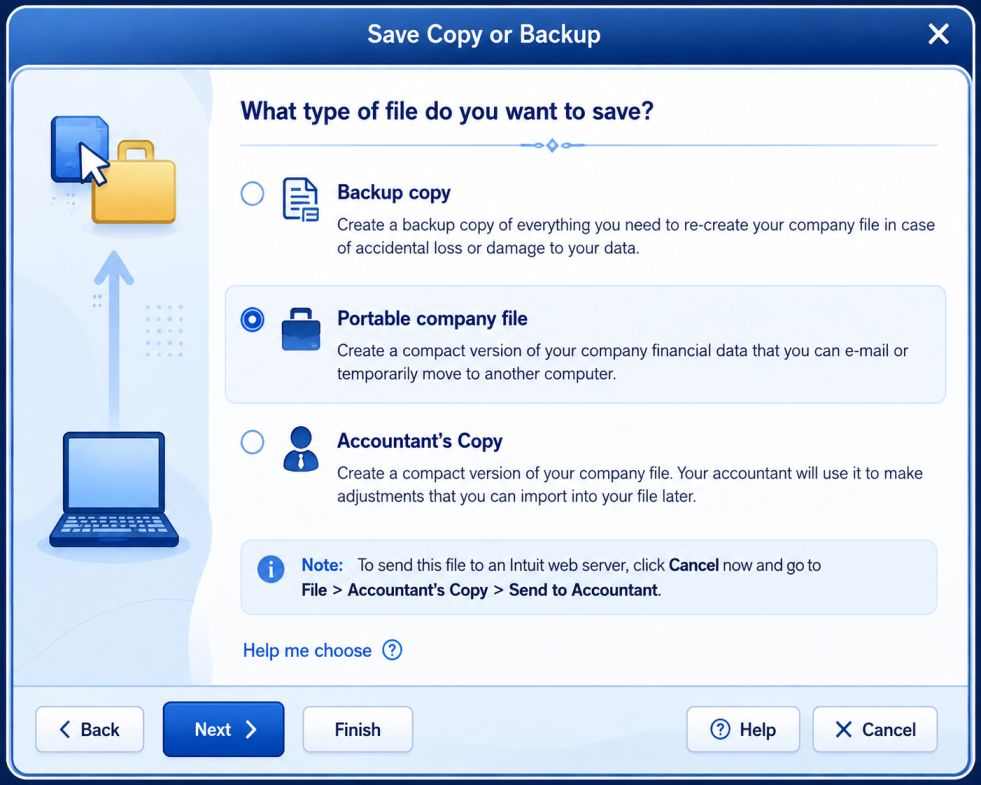
- Create a Backup: First, create a complete backup of your Enterprise company file and keep it somewhere safe. You can use this backup later if you need to check or recover your old records.
- Check for Data Errors: Open your Enterprise file and run the available verification tool to check for problems. If you find any errors, fix them before you start the migration.
- Review Your Important Data: Check your customers, vendors, accounts, inventory, invoices, bills, payroll, and other important records. This helps you know what information should be available after the move.
- Clean Up Your File: Remove unnecessary or outdated information where appropriate before migrating your data. Avoid making major changes that could make it harder to compare your old and new records.
- Record Key Balances: Note important figures such as bank balances, Accounts Receivable, Accounts Payable, inventory, and financial statements. You can compare these numbers with QuickBooks Online after the migration.
- Plan Your Payroll: If you use QuickBooks Desktop Payroll, choose your migration date carefully around your payroll schedule. QuickBooks recommends waiting about 2–3 business days after your last payroll run before migrating and completing the move before the next payroll run.
- Keep Your Original File Safe: Do not delete your Enterprise company file after starting the migration. Keep it as a reference so you can check older transactions if something needs to be verified later.
How to Convert QuickBooks Enterprise to Online in 11 Steps
You can convert QuickBooks Enterprise to QuickBooks Online using the migration tool in QuickBooks Desktop. Before you begin, prepare your company file, check the current migration requirements, and make sure you have admin access to both accounts.
- Update QuickBooks Enterprise: First, update QuickBooks Enterprise to the latest available release. Also make sure you are signed in as the company administrator before starting the migration.
- Check Your Company File: Open your Enterprise file and press F2 or Ctrl + 1 to open the Product Information window. Check Total Targets and make sure your file is below the current 4,000,000-target limit.
- Verify Your Data: Go to File > Utilities > Verify Data and check your company file for errors. If QuickBooks finds data damage, fix it with the appropriate repair tools before you continue.
- Keep the File on Your Computer: Make sure your Enterprise company file is saved locally on your computer, rather than only on a hosted or cloud service. If your file is hosted, contact your hosting provider for a local copy before starting the migration.
- Prepare Payroll: If you use QuickBooks Desktop Payroll, make sure your employee information is current and run your final payroll before migration. Then wait 2–3 business days before moving the data and complete the migration before your next payroll run.
- Open the Enterprise Migration Tool: Open your Enterprise company file and sign in as the company administrator. Press Ctrl + 1, then press Ctrl + B + Q to open the Enterprise export window and select Get started.
- Choose the Data You Want to Move: QuickBooks lets you choose between bringing all your company data or moving only lists and balances. Choose the option that matches your migration needs, then continue to your QuickBooks Online account.
- Sign In to QuickBooks Online: Sign in using the email address and password connected to your QuickBooks Online account. Then select the Online company where you want to move your Enterprise data.
- Confirm the Company Replacement: If the selected QuickBooks Online company already contains data, QuickBooks may ask you to confirm that you want to replace it. Review this carefully because replacing the existing Online data cannot be undone.
- Start the Migration: Select Export and let QuickBooks transfer your company data. Keep QuickBooks Desktop running while the migration is in progress because the time required depends on the size and complexity of your company file.
- Review QuickBooks Online: After the migration finishes, open QuickBooks Online and review your company data. Compare important balances and reports with your Enterprise records to make sure the information transferred as expected.
What Happens to Your Enterprise Company File After Migration?
Your original QuickBooks Enterprise file does not simply become the QuickBooks Online company. The migration creates your Online company separately, so you should keep the original Enterprise file and a secure backup for future reference.
Also, QuickBooks Enterprise and QuickBooks Online do not continuously sync with each other. After you finish the migration, use QuickBooks Online for your new bookkeeping and keep the Enterprise file as a historical record.
How to Verify Your Books After Enterprise Migration
After you migrate QuickBooks Enterprise to QuickBooks Online, do not start regular bookkeeping immediately. First, compare your important records to make sure the migration completed correctly.
- Compare Financial Reports: Compare your Profit and Loss and Balance Sheet with your Enterprise records. Check that the reporting period, accounting method, and major totals match.
- Check Customer and Vendor Balances: Review Accounts Receivable, Accounts Payable, open invoices, and unpaid bills. Make sure important customer and vendor balances are transferred correctly.
- Review Bank and Inventory Data: Compare bank balances and recent transactions with your Enterprise records. If you use inventory, check quantities and values carefully.
- Check Payroll and Attachments: If you use payroll, review employee information and year-to-date amounts. Also confirm that important attachments, receipts, and documents are available.
- Review Users and Permissions: Check who has access to your new QuickBooks Online company. Make sure each user has the appropriate permissions for their role.
Once these checks are complete, you can start using QuickBooks Online for your regular accounting work with greater confidence.
What Data May Not Transfer During Migration?
Before you migrate QuickBooks Enterprise to QuickBooks Online, remember that some Enterprise features may not transfer in the same way. Knowing these differences helps you prepare your records before the move.
- Price Levels: QuickBooks Online does not support Desktop price levels, so you may need to recreate your pricing setup.
- Audit Trail Reports: The Desktop Audit Trail report does not transfer to QuickBooks Online. Keep any historical records you may need before migration.
- Advanced Inventory: Features such as serial numbers, lot tracking, and other Advanced Inventory functions require careful review because Enterprise and Online handle inventory differently.
- Assemblies: Assembly data can move, but it may be handled differently in QuickBooks Online. Review your inventory and assembly transactions after migration.
- Certain Reports and Settings: Some Desktop reports, preferences, and specialized features may not transfer directly or may require adjustments in QuickBooks Online.
Before you start the migration, make a list of the Enterprise features your business relies on most. After the move, check those areas first so you can quickly identify anything that needs to be recreated or adjusted.
How to Set Up QuickBooks Online After Your Migration
After you migrate QuickBooks Enterprise to QuickBooks Online, take a few minutes to set up your new company for daily use. This helps you avoid workflow problems and makes the transition easier for your team.
- Review Your Settings: Check your company preferences, invoice settings, sales tax, currency, and other important options. Make sure they match the way you run your business.
- Customize Your Invoices: Update your invoice template with your business details, logo, payment terms, and other information. Send a test invoice to make sure everything looks correct.
- Reconnect Your Bank Accounts: Connect your business bank and credit card accounts if needed. Review the downloaded transactions and make sure they are being categorized correctly.
- Set Up Important Integrations: If your business uses payment, inventory, time-tracking, payroll, or reporting apps, check whether they need to be connected to QuickBooks Online again. Only add integrations that you actually need.
- Review User Access: Check who has access to your QuickBooks Online company and assign permissions based on each person’s responsibilities. This helps protect your financial data while allowing your team to work efficiently.
- Test Your Daily Workflow: Create a test invoice, review an expense, check a report, and perform other common tasks your team uses. This gives you a chance to fix workflow issues before you fully switch to QuickBooks Online.
Common Problems When Moving From Enterprise to Online
When you migrate QuickBooks Enterprise to QuickBooks Online, you may face a few common issues. Knowing these problems in advance can help you prepare your file and avoid unnecessary delays.
- Large Company Files: Large Enterprise files may take more time to process during migration. Before you start, check your file size and data volume to make sure it is ready.
- Damaged Data: Data errors in your Enterprise file can cause problems during the move. Run the verification tool and fix any errors before you begin.
- Unsupported Features: Some Enterprise features may work differently or may not have a direct equivalent in QuickBooks Online. Review the features you use most before choosing to migrate.
- Payroll Timing: Moving your file too close to a payroll run can create avoidable issues. Plan your migration date around your payroll schedule so you have enough time to review the results.
- Missing Attachments: Some attachments may not transfer correctly during migration. After moving your data, check important receipts, documents, and other attachments.
- Report Differences: Reports may look different in QuickBooks Online even when the underlying data is correct. Compare important balances, such as your Profit and Loss and Balance Sheet, before continuing with regular bookkeeping.
When Should You Consider Professional Migration Help?
If your Enterprise file is large, has complex inventory, payroll, multiple companies, or custom workflows, professional migration help can make the process easier. If you face migration errors or your reports do not match after the move, you can contact for help reviewing your data and migration.
Conclusion
Converting QuickBooks Enterprise to QuickBooks Online can make accounting easier by giving you cloud access, automatic updates, and simpler collaboration. By preparing your company file, checking your data, and reviewing everything after migration, you can make the transition smoother.
If you need help with the migration or face any QuickBooks issue, contact Sage Accounting Support at +1-888-820-7278 for assistance. You can also visit https://sageaccountingsupport.com/ to learn more about available support options.
Frequently Asked Questions
QuickBooks Enterprise is primarily a desktop-based accounting software and cannot be accessed online in the same way as cloud-native platforms. However, it can be used remotely through hosting services, remote desktop solutions, or QuickBooks Desktop hosting providers. These methods allow users to access Enterprise over the internet while the software itself remains installed on a server or local system. For true browser-based access without hosting, QuickBooks Online is required.
When converting from QuickBooks Enterprise to QuickBooks Online, certain features and data do not migrate automatically. Common limitations include:
1. Advanced Inventory (serial/lot tracking does not convert)
2. Custom and memorized reports
3. Audit trail details
4. Price levels and assemblies
5. Payroll history and setup
6. Fixed asset manager data
Additionally, QuickBooks Online has list and data limits depending on the subscription plan, which may require data cleanup or upgrading to QuickBooks Online Advanced.
QuickBooks Enterprise 2021 can be converted to QuickBooks Online using the built-in export tool available within the software. The process involves:
1. Updating QuickBooks Enterprise to the latest release
2. Backing up the company file
3. Selecting Company > Export Company File to QuickBooks Online
4. Signing in to the QuickBooks Online account
5. Mapping and confirming data during export
Once completed, the data is imported into QuickBooks Online for review and validation.
The QuickBooks Online Migration Tool is a utility designed to transfer data from QuickBooks Desktop or Enterprise to QuickBooks Online. It works by securely exporting eligible data—such as chart of accounts, customers, vendors, products, and open transactions—and importing it into QuickBooks Online.
The tool automatically maps accounts and validates data, reducing manual entry. After migration, users can review balances, reports, and settings to ensure accuracy.
QuickBooks Enterprise does not run natively on macOS, so conversion on a Mac requires one of the following approaches:
1. Accessing QuickBooks Enterprise through a Windows virtual machine or remote desktop
2. Using a hosted QuickBooks Enterprise environment
3. Performing the conversion on a Windows system, then accessing QuickBooks Online on the Mac
Once the export is completed, QuickBooks Online can be accessed seamlessly on macOS through a web browser.
QuickBooks provides migration assistance through official Intuit support channels. The support phone number may vary by region and product. For the most accurate and up-to-date contact information, users should access the QuickBooks Help & Support section within the software or sign in to their Intuit account and request migration support directly.