
QuickBooks Error Code 50004 usually appears in QuickBooks Desktop when you try to set up, activate, or use Direct Deposit for payroll. In some cases, QuickBooks displays a message indicating that it cannot complete the request with the current email and asks you to contact the administrator. The confusing part is that the person receiving the error may already be the company administrator.
The problem can be related to payroll subscription information, company-file data, QuickBooks configuration, security settings, or the connection between QuickBooks and Intuit’s payroll services. Intuit’s own QuickBooks Community has documented cases involving Error 50004 during Direct Deposit activation and recommends troubleshooting steps such as checking payroll information, updating QuickBooks, repairing company-file data, and contacting Payroll Support when account-level intervention is required.
If you are currently unable to activate Direct Deposit, work through the solutions below in order. Start with the simpler checks before changing configuration files or payroll settings.
When Does QuickBooks Error 50004 Usually Appear?
Understanding when the error occurs can help you choose the right troubleshooting method instead of changing several settings unnecessarily. You may encounter Error 50004 when you:
- Activate Direct Deposit for employees.
- Try to complete Direct Deposit setup.
- Attempt to send payroll using Direct Deposit.
- Add or configure payroll services for a company file.
- Work with multiple company files under a payroll subscription.
- Try to activate Direct Deposit after changing or upgrading your QuickBooks Desktop installation.
- Use an outdated QuickBooks Desktop release.
- Have payroll subscription or service-key information that does not match the company file.
Intuit Community records also show cases where one payroll subscription was being used with multiple companies and Direct Deposit activation failed for additional company files. In such situations, payroll agreement, EIN, service-key, or company-file information may need to be reviewed.
Why Is QuickBooks Showing Error Code 50004?
There is no single cause of QuickBooks Error 50004. The error can occur when QuickBooks cannot properly validate payroll information, access company-file data, or communicate with Intuit’s payroll services.
Common factors include:
| Possible cause | What it can affect |
| Payroll subscription problem | QuickBooks may not properly validate your payroll service. |
| Incorrect service information | The service key or other payroll details may not match the account or company file. |
| Company-file data damage | QuickBooks may have trouble reading payroll-related information correctly. |
| Outdated QuickBooks | An older release may be missing important fixes or compatibility updates. |
| Multi-user mode | Some Direct Deposit activation tasks may require QuickBooks to be opened in single-user mode. |
| Firewall or security restrictions | Security settings may prevent QuickBooks from communicating with Intuit services. |
| Incorrect EIN or payroll information | Mismatched company or payroll details may cause account validation to fail. |
| QBW.ini configuration | An incorrect payroll bundle setting may interfere with Direct Deposit activation. |
| Network or browser settings | Connection or browser-related issues may prevent payroll services from communicating properly. |
Intuit Community guidance has also identified outdated QuickBooks versions, incorrect service key or EIN/PSID information, company-file data issues, and payroll agreement problems among the factors that can affect Direct Deposit activation.
How to Fix QuickBooks Error Code 50004 ?
Before making changes, create a backup of your QuickBooks company file. Then try the following solutions one at a time.
1. Switch to Single-User Mode
If you are working in a multi-user environment, first switch QuickBooks Desktop to Single-User Mode.
Open your company file and select:
File → Switch to Single-user Mode
Then try activating Direct Deposit again.
This is particularly worth checking if other users are connected to the company file. Direct Deposit activation issues have been reported in situations involving multi-user mode. If the error disappears in Single-User Mode, avoid making unnecessary changes to other payroll settings.
2. Run QuickBooks as an Administrator
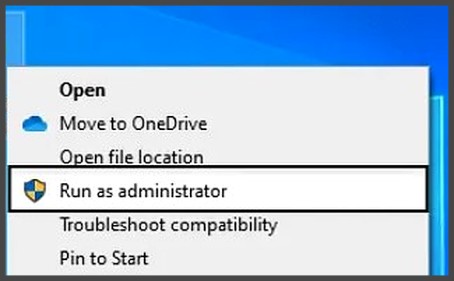
Windows permissions can sometimes prevent QuickBooks from accessing files or completing certain payroll-related operations. Close QuickBooks Desktop completely.
- Right-click the QuickBooks Desktop icon.
- Select Run as administrator.
- Open your company file.
- Sign in as the QuickBooks administrator.
- Try the Direct Deposit activation again.
Running as administrator is a troubleshooting step recommended in several Error 50004 guides, but it should not be treated as proof that Windows permissions are always the cause.
3. Check Your Payroll Subscription and Service Information
If QuickBooks cannot properly validate your payroll service, Direct Deposit activation may fail. In QuickBooks Desktop, review your payroll service information and make sure the subscription is active and associated with the correct company. Also verify:
- Payroll service information
- Service key
- Employer Identification Number (EIN)
- Company information
- Payroll account associated with the company
- Direct Deposit status
Intuit has documented Error 50004 cases where incorrect service keys, EIN/PSID information, or payroll-agreement problems were relevant to Direct Deposit activation.
If you recently changed your QuickBooks version, company file, payroll account, or payroll subscription, pay particular attention to this step.
4. Update QuickBooks Desktop
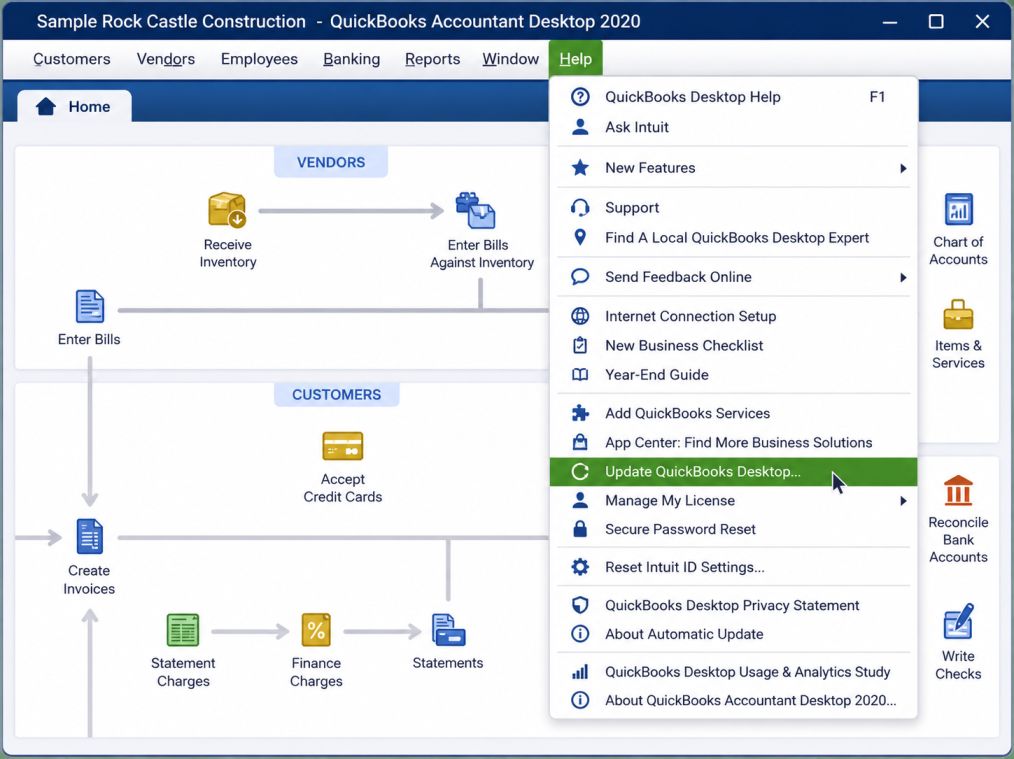
An outdated QuickBooks Desktop release can cause problems when communicating with payroll services. To check for updates:
- Open QuickBooks Desktop.
- Select Help.
- Choose Update QuickBooks Desktop.
- Open the Update Now tab.
- Select Get Updates.
- Restart QuickBooks after the update.
- Try Direct Deposit activation again.
Intuit recommends keeping QuickBooks Desktop updated when troubleshooting payroll-related problems, and its community guidance has specifically recommended updating the program when Direct Deposit activation fails.
5. Verify and Rebuild the Company File
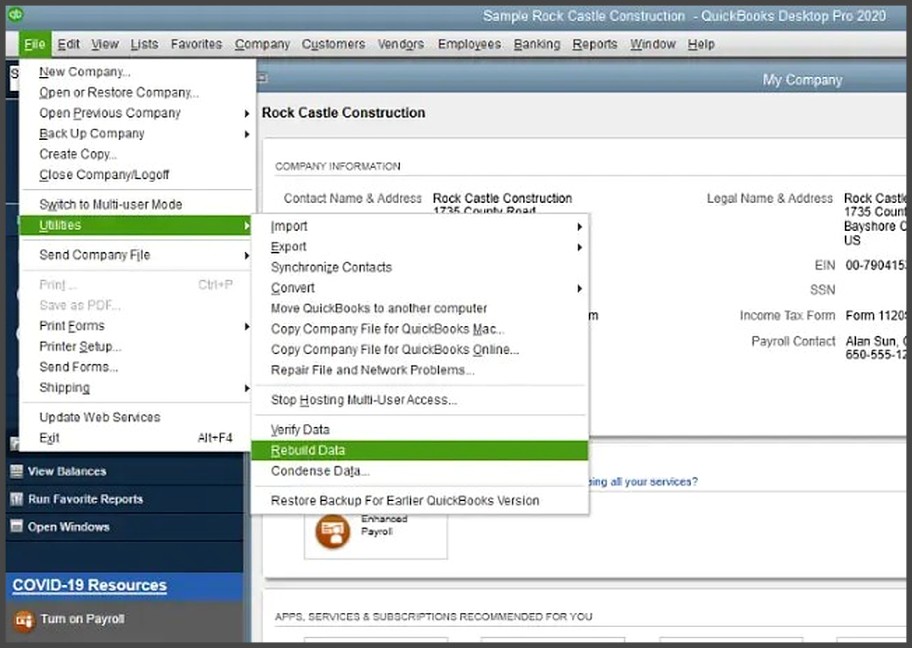
A damaged company file can interfere with payroll and Direct Deposit information. Before rebuilding the file, make a backup.
- Open File.
- Select Utilities.
- Choose Verify Data.
- Allow QuickBooks to check the company file.
- If QuickBooks identifies a data problem, return to File → Utilities.
- Select Rebuild Data.
- Follow the instructions displayed by QuickBooks.
- Reopen the company file and test Direct Deposit.
Intuit’s QuickBooks Community specifically recommends Verify and Rebuild Data as a troubleshooting measure for payroll and Direct Deposit activation problems.
6. Check the QBW.ini Payroll Setting
If the standard troubleshooting steps do not resolve Error 50004, you may need to inspect the QBW.ini configuration file. This is a more advanced step, so create a company-file backup first. According to Intuit Community guidance for Error 50004, you can access the QBW.ini file through the QuickBooks technical-help area and look for:
[QBLICENSE] PAYROLL_BUNDLE_STATE=Y
The documented troubleshooting procedure changes the Y to N, saves the file, and then reopens QuickBooks. If the Payroll Activation screen appears, Intuit’s guidance provides an additional step involving removal of that setting.
Because QBW.ini is a configuration file, don’t delete or modify unrelated entries. If you are not comfortable editing it, move to the next troubleshooting step instead of experimenting with other settings.
7. Check Firewall and Security Restrictions
Your firewall, antivirus software, or other security controls may interfere with QuickBooks’ communication with online payroll services. Check whether your security software is blocking QuickBooks. You should review the QuickBooks-related firewall permissions rather than permanently disabling your security software.
Also confirm that your internet connection is stable and that QuickBooks can access its online services. Security and network restrictions are repeatedly identified as possible contributors to Error 50004 in third-party troubleshooting resources.
8. Check the Date and Time on Windows
Incorrect system date or time can cause authentication and online-service problems.
- Open Settings.
- Go to Time & language.
- Select Date & time.
- Turn on automatic time synchronization.
- Confirm the correct time zone.
- Restart QuickBooks.
Several Error 50004 troubleshooting resources identify incorrect system date and time as a possible trigger.
9. Review the Direct Deposit Setup
If QuickBooks is unable to activate Direct Deposit for one particular company or employee, review the setup rather than repeatedly attempting activation.
- The correct company file is open.
- You are signed in with the appropriate administrator credentials.
- The payroll subscription belongs to the correct company.
- The company’s EIN is correct.
- Direct Deposit is available under the payroll service.
- Employee banking information has been entered correctly where required.
- There isn’t another payroll agreement or previous Direct Deposit setup interfering with the current activation.
This is especially important when multiple company files are associated with a payroll account. Intuit Community discussions have documented cases involving multiple companies and Direct Deposit activation failures caused by account and company-file relationships.
10. Contact QuickBooks Payroll Support When Account Validation Is Required
Sometimes Error 50004 cannot be completely resolved from the QuickBooks application because the problem involves information stored or validated on Intuit’s side. This is more likely when:
- The payroll subscription appears active but Direct Deposit will not activate.
- You have already updated QuickBooks.
- Verify and Rebuild Data does not resolve the problem.
- Your service key and EIN appear correct.
- You are the administrator but QuickBooks still reports that an administrator must activate Direct Deposit.
- The same problem occurs after trying the standard troubleshooting steps.
In a documented QuickBooks Community case involving Error 50004, a QuickBooks team member recommended contacting Payroll Support after the user had already attempted several local troubleshooting steps. Support can investigate account-specific information that cannot be diagnosed solely from the company file.
What Should You Check Before Contacting Support?
You can make the support process more efficient by collecting the information below:
- Exact Error 50004 message
- QuickBooks Desktop product and version
- QuickBooks release number
- Payroll subscription type
- Company EIN
- Whether the problem affects one company or multiple company files
- Whether Direct Deposit worked previously
- Whether QuickBooks or payroll was recently upgraded
- Results from Verify and Rebuild Data
- Whether the error occurs in Single-User Mode
- Any recent payroll or account changes
Don’t share your payroll credentials, banking passwords, or other sensitive authentication information with anyone who does not need it.
How Can You Prevent QuickBooks Error 50004 in the Future?
You cannot prevent every payroll-service or account-level problem, but a few practices can reduce avoidable issues.
- Keep QuickBooks Desktop updated with the appropriate maintenance releases.
- Back up your company file regularly.
- Run Verify Data when you notice unusual company-file behavior.
- Use Rebuild Data only when QuickBooks identifies data damage or when an appropriate troubleshooting procedure calls for it.
- Keep your payroll and company information accurate.
- Make sure Direct Deposit is activated under the appropriate administrator account.
- Avoid changing configuration files unless you understand the specific setting being changed.
- Maintain a stable internet connection and review firewall restrictions when QuickBooks cannot communicate with its online services.
- If you manage several company files, keep track of which payroll account and EIN belong to each company.
Most importantly, don’t treat every Error 50004 as a company-file corruption problem. If the same error continues after local troubleshooting, an account-level payroll issue may need to be investigated.
Conclusion
QuickBooks Error Code 50004 can occur when QuickBooks has trouble validating payroll information, company-file data, Direct Deposit settings, or its connection to Intuit’s payroll services. The right solution depends on what is causing the error.
Start with the basic checks, such as switching to Single-User Mode, updating QuickBooks, verifying payroll and account information, and checking the company file. If those steps do not resolve the problem, review the relevant configuration and network settings. For errors that continue despite local troubleshooting, QuickBooks Payroll Support may need to investigate account-level information. Keeping QuickBooks updated, maintaining accurate payroll information, backing up your company file, and using appropriate troubleshooting practices can help reduce avoidable payroll issues in the future.
Frequently Asked Questions
QuickBooks Desktop Error Code 50004 occurs when the software is unable to access or validate payroll-related files or services. This error commonly appears during direct deposit setup, payroll updates, or activation of payroll features. It may be caused by network issues, damaged data files, incorrect user permissions, or firewall/security restrictions.
Yes, QuickBooks Error 50004 can appear on Windows 10 systems. It often occurs due to compatibility issues, outdated QuickBooks versions, blocked network ports, or restricted administrative permissions. Ensuring that QuickBooks and Windows are fully updated can help prevent this error.
QuickBooks Error Code 40001 is another payroll-related error that can occur alongside or independently of Error 50004. It usually indicates problems with payroll activation, subscription validation, or network connectivity. Both errors can sometimes be resolved using similar troubleshooting steps, such as verifying payroll subscription, running QuickBooks as an administrator, or updating the software.
ersistent Error 50004 during direct deposit activation on QuickBooks Pro 2020 is often caused by:
1. Running QuickBooks in multi-user mode instead of single-user mode
2. Damaged payroll files or company data
3. Firewall or security software blocking QuickBooks’ connection to payroll servers
4. Incorrect payroll subscription status or incomplete activation
Switching to single-user mode, verifying payroll files, and checking firewall settings usually resolves the issue.
To fix direct deposit issues in QuickBooks:
1. Switch QuickBooks to single-user mode.
2. Ensure your payroll subscription is active and valid.
3. Run Verify and Rebuild Data to fix damaged company files.
4. Update QuickBooks Desktop to the latest release.
5. Check firewall and antivirus settings, adding QuickBooks and Intuit as trusted programs.
6. Reset the payroll activation by editing the QBW.ini file if necessary.
Following these steps systematically usually restores direct deposit functionality and resolves Error 50004.



