Upgrading to Sage 50 2026 can give you access to the latest accounting features, product improvements, security updates, and supported services. However, an upgrade is more than simply installing a newer program. You also need to prepare your company data, confirm your computer meets the current requirements, choose the correct installation package, and verify the data after conversion.
For Sage 50 U.S. Edition, the current 2026 download portal provides Sage 50 Accounting 2026.1. The full installation is intended for new installations, computers running older supported releases, or situations where Sage 50 has been uninstalled, while the 2026.1 update is intended for computers that already have 2026.0 installed.
The good news is that the process is straightforward when you prepare first. In this guide, you will learn how to upgrade Sage 50 safely, what to check before starting, how company data conversion works, and what to do if something goes wrong.
What You Should Know Before You Upgrade to Sage 50 2026
Before starting the installation, it helps to understand the difference between an update and an upgrade. An update generally moves an existing installation to a newer release within the same product year. For example, Sage currently provides a 2026.1 update for users who already have Sage 50 2026.0 installed.
An upgrade can involve moving from an earlier annual version to the newer 2026 release. Sage’s current download guidance specifically identifies the 2026.1 full product installation for users upgrading from 2024 or older, while the 2026.1 update is for users already running 2026.0.
| Your current situation | What you generally need |
| Sage 50 2026.0 is installed | 2026.1 update |
| Sage 50 2024 or older is installed | 2026.1 full product installation |
| Sage 50 was uninstalled | 2026.1 full product installation |
| Installing on a new computer | 2026.1 full product installation |
Your exact installation path can depend on the version, edition, licensing arrangement, and computer configuration, so check the current Sage installation guidance before proceeding.
Prepare Your Computer and Company Data Before Updating Sage 50
A little preparation can prevent most upgrade-related problems. Before you begin, work through the following checklist.
1. Check Your Current Sage 50 Version
Before you start the upgrade, first confirm which Sage 50 version is installed on your computer. This helps you choose the right update and avoid installing an incompatible release.
Follow these steps:
- Open Sage 50 on your computer.
- From the top menu, select Help.
- Click About Sage 50 Accounting.
- Look for the version and release information displayed on the screen.
- Write down your current version, such as Sage 50 2024, 2025, or 2026.
2. Confirm Your Subscription and License
Before installing the new version, make sure your Sage 50 subscription or Business Care entitlement is active. Having your account and licensing information ready can also make the installation process easier.
Before you begin, check the following:
- Confirm your subscription status and make sure it is active.
- Check your Business Care entitlement, if applicable.
- Keep your Sage account and product details handy.
- Have your serial number or licensing information available in case the installer requests it.
- Check that you are installing the correct Sage 50 edition and version for your business.
In some upgrade situations, Sage may automatically populate your serial number when you move from a recent previous version. However, licensing, features, and included services can vary between Sage 50 editions.
Quick tip: Don’t rely on the assumption that your previous license will automatically cover everything in the new release. Checking your Sage account before starting can help you avoid unnecessary interruptions during installation.
3. Create a Reliable Backup
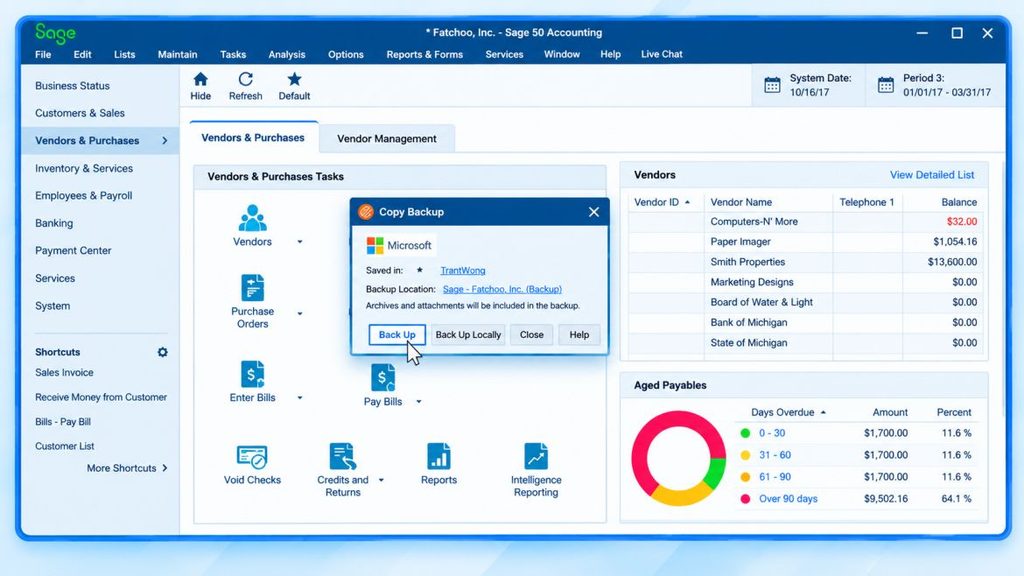
Do not skip the backup.
Before converting company data to a newer release, create a current backup and make sure you know where that backup is stored.
A backup is particularly important because Sage company data converted to a newer release may not be usable by an older version. Sage states that companies opened in Sage 50 2026 cannot be opened in Sage 50 2024 or earlier.
A practical approach is to:
- Finish any important accounting work.
- Have all users close Sage 50.
- Create a current company backup.
- Store the backup in a safe location.
- Confirm that the backup completed successfully.
If your business relies on Sage every day, consider retaining the pre-upgrade backup until you have completed your post-upgrade checks.
4. Check the 2026 System Requirements
Sage 50 U.S. Edition 2026 requires a supported Windows environment. Sage lists Windows 10 version 21H1 or later and Windows 11 version 23H2 or later among the minimum supported operating systems. The minimum memory requirement is 8 GB RAM, with a 2.0 GHz processor and at least 1 GB of disk space for installation.
Sage also recommends Windows 11 24H2 or later, a 2.4 GHz processor, and 8 GB or more of RAM for single-user environments and 16 GB or more for multiple-user environments.
| Requirement | Sage 50 2026 minimum |
| Processor | 2.0 GHz |
| RAM | 8 GB |
| Windows | Windows 10 21H1+ or Windows 11 23H2+ |
| Installation space | 1 GB |
| .NET Framework | 4.8 |
| Minimum display resolution | 1280 × 800 |
| Internet | Required for online features and services |
There is an important consideration for Windows 10 users: Microsoft ended standard Windows 10 support on October 14, 2025. Sage notes that users without Microsoft’s Extended Security Updates may receive only limited software-specific support for Sage 50 on Windows 10.
5. Download the Correct Sage 50 2026 Installation
Once your computer and data are ready, obtain the appropriate installation package. Sage’s current U.S. download portal provides two relevant 2026 packages:
- Sage 50 Accounting 2026.1 Full Product — used for a new installation, upgrading from 2024 or older, or reinstalling after Sage 50 has been removed.
- Sage 50 Accounting 2026.1 Update — used when Sage 50 2026.0 is already installed.
This distinction matters. Installing an update package when you actually need the full product can leave you unable to complete the upgrade. You can also check for available product updates from within Sage 50. Sage’s installation FAQ lists Services > Check for Updates as one way to obtain available installation files.
Step-by-Step Process for Sage 50 2026 Upgrade
Upgrading Sage 50 involves two main stages: installing the latest software and converting your existing company data to the new format.
Step 1: Install the Latest Sage 50 Software
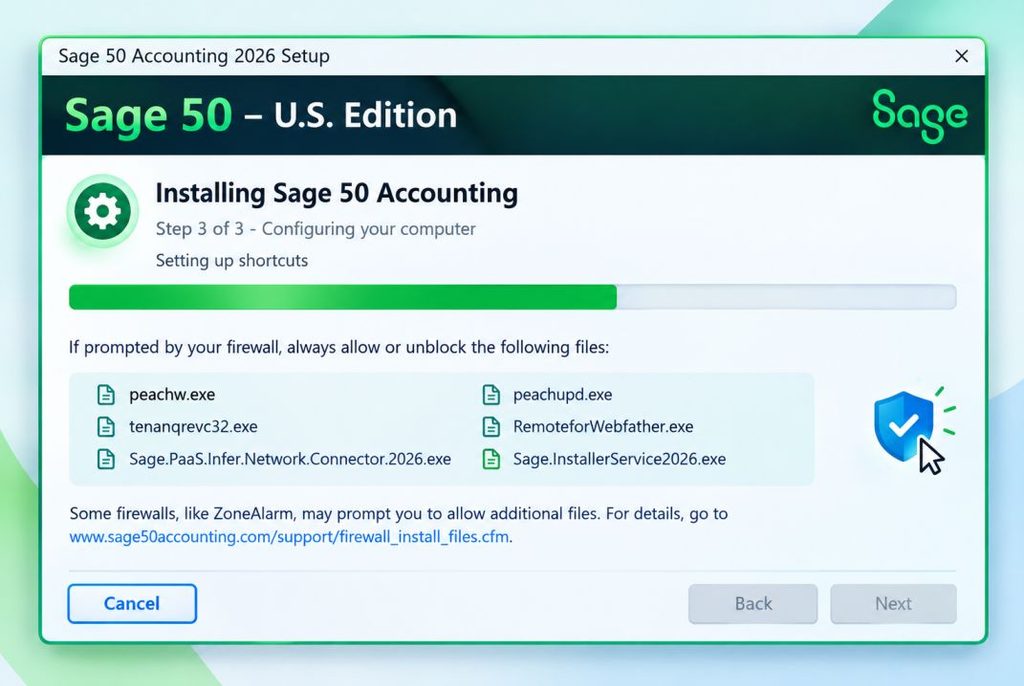
If Sage 50 does not automatically prompt you to install the latest release, you can check for updates manually.
Before starting the installation:
- Close Sage 50 on all computers.
- In Sage 50, go to Help > About Sage 50 > Support Info.
- Click Check for Updates.
- If an update is available, follow the on-screen instructions to download and install it.
You can also use the installation files from the Sage 50 download portal if you need to install the full product or perform the upgrade manually. During installation:
- Run the installer with administrator privileges.
- Follow the on-screen instructions.
- Accept the license agreement when prompted.
- Allow any required firewall permissions.
For multi-user installations: Update the server that hosts your Sage 50 company data first, then update the connected workstations.
Step 2: Open Your Company Data to Start the Upgrade
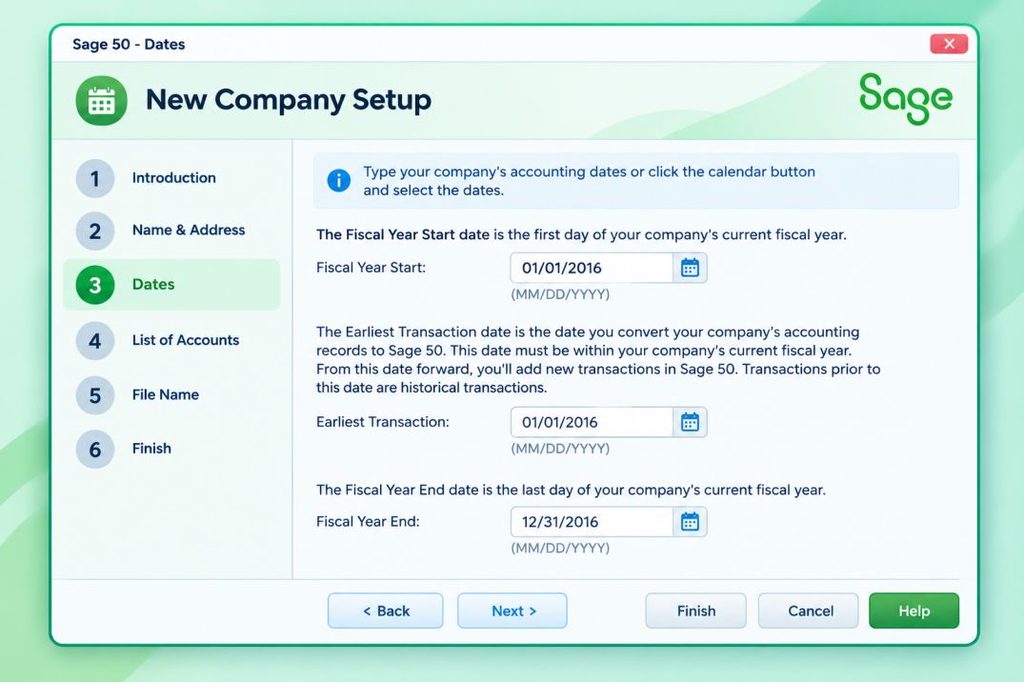
After the 2026 software has been installed, open your existing company data:
- Launch Sage 50.
- In the Select a Company window, locate and select your existing company file.
- Sage 50 will detect that the company data uses an older format and prompt you to upgrade it.
- If you did not create a backup earlier, choose the option to create a backup before continuing.
- Click Start to begin the data conversion.
Sage 50 will convert the company data to the 2026 format and open it after the process is complete.
Important: After the data has been converted to Sage 50 2026, it may no longer be compatible with older versions of the software. Keep your pre-upgrade backup in case you need to access the original data.
What Happens to Your Company Data After the Upgrade?
The Sage 50 software installation and company-data conversion are separate parts of the upgrade process. Installing Sage 50 2026 does not automatically mean that every older company file has been converted. For an applicable company, the conversion begins when you open the company in the new release.
After opening the company, allow the conversion process to finish before continuing with your normal accounting work. Once the conversion is complete, review the information and features you rely on to make sure everything is working as expected.
Most company settings remain available after an upgrade, but some user preferences may return to their default settings. Sage also notes that some printing forms may need to be selected again after the company is converted. Take a few minutes to verify your key settings, reports, forms, and company information before resuming regular work.
Verify Your Sage 50 Installation After Upgrading
Once the upgrade and company conversion are complete, take a few minutes to test the installation.
A. Confirm the Version
Return to Help > About Sage 50 Accounting and confirm that the expected 2026 release is installed.
This simple check can prevent confusion later, particularly when multiple versions of Sage 50 have been installed on the same network.
B. Review Your Financial Reports
Run several important reports and compare them with your pre-upgrade records.
Good candidates include:
- Balance Sheet
- Profit & Loss
- General Ledger
- Accounts Receivable
- Accounts Payable
- Inventory reports, if applicable
- Payroll reports, if payroll is part of your Sage subscription
You are not looking for a redesigned report. You are checking whether balances, transactions, customers, vendors, and other important information remain consistent.
C. Test Everyday Tasks
Try the activities your business uses most frequently. For example:
- Create a test invoice.
- Enter a transaction.
- Open customer and vendor records.
- Review inventory.
- Print a report.
- Test email functions if you use them.
- Confirm connected services that your business depends on.
Testing real workflows is more useful than simply confirming that Sage opens successfully.
Note: If you use a multi-user or remote-access setup, confirm that all users can connect to the company data successfully.
What If You Use Sage 50 Payroll?
Payroll users should treat payroll updates separately from the core Sage 50 program upgrade. Sage publishes payroll tax updates independently. For example, Sage’s July 2026 payroll update for Sage 50 U.S. Edition included state and local tax changes and had its own update version.
Therefore, upgrading the accounting application does not mean you should assume every payroll tax update has automatically been applied. After upgrading, check the payroll tax update information in Sage 50 and verify that your payroll service is current before processing payroll.
Common Problems When Upgrading Sage 50 and How to Handle Them
Most Sage 50 upgrades are straightforward when you prepare your computer and company data beforehand. However, you may still run into a few common issues during or after the upgrade.
The good news is that many of these problems can be resolved by checking the basics before making major changes to your installation or company data.
1. Sage 50 Does Not Show the Update
Sometimes the latest Sage 50 update may not appear automatically. This does not always mean there is a problem with your software.
What you should check:
- Open Sage 50 and check for available product updates.
- Confirm the version currently installed on your computer.
- Make sure you are looking for the correct update for your Sage 50 edition.
- If the update is not available through the software, download the appropriate installation package from Sage’s current download portal.
- Check whether you need an update package or a full installation. These are not always the same.
Quick tip: Before downloading anything, confirm your current Sage 50 version. This simple step can help you avoid installing the wrong package.
2. Your Computer Does Not Meet the Requirements
An upgrade may not work correctly if your computer is running an unsupported version of Windows or does not have the required hardware and software.
Before you continue:
- Check your Windows version.
- Confirm that your computer has enough RAM and processor capacity.
- Make sure you have enough available disk space.
- Check that the required .NET Framework and other software components are installed.
- Compare your computer with the official Sage 50 2026 system requirements.
Important: Do not try to force the installation on an unsupported computer. Resolve the compatibility issue first. Otherwise, you may experience installation failures, performance problems, or other issues after the upgrade.
3. Your Company Will Not Open After Installation
If Sage 50 installs successfully but your company will not open, avoid repeatedly trying random troubleshooting steps. Start by checking the most common causes.
Check these items first:
- Verify the Sage release: Make sure the correct version of Sage 50 is installed.
- Check the company location: Confirm that you are opening the company from the correct folder or network location.
- Check user access: Make sure another user is not already accessing the company in a way that prevents you from opening it.
- Locate your backup: Confirm that your pre-upgrade backup is available and can be accessed if needed.
- Check network installations: If you use Sage 50 on a network, make sure the required server and workstation installations have been completed.
If the issue started during company conversion:
Be careful about making changes to the company files. Do not replace, move, or modify company data until you understand what caused the conversion problem. Your original backup can be especially valuable at this stage.
4. Users Cannot Connect After a Network Upgrade
Updating Sage 50 on only one computer is not enough when your business uses a network installation.
For a network upgrade, check the following:
- Upgrade the server first.
- Confirm that the Sage 50 installation on the server completed successfully.
- Upgrade each workstation to the compatible Sage 50 release.
- Make sure all computers are using the same appropriate version.
- Check that users can connect to the company data from their workstations.
- Have users return to Sage 50 only after the server and workstation installations are complete.
Why this matters:
A mismatch between the server and workstation versions can prevent users from connecting properly or cause unexpected errors.
5. Printing or User Preferences Look Different
After an upgrade or company conversion, some settings may not look exactly as they did before. This does not automatically mean that your company data has been damaged.
Sage notes that certain user preferences may return to their default settings after company conversion. You may also need to select or configure some printing forms again.
If something looks different:
- Check your user preferences.
- Review your printing and form settings.
- Confirm that the correct forms are selected.
- Test a printout before making other changes.
- Restore your preferred settings where necessary.
Quick tip: Check the settings first instead of assuming that the upgrade has affected your company data. In many cases, the issue is simply a preference or form selection that needs to be adjusted again.
New Features You Can Expect in Sage 50 2026
One reason businesses upgrade to a newer Sage 50 release is to access new features and improvements. Sage’s 2026.0 documentation includes AR Automation, which can help businesses share invoices, send payment reminders, and automate payment collection. Sage also introduced payroll improvements, including support for certain super catch-up contribution scenarios and additional fields for allowances and withholding.
However, feature availability can depend on your Sage 50 edition, subscription, and service plan. For example, Sage states that AR Automation requires an active cloud subscription, while certain payroll features require a service plan that includes payroll. Before upgrading, review the features available with your specific Sage 50 edition and services rather than assuming every feature is included in every plan.
Should You Upgrade to Sage 50 2026 Now?
If you are using an older supported Sage 50 release and your business depends on current services, payroll functionality, integrations, or product support, upgrading to Sage 50 2026 may be worthwhile.
However, choosing the right time to upgrade is just as important as choosing the right version. Make sure you have enough time to prepare your computer and company data, complete the installation, and verify the results before returning to normal work. Avoid starting a major upgrade immediately before:
- Payroll processing
- Month-end closing
- Year-end accounting
- Important financial reporting
- A major customer billing cycle
If possible, schedule the upgrade during a quieter business period. This gives you time to complete the upgrade, test your key workflows, and address any unexpected issues before they affect your regular accounting activities.
Final Summary
Upgrading to Sage 50 2026 can be a smooth process when you prepare properly. Before you begin, check your current version, system requirements, license, and create a reliable backup of your company data.
Install the correct 2026 package, complete the company-data conversion, and then verify your reports, settings, payroll, and everyday accounting tasks. If you use Sage 50 on a network, make sure the server and workstations are updated correctly.
Most importantly, plan the upgrade during a less busy period and keep your backup until you are confident everything is working as expected. With the right preparation and careful checks, you can move to Sage 50 2026 with less disruption and greater confidence.
Frequently Asked Questions
To upgrade to Sage 50 2025 (or any newer version), ensure your subscription is active and then use the Check for Updates feature inside the software. Go to Services > Check for Updates > Check Now — if the 2025 release is available for your edition, you can download and install it from there. If it doesn’t appear, you can also manually download updates via the Sage 50 Welcome Center updates page on the Community Hub.
No, Sage 50 is not being discontinued. The product continues to receive new releases, including the 2026 update, and Sage continues support for current versions. However, older versions reach end‑of‑support over time, meaning they no longer receive updates or security patches, so upgrading to the latest version is recommended to remain supported and secure.
The Sage 50 2026 release introduces several enhancements, including:
1. AR Automation tools to streamline accounts receivable workflows.
2. Expanded banking integrations for better connection to financial institutions.
3. Payroll enhancements supporting legislative changes.
4. Improved workflow based on customer feedback and better Outlook integration. These improvements are designed to boost efficiency, automate manual tasks, and support modern accounting needs.
If you do not renew your Sage 50 subscription, the software moves into a limited functionality mode. You may still be able to open your company data and view past records, but you lose the ability to enter new transactions, use payroll, or receive updates. Critical features that require current subscription validation – such as ongoing support and some licensing checks – may stop functioning.
The Sage 50 2026 release began rolling out in early November 2025, with broader availability expected by late November to early December 2025. This schedule applies to Sage 50 U.S. Edition users as Sage gradually delivers the update through the software or manual install options.