
If you’re using QuickBooks Desktop Pro 2021 and want to upgrade QuickBooks Desktop Pro 2021 to Pro 2024, you can move to the newer version without installing every version released in between. The important part is to prepare your company file, create a reliable backup, check your computer against the QuickBooks Desktop 2024 requirements, install the newer software, and then update the company file for use in QuickBooks 2024.
There is an important distinction between a QuickBooks software upgrade and a regular product update. An update installs the latest maintenance or release update within the same QuickBooks year, while an upgrade moves you from one product year to another, such as QuickBooks Desktop Pro 2021 to Pro 2024.
QuickBooks Desktop 2024 requires a 64-bit Windows environment and has specific hardware and software requirements. Also, Intuit no longer sells new QuickBooks Desktop Pro Plus or Premier Plus subscriptions to new U.S. subscribers, although existing eligible subscribers can continue to renew under the applicable terms.
Quick answer: You generally do not need to upgrade QuickBooks 2021 to 2022 and then 2023 before moving to 2024. You can install QuickBooks Desktop 2024 and update your company file for the new version. However, very old company files can have different compatibility requirements, so always check the specific file and version before attempting a conversion.
QuickBooks Desktop Pro 2021 to Pro 2024 Upgrade: What Actually Changes?
When you upgrade QuickBooks Desktop Pro 2021 to Pro 2024, you are moving to a newer QuickBooks Desktop application and then updating your company file so that it can be used by the newer version. The company file is the most important part of the process. Installing QuickBooks 2024 does not automatically mean that every company file on your computer has been converted.
The process is better understood as two separate steps:
- Install or upgrade to QuickBooks Desktop 2024.
- Open and update the QuickBooks 2021 company file in QuickBooks 2024.
QuickBooks can create a backup of the existing company file during the conversion process, but I still recommend creating your own separate backup before you start. Intuit’s company-file guidance specifically recommends preparing a backup before upgrading.
Upgrade vs. Update
These terms are often confused.
| Process | What it means |
| Update QuickBooks Desktop | Installs a newer release or maintenance update within the same product year |
| Upgrade QuickBooks Desktop | Moves to a newer product year, such as 2021 to 2024 |
| Convert/update company file | Changes the company file so it can work with the newer QuickBooks version |
| Move QuickBooks Desktop to Online | Transfers accounting data from Desktop to QuickBooks Online |
For example, installing a later release of QuickBooks Desktop 2021 is an update. Moving from Pro 2021 to Pro 2024 is an upgrade.
How to Check Your QuickBooks Desktop Version and Update Status?
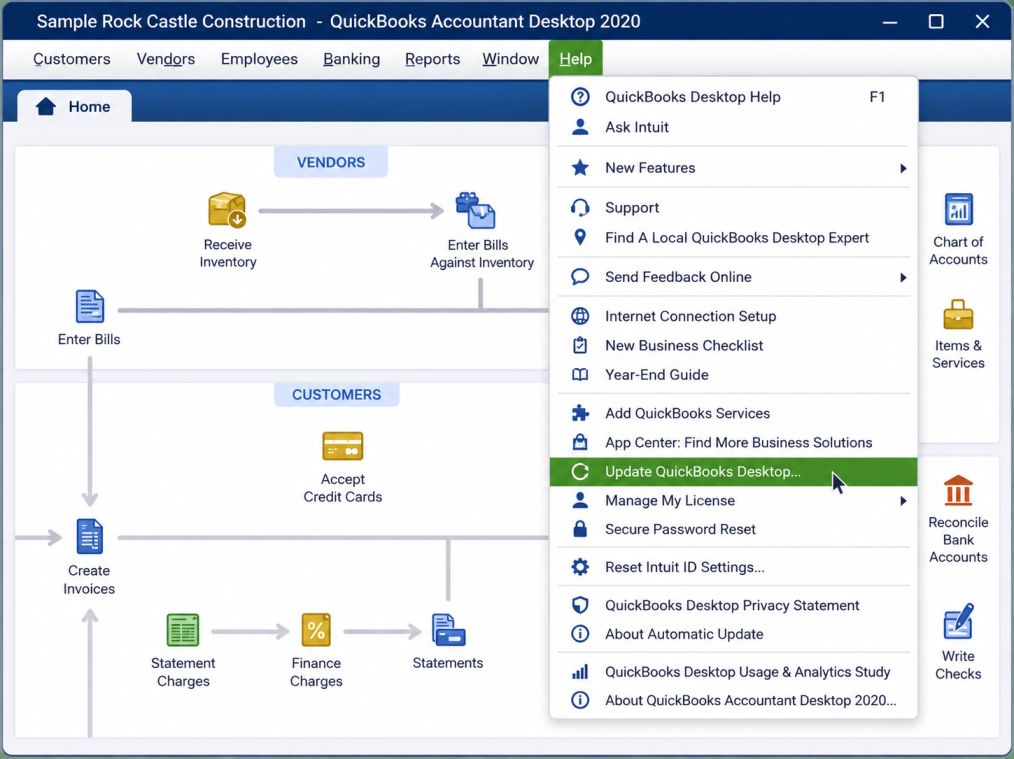
Keeping QuickBooks Desktop updated helps ensure you have access to the latest features, improvements, and fixes. If you manage business finances or work as an accountant, it can be difficult to keep track of every new release.
Fortunately, you can quickly check which version and release of QuickBooks Desktop you’re currently using. Follow these steps:
- Open QuickBooks Desktop on your computer.
- Press F2 or Ctrl + 1 on your keyboard to open the Product Information window.
- In the Product Information window, check the Version and Release details.
- Compare the information shown with the latest QuickBooks Desktop release to determine whether your software is up to date.
If your QuickBooks Desktop version is outdated, installing the latest available update can help you benefit from recent improvements, bug fixes, and security updates. For the best experience, make it a habit to check for QuickBooks Desktop updates regularly.
QuickBooks Desktop 2024 Features and Benefits: What’s New After Upgrading
Upgrading from an older version of QuickBooks Desktop to QuickBooks Desktop 2024 gives you access to several security, inventory, and workflow improvements. These updates are designed to make everyday accounting tasks easier while giving businesses better control over their financial and inventory data.
Some of the notable improvements include stronger password requirements, lot-number-based inventory tracking, customer prepayments on estimates, updated templates for printing prepayment information, improved support for assemblies, item-type filters, and subscription-status alerts. QuickBooks 2024 also includes changes aimed at reducing network calls and allows non-admin users to apply prepayments to invoices.
If you use QuickBooks Enterprise for payroll, you can also download the QuickBooks Enterprise PAP Software Bundle after upgrading.
Key Features in QuickBooks Desktop 2024
- Strengthened Security: QuickBooks Desktop 2024 and Enterprise 24.0 use 256-bit encryption to provide stronger protection for sensitive financial data.
- Customer Prepayments: Enterprise users can track customer prepayments or deposits on sales orders and apply those amounts as credits when converting a sales order into an invoice.
- Improved Item Category Management: Enterprise users can organize inventory items more effectively with enhanced category management. You can also create pricing rules based on item categories to simplify repetitive pricing tasks.
- Enhanced Inventory Reports: QuickBooks Enterprise provides more focused sales and inventory reports, helping you review important business information in a more organized way.
- Batch and Lot Inventory Tracking: Businesses that manage products by batches or lots can use improved inventory tracking to monitor stock by lot number and check the status of specific inventory more easily.
Advantages of Upgrading to QuickBooks Desktop 2024
Upgrading an older QuickBooks Desktop version to QuickBooks Desktop 2024 can give you access to improved security, better performance, and more efficient accounting and inventory workflows. The 2024 release also includes enhancements to existing features that can make it easier to manage company data and complete everyday financial tasks.
Here are some of the key benefits you may get after upgrading:
- Improved Company File Stability: Upgrading a company file to the latest QuickBooks Desktop release includes fixes designed to improve stability and reduce issues during the upgrade process.
- Enhanced Payroll Features: QuickBooks Payroll includes support for additional types of employee compensation, along with improved reports and streamlined payroll processes.
- Stronger Password Requirements: QuickBooks Desktop 2024 introduces stricter password requirements. A password must include at least one lowercase letter, one uppercase letter, one number, one symbol, and eight characters.
- Better Integration With Business Applications: You can connect QuickBooks Desktop with a wider range of business applications, making it easier to work with the tools you use alongside your accounting software.
- Improved Inventory Filtering: You can filter inventory items by type, including inventory parts and assemblies, making it easier to find and manage specific items.
- Subscription Status Alerts: QuickBooks can notify you about the subscription status of your account, helping you stay aware of important account changes.
- Reduced Network Calls: QuickBooks Desktop 2024 includes performance improvements intended to reduce the number of network calls, which can help make certain operations more efficient in network environments.
- Easier Desktop-to-QuickBooks Online Transfers: Eligible users can transfer multiple client company files from QuickBooks Desktop to QuickBooks Online using an online migration tool.
- Better Support for Custom Transactions: Enhanced support for customized transactions makes it easier to record and monitor less common financial activities within your company file.
- Prepayment Management for Non-Admin Users: Certain non-admin users can apply customer prepayments to invoices, reducing the need for an administrator to complete this task.
- Clearer Printed Reports: Printed QuickBooks reports can include gridlines, making rows and columns easier to follow and improving overall readability.
- Improved Payroll Expiration Experience: QuickBooks provides clearer information and guidance when a legacy payroll subscription expires without the required payroll content.
- Faster Searches in Large Company Files: QuickBooks Desktop 2024 includes performance improvements that can make it easier to locate transactions and customer information in large company files.
- Improved Inventory Management Across Locations: Businesses managing inventory across multiple locations can monitor stock levels and transfer inventory between warehouses more efficiently, helping maintain accurate inventory counts.
QuickBooks Desktop 2024 System Requirements You Should Check
Don’t use the old system requirements from QuickBooks Desktop 2021 to determine whether your computer can run QuickBooks 2024.
According to Intuit’s current requirements, QuickBooks Desktop 2024 requires 64-bit Windows. Supported environments include Windows 11 64-bit and supported Windows Server 2016, 2019, and 2022 editions. QuickBooks 2024 does not support 32-bit Windows, Linux, Windows 10 S Mode, or virtual/emulated environments.
| Category | Requirement / Details |
| Supported Client Operating Systems | Windows 10 (64-bit) or Windows 11 (64-bit) with the latest updates/version provided by Microsoft |
| Not Supported Operating Systems | Windows 8.1, Windows 10 S mode, Windows 11 IoT, and Linux |
| Supported Server Operating Systems | Windows Server 2016, 2019, or 2022 (Regular or Small Business Server) |
| Processor | Minimum 2.4 GHz processor |
| Client RAM – Minimum | 8 GB RAM |
| Client RAM – Recommended | 16 GB RAM |
| Server RAM – Multi-User | 8 GB for up to 5 users |
| Minimum Disk Space | 2.5 GB |
| Additional Storage | Additional space required for data files |
| Storage Recommendation | Solid State Drive (SSD) recommended for optimal performance |
| Internet Access | Required for Plus subscriptions, Payroll, and online features |
| Mobile Device Access | QuickBooks Desktop App access is included with Desktop subscriptions |
| Mobile Device Requirements | Camera-enabled Android 6.0 or later, or iOS 12 or later |
| Product Registration | Required |
| Display Resolution | Optimized for 1280 × 1024 or higher |
| Monitor Support | Supports one workstation monitor, with the option for up to 2 extended monitors |
| DPI Settings | Optimized for Default DPI settings |
| Recommended Browser | Google Chrome is recommended for the best experience |
Integration with Other Software
| Integration / Software | Compatibility / Requirements |
| Microsoft Word & Excel | Office 2016–2021 or Microsoft 365 (64-bit) |
| Email Clients | Microsoft Outlook 2016–2019, Microsoft 365 (64-bit), Gmail, Outlook.com, or other SMTP-supporting email clients |
| QuickBooks POS | QuickBooks POS 19.0 |
| Quicken Data Transfer | Quicken 2016–2022 |
| QuickBooks Mac / Mac Plus Data Transfer | QuickBooks Mac/Mac Plus 2021–2024 (US only) |
| Microsoft Excel Data Transfer | Microsoft Excel 2016–2021 or Microsoft 365 (64-bit) |
| Emailing Forms | Estimates, invoices, and other forms can be emailed through supported email clients |
| SMTP Support | Compatible with other SMTP-supporting email clients |
Steps to Upgrade QuickBooks Desktop Pro 2021 to 2024
If you’re already using QuickBooks Desktop, you can move to QuickBooks Desktop 2024 by purchasing the appropriate subscription or license. Depending on your product and account, you may also be able to start the upgrade directly from within QuickBooks Desktop.
Step 1: Prepare for the QuickBooks Desktop 2024 Upgrade
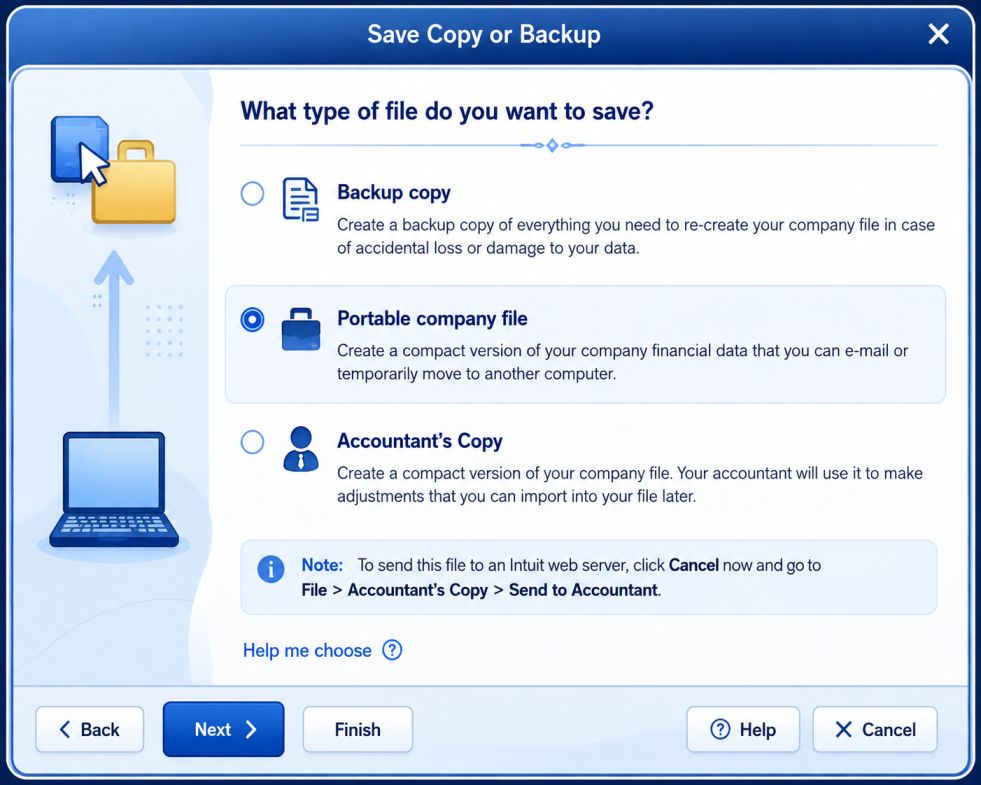
First, make sure your QuickBooks account and subscription are active. An expired subscription or license can prevent you from completing the installation or accessing certain features.
- Back Up Your Company File: Create a current backup of your company file before starting the upgrade. If something goes wrong, you can use the backup to restore your data.
- Check the Company File Location: Make sure you know where your .QBW company file is stored. This is especially important if you use QuickBooks on a network or with multiple users.
- Check System Requirements: Make sure your computer meets the hardware, operating system, and other requirements for QuickBooks Desktop 2024.
- Review Security Software: If your antivirus or firewall prevents QuickBooks from installing or updating, you may need to temporarily adjust its settings. Avoid disabling security software unless necessary, and restore the settings after installation.
Step 2: Download QuickBooks Desktop 2024
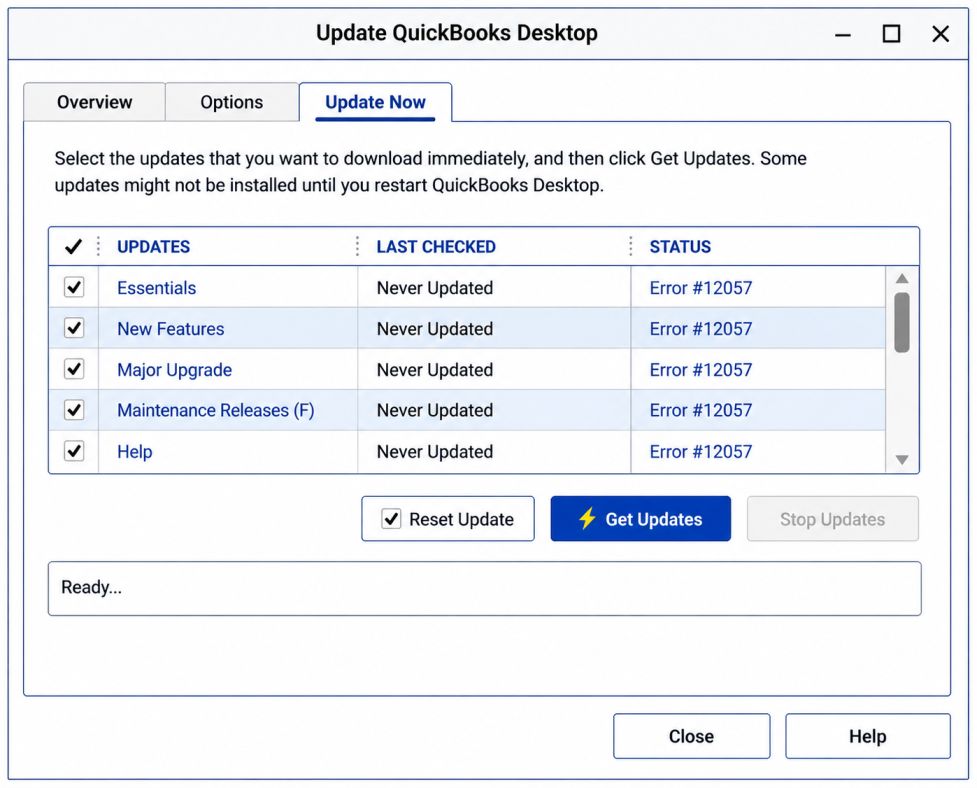
If you need to download the installation files separately:
- Go to the Intuit website.
- Open the Downloads & Updates section.
- Select your QuickBooks Desktop product and the appropriate version.
- Choose Download to download the installer.
Make sure you select the correct product and year before starting the download.
Step 3: Install the New QuickBooks Version
Once the installer has downloaded:
- Open your Downloads folder and double-click the QuickBooks installer.
- Follow the instructions displayed on the screen.
- Enter your license and product information if prompted.
- Select the appropriate installation option:
- Express: Recommended for a standard installation.
- Custom: Use this option if you need to change the installation location or configure specific installation settings.
- Wait for the installation to finish.
The installation time can vary depending on your computer and system configuration.
Step 4: Open or Convert Your Company File
After installing QuickBooks Desktop 2024, open your company file and follow any prompts to update it to the new version.
- Launch QuickBooks Desktop 2024.
- Select Open or Restore an Existing Company.
- Choose Open a Company File and select Next.
- Browse to your company file and select Open.
- Follow the on-screen instructions if QuickBooks asks you to update or convert the company file.
- Allow QuickBooks to complete the process before working in the file.
Important: Company files that have been opened and updated in a newer version of QuickBooks Desktop generally cannot be opened in an older version. Keep your original backup in a safe location in case you need to access the previous version of your data.
Step 5: Verify and Rebuild Your Company Data
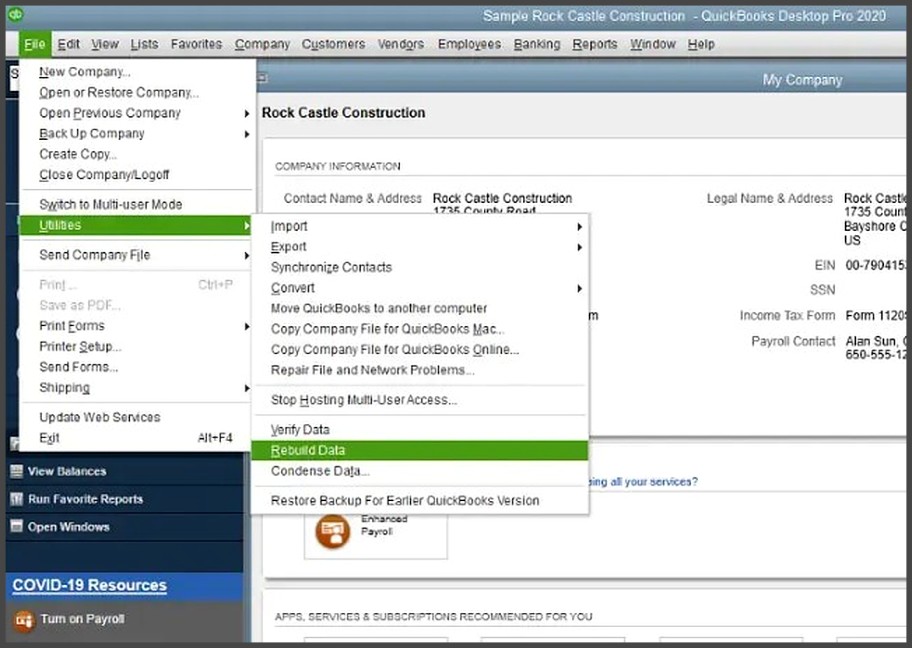
After upgrading, verify your company file to check for potential data issues:
- Open the File menu.
- Select Utilities > Verify Data.
- Allow QuickBooks to check the company file.
- If QuickBooks reports a data problem, use Utilities > Rebuild Data and follow the instructions provided.
- After rebuilding, run Verify Data again to confirm that the issue has been resolved.
Finally, review important areas such as customer balances, vendor information, transactions, reports, payroll data, and inventory to make sure everything appears as expected.
Common QuickBooks Desktop 2024 Upgrade Issues and How to Fix Them
You may run into a few problems while installing QuickBooks 2024 or updating your company file. The following tips can help you avoid common issues.
1. Company File Upgrade Errors
If QuickBooks shows an error while updating your company file:
- Make sure you have a recent backup of your QuickBooks 2021 company file.
- Use File > Utilities > Verify Data to check for data issues.
- If QuickBooks finds a problem, use Rebuild Data when appropriate.
- Run Verify Data again after rebuilding.
2. Installation or Download Problems
If QuickBooks 2024 does not install correctly:
- Make sure your internet connection is stable when downloading the installer.
- Check that your computer meets the QuickBooks Desktop 2024 system requirements.
- If antivirus or firewall software is blocking the installation, review its settings and adjust them only when necessary.
- Restart your computer and try the installation again if needed.
3. Subscription or Licensing Issues
If QuickBooks does not recognize your license or subscription:
- Make sure you have the correct QuickBooks Desktop 2024 product.
- Check that your license or subscription is active.
- Make sure you are signed in with the correct Intuit account when required.
- If the problem continues, contact Intuit Support for help with activation or licensing.
Upgrade QuickBooks Desktop Pro Plus, Premier Plus, or Enterprise (2017–2022) to QuickBooks Desktop 2024
If you’re using QuickBooks Desktop Pro Plus, Premier Plus, or Enterprise from 2017 through 2022, you may be able to move to QuickBooks Desktop 2024, depending on your product, license, and subscription. The upgrade process is designed to install the newer version while keeping your existing company data available.
Before starting, create a backup of your company file and make sure your computer meets the system requirements for QuickBooks Desktop 2024.
1. Upgrade QuickBooks Desktop With an Active Subscription
If you have an eligible subscription, QuickBooks may notify you when a newer version is available. You can then upgrade directly from the notification. Follow these steps:
- Open QuickBooks Desktop.
- If an upgrade notification appears, select Upgrade Now.
- If you want to keep your current QuickBooks version on the computer, select Keep older version on my computer.
- Select Let’s Go.
- QuickBooks will download and install the new version. Depending on your setup, the software may also activate the new version and update your company file.
- When the process is complete, select Open QuickBooks.
The time required for the upgrade can vary. Your internet connection, computer performance, and the size of your company file can all affect how long the process takes.
2. Upgrade QuickBooks Desktop Without a Subscription
If you don’t receive an upgrade notification, you may be using a one-time purchase or another license type that does not provide automatic upgrade prompts.
You can check whether an upgrade option is available directly from QuickBooks:
- Open QuickBooks Desktop.
- Go to Help.
- Select Upgrade QuickBooks.
- Choose the QuickBooks Desktop 2024 edition you want to install.
- Select Upgrade Now.
- If you want to keep your existing QuickBooks version, select Keep older version on my computer.
- Select Let’s Go and follow the on-screen instructions.
QuickBooks will download and install the new version if the upgrade is available for your license. Your existing company file can then be opened in the newer version and updated to the required file format.
3. Upgrade QuickBooks Desktop Through the Discovery Hub
Depending on your QuickBooks Desktop version and setup, you may also be able to start the upgrade through the Discovery Hub.
- Open QuickBooks Desktop and go to the Discovery Hub.
- Select Upgrade to QuickBooks 2024.
- Select Upgrade now to begin.
- If you want to keep your previous QuickBooks version on the same computer, select Keep older version on my computer.
- Follow the on-screen instructions to complete the installation.
- Once the upgrade is finished, select Open QuickBooks.
Upgrade QuickBooks Desktop 2022 to 2024 (Pro, Premier, and Enterprise)
Upgrading from QuickBooks Desktop 2022 to QuickBooks Desktop 2024 gives you access to a newer product version with updated features, performance improvements, security enhancements, and bug fixes. However, upgrading to a new year version is different from installing a regular QuickBooks Desktop update.
If you’re ready to move from QuickBooks Desktop 2022 to 2024, follow the steps below.
- Close QuickBooks Desktop if it is currently open.
- Right-click the QuickBooks Desktop icon and select Run as administrator.
- Open QuickBooks and select Help from the top menu.
- Choose Upgrade QuickBooks.
- Select the QuickBooks Desktop 2024 version that matches your product, such as Pro, Premier, or Enterprise.
- Click Upgrade Now and follow the on-screen instructions.
- If you want to keep QuickBooks Desktop 2022 on the same computer, select Keep older version on my computer when the option is available.
- Select Let’s Go to start the download and installation.
- Allow QuickBooks to download and install the new version. The time required may depend on your internet connection and computer configuration.
- Once the installation is complete, open QuickBooks Desktop 2024.
- Open your company file and follow the prompts to update it for use with the 2024 version.
- After the company file has been updated, review your financial data to make sure everything is correct.
Upgrade QuickBooks Desktop 2021 to 2024 (Pro, Premier, and Enterprise)
Once your computer and company file are ready, you can begin the upgrade:
- Open QuickBooks Desktop 2021.
- Go to Help from the top menu.
- Select Upgrade QuickBooks.
- Choose QuickBooks Desktop 2024 and select the appropriate edition, such as Pro, Premier, or Enterprise.
- Click Upgrade Now.
- If you want to keep QuickBooks Desktop 2021 on the computer, select Keep older version on my computer when the option appears.
- Select Let’s Go to begin the download and installation.
- Allow QuickBooks to download and install the 2024 version.
- Open QuickBooks Desktop 2024 after the installation finishes.
- Open your company file and follow the prompts to update it for use with the newer version.
- Review your company data after the conversion to confirm that your transactions, customer information, reports, and other important records are available.
How to Upgrade QuickBooks Desktop 2020 to 2024?
QuickBooks Desktop 2020 is an older product version and is no longer supported by Intuit. Although an unsupported version may continue to run on a computer, it no longer receives the same product updates, security updates, or technical support available for supported versions.
If you’re still using QuickBooks Desktop 2020, moving to QuickBooks Desktop 2024 can give you access to a newer, supported version with updated features and improvements. Before you begin, make sure your computer meets the requirements for QuickBooks Desktop 2024 and create a backup of your company file. Follow these steps:
- Close QuickBooks Desktop 2020 and make sure no company files are open elsewhere.
- Install QuickBooks Desktop 2024 using the appropriate installer and license or subscription.
- Open QuickBooks Desktop 2024. If necessary, right-click the QuickBooks icon and select Run as administrator.
- From the File menu, select Open or Restore Company.
- Choose Open a Company File and locate your existing .QBW file.
- If you’re restoring a .QBB backup instead, select Restore a Backup Copy and follow the on-screen instructions.
- QuickBooks may prompt you to update the company file for use with the newer version. Confirm that you want to proceed.
- Allow QuickBooks to complete the company-file conversion without interrupting the process.
- Open the upgraded company file and review your important financial information.
- Keep your original QuickBooks 2020 backup until you’ve confirmed that the 2024 company file is working correctly.
How to Upgrade QuickBooks Desktop 2019 to QuickBooks Desktop 2024?
If you’re using QuickBooks Desktop 2019 and want to move to QuickBooks Desktop 2024, you’ll need to install the newer product version and then open or convert your company file in QuickBooks Desktop 2024. Installing a regular product update through the Update QuickBooks Desktop menu does not change the product year from 2019 to 2024.
Before you begin, create a current backup of your company file and confirm that your computer meets the system requirements for QuickBooks Desktop 2024.
- Back up your company file. Create a recent backup of your QuickBooks 2019 company file and save it in a secure location.
- Install QuickBooks Desktop 2024. Download and install the appropriate 2024 edition for your license or subscription.
- Open QuickBooks Desktop 2024 after the installation is complete.
- From the File menu, select Open or Restore Company.
- Choose Open a Company File and locate your existing QuickBooks company file (.QBW).
- If you only have a backup file (.QBB), select Restore a Backup Copy and follow the on-screen instructions.
- When QuickBooks asks whether you want to update the company file for the new version, review the prompt and confirm the upgrade.
- Allow QuickBooks to complete the company-file conversion without interrupting the process.
- Open the upgraded file and review important information, including transactions, customer balances, reports, and inventory.
- Keep your original backup until you’ve confirmed that the upgraded company file is working correctly.
Final Thoughts
Upgrading from QuickBooks Desktop Pro 2021 to Desktop Pro 2024 enhances software performance, data security, and access to essential features compatible with modern financial workflows. With proper planning, backups, and careful execution of the steps outlined above, your transition will be efficient and productive.
Keeping QuickBooks up-to-date isn’t just about accessing new tools — it’s about ensuring business continuity, data integrity, and peace of mind for your team and stakeholders.
Frequently Asked Questions
You can purchase QuickBooks Desktop Pro 2024 through Intuit’s official sales team or authorized partners (often by contacting Intuit directly). However, Intuit has stopped selling new subscriptions for many Desktop Pro Plus products in the U.S. after September 30, 2024. Existing subscribers can continue renewing their subscriptions.
Tip: Some third-party marketplaces may advertise “lifetime license” versions, but these offers are often not officially supported and may not be legitimate.
Yes. QuickBooks Desktop Pro Plus 2024 typically uses a subscription model, meaning you pay annually (or monthly) to keep access, updates, and support.
1. Traditional one-time purchase perpetual licenses (like pre-2022 versions) are no longer officially offered for new QuickBooks Desktop Pro versions.
2. If you already have a subscription, you can renew it and continue using the product as long as the subscription is active.
QuickBooks Online is cloud-based and receives automatic updates from Intuit. You normally don’t have to manually install anything. However, you can check your settings:
1. Sign in to your QuickBooks Online account in a web browser.
2. Click the Gear icon (Settings).
3. Go to Account and Settings.
4. Click Update Options.
5. Enable automatic updates or review available updates.
No separate downloads are needed — Intuit pushes updates automatically.
Upgrading from QuickBooks Desktop 2022 to 2024 is generally straightforward:
1. Purchase QuickBooks Desktop Pro 2024 or have an active Pro Plus subscription.
2. Open QuickBooks Desktop Manager or use your Intuit account license information to download the 2024 version.
3. Follow the install prompts to download and install the new version.
4. Open your company file in the new version — QuickBooks will update it as part of the process.
You do not need to install every intermediate version (e.g., 2023) before installing 2024.
As of now, QuickBooks Desktop Pro 2025 is not officially released or widely available; Intuit appears to be moving away from selling new desktop versions outside of Enterprise products.
Best steps if you intend to stay on desktop:
1. Upgrade to the latest supported version, such as 2024, while available.
2. Maintain an active subscription so you continue receiving supported upgrades and security patches.
3. Consider QuickBooks Online or QuickBooks Enterprise as alternatives, depending on your needs.
QuickBooks Desktop Pro Plus 2024 includes core accounting and business management tools such as:
1. Invoicing and billing
2. Expense tracking
3. Customer and vendor management
4. Financial reporting
5. Job costing and profitability tracking
6. Fixed asset tracking
7. Enhanced reporting and search tools
8. Security enhancements and automatic updates with a subscription
Pro Plus also typically includes additional benefits over basic Pro, such as ongoing support, backups, and free upgrades during your subscription period.
Upgrading from QuickBooks Desktop 2023 to 2024 follows the same general process as other year upgrades:
1. Ensure you have a valid license or active subscription for 2024.
2. Download the QuickBooks Desktop Manager or use your Intuit account to get the 2024 installer.
3. Install 2024 on your computer.
4. When opening your company file in QuickBooks 2024, the software will prompt you to update the file format. Accept and let it finish.
5. Verify your data and settings before continuing regular use.
No need to install intermediate versions — direct migration from 2023 to 2024 is supported.



