
When an application takes too long to load or responds slowly, even simple tasks can become frustrating. You sign in, wait for the dashboard, click an option, and then wait again. Something as routine as opening an invoice can suddenly take much longer than expected, leaving you asking, “Why is my QuickBooks Online slow?”.
If you’re experiencing this issue right now, you’re not alone, and there are several possible reasons behind it. Slow performance can be related to your browser, internet connection, computer resources, or a temporary issue with QuickBooks Online itself. In some cases, a few simple checks are enough to get things moving normally again. In this guide, we’ll explain the most common reasons QuickBooks Online may feel sluggish, show you how to determine whether the problem is affecting the service or only your setup, and walk you through practical steps you can take to improve performance.
Why Is QuickBooks Online So Slow Today? Common Causes
Everything is working fine, and suddenly QuickBooks Online starts taking forever to load. Pages respond slowly, buttons lag, or transactions seem to freeze. Frustrating, right? If you’re searching for “Is QuickBooks Online slow today?” or “Why is QuickBooks Online so slow?”, the problem could be caused by your browser, internet connection, computer, or QuickBooks Online itself.
Here are some common reasons behind the slowdown.
- The New Interface May Use More Resources: QuickBooks Online has introduced interface and navigation changes to improve the user experience. However, a more feature-rich interface can also use more browser resources. You may notice this when opening the dashboard or switching between different QuickBooks pages. If your computer has limited memory or you have many applications running, QuickBooks may feel slower.
- Try this: Close unnecessary programs and browser tabs to free up memory.
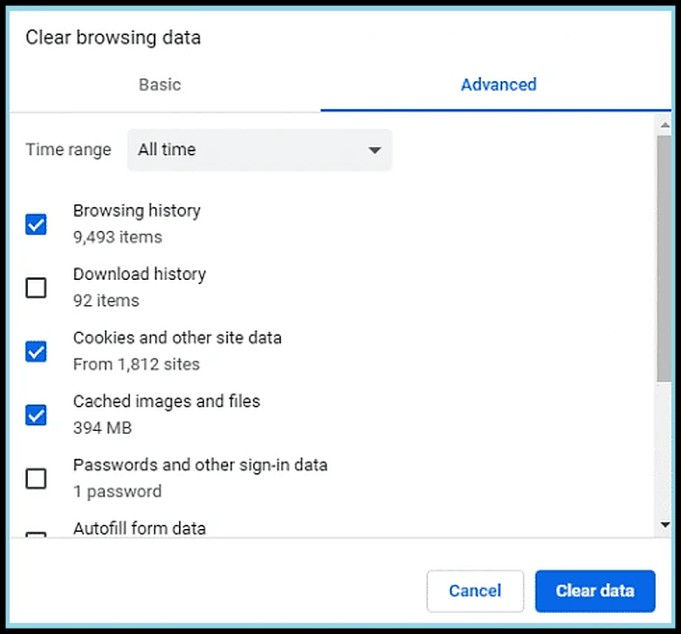
- Your Browser Cache Needs Cleaning: Your browser stores temporary files to help websites load faster. Over time, this data can become outdated or cause performance issues. You may notice:
- Pages loading slowly
- Buttons taking longer to respond
- Transactions freezing
- Screens becoming unresponsive
- Try this: Clear your browser cache and temporary data. You can also open QuickBooks in an incognito or private window to see whether it works better.
- Too Many Tabs Are Open: QuickBooks Online needs memory and processing power to run smoothly. If you have several browser tabs open along with apps such as Zoom, spreadsheets, or other software, your computer may struggle to keep up.
- Try this: Close the tabs and applications you aren’t using, then check QuickBooks again.
- Your Internet Connection Is Unstable: QuickBooks Online works through the internet, so a slow or unstable connection can affect how quickly pages, transactions, and reports load. If other websites are also running slowly, your internet connection may be the problem.
- Try this: Check your connection, restart your router if needed, or switch to a more reliable network.
- QuickBooks Online May Be Having a Service Issue: Sometimes the slowdown isn’t caused by your computer at all. QuickBooks Online may experience temporary technical issues, maintenance, or service interruptions. If QuickBooks is slow for several users at the same time, while other websites are working normally, there may be an issue on the QuickBooks side.
- Try this: Check the official QuickBooks status page for current service problems or outages.
- Your Company Data Is Large: As your business grows, your QuickBooks company can accumulate years of transactions, customers, vendors, products, and reports. Large amounts of data don’t necessarily mean QuickBooks will be slow everywhere, but certain reports, searches, or lists may take longer to load.
- Try this: Notice which specific pages or reports are slow. This can help you determine whether the problem is related to a particular task or your overall QuickBooks performance.
First, Check Whether QuickBooks Online Is Actually Down Today
Before you start changing browser settings or troubleshooting your computer, it helps to find out whether the problem is affecting QuickBooks Online itself. If QuickBooks Online is slow today, the slowdown could be caused by a temporary service issue rather than anything on your end.
- 1. Check the Status: Start by checking the official QuickBooks service status page. It can show whether QuickBooks Online, Payroll, Self-Employed, or another QuickBooks service is experiencing an outage or performance issue. If an active incident is listed, you may not need to change your browser or computer settings at all. In that situation, the problem may be on the service side, and the best option is usually to wait for the reported issue to be resolved while monitoring for updates. You can also use the status page’s notification options to receive updates when a reported service problem changes or is resolved.
- Compare Another User: If the status page shows normal operation, check whether another person can access QuickBooks Online without the same slowdown. For example, ask a colleague to open the same type of page or perform a similar task from another computer or location. If several users are experiencing slow performance at the same time, the issue is more likely to be related to QuickBooks or the network environment. If QuickBooks works normally for everyone else but remains slow on your computer, focus your troubleshooting on your browser, internet connection, or device.
- Slow Doesn’t Always Mean Down: It’s important to distinguish between an outage and poor performance. QuickBooks Online can still be available even when some users experience slow loading or delays. For instance, you may be able to sign in successfully but notice that invoices take longer to open, reports keep loading, or transactions take extra time to save. That doesn’t necessarily mean the entire QuickBooks service is down. When this happens, check the status information first and then test your browser, internet connection, and device. This simple comparison can help you avoid spending time changing settings that have nothing to do with the actual problem.
How to Speed Up QuickBooks Online: 8 Easy Ways to Improve Performance
A slow QuickBooks Online experience can make even simple accounting tasks frustrating. The good news is that you can often fix the problem with a few straightforward changes.
Below are some practical solutions to help QuickBooks Online load faster, respond more smoothly, and work reliably in your browser.
Solution 1: Clear Your Browser Cache and Cookies
Your browser stores temporary files, cookies, and website data to help pages load faster. Over time, this stored data can become outdated or corrupted and may cause QuickBooks Online to load slowly or behave unexpectedly.
Google Chrome
- Open Chrome on your computer.
- Click the three dots in the upper-right corner.
- Select Delete browsing data.
- Choose a time range, such as Last hour or All time.
- Select the types of browsing data you want to remove.
- Click Delete data.
- Reopen QuickBooks Online and check whether performance improves.
Safari
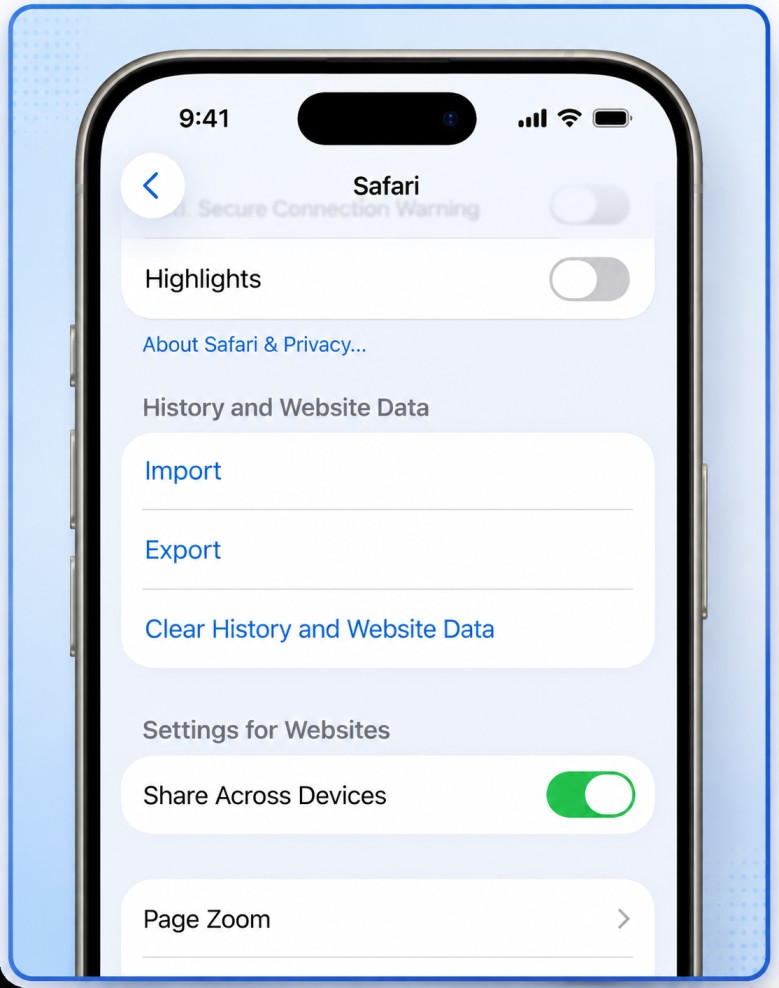
- Open Safari.
- From the menu bar, select History and choose the option to clear your browsing history, or use Safari’s website-data settings.
- Select the desired time range.
- Confirm that you want to clear the data.
- Open QuickBooks Online again.
If the option to clear history is unavailable or appears grayed out, there may not be any history or website data available to remove.
Solution 2: Keep Your Browser and Operating System Updated
QuickBooks Online works best with a supported, up-to-date browser. An outdated browser can contribute to slow page loading, login issues, freezing, or other unexpected behavior.
Google Chrome
- Open Chrome.
- Click the three dots in the upper-right corner.
- Go to Help > About Google Chrome.
- Chrome will automatically check for available updates.
- If an update is installed, click Relaunch to finish the update.
If Chrome doesn’t show a relaunch option, you’re generally already running the latest available version.
Safari on Mac
Safari updates are included with macOS. To check for updates:
- Click the Apple menu.
- Open System Settings.
- Select General.
- Click Software Update.
- Install any available macOS updates.
Keeping your system updated helps ensure that Safari and other components QuickBooks Online relies on remain compatible.
Solution 3: Disable Unnecessary Browser Extensions
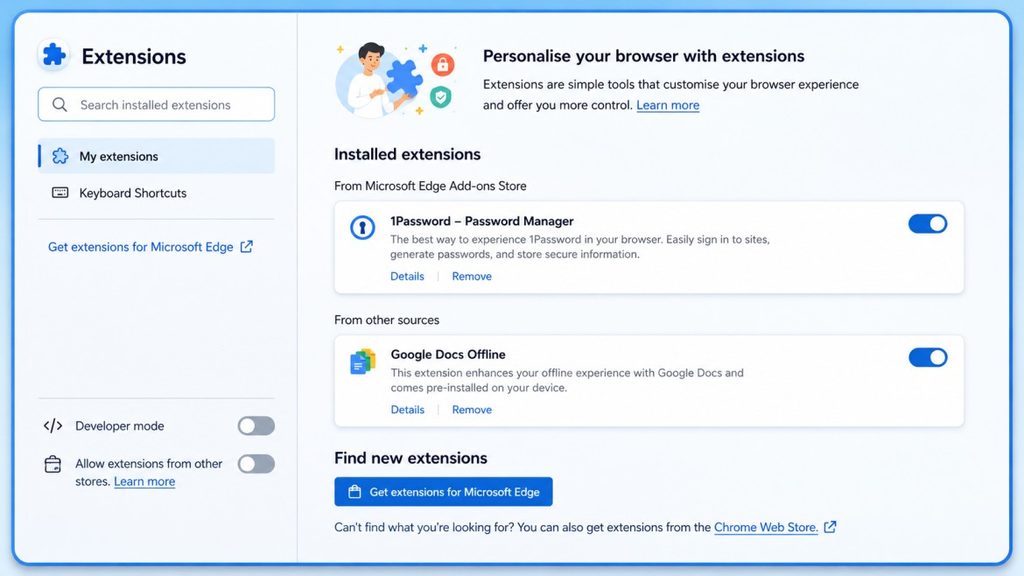
Browser extensions can sometimes interfere with web applications. Password managers, ad blockers, screen-recording tools, and other extensions may affect how QuickBooks Online loads or responds.
A simple way to identify the problem is to temporarily disable extensions and then test QuickBooks Online. If performance improves, turn the extensions back on one at a time to find the one causing the conflict.
Chrome
- Open Chrome.
- Click the three dots in the upper-right corner.
- Select Extensions > Manage Extensions.
- Find an extension you don’t need while using QuickBooks Online.
- Turn its switch off.
- Refresh QuickBooks Online and test it again.
Mozilla Firefox
- Open Firefox.
- Click the menu button in the upper-right corner.
- Select Add-ons and themes.
- Choose Extensions.
- Turn off the extension you want to test.
- Return to QuickBooks Online and refresh the page.
You don’t necessarily need to remove an extension. Disabling it temporarily is enough to determine whether it is affecting QuickBooks.
Microsoft Edge
- Open Edge.
- Click the three dots in the upper-right corner.
- Select Extensions.
- Choose Manage extensions.
- Turn off unnecessary extensions.
- Refresh QuickBooks Online and check its performance.
Solution 4: Reduce the Number of Open Tabs
Having dozens of browser tabs open can consume a significant amount of your computer’s memory and processing resources. This can make QuickBooks Online feel sluggish, especially if several other web applications are running at the same time.
Close tabs you don’t need and keep only the pages you’re actively using. If QuickBooks becomes noticeably faster afterward, your browser or computer may have been running low on available resources.
Solution 5: Restart Your Computer
A simple restart can sometimes resolve temporary performance problems. Restarting closes background processes, clears temporary memory, and gives your browser and other applications a fresh start.
Before restarting:
- Save your work.
- Close your open applications.
- Open the system’s power menu.
- Select Restart.
- Once your computer starts again, open your browser and sign in to QuickBooks Online.
Restart a Mac
Click the Apple menu and select Restart.
If your computer is completely frozen, you may need to press and hold the physical power button until it shuts down. Use this as a last resort because a forced shutdown can cause unsaved work to be lost.
Solution 6: Check Your Internet Connection
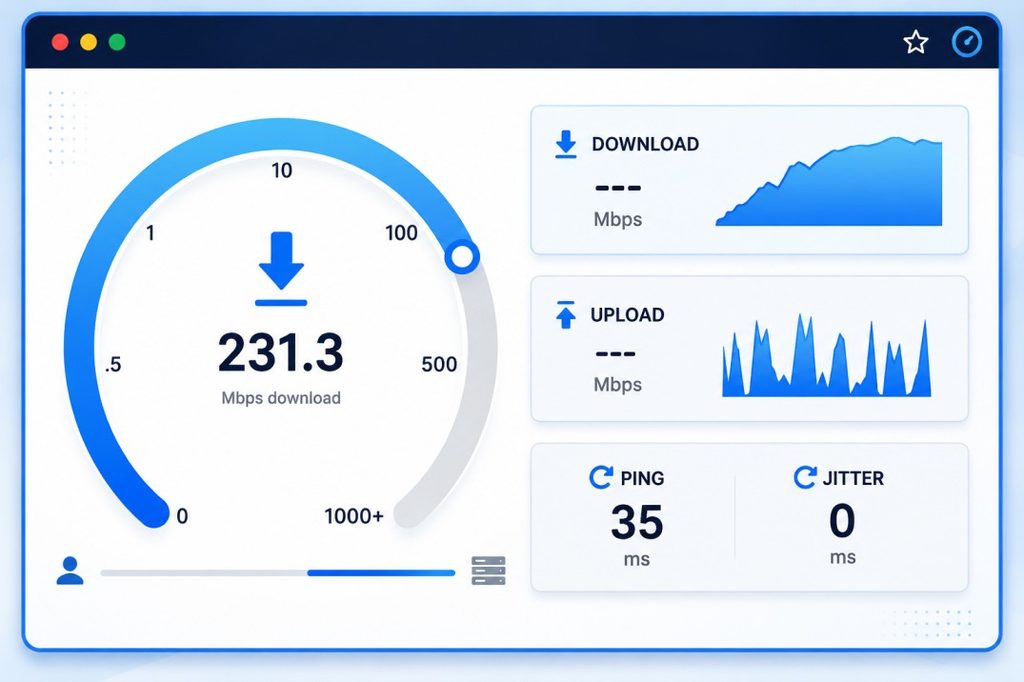
QuickBooks Online runs in your web browser, so a weak or unstable internet connection can affect how quickly pages load and how responsive the application feels.
If you’re using Wi-Fi, try moving closer to your router. You can also test your connection with an internet speed-testing service. If possible, connecting your computer directly to the router with an Ethernet cable can provide a more stable connection.
Don’t focus only on download speed. A stable connection with low latency and minimal interruptions is also important when working with a cloud-based application such as QuickBooks Online.
Solution 7: Try QuickBooks Online in a Private or Incognito Window
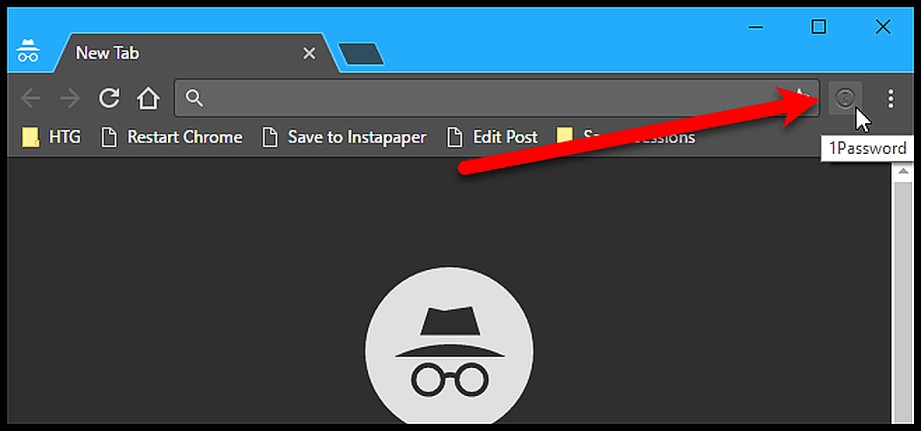
A private browsing window gives you a cleaner browser session and can help determine whether cached data, cookies, or browser extensions are contributing to the problem.
Try opening QuickBooks Online in a private window and see whether it performs better. If it does, the issue may be related to your regular browser profile, extensions, or stored website data.
Use these shortcuts:
| Browser | Private browsing shortcut |
| Chrome | Ctrl + Shift + N |
| Microsoft Edge | Ctrl + Shift + N |
| Firefox | Ctrl + Shift + P |
| Safari | Command + Shift + N |
If QuickBooks works normally in private browsing, return to your regular browser and troubleshoot extensions, cookies, and cached data.
Solution 8: Manage and Reduce Company Data When Appropriate
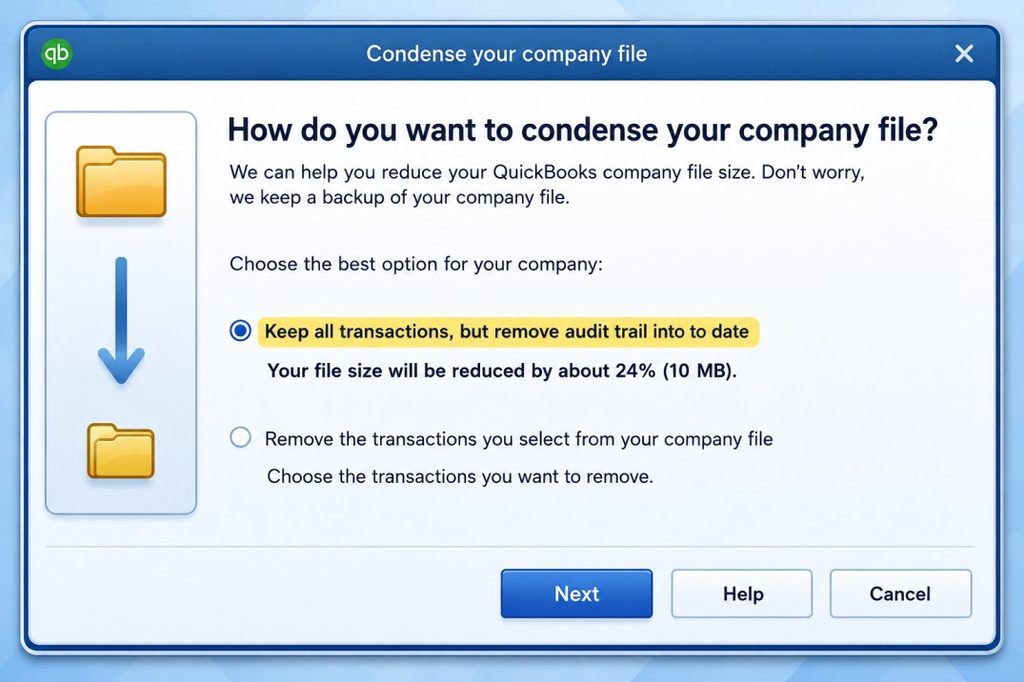
Large amounts of company data can make certain QuickBooks Online tasks more demanding, particularly in older or heavily used company files. Before making major changes to your accounting data, however, be careful: deleting or condensing transactions can affect your records and reporting.
Rather than removing important historical information simply to improve performance, first look at QuickBooks Online’s available data-management and cleanup options. Remove unnecessary duplicate or inactive items where appropriate, and review old transactions with your accountant or bookkeeper before making changes.
If your QuickBooks Online subscription provides a Condense Data or similar data-management feature, follow Intuit’s current instructions carefully. Options and availability can vary by QuickBooks Online version, region, and company setup.
Important: Always review the potential impact on reports, audit history, and historical records before condensing or deleting accounting data. When in doubt, consult your accountant or QuickBooks support rather than removing transactions just to improve speed.
Is QuickBooks Online Down or Is It Just Running Slow?
When you ask, “is QuickBooks Online down?”, remember that an outage and slow performance are not always the same thing. QuickBooks Online may still be available even when some users experience delays.
For example, you might be able to sign in normally but notice that invoices take longer to open, reports keep loading, or transactions take extra time to save. In this situation, QuickBooks Online slow performance does not necessarily mean the entire service is down.
If you’re wondering “is QuickBooks Online down today” or whether there is a wider problem, check the official service status first. If no outage is reported, test QuickBooks in another browser, check your internet connection, and see whether the same slowdown occurs on another device. These quick comparisons can help you determine whether the problem is with QuickBooks Online or your local setup.
Why Is the New QuickBooks Online So Excruciatingly Slow?
The redesigned layout, often referred to as the new QuickBooks Online, has been described as excruciatingly slow by some users in 2024, 2025, and 2026. Compared with the older version, the new interface also includes more interactive elements, such as:
- Floating toolbars
- Slide-out drawers
- Real-time data widgets
- Automatic refreshes
If your browser is not up to date or you are using an older device, you may notice that the new interface feels sluggish. Many users on forums ask questions such as:
“Why is the new QuickBooks Online so excruciatingly slow to open?”
“Why is the new QuickBooks Online so excruciatingly slow to load?”
In most cases, the issue is a combination of outdated browser settings and the increased demand of the new design.
When QuickBooks Online Feels Slow Only Sometimes
If QuickBooks Online feels slow only sometimes, the problem may not be a constant issue with your account or computer. Intermittent slowdowns are often linked to temporary network congestion, browser resource usage, busy system resources, or a particular QuickBooks task taking longer to process. For example, you might notice that invoices open quickly in the morning but take longer during a busy work period. Reports may also load more slowly than simple transaction pages because they can require more data to be processed.
Look for a Pattern
The easiest way to troubleshoot an occasional slowdown is to note when it happens. Pay attention to:
- The time of day when QuickBooks becomes slow
- Which pages or features are affected
- Whether other websites are also slow
- How many browser tabs are open
- Whether the problem occurs on another browser or computer
- Whether other users experience the same delay
If QuickBooks becomes slow only on one computer, the issue may be local to that device or browser. If several users experience the same slowdown at the same time, checking the QuickBooks service status is a better first step.
Don’t Assume Every Delay Means an Outage
A short delay when opening a report or saving a transaction does not necessarily mean QuickBooks Online is down. Cloud applications can experience brief performance fluctuations without becoming completely unavailable.
By comparing QuickBooks at different times and on different devices or networks, you can usually determine whether the slowdown is related to your setup or a broader service issue. This makes troubleshooting much easier than repeatedly changing browser settings without knowing what caused the problem.
When Should I Contact QuickBooks Support?
If you have tried the troubleshooting steps above and QuickBooks Online is still running slowly, it may be time to get professional help. Persistent performance problems can sometimes be related to account-specific issues, browser configuration, network conditions, or a particular QuickBooks feature. Before contacting support, make a note of when the slowdown occurs and which QuickBooks functions are affected. This information can help an expert understand the problem more quickly.
Consider contacting our QuickBooks support team if you experience slow performance:
- While signing in to QuickBooks Online
- When opening the dashboard or navigation menus
- While creating, editing, or saving transactions
- When loading reports or other data-heavy pages
- After a QuickBooks Online interface or feature update
- During time-sensitive payroll processing
If the problem continues after basic troubleshooting, our QuickBooks experts can help you identify the likely cause and determine the next appropriate step.
Need assistance with QuickBooks Online? Call our support team at 888-820-7278.
Conclusion
QuickBooks Online can slow down for many different reasons, including browser issues, limited system resources, network problems, or temporary service disruptions. The good news is that most performance problems can be narrowed down with a few practical checks.
If QuickBooks Online starts lagging, begin by checking the service status, updating your browser, closing unnecessary tabs and applications, clearing relevant browser data when appropriate, and testing your internet connection. You can also try another supported browser or device to determine whether the problem is limited to your current setup.
Frequently Asked Questions
To boost QuickBooks Online performance, try these:
1. Use a modern, supported browser (Google Chrome recommended).
2. Clear your browser’s cache and cookies.
3. Close unnecessary tabs and background apps.
4. Ensure your internet connection is stable and fast.
5. Make sure your computer meets system requirements and is updated.
6. Avoid using incognito/private browsing for regular work.
Clearing your browser cache helps remove old files that can slow performance. In most browsers:
1. Go to Settings > Privacy and security.
2. Select Clear browsing data.
3. Choose Cached images and files (and cookies if needed).
4. Click Clear data and restart the browser.
Performance problems can sometimes be due to server-side issues or high traffic. If many users report slowness or errors at the same time, it may be a temporary outage or overload. QuickBooks status pages or outage track sites can confirm live issues. Official performance goals expect pages to load quickly, but temporary problems do occur.
Freezing usually happens when:
1. Your internet connection is unstable.
2. Browser cache or cookies are overloaded.
3. You’re using an outdated browser.
4. Large company data loads or complex reports are open.
5. Browser extensions conflict with QuickBooks scripts.
Updating your browser and clearing cache often helps.
Long update times can occur when:
1. Your internet connection is slow.
2. The update is large or includes many changes.
3. Your system resources are limited.
4. Browser cached data interferes with script loading.
Waiting for completion and ensuring a fast connection often resolves it.
Turning off your computer during an update can interrupt the process. If this happens:
1. Restart your system.
2. Launch QuickBooks again.
3. Reapply the update if prompted.
4. If errors appear, use QuickBooks update or repair tools (Desktop) or retry browser access (Online).
QuickBooks Desktop slowness often comes from:
1. Large company files with years of data.
2. Old or underpowered hardware (low RAM/CPU).
3. Too many applications running at once.
4. Fragmented data files, corrupted files, or outdated QuickBooks version.
Regular maintenance, updates, and File Doctor/Condense Data can help.
Network slowness often results from:
1. Weak or unstable connections between computers and the file server.
2. Improper server settings or router/firewall interference.
3. Multiple users accessing the same company file simultaneously.
Ensure your network infrastructure is fast, stable, and configured for QuickBooks networking.
To check real-time status, use reputable outage tracker sites or QuickBooks official status dashboards. Community user reports sometimes indicate downtime, but it may also be local network or browser issues rather than a full service outage.
Slow page loads or transaction processing are often due to:
1. Browser cache, cookies, or outdated versions.
2. Insufficient internet speed or high latency.
3. Large amounts of saved data or complex reports.
4. Heavy third-party integrations or multiple users.
Clearing cache, updating browsers, and optimizing system resources often helps.
For slow file openings:
1. Reduce file size with condense/archive features (Desktop).
2. Fix corrupted files with QuickBooks File Doctor.
3. Ensure your hardware meets recommended system specs.
4. For network files, optimize your LAN setup.
QuickBooks Enterprise can slow down due to:
1. Very large company files with extensive data.
2. Network performance issues in multi-user mode.
3. Outdated software or system compatibility issues.
Keeping Enterprise updated and periodically condensing data helps improve speed.
If the slowness persists across devices and browsers, likely causes include:
1. Internet connectivity issues (low bandwidth or high packet loss).
2. Regional server issues or temporary outages.
3. Heavy data usage in your QuickBooks company file.
4. Intuit platform performance hits during peak business times or maintenance.
Testing your connection, using a wired network, and contacting support if widespread can help identify the issue.



