
If QuickBooks Won’t Open on Windows, the first thing you may notice is that clicking the QuickBooks icon does absolutely nothing. In other cases, the QuickBooks splash screen appears for a moment and then disappears, or the application freezes before you can reach the company file.
I’ve seen this problem become especially confusing when QuickBooks was working normally one day and then stopped opening after a Windows restart or system update. The important thing is not to assume that the company file is damaged right away. The problem could be with the QuickBooks program, its installation files, Windows components, or the specific company file you are trying to open. If you are dealing with QuickBooks Won’t Open in Windows 10/11, QuickBooks Won’t Open After Windows Update, or QuickBooks Not Opening After Windows Update, you can narrow down the cause by working through the solutions below in order.
Top Reasons QuickBooks Won’t Open on a Windows PC
Before trying different fixes, it helps to understand what may be preventing QuickBooks from starting. In my experience, the problem is often caused by a temporary program conflict, damaged files, or an issue with the Windows environment rather than a serious problem with your accounting data.
Here are some common reasons QuickBooks may fail to open:
- Multiple launch attempts: Clicking the QuickBooks icon repeatedly before the program finishes loading can create multiple processes and prevent the application from opening properly.
- Damaged company files: A corrupted or damaged company file can cause QuickBooks to freeze, crash, or close while loading your data.
- QuickBooks program errors: Damaged installation files or internal program problems can stop QuickBooks from launching normally.
- Windows or application updates: A recent Windows update or third-party software update may create compatibility or permission conflicts with QuickBooks.
- Outdated QuickBooks Desktop: An older QuickBooks version may have compatibility issues with newer Windows components or may lack important program updates.
- Company file name or path issues: An excessively long file name or folder path can sometimes interfere with accessing a company file. Keeping the file path reasonably short can help avoid this type of problem.
- Damaged Windows components or storage problems: Issues with Windows system files, disk errors, or insufficient available storage can affect QuickBooks and other applications.
- Company-file data problems: Data integrity issues within a company file may prevent QuickBooks from loading that particular file correctly.
- Inactive or expired subscription: If your QuickBooks Desktop subscription is inactive or has expired, certain subscription-based features may be unavailable. However, an inactive subscription should not automatically be assumed to be the cause of every QuickBooks startup problem.
How Can You Identify the Actual Cause?
You don’t need to check every possible problem at once. First, see if QuickBooks can open without opening your company file. If QuickBooks opens normally but crashes when you open a specific company file, that file may be causing the problem.
If QuickBooks does not open at all, even without a company file, the problem may be with QuickBooks itself, Windows, user permissions, updates, or the installation. This simple check can save you time. It also helps you find the right solution without making unnecessary changes to your QuickBooks installation.
QuickBooks Desktop Won’t Open? Things to Do Before Troubleshooting
Before you start troubleshooting QuickBooks Desktop, follow these simple steps:
- Restart Your Computer: Restart your Windows computer first. This can clear temporary system issues and background processes that may be preventing QuickBooks from opening.
- Make Sure QuickBooks Is Closed: Before trying any repair method, check that QuickBooks Desktop is completely closed. If it is still running in the background, close it before continuing.
- Create a Backup: If you can access your company file, create a recent backup before making any changes. This helps you protect your financial data if something goes wrong during troubleshooting.
- Don’t Keep Clicking the QuickBooks Icon: If QuickBooks doesn’t open immediately, wait a few moments instead of repeatedly clicking the icon. Multiple attempts can sometimes leave additional QuickBooks processes running in the background.
- Start With the Simple Fixes: Now you can begin troubleshooting QuickBooks. Start with the easier solutions first, such as Quick Fix My Program, and move to more advanced methods only if the problem continues.
Minimum System Requirements for QuickBooks
Before troubleshooting, ensure your computer meets QuickBooks requirements for smooth performance.
| Requirement | QuickBooks 2024 | QuickBooks 2023 |
|---|---|---|
| OS | Windows 11 – 64 bit | Windows 11 – 64 bit |
| Processor | 2.4 GHz | 2.4 GHz |
| RAM | 4 GB | 4 GB |
| Hard Disk | 2.5 GB | 2.5 GB |
| Display | 1280×1024 | 1280×1024 |
| Network | High-speed internet | High-speed internet |
| Microsoft Office | 2019/365 | 2019/365 |
| Database Servers | Windows Server 2022/2019/2016, Linux for QBES | Windows Server 2022/2019/2016, Linux for QBES |
Checking system compatibility ensures QuickBooks runs without interruptions. If your system meets these requirements but the software still won’t open, follow the troubleshooting steps below.
How Can You Fix QuickBooks Won’t Open in Windows 10/11?
Having trouble opening QuickBooks Desktop on Windows? If QuickBooks won’t launch, freezes on startup, or closes immediately after you click the icon, the problem may be related to damaged program files, a corrupted company file, Windows components, or a background QuickBooks process. Fortunately, you can try several troubleshooting methods before reinstalling QuickBooks.
Important: The steps below are intended primarily for QuickBooks Desktop for Windows. If you’re using QuickBooks Online or the QuickBooks Online desktop app, some of these solutions may not apply. For the best results, try the solutions in the order listed below. Start with the simpler fixes and move toward more advanced troubleshooting only if necessary.
1. Run Quick Fix My Program
The QuickBooks Tool Hub is one of the best places to start when QuickBooks Desktop won’t open. Its Quick Fix My Program feature closes QuickBooks background processes and performs a quick repair.
Quick Step to run My Program:
- Close QuickBooks Desktop.
- Open the QuickBooks Tool Hub.
- Select Program Problems.
- Choose Quick Fix My Program.
- Wait for the tool to finish.
- Open QuickBooks Desktop again.
If you don’t already have the Tool Hub, download it from Intuit’s official QuickBooks website rather than from a third-party website.
2. Check Whether the Problem Is QuickBooks or Your Company File
Sometimes QuickBooks itself is working, but a particular company file is damaged or causing the program to freeze.
You can test this by opening QuickBooks without automatically opening your company file.
- Press and hold the Ctrl key.
- Double-click the QuickBooks Desktop icon.
- Keep holding Ctrl until the No Company Open window appears.
- Try opening QuickBooks without immediately opening your company file.
If QuickBooks opens normally this way, the problem may be related to your company file or the way QuickBooks is loading it. If you can see the No Company Open window
You can also test the company file while preventing QuickBooks from loading its normal desktop:
- Select your company file.
- Press and hold Alt.
- Select Open.
- Continue holding Alt while the company file opens.
If you’re asked to sign in, release Alt, enter your password, and then hold Alt again while selecting OK.
3. Run the QuickBooks Install Diagnostic Tool
If QuickBooks won’t start because of a damaged or incomplete installation, the QuickBooks Install Diagnostic Tool may help.
- Open QuickBooks Tool Hub.
- Select Installation Issues.
- Choose QuickBooks Install Diagnostic Tool.
- Allow the tool to complete its scan and repairs.
- Restart your computer.
- Try opening QuickBooks again.
The diagnostic process may take several minutes, so don’t close the tool while it is running.
4. Repair Your QuickBooks Desktop Installation
Windows can repair the QuickBooks installation without completely removing the program.
- Close QuickBooks.
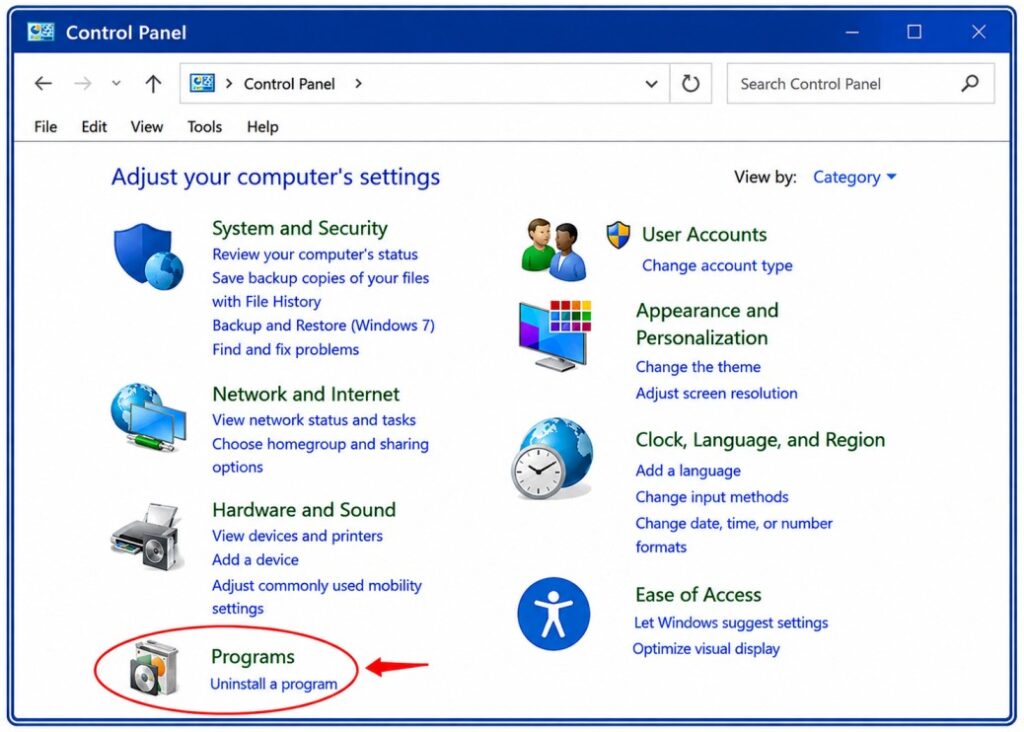
- Open the Windows Control Panel.
- Select Programs and Features or Uninstall a Program.
- Select QuickBooks Desktop.
- Choose Uninstall/Change.
- Select the Repair option if it is available.
- Follow the on-screen instructions.
- Restart your computer.
- Try opening QuickBooks again.
This can replace damaged installation files while preserving your QuickBooks company data.
5. Rename the QBWUSER.ini File
A damaged QBWUSER.ini file can sometimes cause QuickBooks Desktop to stop working or fail to open.
How to rename QBWUSER.ini:
- Open File Explorer.
- Browse to: C:\Users\[Your User Name]\AppData\Local\Intuit\QuickBooks [Year]
- Find QBWUSER.ini.
- Right-click it and select Rename.
- Change the name to: QBWUSER.ini.old
- Open QuickBooks again.
If you cannot see the AppData folder, you may need to enable hidden files and folders in Windows.
Important: Renaming QBWUSER.ini removes the list of recently opened company files from QuickBooks. Your actual company file is not deleted, but you may need to open it manually again.
6. Rename the EntitlementDataStore.ecml File
If renaming QBWUSER.ini doesn’t solve the problem, renaming the EntitlementDataStore.ecml file may help with certain QuickBooks startup problems.
Before changing the file, make sure QuickBooks is completely closed.
Then locate the file in the QuickBooks program data folder and rename it by adding .old to the end.
For example:
EntitlementDataStore.ecml.old
Restart QuickBooks and check whether it opens normally.
Important: File locations can vary depending on your QuickBooks version and Windows setup. If you cannot locate this file, don’t delete random QuickBooks files or folders.
7. End QuickBooks Processes in Task Manager
QuickBooks may still be running in the background even though no window is visible.
You can close the stuck process through Windows Task Manager.
- Press Ctrl + Shift + Esc.
- Open Task Manager.
- Look for QuickBooks-related processes.
- Select the QuickBooks process that is still running.
- Choose End task.
- Close Task Manager.
- Try launching QuickBooks again.
Don’t end unrelated Windows processes. If you’re unsure which process belongs to QuickBooks, use Quick Fix My Program from QuickBooks Tool Hub instead.
8. Run QuickBooks as an Administrator
Windows permissions can sometimes interfere with QuickBooks.
- Close QuickBooks.
- Right-click the QuickBooks Desktop icon.
- Select Run as administrator.
- If Windows displays a permission prompt, select Yes.
- Try opening your company file.
Running QuickBooks as administrator can help determine whether the problem is related to Windows permissions.
Note: You don’t necessarily need to run QuickBooks as administrator every time. Use this primarily as a troubleshooting step.
9. Try Opening a Sample Company File
If QuickBooks opens but your company file does not, test a sample company file.
This can help determine whether the problem is with QuickBooks itself or with your company data.
If the sample file opens:
Your QuickBooks installation is probably working, and the problem may be related to your company file, its location, or folder permissions.
If the sample file also won’t open:
The problem is more likely related to QuickBooks, Windows, or the QuickBooks installation.
This simple test can save you time by helping identify where the problem is coming from.
10. Use QuickBooks File Doctor for Company File Problems
QuickBooks File Doctor is designed to troubleshoot certain company-file and network problems.
It may help with issues such as:
- Certain 6000-series company-file errors
- Problems accessing a company file
- Certain network-related company-file problems
- Missing or blank customer, vendor, or employee lists
To run File Doctor:
- Open QuickBooks Tool Hub.
- Select Company File Issues.
- Choose QuickBooks File Doctor.
- Select your company file.
- Follow the on-screen instructions.
- Allow the tool to diagnose and repair the problem.
Important: File Doctor is primarily for company-file and network problems. If QuickBooks itself will not launch, start with Quick Fix My Program and other application-level troubleshooting steps first.
11. Verify and Rebuild Your Company Data
If you can open QuickBooks but experience problems with a particular company file, use the built-in Verify Data and Rebuild Data utilities.
Verify your company data:
- Open QuickBooks.
- Go to File.
- Select Utilities.
- Choose Verify Data.
- Allow QuickBooks to check your company file.
If QuickBooks reports data problems, follow the prompts to use Rebuild Data.
Important: Create a backup before performing data-repair operations. If you’re dealing with serious or repeated data corruption, consider restoring a known-good backup or contacting QuickBooks support.
12. Check the Location of Your Company File
If QuickBooks opens but your company file doesn’t, the location of the file may be contributing to the problem.
For testing purposes, you can try opening a copy of the company file from a simple folder on your local computer.
For example: C:\QuickBooks\Test
Avoid working directly from removable drives. If you’re using QuickBooks in a multi-user environment, network configuration, server availability, and folder permissions can also affect access to the company file.
Important: Don’t move a live multi-user company file without understanding your network setup. If you’re unsure, consult your IT administrator or QuickBooks support.
13. Restart Your Computer and Check Your Network or Server
A simple restart can clear temporary Windows and QuickBooks processes that may be preventing the application from starting.
If your company file is stored on a server and you’re experiencing a network-related problem:
- Close QuickBooks on all computers.
- Restart the affected computers.
- If appropriate, restart the server hosting the company file.
- Check that the server and network connection are working.
- Open QuickBooks again.
In a multi-user environment, server and network problems can sometimes look like company-file problems.
14. Reinstall QuickBooks Desktop
If none of the previous solutions work, reinstalling QuickBooks may resolve persistent installation problems.
Before uninstalling QuickBooks:
- Create a recent backup of your company file.
- Keep your QuickBooks license and product information available.
- Confirm which QuickBooks version and year you need.
- Make sure you have access to the appropriate installation files.
Then uninstall QuickBooks through Windows and reinstall it. If a normal reinstall doesn’t solve the problem, you can use the QuickBooks Clean Install Tool to perform a clean installation.
Important: Don’t manually delete QuickBooks folders simply because QuickBooks won’t open. Incorrectly deleting program, licensing, or configuration files can create additional problems.
If you need a clean installation, use the official QuickBooks procedure rather than randomly deleting folders.
15. Check Your QuickBooks Version and Subscription
Sometimes QuickBooks isn’t failing because of corrupted files. You may instead be using an unsupported version or have a subscription or product-status issue. If you see a message such as “QuickBooks needs a subscription,” check your QuickBooks account and product status.
- Your QuickBooks subscription is active, if applicable.
- You’re using a supported version.
- Your QuickBooks Desktop license information is correct.
- Your product is properly registered and activated.
If QuickBooks displays a specific error message, search for that exact error rather than trying unrelated troubleshooting steps.
How to Prevent QuickBooks Won’t Open on Windows Errors?
Once you’ve fixed the QuickBooks won’t open on Windows, you can follow a few simple habits to avoid the same problem again.
- Keep QuickBooks Updated: Always install available QuickBooks updates. They can fix bugs and improve compatibility with Windows 10 and 11.
- Keep Windows Updated: Keep your Windows system updated, but also check QuickBooks after a major update. If QuickBooks won’t open after a Windows update, make sure your QuickBooks version is compatible and fully updated.
- Check Your System Requirements: Make sure your PC meets the requirements for your QuickBooks Desktop version. An outdated or incompatible system can cause startup problems.
- Use a Stable Internet Connection: A reliable internet connection helps QuickBooks handle updates, activation, and other online features without interruptions.
- Close Unnecessary Apps: Before opening QuickBooks, close apps you don’t need. This frees up system resources and can help QuickBooks start smoothly.
- Check Windows Permissions: If QuickBooks won’t start because of permission issues, try opening it with Run as administrator. This can help you identify whether Windows permissions are causing the problem.
- Close QuickBooks Properly:Try to close QuickBooks normally instead of force-closing it. This helps prevent stuck background processes that may cause QuickBooks not to open the next time.
- Back Up Your Company File: Create regular backups of your QuickBooks company file. If something goes wrong, you can restore your data instead of starting from scratch.
- Use QuickBooks Tool Hub When Needed: If you notice QuickBooks freezing, crashing, or refusing to open, use QuickBooks Tool Hub. Tools like Quick Fix My Program can help you fix common issues without immediately reinstalling QuickBooks.
When Should You Get Professional Help for QuickBooks Won’t Open?
If QuickBooks won’t open in Windows 10/11 even after you’ve tried common fixes like renaming QBWUSER.ini, running the Install Diagnostic Tool, or reinstalling QuickBooks, it’s time to get professional help. You should also consider expert support if QuickBooks keeps crashing, shows repeated error messages, your company file appears corrupted, or you’re dealing with network, server, or multi-user issues. If you’re concerned about losing your company data, avoid making random changes to QuickBooks or Windows files and get the issue checked safely.
Conclusion
This guide provides a comprehensive approach to troubleshooting QuickBooks when it won’t open on Windows. By following these steps, you can identify the cause and apply the correct solution, whether it’s repairing files, running diagnostic tools, or reinstalling the software.
For users unfamiliar with technical procedures, professional assistance may be the easiest solution. You can reach out to dedicated QuickBooks support at 1-888-820-7278 for expert help and restore QuickBooks functionality quickly.
Frequently Asked Questions
1. Restart your computer and give QuickBooks time to load if you clicked it more than once.
2. Download & install QuickBooks Tool Hub from Intuit’s website.
3. Open Tool Hub → Program Problems → Quick Fix My Program.
4. Try launching QuickBooks again.
5. If still stuck, run QuickBooks Install Diagnostic Tool under Installation Issues in Tool Hub and restart your PC.
1. Close QuickBooks completely and restart your PC.
2. Suppress the application: press and hold Ctrl, then double‑click the QuickBooks icon until the No Company Open window appears.
3. If that doesn’t work, run Quick Fix My Program from QuickBooks Tool Hub.
4. If needed, run QuickBooks Install Diagnostic Tool and reboot the computer.
5. If it still won’t open, repair the QuickBooks installation via Windows Control Panel → Programs → Repair.
1. Allow QuickBooks a few moments after clicking the icon so it can fully load.
2. Install and open QuickBooks Tool Hub.
3. Run Quick Fix My Program under Program Problems.
4. Run QuickBooks Install Diagnostic Tool under Installation Issues, then restart your computer.
5. If necessary, repair or reinstall QuickBooks.
1. Restart your computer and wait a moment when clicking the QuickBooks icon.
2. Run Quick Fix My Program via QuickBooks Tool Hub.
3. If still not opening, use QuickBooks Install Diagnostic Tool and reboot.
4. Use the Ctrl + QuickBooks icon method to open without any company file.
1. Clear your browser cache and cookies.
2. Try signing in using a different web browser.
3. Ensure your internet connection is stable.
4. Update your browser to the latest version.
5. If you use the QuickBooks Online app, consider reinstalling it or accessing QuickBooks through the web instead.
1. Restart your PC; give the app time to launch.
2. Run Quick Fix My Program via the QuickBooks Tool Hub.
3. Run Install Diagnostic Tool in Tool Hub and restart.
4. Repair QuickBooks installation via Control Panel if needed.
1. Ensure your QuickBooks version is supported or subscription is active.
2. Run the Tool Hub utilities: Quick Fix My Program and Install Diagnostic Tool.
3. Try opening QuickBooks in No Company File mode (Ctrl method).
4. Repair or reinstall QuickBooks if necessary.
1. Restart your system and wait after clicking QuickBooks.
2. Run Quick Fix My Program from the QuickBooks Tool Hub.
3. Run Install Diagnostic Tool to fix any component issues caused by the update, then reboot.
4. Repair QuickBooks via Control Panel if problems persist.
1. Restart your computer and wait briefly after clicking the QuickBooks icon.
2. Install and launch QuickBooks Tool Hub.
3. Run Quick Fix My Program under Program Problems.
4. Run QuickBooks Install Diagnostic Tool under Installation Issues and restart the PC.
5. Try the Ctrl + QuickBooks icon method to bypass previous company files.
6. Repair or reinstall QuickBooks if the above steps don’t work.
1. Update QuickBooks to the latest release.
2. Make sure the file is a company file (*.QBW) not a backup file.
3. Right‑click the file → Properties → Advanced → turn off Compress/Encrypt if enabled.
4. Try ALT + Open method to open without auto‑saved windows.
5. Move the file to your desktop and open from there.
1. Make sure you have the latest QuickBooks Tool Hub installed.
2. Run Tool Hub as Administrator.
3. Go to Company File Issues → QuickBooks File Doctor.
4. If it still won’t launch, disable any antivirus/firewall temporarily and try again.
1. Verify that your version is supported by QuickBooks and Windows updates.
2. Run Tool Hub utilities (Quick Fix & Install Diagnostic).
3. Try the Ctrl + QuickBooks icon method.
4. Repair or reinstall QuickBooks if needed.
1. Restart your Windows PC.
2. Run Quick Fix My Program in QuickBooks Tool Hub.
3. Use Install Diagnostic Tool to repair Windows components used by QuickBooks.
4. If the problem persists, repair QuickBooks via Control Panel or reinstall.
1. Open QuickBooks as the host/server computer.
2. Go to File → Utilities and choose Stop Hosting Multi‑User Access on workstations.
3. On the server, toggle Host Multi‑User Access off and on.
4. Ensure every user is signed out before trying again.



