If you see QuickBooks Error 324, QuickBooks is unable to find a bank or credit card account that was previously connected to your company. The bank account itself may still be active, but QuickBooks can no longer match it with the account information being provided by your financial institution. As a result, new transactions may stop downloading into the bank feed.
This QuickBooks banking error 324 can appear after a new account or credit card is issued, account details change, an account is closed or suspended, different bank credentials are used, or the accounts selected during reauthorization don’t match the previous connection.
The good news is that the right solution usually depends on why QuickBooks lost access to the account. This guide walks you through the current troubleshooting process without unnecessarily disconnecting an account or risking duplicate transactions.
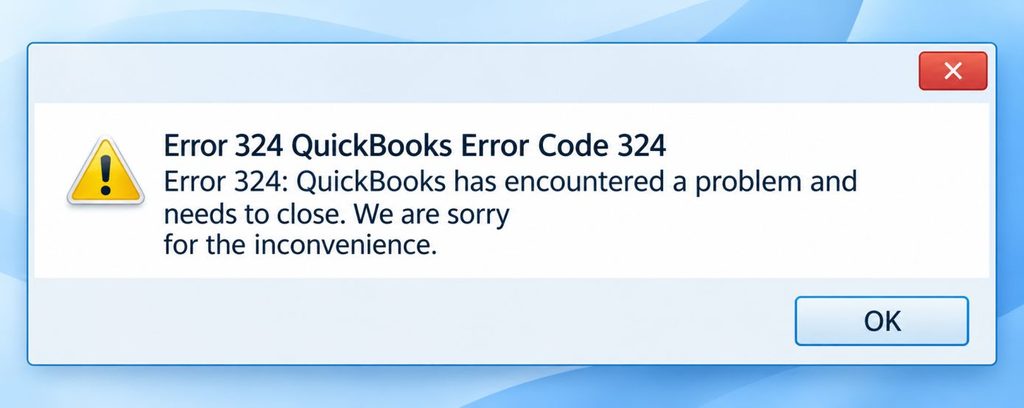
What Does QuickBooks Error 324 Mean?
QuickBooks Error Code 324 means QuickBooks can’t find the connected bank account or credit card through the financial institution’s current connection. Your account may still exist at the bank, but the information returned by the bank no longer matches what QuickBooks expects.
You may notice symptoms such as:
- Your bank account is no longer appearing correctly in the bank feed.
- New transactions have stopped downloading.
- A previously connected account shows Error 324.
- A replacement credit card or new account isn’t being recognized.
- Reconnecting the bank appears to work, but another QuickBooks company then shows the same error.
- The account appears unavailable when you try to reconnect it.
In other words, QuickBooks Online Error 324 is generally a bank-account matching or authorization problem rather than an accounting-data error. Intuit’s current guidance specifically identifies changed account details, closed or suspended accounts, different login credentials, different account selections during reauthorization, and shared bank credentials across multiple companies as scenarios that can produce Error 324.
Why Does QuickBooks Error 324 Happen?
Before disconnecting anything, identify what changed. This can prevent unnecessary reconnection work and help protect your existing transaction history.
| Possible cause | What you may notice | Recommended action |
| Account details changed | New account number or replacement card | Use Fix now and map the updated account |
| Account closed or suspended | Account no longer appears at the bank | Disconnect the old account |
| Different bank credentials | Reconnection uses another user’s login | Reconnect with the original credentials |
| Different accounts selected | Some accounts were left unchecked during authorization | Select All Accounts or Consent All |
| Multiple QuickBooks companies | Error moves between companies using the same bank login | Reauthorize each company with all accounts selected |
| Updated credit card | Replacement card is not matched to the old connection | Reconnect and map it to the existing QuickBooks account |
These scenarios are based on Intuit’s current Error 324 documentation, updated in August 2026.
How to Fix QuickBooks Error 324 Without Losing Your Transaction History
Start with the least disruptive solution. Do not immediately disconnect the account simply because transactions have stopped downloading.
1. Check the Bank Account First
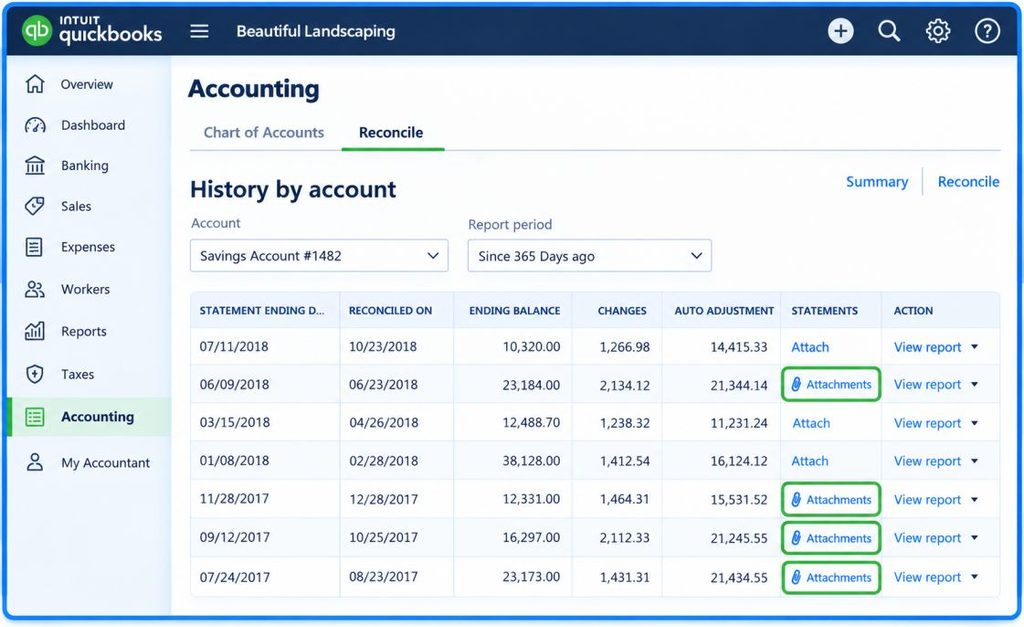
Log in directly to your bank’s website and verify that:
- The account still exists.
- The account is active.
- You can access it normally.
- The account or credit card number has not changed.
- There isn’t a message asking you to accept new terms or complete additional verification.
- The bank has not replaced, suspended, or closed the account.
If the account is active and accessible, continue with the QuickBooks troubleshooting steps. If the bank itself no longer shows the account, reconnecting it in QuickBooks may not work. A closed or suspended account needs to be handled differently.
2. Select Fix Now in QuickBooks
For an active account whose details recently changed, try the built-in connection repair first. In QuickBooks Online:
- Go to All apps.
- Select Accounting.
- Select Bank transactions.
- Find the account showing Error 324.
- Select Fix now.
- Sign in using your current bank credentials.
- When the bank asks which accounts to share, select All Accounts or Consent All.
- When prompted to map the account, connect the updated bank account to your existing QuickBooks account.
Intuit specifically says you generally don’t need to disconnect the account when its details have changed. QuickBooks can remap the updated bank information while retaining the existing transaction history and categorization rules.
3. Always Select All Accounts During Reauthorization
This is one of the most important parts of the current QuickBooks Error 324 fix. Your bank may display a screen asking which accounts you want to share with QuickBooks. Even if you only use one account in your QuickBooks company, select All Accounts or Consent All when the bank provides that option.
This does not mean every account will automatically be added to your books. It allows QuickBooks to maintain the authorization needed to access the bank accounts. You can then choose the accounts you actually want to use in QuickBooks.
Selecting only a subset of accounts can remove authorization for accounts that were previously connected. That can trigger Error 324 or cause the error to appear in another company using the same bank credentials.
4. Reconnect the Account if Fix Now Doesn’t Find It
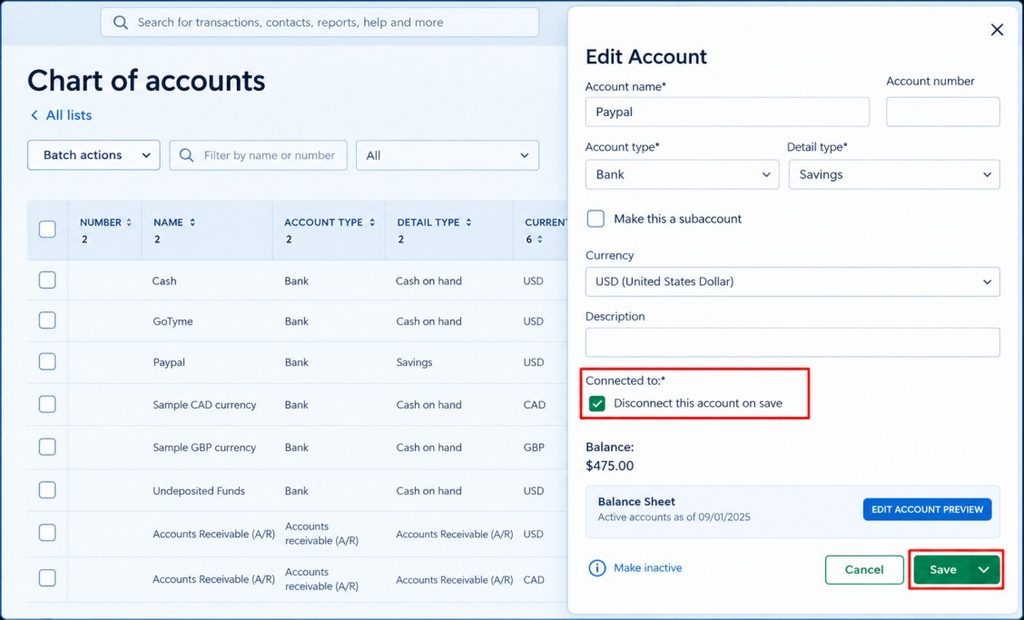
If Fix now doesn’t show the updated account, you may need to disconnect the affected connection and add it again. Go to:
All apps → Accounting → Bank transactions Then:
- Find the affected account.
- Select Fix now.
- If necessary, choose Disconnect.
- Confirm the disconnection.
- Select Add Account or Link account.
- Search for your financial institution.
- Sign in with your current bank credentials.
- Select the updated account.
- Map it to the existing QuickBooks account rather than creating another account.
Mapping the new bank connection to the existing account helps preserve the accounting structure and reduces the risk of creating duplicate accounts.
Important: Before disconnecting an account, review transactions that are still pending in the bank feed. Disconnecting an account can remove pending transactions from the Pending tab, and reconnecting can sometimes result in transactions being downloaded again.
How to Fix Error 324 When the Wrong Bank Credentials Were Used
QuickBooks Error 324 can occur when a bank connection is reauthorized using different credentials from those used for the original connection.
For example, the original connection may have been created with one user’s bank login, but someone later reconnects it using another user’s credentials. QuickBooks may then be unable to match the original accounts with the new authorization. Reconnect With the Original Login
- Go to All apps → Accounting → Bank transactions.
- Open Manage connections.
- Check for mismatched or duplicate connections.
- Disconnect the incorrect connection if necessary.
- Reconnect using the bank credentials originally used for the connection.
- Select the appropriate accounts.
- Complete the connection.
For ongoing maintenance, keep bank connection setup and maintenance consistent within the QuickBooks company whenever possible.
Why Does Error 324 Keep Appearing Across Multiple QuickBooks Companies?
QuickBooks Error 324 can be confusing when several QuickBooks companies use the same bank credentials. For example, suppose the same bank login is used for Company A and Company B. When you reconnect the bank for Company A, you may select only the accounts needed for that company. This can change which accounts the bank authorizes for the connection, causing an account used by Company B to become unavailable there.
You may then see Error 324 in Company B. Reconnecting Company B can change the authorization again, making the problem appear to move between companies.
Reauthorize Each Company Carefully
For the company showing Error 324:
- Sign in to that QuickBooks company.
- Go to All apps → Accounting → Bank transactions.
- Select Link account.
- Search for your bank.
- Sign in using the appropriate bank credentials.
- When the bank asks which accounts to share, select All Accounts or Consent All, if available.
- On the following QuickBooks screen, select only the accounts you want to use in that company.
- Complete the connection.
- Check your other QuickBooks companies that use the same bank login.
If Error 324 appears in another company, repeat the authorization process there. The important distinction is that All Accounts or Consent All applies to the bank authorization, while you can still choose which accounts to connect to each QuickBooks company.
Read More: QuickBooks Desktop New Shipping Manager
What If the Bank Account Is Closed or Suspended?
A closed account requires a different approach. If the bank has closed or suspended the account, QuickBooks cannot continue downloading transactions from it. In this situation, the old bank connection should be disconnected rather than repeatedly reauthorized.
Before disconnecting:
- Review and post pending transactions.
- Confirm that you no longer need additional transactions from the old account.
- Make sure the account is actually closed or suspended at the bank.
Then:
- Go to All apps → Accounting → Bank transactions.
- Find the account showing Error 324.
- Select Fix now.
- Go to Manage connections if prompted.
- Select the affected account.
- Select Disconnect.
- Confirm the disconnection.
The bank feed for that account will be removed and the error should clear.
Connect the Replacement Account
If the bank gave you a new account instead of simply replacing the connection:
- Open All apps → Accounting → Bank transactions.
- Select Link account.
- Search for your bank.
- Sign in with your current credentials.
- Select the new account.
- Complete the connection.
If the new bank account represents the same accounting account and QuickBooks provides a mapping option, carefully select the appropriate existing account instead of creating a duplicate.
How to Prevent QuickBooks Error 324 From Coming Back
You can’t control every change made by your financial institution, but a few practices can reduce avoidable connection problems.
- Keep bank connection management consistent: Have one person handle the bank connection setup and maintenance for the QuickBooks company whenever possible.
- Use the original bank credentials:If the connection was originally established with a particular login, use that same login when reconnecting unless your bank requires a different setup.
- Select All Accounts during authorization: When the bank asks which accounts to share, select All Accounts or Consent All, even if you only plan to use some of those accounts in QuickBooks. You can choose the accounts for your company afterward.
- Check your bank after account changes: If your bank issues a replacement card, changes an account number, closes an account, or changes your online banking details, expect that the QuickBooks connection may need attention.
- Review transactions before disconnecting: Don’t disconnect an account while important pending transactions still need to be reviewed or matched.
When Should You Contact QuickBooks Support?
If QuickBooks Error 324 remains after you’ve identified the likely cause and followed the appropriate bank-connection steps, contacting QuickBooks Support may be the next step. Have the following information ready:
- The name of your financial institution.
- The type of affected account, such as checking, savings, or credit card.
- Whether the account or card was recently replaced.
- Whether the account was renamed, closed, or suspended.
- Whether different bank credentials were recently used.
- Whether multiple QuickBooks companies use the same bank login.
- Whether more than one person manages your company’s bank connections.
Providing these details can help support understand what changed and investigate the connection more efficiently.
Conclusion
QuickBooks Error 324 means QuickBooks can no longer find a bank or credit card account through the connection it previously used. The bank account may still be active, but changes to account details, replacement cards, credentials, authorization selections, or shared connections can cause the account to disappear from the bank feed.
For an active account, start with Fix now, sign in using the current bank credentials, and select All Accounts or Consent All when the bank asks which accounts to share. If the updated account appears, map it to the existing QuickBooks account instead of unnecessarily creating a new accounting account.
If the account was closed or suspended, it cannot be restored through reconnection. Review pending transactions, disconnect the old bank feed, and connect the replacement account instead. If the error keeps returning across multiple QuickBooks companies, investigate shared bank credentials and account-selection authorization before repeatedly reconnecting individual accounts. The key to an effective QuickBooks Error 324 solution is identifying what changed: the bank account, card, credentials, account authorization, or QuickBooks company connection. Once that cause is identified, the appropriate reconnection path can restore bank-feed access without unnecessarily disrupting existing transaction history.
FAQs of QuickBooks Error 324
QuickBooks errors can occur due to connectivity issues, outdated software, incorrect settings, or file corruption. To fix most QuickBooks errors:
1. Update QuickBooks to the latest version.
2. Run the QuickBooks Tool Hub and use tools like Quick Fix My Program or File Doctor.
3. Check your internet connection if the error involves bank feeds or online services.
4. Restart your computer and QuickBooks.
If the problem continues, note the error code and search for code-specific solutions or contact QuickBooks Support.
A corrupted QuickBooks company file can often be repaired using these steps:
1. Open the QuickBooks Tool Hub and run QuickBooks File Doctor.
2. Use the Rebuild Data tool inside QuickBooks: File > Utilities > Rebuild Data.
3. Restore a backup of your company file if corruption is severe.
4. Ensure your file is stored on a reliable, local drive—not a failing server or external storage.
If repeated corruption occurs, it may indicate hardware issues, and you should seek professional support.
QuickBooks Error 185 occurs when your bank requires additional security verification, such as answering a security question or entering a one-time passcode. To fix it:
1. Sign in to your bank’s website and complete any pending verification steps.
2. Return to QuickBooks and refresh the bank connection.
3. If prompted, enter the correct security information in QuickBooks.
If the error keeps appearing, your bank may be requiring repeated authentication—contact your bank to adjust security settings.
Error 102 usually means your bank’s website is experiencing technical issues or undergoing maintenance. To resolve it:
1. Sign in directly to your bank’s website to confirm everything is working.
2. Wait 24–48 hours and try refreshing your bank feeds.
3. Use the Update button in QuickBooks Online to sync your connection again.
4. If your login credentials changed recently, update them in QuickBooks.
If the issue persists, the bank may need to update their online banking platform.
To remove or disconnect a bank account from QuickBooks Online:
1. Go to Bank Transactions or Transactions > Banking.
2. Select the account you want to remove.
3. Click the Edit (pencil) icon.
4. Choose Edit Account Info.
5. Check Disconnect this account on save.
6. Save and close.
This stops future downloads but keeps historical data intact.
Bank feed issues in QuickBooks usually stem from:
1. Bank website maintenance or downtime
2. Incorrect login credentials
3. Outdated QuickBooks software
4. Duplicate or renamed accounts
5. Security verification requirements
To fix bank feed issues:
1. Update your bank connection using the Update/Refresh button.
2. Log in to your bank’s website and verify there are no alerts.
3. Confirm your login info matches your bank’s current credentials.
4. Check for error codes and follow their specific troubleshooting steps.
To connect your Capital One account to QuickBooks Online:
1. Go to Transactions > Banking.
2. Select Add account or Link account.
3. Search for Capital One.
4. Enter your Capital One login credentials.
5. Follow prompts to verify your identity.
6. Select the accounts you want to connect.
7. Choose your accounting settings and click Connect.
If the connection fails, check for security alerts in your Capital One account or try updating the connection again later.
A replacement or new credit card can change the account information that the financial institution provides through its bank connection. QuickBooks may then be unable to match the new account details with the previously connected account. Reauthorize the bank connection, select all accounts when prompted, and map the appropriate card/account to the existing QuickBooks account when applicable.
Yes. If the bank closed or suspended the account, the bank can stop sharing its data with QuickBooks. A closed account cannot be reconnected. Review pending transactions, disconnect the old account, and then connect the replacement bank account if one exists.
Recurring Error 324 can result from reconnecting with different bank credentials, selecting different accounts during authorization, or using the same bank login across multiple QuickBooks companies. Intuit recommends using the original credentials and selecting All Accounts or Consent All during bank authorization.
Yes. When multiple QuickBooks companies use the same bank credentials, reconnecting one company while selecting only certain accounts can remove authorization for accounts used by another company. This can make Error 324 appear to move between companies. Selecting All Accounts during authorization helps maintain the shared bank connection.