QuickBooks direct deposit makes it easier to pay employees electronically, but a problem with bank information, payroll timing, account funding, or payroll processing can prevent a payment from arriving when expected. If your QuickBooks direct deposit is not working, start by checking the payroll status and funding schedule before changing or resubmitting anything. A pending payment is not necessarily a failed payment, and submitting the same payroll twice can create a much bigger problem.
This guide covers practical ways to troubleshoot QuickBooks Online Payroll and QuickBooks Desktop Payroll direct deposit issues, including missing payments, rejected transactions, incorrect bank details, processing delays, and direct deposit limits.
How to Identify the Cause of QuickBooks Direct Deposit Issues?
When QuickBooks direct deposit isn’t working, the first thing you should do is find out where the payment process stopped. A direct deposit can fail because of incorrect bank details, insufficient funds, a missed payroll deadline, account verification problems, or a payroll-service error.
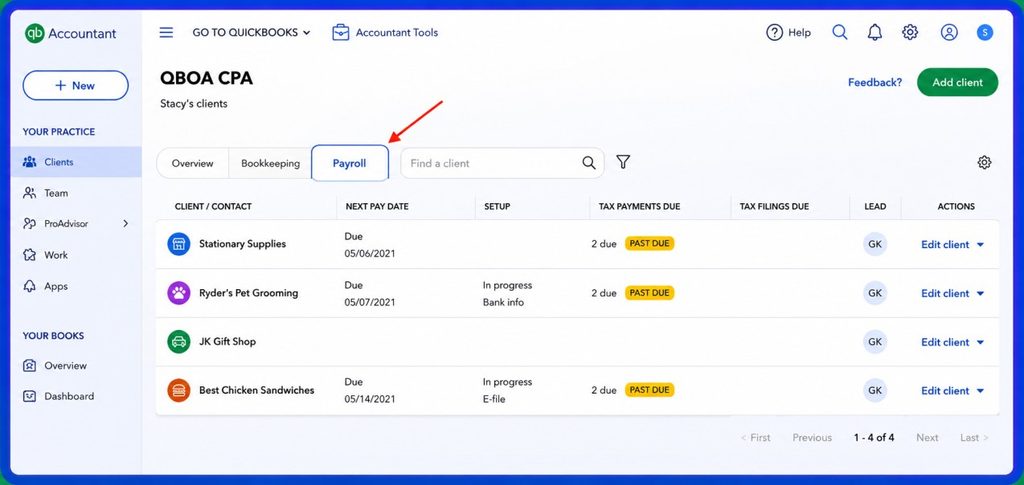
Follow these steps to identify the most likely cause:
- Check the Payroll Status: Start by checking whether the payroll is still processing, has already been sent, or was rejected. If the payroll is still processing, you may simply need to wait for the normal processing period.
- Review Bank Account Information: Check whether your company’s bank account is correctly connected and verified. An incorrect account number, routing number, or verification issue can prevent payroll from being processed.
- Confirm Employee Bank Details: If only one employee hasn’t received their payment, review that employee’s direct deposit information. Check the routing number, account number, and account type against the information provided by the employee.
- Check Available Funds: Make sure your business bank account has enough available funds to cover the payroll debit. Insufficient funds can cause the bank transaction to be rejected.
- Review the Payroll Deadline: Check whether payroll was submitted before the required direct deposit cutoff. If payroll was submitted late, the payment may be scheduled for a later business day instead of the original payday.
- Look for QuickBooks Errors: Review QuickBooks for any Action Required, bank, payroll, or connection messages. If an error appears, follow the instructions provided for that specific issue instead of changing multiple payroll settings at once.
- Check Direct Deposit Limits: If QuickBooks won’t allow you to submit payroll, check whether the payroll amount has exceeded an applicable direct deposit limit. QuickBooks may provide instructions if additional action is required.
- Avoid Recreating Payroll Too Quickly: Don’t immediately void or recreate payroll just because an employee hasn’t received the money. First confirm the original payroll status. If the payment has already been sent, creating another payroll could result in a duplicate payment.
Once you know which step caused the problem, you can choose the appropriate fix instead of making unnecessary changes to your payroll records.
Check Your Payroll Status Before Taking Action
If a payroll payment is missing or delayed, check its status in QuickBooks Desktop before making any changes or submitting another payroll. The status shows where the payroll is in the processing process and helps you determine what to do next.
You may see one of these payroll statuses:
| Payroll Status | What It Means |
| Sent to Intuit | QuickBooks has received the payroll and is processing it. |
| Sent to Bank | Intuit has sent the debit request to your bank. |
| Payroll Processed | The account has been debited, and the payroll has been sent to the employees’ banks. |
| Debit Request Rejected or Declined | The bank could not complete the debit and the issue requires attention. |
You can check a Desktop payroll run by going to Employees → View Payroll Run Status, selecting the payroll, and opening the payroll-status details.
This distinction matters. If the payroll has already been processed, creating another payroll may result in duplicate payment. If the debit was rejected, however, you need to address the rejection before expecting the original payroll to complete.
How to Fix QuickBooks Online Payroll Direct Deposit Issues
If QuickBooks Online Payroll direct deposit isn’t working, don’t immediately delete, void, or recreate the payroll. A direct deposit can be delayed for several reasons, and changing the payroll before checking its status can make the situation harder to resolve.
I recommend working through these checks in order. Start with your company bank account and payroll status, then move on to employee details, funding, subscription settings, and only then consider correcting or recreating a payment.
1. Verify the Company Bank Account
Start by checking the bank account connected to payroll. QuickBooks needs the correct company bank account information to process payroll and direct deposit. If your account still needs verification, complete the verification steps shown in QuickBooks before trying to submit payroll again. When QuickBooks uses a test transaction to verify the account, check your bank statement carefully and enter the requested amount exactly as shown.
- The correct company bank account is connected.
- The account is active and able to process ACH transactions.
- Bank verification has been completed.
- The account information hasn’t recently changed.
- There are no bank restrictions preventing the required debit.
If the bank account was recently changed, give the verification process time to complete. Trying to process payroll before the account is properly verified can lead to delays or rejected transactions.
2. Check Your Direct Deposit Funding Time
One of the easiest mistakes to make is assuming every QuickBooks Payroll account uses the same direct deposit schedule. Current QuickBooks guidance shows that funding time depends on the payroll product:
| Payroll service | Current direct deposit timing |
| QuickBooks Online Payroll Core | 2-day or 5-day options |
| QuickBooks Online Payroll Premium/Elite | 1-day, 2-day, or 5-day options |
| QuickBooks Desktop Payroll Assisted | Next-day/1-day funding |
| QuickBooks Desktop Payroll Basic/Standard/Enhanced | 2-day funding |
| Eligible QuickBooks Workforce customers | Same-day or next-day options may be available |
Direct deposits are processed on banking days, and federal holidays can affect the schedule. For example, QuickBooks currently lists a 7:00 AM Pacific Time cutoff for eligible same-day payroll. Next-day and two-day schedules have different submission deadlines. So, if payroll was submitted late, the problem may not be a technical failure at all—it may simply be following the next available funding date.
3. Review the Employee’s Bank Information
Incorrect account or routing information is a common reason an employee does not receive a direct deposit. In QuickBooks Online, review the employee’s payment method and verify the banking information against the employee’s current bank records. QuickBooks supports direct deposit to one or two accounts, as well as configurations where the remaining balance is paid by check.
- Routing number
- Account number
- Account type
- Employee name and profile
- Direct deposit payment method
- Whether the employee recently changed banks
Do not change banking information simply because a payment is late. First determine whether the original payment has already been transmitted.
4. Make Sure the Payroll Account Has Enough Funds
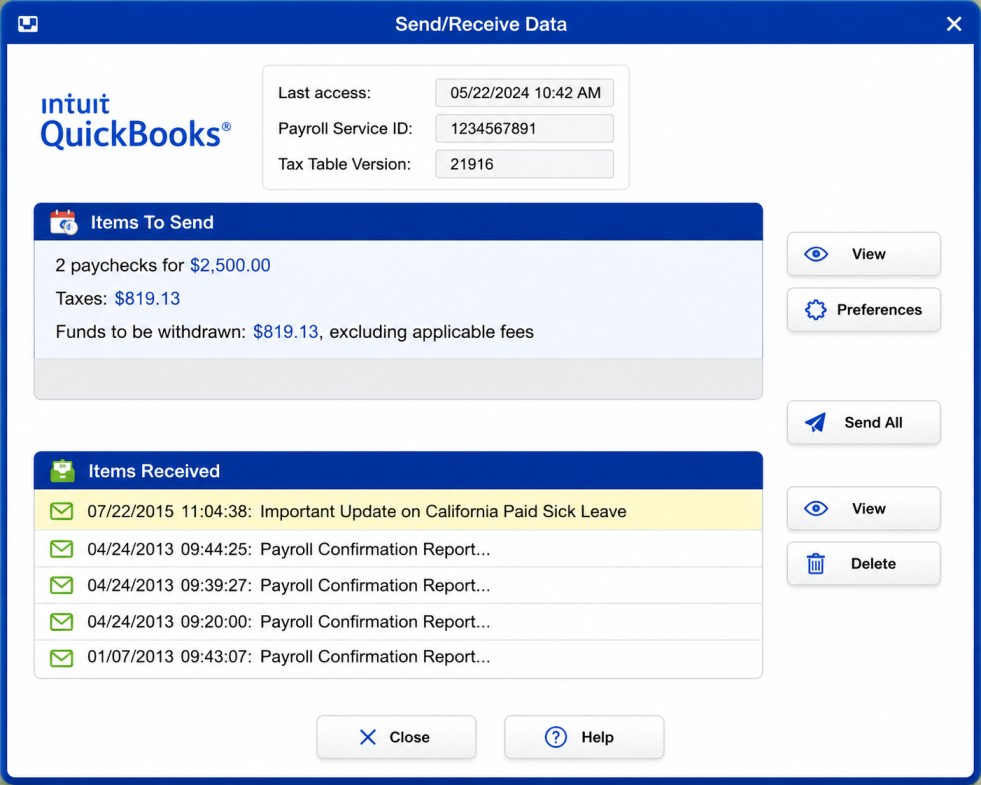
A payroll debit can be rejected when there are insufficient funds in the company bank account. QuickBooks also identifies closed accounts, invalid account numbers, and accounts that cannot be located as possible reasons for a rejected debit request. Before submitting payroll, make sure the account has enough available funds for the applicable payroll debit and related amounts. If a payroll debit has already been rejected for insufficient funds, follow the instructions associated with the payroll-status error rather than immediately creating another payroll.
5. Check for Payroll or Connection Errors
Sometimes the problem is not the employee’s bank account at all. QuickBooks can encounter payroll-service or connection errors while sending payroll information.
For QuickBooks Desktop, Intuit identifies issues such as:
- Internet connection problems
- Firewall or security-software interference
- Incorrect system date or time
- Network timeouts
- Sending payroll data while in multi-user mode
- Payroll-service connection problems
Intuit recommends troubleshooting these issues and attempting to send payroll again after each applicable fix.
If you see a specific error message, use that message to guide the troubleshooting rather than changing several settings at once.
6. Check for Direct Deposit Limits
QuickBooks may place limits on the amount that can be sent through direct deposit. A payroll amount that is unusually high can trigger a direct deposit limit message. QuickBooks explains that these limits are applied per payroll, and users who exceed a limit may need to request an increase or use another available option. If the limit message appears, don’t split payroll into multiple batches unless QuickBooks specifically indicates that this is an appropriate solution for your situation.
7. Update Subscription and Billing Information
Your payroll service must remain active for you to use the direct deposit features included with your subscription. If QuickBooks displays a billing, subscription, or payroll-service warning, review your account and make sure:
- Your payroll subscription is active.
- Your billing information is current.
- There isn’t an outstanding payment or account issue.
- QuickBooks hasn’t restricted a payroll feature because of an account problem.
Don’t assume that every direct deposit failure is caused by an expired subscription. If your subscription is active and QuickBooks isn’t showing a billing-related message, continue checking the bank account, payroll status, employee information, and processing schedule.
8. Recreate or Resend Payroll Only When Appropriate
Recreating payroll should be one of the last steps, not the first. Before voiding a paycheck, resending payroll, or creating a replacement payment, determine what happened to the original transaction. If the original direct deposit has already been submitted or processed, creating another payment could result in the employee being paid twice. If the direct deposit was genuinely rejected, returned, or otherwise requires correction, follow the procedure appropriate to that specific payroll status.
For a missing or voided direct deposit paycheck, QuickBooks provides procedures for recreating the transaction while accounting for the original paycheck. The correct approach depends on what happened to the original payment. If you’re unsure whether the first payroll was successfully transmitted, stop before creating another one and verify its status. That small precaution can prevent duplicate payroll and additional accounting work.
Quick Check Before You Resubmit Payroll
Before you send payroll again, ask yourself:
| Check | What to confirm |
| Bank account | Is the company account active and verified? |
| Payroll timing | Was payroll submitted before the required cutoff? |
| Employee details | Are the routing and account numbers correct? |
| Available funds | Can the account cover the payroll debit? |
| Error message | Does QuickBooks show a specific payroll or connection error? |
| Subscription | Is the payroll service active and billing information current? |
| Original payroll | Has the first payroll already been submitted or processed? |
Once you’ve identified the actual cause, take the correction that matches the payroll status. This approach is safer than repeatedly resending payroll and gives you a much better chance of resolving the QuickBooks Online direct deposit issue without creating another payroll problem.
How to Fix QuickBooks Desktop Payroll Direct Deposit Issues
QuickBooks Desktop Payroll handles direct deposit through its payroll service, so a problem can come from the service setup, employee banking information, company-file data, payroll settings, or the payroll transmission itself. When direct deposit isn’t working, it’s best to check these areas in order rather than immediately voiding or recreating a paycheck.
1. Confirm Direct Deposit Is Active
First, confirm that your QuickBooks Desktop Payroll subscription is active. An inactive or incorrectly configured payroll service can prevent payroll updates and direct deposit from processing properly.
To check the service:
- Open QuickBooks Desktop.
- Go to Employees → My Payroll Service → Manage Service Key.
- Check the Service Name and Status.
- Make sure the payroll service is listed as Active.
If the service information is incorrect, you may need to update the service key or contact QuickBooks support. Intuit also recommends checking the service status when troubleshooting payroll-update errors such as PS033, PS036, PS101, and PS107.
2. Review Employee Direct Deposit Settings
To check an employee’s direct deposit setup in QuickBooks Desktop:
- Go to Employees → Employee Center.
- Select the employee.
- Open the Payroll Info tab.
- Select Direct Deposit.
- Confirm that direct deposit is enabled.
- Review the financial institution information.
- Save the changes and enter the direct deposit PIN when prompted.
QuickBooks Desktop can support deposits into one or two employee accounts, depending on the setup.
3. Update QuickBooks Desktop to Latest Version
Before troubleshooting deeper, make sure QuickBooks Desktop and its payroll tax tables are up to date. An outdated release can interfere with payroll updates or payroll-service connections. To download the latest payroll tax table:
- Go to Employees → Get Payroll Updates.
- Check the tax table version currently installed.
- Select Download Entire Update.
- Select Update.
QuickBooks requires an active Desktop Payroll subscription to download payroll tax-table updates. If you’re seeing a payroll connection error, also check your system date and time, internet connection, and firewall or security software. Intuit recommends sending payroll after each troubleshooting step rather than changing several settings at once.
4. Check the Employee Direct Deposit Setup
If the problem affects only one employee, review that employee’s direct deposit information before changing anything else.
- Go to Employees → Employee Center.
- Select the employee.
- Open the Payroll Info tab.
- Select Direct Deposit.
- Confirm that direct deposit is enabled.
- Review the employee’s bank account information.
- Save the changes and complete any required verification.
Pay particular attention to the routing number, account number, and account type. An incorrect account or routing number can prevent an employee from receiving the deposit. If the employee recently changed banks, don’t assume that updating the profile automatically fixes a payment that has already been sent. First check the status of the original direct deposit.
5. Validate and Rebuild the Company File
If QuickBooks Desktop is behaving unusually across payroll transactions, the company file itself may contain data damage. The Verify Data utility checks the file for common data problems, while Rebuild Data repairs identified integrity issues.
Start with Verify Data:
- Close any open company windows by going to Window → Close All.
- Select File → Utilities → Verify Data.
- Let QuickBooks complete the check.
If QuickBooks reports that your data has lost integrity, create a backup and then use File → Utilities → Rebuild Data. After the rebuild finishes, run Verify Data again to confirm whether the problem has been resolved.
Important: If you use Assisted Payroll, Intuit advises contacting support before rebuilding your company file. This step is particularly relevant when payroll checks are stuck with an “Online to Send” status. For example, Intuit’s current PS038 guidance specifically recommends syncing payroll data and using Verify/Rebuild when appropriate.
6. Review Payroll Liability and Payment Settings
Not every direct deposit problem is caused by an employee’s bank account. Payroll items, tax settings, and payment information can also affect the payroll process. Review your payroll setup if QuickBooks is showing an unusual payroll calculation, transmission error, or warning. Pay attention to:
- Payroll items assigned to employees.
- Payroll tax items and liabilities.
- The company bank account used for payroll.
- Payroll service settings.
- Recent changes to payroll or banking information.
If you’re troubleshooting a specific error, use the exact error message as your starting point rather than changing payroll items at random. This reduces the risk of creating incorrect payroll or tax records. Also remember that payroll tax tables are separate from your company’s state unemployment insurance rate. Intuit notes that the SUI rate is not part of the normal payroll tax-table update and must be updated separately when required.
7. Check Your Direct Deposit Limits
QuickBooks Desktop Payroll has security limits on the amount you can send through direct deposit. If your payroll is unusually large, you may receive a message asking you to request a direct deposit limit increase.
For QuickBooks Desktop Payroll, Intuit currently defines limits in two ways:
- Per payroll: The total direct deposit amount for all employees or contractors paid within the applicable six-day period from the paycheck date.
- Per person: The direct deposit amount for an individual employee or contractor within the applicable 14-day period from the paycheck date.
If your payroll exceeds the applicable limit, don’t assume that splitting the payroll into several batches is the right solution. Intuit recommends contacting support to find out your current limits and request an increase when necessary.
8. Fix QuickBooks Desktop Payroll Error Codes
If QuickBooks displays an error code, use that code to narrow down the problem. Different PSXXX and payroll errors can have very different causes. For example, PS038 occurs when paychecks are stuck with an “Online to Send” status, which can prevent payroll from running or payroll tax tables from downloading. Intuit’s current troubleshooting process includes syncing payroll data, identifying stuck paychecks, and using Verify/Rebuild when appropriate.
Other payroll-update errors, including PS033, PS036, PS101, and PS107, can be associated with issues such as incorrect internet settings, firewall restrictions, damaged payroll files, or payroll-service configuration. For payroll-service connection errors, QuickBooks also recommends checking:
- Whether QuickBooks is running in single-user mode when sending payroll data.
- The latest payroll tax table.
- Your computer’s date and time.
- Your internet connection.
- Firewall and internet-security settings.
- Whether restarting the computer resolves a temporary connection problem.
The key is to avoid treating every payroll error as a direct deposit problem. The error code often tells you whether you’re dealing with company-file data, payroll updates, account verification, or the payroll-service connection.
9. Send Payroll Data Correctly
After creating payroll, direct deposit paychecks must be sent to Intuit.
- Go to Employees → Send Payroll Data.
- Select View if you want to review the direct deposit paychecks.
- Select Send All.
- Enter your direct deposit PIN.
- Select OK.
Intuit’s current instructions also note that federal holidays can affect payment timing, while the receiving bank determines the exact time funds are posted.
10. Check the Payroll Run Status
After sending payroll, check its status rather than assuming it went through. Go to: Employees → View Payroll Run Status, Select the relevant payroll and review the status shown by QuickBooks. This is especially important when an employee reports that a payment hasn’t arrived.
What to Do When QuickBooks Direct Deposit Is Pending
If your QuickBooks direct deposit is pending, don’t assume the payment has failed. The transaction may still be going through the normal payroll process. Follow these steps to determine what is happening before you make any changes.
- Check the Payroll Submission Date: First, confirm when you submitted the payroll. If it was submitted recently, the payment may still be within the normal processing period for your QuickBooks Payroll service.
- Confirm the Scheduled Payday: Check the payday entered in your payroll. Make sure the expected payment date has actually arrived before treating the deposit as late.
- Review Your Direct Deposit Funding Time: QuickBooks Payroll services can have different funding schedules. Check the funding time assigned to your payroll account and make sure the payroll was submitted before the required cutoff.
- Check the Payroll Status: Open your payroll details and review the current status. Look for information showing whether the payroll is still processing, has been sent, has been processed, or has been rejected.
- Check Your Company Bank Account: Make sure the company bank account is active and has enough available funds to cover the payroll debit. If the account has a problem, the direct deposit may not complete successfully.
- Look for QuickBooks Alerts: Check QuickBooks for notifications, warnings, or messages asking you to take action. If QuickBooks identifies a specific problem, follow the instructions provided rather than making unrelated changes.
- Consider Weekends and Federal Holidays: Banking schedules can affect when payroll transactions are processed or posted. If the payroll falls around a weekend or federal holiday, the deposit may take longer than it would on a normal banking day.
- Don’t Submit the Payroll Again: If the payroll is still pending, don’t submit the same payroll again just because the money hasn’t appeared yet. The original transaction may already be processing, and creating another payroll could lead to a duplicate payment.
Instead, confirm the original payroll status first. If QuickBooks shows that the payment failed, was rejected, or requires additional action, follow the appropriate correction process.
What If QuickBooks Direct Deposit Is Not Working Today?
If your QuickBooks direct deposit is not working today, don’t immediately assume there is a system-wide QuickBooks outage. A delayed or failed payment can be caused by an issue with your payroll, bank account, employee information, or the payroll service itself. Follow these steps to narrow down the problem:
- Check the Employee’s Bank Information: Review the employee’s routing number, account number, and account type. Even a small error can prevent the direct deposit from reaching the intended account.
- Confirm Available Funds: Make sure your company bank account has enough available funds to cover the payroll debit. An insufficient balance can cause the bank to reject the transaction.
- Check the Payroll Submission Time: Confirm when you submitted payroll and compare it with your direct deposit funding schedule. If payroll was submitted after the required cutoff, the deposit may be scheduled for a later banking day.
- Review Bank Account Verification: Check whether your company bank account is fully verified for payroll. An incomplete verification process can prevent direct deposit from being processed.
- Check for a Direct Deposit Limit: If your payroll amount is unusually high, QuickBooks may display a direct deposit limit message. Review the message carefully and follow the instructions provided by QuickBooks.
- Review the Payroll Status: Open the payroll details and check whether the transaction is processing, sent, processed, rejected, or waiting for action. This helps you determine whether the problem is actually a failed deposit or simply a processing delay.
- Check for Bank or Holiday Delays: A weekend, federal holiday, or bank processing delay can affect when funds become available. The receiving bank also controls when the deposited funds are posted to the employee’s account.
- Troubleshoot Connection Errors: If QuickBooks displays a payroll-service server or connection error, check your internet connection, system date and time, security software, and payroll-service connection. Intuit’s troubleshooting guidance recommends addressing these factors when QuickBooks cannot communicate properly with its payroll service.
- Don’t Create Duplicate Payroll: If the original payroll is still processing, avoid submitting it again. First confirm whether the transaction failed or was rejected. This helps prevent accidentally paying the same employee twice.
If these checks don’t identify the problem, use the specific error message or payroll status shown in QuickBooks to determine the next step rather than changing multiple payroll settings at once.
What to Do If an Employee Did Not Receive Direct Deposit
When an employee says the money hasn’t arrived, start with the original transaction rather than immediately creating a replacement payment. QuickBooks identifies incorrect routing or account numbers and payments sent to another employee’s account among the situations that can cause an employee not to receive direct deposit. Follow this order:
- Check the payroll status.
- Confirm the scheduled pay date.
- Verify the employee’s bank information.
- Determine whether the payment was rejected or returned.
- Check whether the receiving bank has posted the funds.
- Follow QuickBooks’ instructions for the specific rejection or incorrect-account situation.
If an incorrect account was used, the recovery process can be different depending on whether the account exists and whether the funds were successfully deposited. Intuit notes that a reversal may be possible in certain situations but does not guarantee that the money will be recovered.
How to Handle a Rejected QuickBooks Direct Deposit
If a QuickBooks direct deposit is rejected, don’t immediately recreate or resend the payroll. First, find out why the transaction was rejected. The reason shown in QuickBooks can help you determine whether the problem is with your bank account, available funds, account information, or bank authorization.
Follow these steps to handle the rejection safely:
- Check the Rejection Message: Open the payroll details and review the exact error or rejection message. If QuickBooks provides a rejection code, note it down because it can point you toward the appropriate solution.
- Check Your Bank Balance: Make sure the company bank account had enough available funds when QuickBooks attempted to process the payroll debit. Insufficient funds can cause the bank to reject the transaction.
- Verify the Company Bank Information: Review the bank account and routing information saved for payroll. Make sure the account is active and that the information matches your current business bank account.
- Check for Bank Authorization Problems: Your bank may reject an ACH debit if it cannot authorize the transaction. This can happen when the account has an ACH debit block or another security restriction. For example, Intuit identifies R29 as a rejection that can occur when the bank does not authorize the ACH debit.
- Contact Your Bank if an ACH Debit Was Blocked: If your bank confirms that it blocked the QuickBooks ACH debit, ask the bank’s ACH or payments department what is required to authorize the transaction. You may need to provide information that allows the QuickBooks payroll debit to be accepted.
- Check QuickBooks Again: After addressing the bank-related problem, return to QuickBooks and review the payroll status and any instructions provided. Don’t assume that correcting the bank issue automatically means the original payroll will be processed.
- Don’t Recreate Payroll Without Confirming the Status: Before creating replacement paychecks, confirm what happened to the original payroll. If the original transaction was already processed or is still being handled, recreating it could result in duplicate payments. Once you know the exact reason for the rejection and confirm the status of the original payroll, follow QuickBooks’ instructions for correcting or resubmitting the affected payment.
Should You Void and Recreate a Failed Payroll?
Not automatically. Before voiding or recreating payroll, first check what happened to the original direct deposit. Recreating it too soon could result in a duplicate payment or accounting errors. The correct steps depend on whether the payment was rejected, deposited, voided, or missing from the company file. QuickBooks has specific procedures for handling missing or voided direct-deposit paychecks. In some cases, an offset payroll item may be needed to prevent the employee from being paid twice. Always confirm the original payment status before recreating the paycheck.
Quick Troubleshooting Checklist for QuickBooks Direct Deposit
Before taking corrective action, work through this checklist:
| Check | What to confirm |
| Payroll status | Is it processing, sent to bank, processed, or rejected? |
| Funding time | Are you within the correct lead time for your payroll product? |
| Bank account | Is the company account active and verified? |
| Employee details | Are routing and account numbers correct? |
| Available funds | Can the company account cover the payroll debit? |
| Direct deposit limit | Is the payroll amount within the applicable limit? |
| Connection | Can QuickBooks communicate with its payroll service? |
| Bank posting | Has the receiving bank posted the payment? |
| Duplicate risk | Has the original payroll already been sent or processed? |
What Do QuickBooks Payroll Direct Deposit Error Codes Mean?
QuickBooks payroll error codes can point you toward the part of the payroll process that needs attention. If you see a code, don’t try random fixes or recreate payroll immediately. First note the exact error, check the payroll status, and then follow the troubleshooting steps that apply to that code.
- QuickBooks Error PS038: PS038 is associated with a payroll update that remains stuck, often involving payroll data that has not been sent successfully. QuickBooks may continue showing a message that payroll needs to be sent. Start by updating QuickBooks Desktop and payroll tax tables. Then check for any unsent payroll data and follow QuickBooks’ recommended steps for clearing the stuck status. Avoid creating another payroll until you confirm what happened to the original transaction.
- QuickBooks Error PS107: PS107 is a payroll update error that can occur when QuickBooks cannot properly download or process payroll updates. The exact cause can vary depending on your QuickBooks Desktop setup. First, make sure your payroll subscription is active and QuickBooks Desktop is updated. Then try downloading the latest payroll update again. If the error continues, check your internet connection and security settings before attempting payroll again.
- QuickBooks Error Errors 2107/2108: Errors 2107 and 2108 can be related to problems with payroll or direct deposit processing and may require you to review your payroll-service connection and account information. If either error appears, note the exact message shown by QuickBooks and check your payroll service status first. Verify that your company information and direct deposit setup are correct, then update QuickBooks and try the payroll process again if appropriate.
Because error behavior can depend on your QuickBooks Desktop version and payroll setup, use the exact error message as your starting point rather than applying the same fix to every installation.
How to Prevent Future QuickBooks Direct Deposit Problems
Most direct deposit problems are easier to prevent than to correct after payday. A simple routine before and after each payroll run can help you catch incorrect information, funding issues, and processing problems early.
- Audit Employee Data: Review employee banking information whenever an employee changes their account or payment method. Confirm that the information saved in QuickBooks matches the details provided by the employee, and limit access to sensitive payroll information to authorized users.
- Process Payroll Early: Know the funding schedule and submission cutoff for your particular QuickBooks Payroll service. Give yourself enough time to review payroll and correct unexpected issues before payday instead of relying on a last-minute submission.
- Monitor Notifications: Pay attention to QuickBooks payroll alerts, email notifications, and messages that require action. A warning about a rejected payment, account problem, or payroll-processing issue is much easier to address before payday than after an employee reports a missing deposit.
- Reconcile Accounts: Regularly compare your payroll transactions with your company bank records. Reconciliation can help you spot unexpected debits, returned payments, or discrepancies that may otherwise go unnoticed.
- Update Software: Keep QuickBooks Desktop and its payroll components updated when updates are available for your setup. Current software helps ensure that you have the latest supported payroll features, fixes, and tax-table updates.
Note: Most importantly, don’t rely on a fixed rule such as “always submit payroll two or three days early.” Direct deposit timing and cutoff requirements can differ by QuickBooks Payroll product, so check the funding schedule associated with your specific service before every payroll run.
When to Use Alternative Payment Methods?
If direct deposit fails and payroll is urgent:
- Issue paper checks
- Use manual bank transfers
- Provide same-day payments if required
This ensures employees are paid without delay.
Conclusion
Resolving direct deposit issues in QuickBooks Online Payroll and QuickBooks Desktop Payroll requires a structured approach focused on accuracy, verification, and timely processing. By systematically addressing bank setup, employee data, payroll timing, and system updates, we ensure uninterrupted payroll operations and maintain employee trust.
Frequently Asked Questions
1. Go to Expenses > Contractors
2. Select the contractor you want to pay
3. Click Edit and enable Direct Deposit
4. Invite the contractor to enter their bank details securely
5. Alternatively, enter banking details manually (if authorized)
6. Save changes and process payments via direct deposit
Yes, reimbursements can be processed through payroll:
1. Create a non-taxable reimbursement pay type
2. Go to Payroll Settings > Pay Types
3. Add reimbursement to the employee’s paycheck
4. Process payroll to include the reimbursement via direct deposit
1. Open Employee Center
2. Select the employee profile
3. Go to the Payroll Info tab
4. Click Direct Deposit and enable it
5. Enter the employee’s bank routing and account number
6. Save the details
7. Ensure your payroll service is activated before processing
Yes, but it depends on the version:
1. Direct vendor deposit is not available in all QuickBooks versions
2. Use ACH transfers or bank payments where supported
3. Enable Online Bill Pay (if available in your plan)
4. Use third-party apps/integrations for vendor payments
5. Alternatively, pay vendors via checks or manual transfers
Yes, QuickBooks offers same-day direct deposit for eligible users:
1. Available in select QuickBooks Online Payroll plans
2. Enable same-day direct deposit in payroll settings
3. Submit payroll before the same-day cutoff time
4. Ensure sufficient funds are available in your account
5. Payments are processed and deposited on the same business day
1. Requires an active QuickBooks Desktop Payroll subscription
2. Includes a base monthly or annual fee
3. Additional per-employee or per-transaction fees may apply
4. Costs vary based on the payroll plan selected
5. Check current pricing in your subscription details for accuracy
There are several common reasons why Direct Deposit activation may fail in QuickBooks Desktop Pro:
1. Incorrect or outdated payroll subscription information
2. Invalid or mismatched company or bank account details
3. Poor or unstable internet connection
4. Firewall or security settings blocking QuickBooks services
5. Damaged or outdated QuickBooks installation
6. Payroll service not fully set up or verified
Error 40001 typically indicates that QuickBooks is unable to complete the Direct Deposit activation due to a communication or validation issue.
This usually happens when:
1. QuickBooks cannot connect to the payroll service servers
2. Your payroll account information cannot be verified
3. There are login/session issues with your Intuit account
You can try the following troubleshooting steps:
1. Sign out and sign back into your Intuit account inside QuickBooks
2. Update QuickBooks Desktop to the latest release
3. Verify your payroll subscription is active
4. Check and update your bank and company details
5. Run QuickBooks as Administrator
6. Temporarily disable firewall/antivirus and try again
7. Use the QuickBooks Tool Hub to repair issues