
When QuickBooks Installation Has Failed, the problem is usually connected to Windows components, an incomplete previous installation, a damaged installer, missing permissions, or software that is interfering with setup. The exact message matters because an installation failure caused by MSI returned 1603 needs a different approach from a repeated QuickBooks Require Reboot To Complete Installation message.
QuickBooks Desktop installation also depends on supported Windows configurations and Microsoft components. For example, QuickBooks Desktop 2024 requires a 64-bit Windows operating system, and Intuit recommends supported Windows versions rather than unsupported or emulated environments.
The safest approach is to work through the problem in order rather than repeatedly running the same installer. Start with the simple checks, then use the QuickBooks Install Diagnostic Tool, repair the installation when appropriate, and perform a clean reinstall only when the earlier methods do not resolve the issue.
QuickBooks Installation Has Failed: What It Means and Why Setup Stops
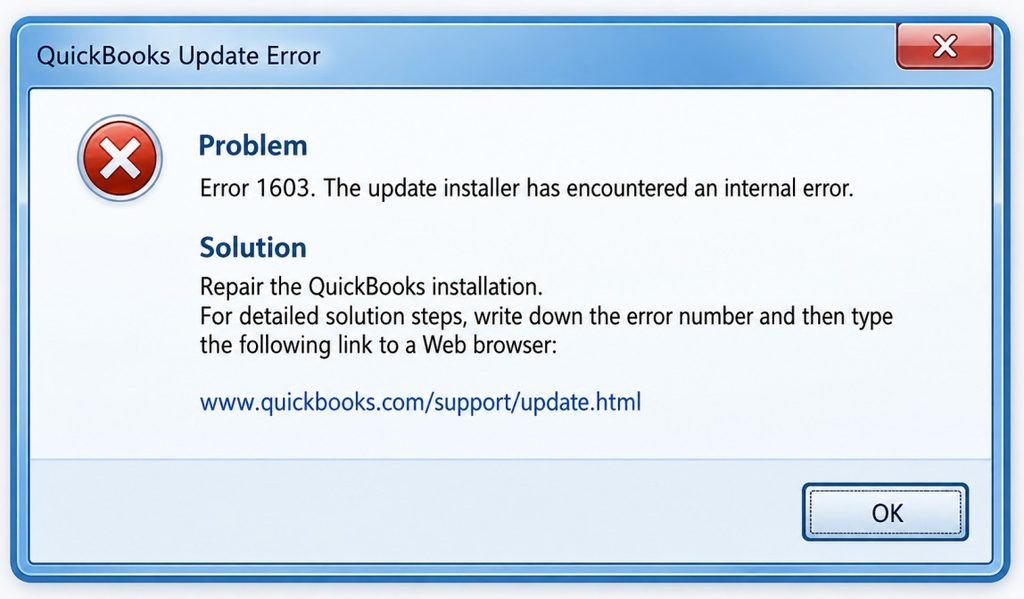
The QuickBooks Installation Has Failed message means the installer could not complete one or more steps required to set up the program. Sometimes the failure happens immediately, while in other cases QuickBooks may install several components before stopping.
The reason can vary from one computer to another. A pending restart, corrupted installer, old QuickBooks files, Windows permissions, or a problem with a required Microsoft component can all interfere with setup. That is why the exact error code or message shown on your screen is worth checking before you start changing system settings.
1. Common Symptoms of “QuickBooks Installation Has Failed”
You may notice several signs when QuickBooks setup cannot finish. The installer may display an error message, stop unexpectedly, or repeatedly ask you to restart Windows.
Common symptoms include:
- QuickBooks setup stops before completion.
- An “Installation Has Failed” message appears.
- Windows repeatedly asks you to restart the computer.
- An installation error code such as 1603 appears.
- QuickBooks installs partially but does not open.
- The setup process freezes or closes unexpectedly.
- A required file fails to register.
- A previous QuickBooks installation remains on the computer.
If the same error appears at the same point every time, note the message or error code. It can provide an important clue about whether the problem is related to Windows, the installer, or an existing QuickBooks installation.
2. Most Likely Causes of QuickBooks Installation Failure
Several issues can prevent QuickBooks from installing correctly. The most common are pending Windows updates, damaged installation files, incomplete previous installations, insufficient permissions, and problems with Windows components required by QuickBooks.
Security software or organizational restrictions can also interfere with installation. In addition, installing a QuickBooks Desktop version on an unsupported Windows configuration can create compatibility problems. Checking these basic conditions first can save you from performing unnecessary troubleshooting.
3. QuickBooks Installation Issues on Windows 10 vs. Windows 11
QuickBooks installation issues can happen on both Windows 10 and Windows 11. The main factor is QuickBooks version compatibility.
- Check the system requirements for your QuickBooks version.
- Keep Windows updated and restart if required.
- Make sure you have proper installation permissions.
- If using an older QuickBooks version on Windows 11, verify compatibility first.
- If installation fails after upgrading to Windows 11, check the version, updates, installer, permissions, and exact error message before blaming the OS.
Before reinstalling QuickBooks, check these key points:
- Restart Windows to complete pending changes.
- Install Windows updates and restart again.
- Confirm you have the correct QuickBooks version and edition.
- Use a fresh, up-to-date installer.
- Check system compatibility, including Windows version, 64-bit support, RAM, and processor requirements.
- For QuickBooks Desktop 2024, 64-bit Windows and at least 8 GB RAM are required.
Effective Solutions for “QuickBooks Installation Has Failed”: Practical Fixes That Work
When QuickBooks Installation Has Failed, the cause can be something as simple as an outdated operating system or insufficient storage, but it can also involve damaged Windows components, security software, compatibility problems, restricted permissions, or another application running in the background. On a business computer, company policies can add another layer of restrictions and may prevent you from installing QuickBooks without approval from your IT administrator.
The best approach is to troubleshoot the problem in a sensible order. Start with the operating system and installer, then use the QuickBooks Install Diagnostic Tool. If the problem remains, check the Windows components QuickBooks depends on, review firewall or antivirus interference, test compatibility, and use Selective Startup as an advanced installation method. This avoids making major Windows changes before simpler solutions have been tried.
Solution 1: Update Your Operating System
An outdated or unsupported operating system can cause compatibility problems when you try to install QuickBooks Desktop. Before troubleshooting individual Windows components, confirm that your computer meets the requirements for the QuickBooks version you are installing.
For example, Intuit currently states that QuickBooks Desktop 2024 for Windows requires a 64-bit Windows operating system and supports specific Windows versions. Intuit also lists QuickBooks Desktop for Mac separately, with its own system requirements.
A. Restart Your Computer
Start with a normal restart before making any system changes. Restarting Windows can clear temporary glitches, close background processes, and allow pending system changes to finish. After the computer starts again, try the QuickBooks installation. If the QuickBooks Installation Has Failed message appears again, continue with the update check below.
B. Check for Windows Updates:
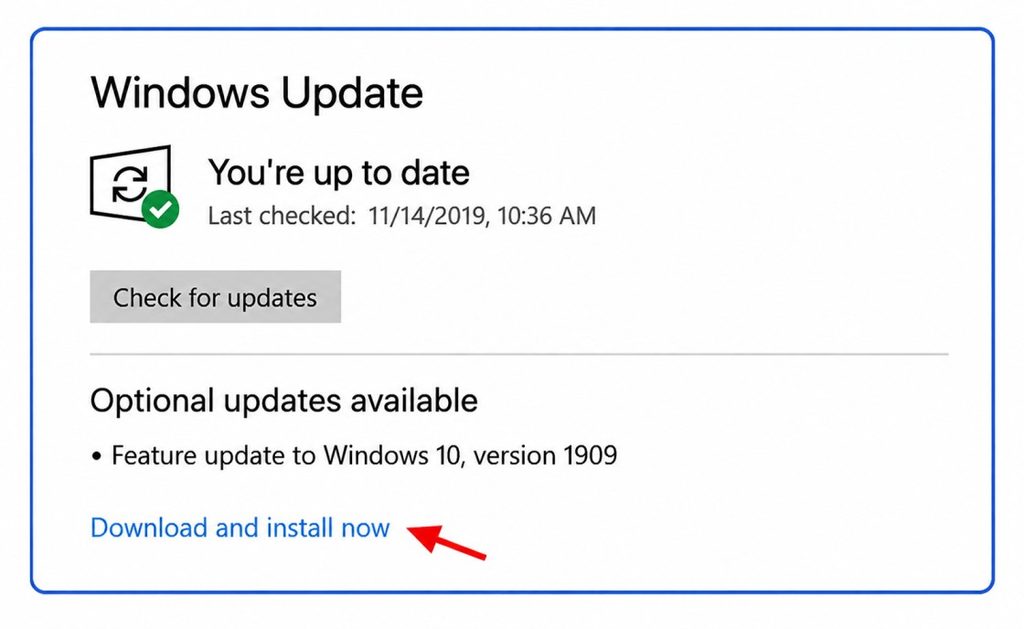
If you’re installing QuickBooks Desktop for Windows, check Windows Update before trying advanced fixes.
- Select Start and open Settings.
- Select Windows Update.
- Select Check for updates.
- If updates are available, allow Windows to download and install them.
- Restart your computer when Windows asks you to.
- Run the QuickBooks installer again.
Intuit currently recommends updating Windows and restarting the computer when troubleshooting several QuickBooks Desktop installation errors.
If you’re using QuickBooks Desktop for Mac, use the macOS software update process appropriate for your version of macOS instead. Mac users should also verify that their particular QuickBooks Mac version meets the required macOS specifications rather than applying Windows troubleshooting steps.
C. Check Available Disk Space:
Insufficient storage can prevent the installer from copying files and completing setup. On Windows, open File Explorer, select This PC, and check the free space on the drive where QuickBooks will be installed. If the drive is nearly full, remove unnecessary temporary files, uninstall applications you no longer need, or move suitable personal files to another storage location. For reference, Intuit currently lists 2.5 GB of disk space for QuickBooks Desktop 2024, with additional space required for company data and certain components. After freeing space, restart the computer and try the installation again.
D. Download a Fresh QuickBooks Installer:
If the installer was interrupted or the downloaded file is incomplete or damaged, running the same installer repeatedly may produce the same failure. Download a fresh installation file for the correct QuickBooks Desktop product and version from the official Intuit source. Intuit specifically recommends using the latest available installation file for certain installation-related errors rather than relying on an old copy. Save the installer somewhere easy to find, close unnecessary applications, and try the installation again.
E. Check Administrator Access:
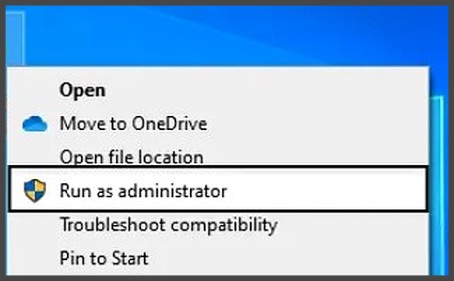
QuickBooks installation can require Windows permissions to create files and modify system components. If your account is restricted, an authorized Windows administrator may need to approve or perform the installation. However, running QuickBooks as administrator is not a universal solution for an installation failure. If the actual problem is a damaged Windows component, incompatible software, firewall restriction, or Windows Installer issue, simply choosing Run as administrator may not resolve it. If this is a company-managed computer, contact your IT administrator before changing permissions or security settings. Intuit also notes that Windows user restrictions or third-party applications can interfere with certain QuickBooks installation processes.
Solution 2: Run the QuickBooks Install Diagnostic Tool
When basic Windows checks do not solve the problem, the QuickBooks Install Diagnostic Tool is one of the most useful next steps. It is available through QuickBooks Tool Hub and is designed to diagnose and repair certain Microsoft components and installation-related problems that QuickBooks relies on. Intuit currently recommends the tool for installation errors such as Error 1603 and Error 1904.
A. Install QuickBooks Tool Hub:
QuickBooks Tool Hub must be installed before you can access the Install Diagnostic Tool.
- Close QuickBooks and any other QuickBooks windows.
- Download the current QuickBooks Tool Hub from Intuit.
- Open the downloaded Tool Hub installer.
- Follow the on-screen instructions to complete the installation.
- Open QuickBooks Tool Hub.
If Tool Hub is already installed, you can open it directly and continue to the Installation Issues section.
B. Run the QuickBooks Install Diagnostic Tool
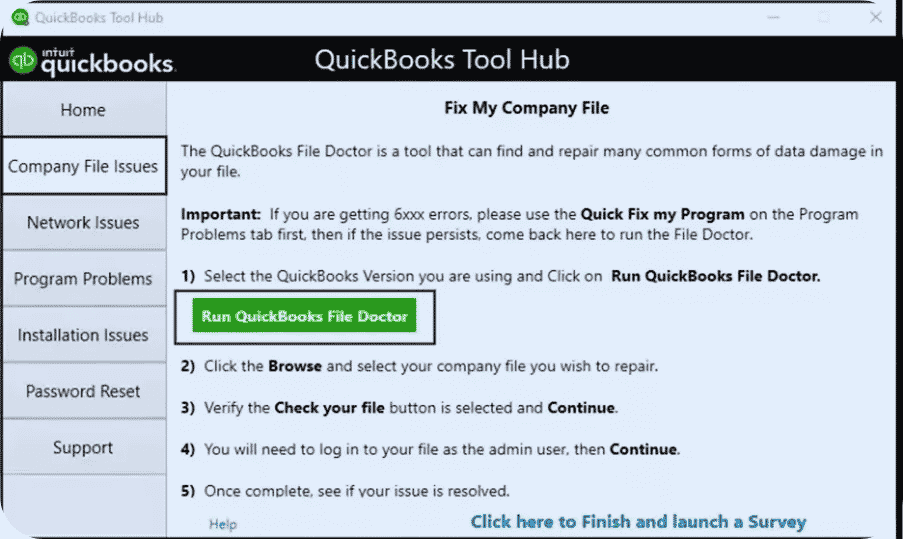
Once QuickBooks Tool Hub is open:
- Select Installation Issues.
- Select QuickBooks Install Diagnostic Tool.
- Allow the tool to run without interrupting it.
- Wait for the diagnostic process to finish.
The tool can take up to about 20 minutes, so give it time to complete even if the process appears slow.
C. Restart and Retry:
After the tool finishes, restart your computer. Once Windows loads again, run the QuickBooks installer and check whether the installation completes. If you still receive the same error, continue to the Windows component checks below.
Solution 3: Repair the Windows Components QuickBooks Needs to Install
QuickBooks Desktop can depend on Windows components such as Microsoft .NET Framework and MSXML. If these components are damaged or not configured correctly, they can contribute to installation failures.
These are more advanced Windows repairs. Intuit recommends manually repairing Windows components when the earlier installation troubleshooting steps have not worked and advises that the procedure be handled by an IT professional, an experienced Windows user, or someone working with Microsoft support.
A. Repair the Microsoft .NET Framework
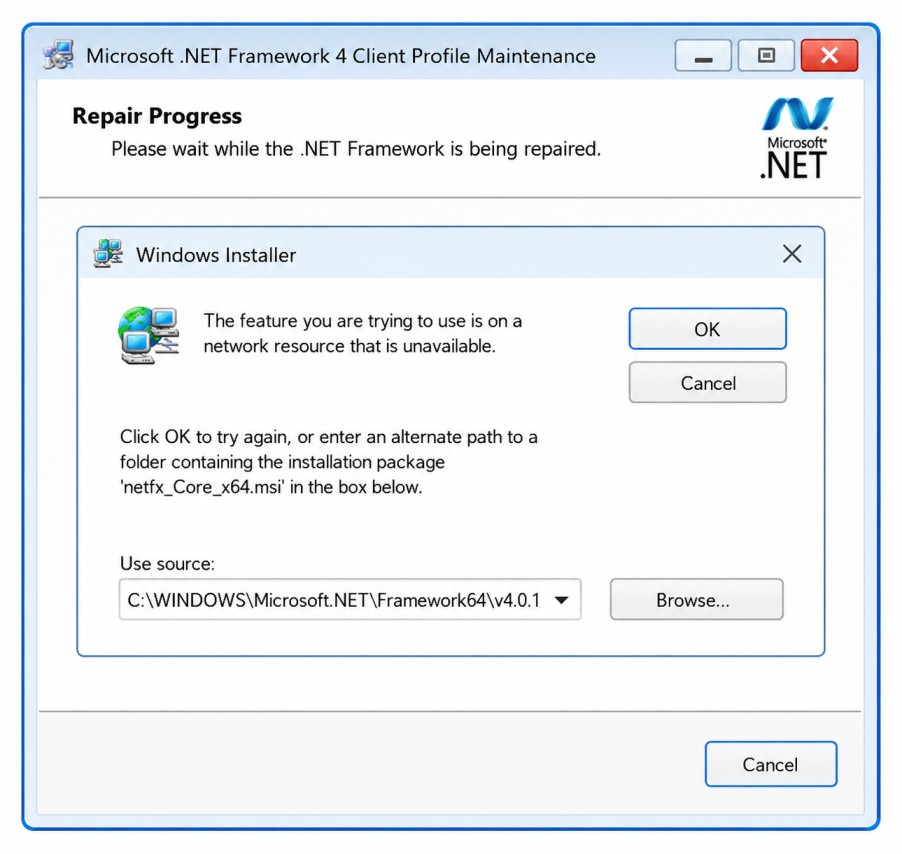
Before manually changing .NET Framework settings, install available Windows updates and restart the computer.
If you need to check the Windows .NET Framework features:
- Open Control Panel.
- Select Programs and Features.
- Select Turn Windows features on or off.
- Review the available .NET Framework features.
- If the required feature is disabled, enable it and select OK.
- Restart Windows if prompted.
- Try the QuickBooks installation again.
If the .NET Framework feature is already enabled but appears damaged, use Microsoft’s supported .NET Framework Repair Tool or the repair procedure recommended for your Windows version rather than downloading replacement framework files from an unofficial website.
If Windows displays an error while changing .NET Framework features, stop there and get help from a qualified Windows administrator or Microsoft support.
B. Repair or Re-register MSXML Components
MSXML troubleshooting is more technical because the procedure differs between 32-bit and 64-bit Windows. Intuit recommends these manual component repairs for experienced Windows users or IT professionals.
For 64-bit Windows:
- Open Start and search for cmd.
- Right-click Command Prompt and select Run as administrator.
- Enter the following command and press Enter: cd \Windows\SysWOW64
- Then enter: regsvr32 MSXML4.dll
- Then enter:regsvr32 MSXML6.dll
- Press Enter again.
For 32-bit Windows:
- Press Windows + R to open the Run dialog.
- Enter cmd.
- Select OK.
- Enter: regsvr32 MSXML4.dll
- Press Enter.
- Then enter: regsvr32 MSXML6.dll
- Press Enter again.
If Windows reports that a DLL is missing or cannot be registered, do not download a replacement DLL from an unknown website. The error may indicate a broader Windows component problem that needs to be repaired properly.
C. Check Microsoft Visual C++ Components
Some QuickBooks installation errors can also involve Microsoft Visual C++ runtime components. If your installer displays a specific C++ or runtime error, troubleshoot that particular error instead of installing unrelated runtime packages.
This distinction matters because installing additional software without identifying the actual failed component can make troubleshooting more complicated.
Solution 4: Configure Firewall Settings for QuickBooks
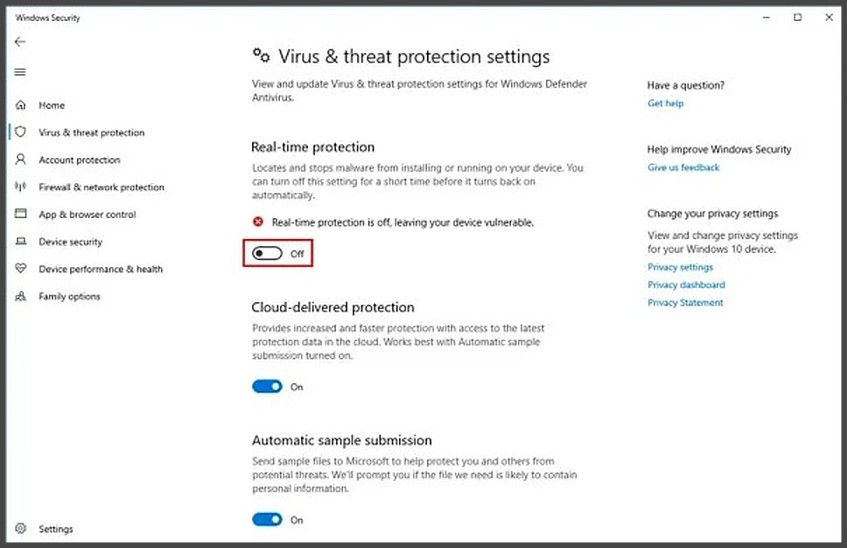
Firewall and antivirus software can sometimes interfere with QuickBooks installation or with the connections QuickBooks needs afterward. Intuit provides firewall troubleshooting procedures for situations where security software blocks QuickBooks.
The important point is not to create random firewall rules just because QuickBooks failed to install. First determine whether security software is actually preventing the installation.
A. Check Windows Firewall Settings
To review your Windows firewall:
- Open Start.
- Search for Windows Firewall.
- Open the Windows Firewall settings.
- Review the available application and firewall permissions.
- Look for evidence that QuickBooks or its installer is being blocked.
If the computer belongs to an organization, do not change firewall policies without approval from your IT administrator.
B. Allow QuickBooks Through the Firewall
If you confirm that the firewall is blocking QuickBooks, use the appropriate QuickBooks firewall instructions for your specific Desktop version to create the required exception.
Avoid manually adding random executable files, ports, or rules from an unverified source. Firewall requirements can vary by QuickBooks Desktop version and the way the product is being used.
If third-party antivirus software is the suspected cause, use the security product’s official instructions for temporarily allowing or disabling its protection during the installation. Restore normal protection immediately after the test.
Solution 5: Install QuickBooks Without Administrator Mode
Running the installer normally can be useful as a troubleshooting attempt when administrator elevation itself appears to be contributing to the problem. However, this should not be treated as a universal rule that QuickBooks must never be installed with administrator permissions.
If your Windows account already has the permissions required to install software, try the normal installation method:
- Locate the downloaded QuickBooks installer.
- Double-click the setup file.
- Follow the on-screen installation instructions.
- Allow standard Windows security prompts when they appear.
- Wait for the installation to finish.
If Windows specifically requires administrator approval, do not bypass that requirement. Instead, ask an authorized administrator to complete the installation.
Solution 6: Use the Windows Compatibility Troubleshooter
If QuickBooks or its installer is having difficulty working with your Windows environment, the Program Compatibility Troubleshooter can help identify compatibility settings that may be preventing the program from working correctly.
Microsoft’s current Windows guidance directs users to the Program Compatibility Troubleshooter through Windows’ troubleshooting tools or the Get Help app, depending on the Windows version.
A. Run the Compatibility Troubleshooter
On supported Windows versions, you can try the following route:
- Open Start.
- Go to Settings.
- Select System.
- Select Troubleshoot.
- Select Other troubleshooters.
- Locate Program Compatibility Troubleshooter.
- Select Run.
- Follow the instructions provided by Windows.
On some Windows configurations, Microsoft instead directs users to open the Get Help app and search for Run the Windows Program Compatibility troubleshooter.
B. Apply the Recommended Settings
Allow Windows to test the installer and provide its recommended compatibility settings.
If Windows identifies a setting that resolves the compatibility problem, apply it and try installing QuickBooks again. If the installation still fails, continue with the next troubleshooting method rather than repeatedly changing compatibility settings.
Solution 7: Reinstall QuickBooks in Selective Startup Mode
If QuickBooks still will not install, Selective Startup is an appropriate advanced troubleshooting step. It reduces interference from third-party applications and services that may be running in the background.
Intuit’s current Selective Startup instructions specifically recommend this method when another application or service may be interfering with QuickBooks installation. Before starting, Intuit recommends creating a backup of your company file and keeping your QuickBooks product and license information available.
A. Switch Windows to Selective Startup
Follow these steps carefully:
- Press Windows + R to open the Run dialog.
- Enter msconfig.
- Select OK.
- In the General tab, select Selective startup.
- Make sure Load system services are selected.
- Open the Services tab.
- Select Hide all Microsoft services.
- Select Disable all.
- Clear the Hide all Microsoft services checkbox.
- Find Windows Installer in the services list and make sure it is selected.
- Select OK.
- In the System Configuration window, select Restart.
The step where you hide Microsoft services and then uncheck that option can look unusual. Do not skip it or improvise the sequence. Intuit’s current instructions use this process so non-Microsoft services can be disabled while Windows Installer remains available for the QuickBooks installation.
If you are uncomfortable changing System Configuration, stop here and ask a Windows professional for assistance.
B. Uninstall QuickBooks Desktop
If an existing QuickBooks installation needs to be removed before reinstalling it:
- Open Control Panel.
- Select Programs and Features or Uninstall a Program.
- Select your QuickBooks Desktop version.
- Select Uninstall/Change.
- Select Remove.
- Follow the on-screen instructions to complete the removal.
If Windows asks for administrator credentials, use an authorized administrator account. Do not attempt to bypass Windows permissions.
Also remember that uninstalling the QuickBooks application is not the same as deleting your company file. Even so, verify that your company file is backed up before removing the software. Intuit specifically recommends creating a backup before using the Selective Startup installation procedure.
C. Reinstall QuickBooks Desktop
With Windows still in Selective Startup:
- Locate the fresh QuickBooks Desktop installer.
- Open the installer.
- Follow the on-screen setup instructions.
- Enter your required product information when prompted.
- Allow the installation to finish.
- Restart Windows if the installer requests it.
- Open QuickBooks and confirm that it starts normally.
If QuickBooks installs successfully in Selective Startup but fails under normal startup, that is a useful indication that a background service or third-party application may have been interfering with the original installation.
D. Return Windows to Normal Startup Mode
Return Windows to Normal Startup Mode
Once QuickBooks has been successfully installed, return Windows to its normal startup configuration.
- Press Windows + R.
- Enter msconfig.
- Select OK.
- Open the General tab.
- Select Normal startup.
- Select OK.
- In the System Configuration window, select Restart.
Do not leave Windows in Selective Startup unnecessarily. Returning to Normal startup restores the usual Windows services and startup behavior after the QuickBooks troubleshooting process is complete.
What to Do When MSI Returns Error 1603 During QuickBooks Installation
MSI returned 1603 QuickBooks installation problems generally indicate that Windows Installer could not complete an installation operation.
Intuit currently documents Error 1603 as an installation or update problem and recommends beginning with the QuickBooks Install Diagnostic Tool, followed by Windows updates and another installation attempt.
The practical troubleshooting order is:
| Check | What to do |
| Windows | Install pending updates and restart |
| QuickBooks Tool Hub | Run the Install Diagnostic Tool |
| Installer | Download a fresh installation file |
| Permissions | Confirm that installation is permitted |
| Existing installation | Repair or reinstall QuickBooks |
| Windows Installer | Investigate the service if a Windows Installer-specific error appears |
Do not automatically treat Error 1603 as proof that one particular Windows component is defective. The code can have different underlying causes, so the surrounding message and installation circumstances should guide the next step.
What If QuickBooks Requires a Reboot to Complete Installation?
A QuickBooks Require Reboot To Complete Installation message normally means the installer believes Windows needs to restart before setup can continue.
A single restart may be all that is required. The problem becomes more complicated when QuickBooks continues requesting a reboot after Windows has already restarted.
Start with these steps:
- Restart Windows normally.
- Allow pending Windows updates to finish.
- Restart the computer again if Windows requests it.
- Run the QuickBooks Install Diagnostic Tool.
- Try the installation again.
If the same reboot message appears repeatedly, the installation may be stuck because a previous installation step did not complete correctly. Intuit’s troubleshooting guidance supports using the Install Diagnostic Tool and, when necessary, repairing or reinstalling QuickBooks.
Avoid repeatedly restarting the computer without changing anything else. A persistent reboot loop usually requires additional troubleshooting.
Can Repairing QuickBooks Fix a Failed Installation?
Repair can help when QuickBooks is already installed but some program files are damaged or incomplete.
Intuit’s current repair guidance recommends using Quick Fix my Program from QuickBooks Tool Hub for certain program problems. It closes background QuickBooks processes and performs a quick repair.
If QuickBooks is installed but will not start correctly after an unsuccessful update or installation, repairing the existing installation may be preferable to immediately deleting everything.
The distinction is important:
- QuickBooks is installed but damaged: try repair.
- QuickBooks installation is incomplete: run the Install Diagnostic Tool.
- The installation remains corrupted: consider reinstalling.
- Windows Installer itself is failing: investigate the Windows installation environment.
QuickBooks Installation Error Codes: Find Your Error and the Right Fix
QuickBooks installation codes help identify why setup stopped, so match the exact code before trying a fix. Keep the full error message and any file name shown on screen.
- QuickBooks Error 1603: Usually indicates an installation or update problem. Restart Windows, install pending updates, then run the QuickBooks Install Diagnostic Tool.
- QuickBooks Error 1904: Usually appears when a QuickBooks file fails to register. Note the file name shown and run the QuickBooks Install Diagnostic Tool.
- QuickBooks Error 1712: Can occur when Windows cannot complete a QuickBooks installation or removal. Restart Windows and use QuickBooks Tool Hub to troubleshoot the installation.
- QuickBooks Error 1612: Indicates that Windows cannot access the required installation source. Check the installation files and use a fresh installer if the source is unavailable.
- QuickBooks Errors 1311–1335: These errors can occur when required installation files cannot be accessed or read. Check the installer or installation source and replace damaged setup files if necessary.
How Can You Prevent QuickBooks Installation Errors in the Future?
A few simple precautions can reduce the chances of QuickBooks installation errors when you install, update, or repair QuickBooks. Follow these steps before starting a major installation or update.
- Keep Windows Updated: Install available Windows updates and restart your computer when prompted. This helps prevent pending system changes from interfering with QuickBooks setup.
- Use a Fresh Installer: Download the current QuickBooks installation file instead of repeatedly using an old or potentially damaged installer saved on your computer.
- Back Up Company Files: Before repairing, uninstalling, or reinstalling QuickBooks, confirm that your important company files are backed up and that you know where they are stored.
- Check Network Restrictions: If QuickBooks is installed on a business network, ask your IT administrator about security policies, permissions, or application restrictions that could block the installation.
- Save the Error Details: If installation fails, record the complete error message and code. Keeping these details makes it much easier to identify the correct troubleshooting method later.
What to Do When the QuickBooks Installer or Setup Download Fails
Sometimes the problem starts before QuickBooks is even installed. The setup file may be incomplete, damaged, or blocked by your network settings. Before trying complicated fixes, use a fresh installer and run it directly from your computer.
- Corrupt Installer: If the installer was not downloaded properly, QuickBooks may stop during setup or show an installation error. Remove the old setup file, download a fresh copy for your QuickBooks version, and run the new file again.
- Local Installation: Keep the installer on your computer before starting the setup. Avoid running it directly from a network drive, shared folder, or external storage, as interruptions in access can cause the installation to fail.
- Network Restrictions: On a work computer, your network or security settings may prevent QuickBooks from downloading or installing correctly. If the setup works on another network but fails on your business network, ask your IT administrator to check the relevant restrictions.
How to Check QuickBooks Installation Logs When Standard Fixes Fail
When normal troubleshooting does not resolve a failed installation, installation logs can provide more detailed information about where Windows Installer stopped. Look for the exact error, failed component, or return value rather than relying only on the general QuickBooks error message.
- Find Installer Logs: The location and availability of installation logs can vary depending on the QuickBooks version and Windows installation process. Keep any log files generated during the failed setup and review them alongside the exact error message.
- Read MSI Errors: MSI logs can show which installation action failed and may identify a file, component, permission issue, or Windows Installer problem. Focus on entries marked as errors or failures instead of treating every line in the log as a problem.
- Identify Return Value 3: Return Value 3 in an MSI log commonly appears near the point where an installation action fails. Review the entries immediately before it to identify the actual error or component that caused the setup to stop.
What If QuickBooks Still Will Not Install After All These Fixes?
If QuickBooks still will not install after trying the recommended fixes, the issue may require professional troubleshooting of Windows, permissions, or installation components. Get Professional Help For additional assistance, call 888-820-7278 with your QuickBooks version and exact installation error details.
Frequently Asked Questions
1. Close QuickBooks completely.
2. Download the QuickBooks Tool Hub from the official Intuit site and save it in an easy-to-find folder.
3. Install and open the Tool Hub, then select Installation Issues.
4. Click QuickBooks Install Diagnostic Tool and let it run (may take ~10–20 mins).
5. Restart your computer once it finishes.
6. Try installing QuickBooks again.
7. If it still fails, update Windows and rerun the installer.
This tool repairs core Windows components like .NET, MSXML, and installer services that often cause error 1722.
1. Restart your PC and close all programs.
2. Temporarily disable antivirus/firewall so they don’t block the installer.
3. Run the QuickBooks installer as Administrator (right-click → Run as Administrator).
4. Run the QuickBooks Install Diagnostic Tool from the Tool Hub to fix underlying Windows issues.
5. Check for and install all Windows updates (Settings → Windows Update).
6. Retry the QuickBooks installation.
Most install failures on Windows are due to blocked system components or missing updates.
1. Close QuickBooks if it’s open.
2. Download and install the QuickBooks Tool Hub from Intuit’s official support site.
3. Open the Tool Hub and go to the Installation Issues tab.
4. Select QuickBooks Install Diagnostic Tool and let it scan your system (up to ~20 mins).
5. Once finished, restart your computer.
6. After rebooting, try installing or updating QuickBooks again.
This tool automates repairs for damaged or missing Windows components that QuickBooks relies on.
1. Download a fresh copy of the QuickBooks installer from the official QuickBooks site.
2. Run the installer as Administrator (right-click the file → Run as Administrator).
3. If the error persists, run the QuickBooks Install Diagnostic Tool from Tool Hub.
4. Update Windows and restart your computer.
5. Temporarily disable security software (antivirus/firewall) during the install.
6. Retry the installation.
Start with a fresh installer and admin permissions, then use diagnostic tools if needed.
1. Press Windows + R, type %temp%, and press Enter.
2. Right-click the Temp folder → Properties → Security tab.
3. Select your user name and check Full Control, then click Apply and OK.
4. Run the QuickBooks Install Diagnostic Tool from the QuickBooks Tool Hub.
5. Restart your computer and try installing QuickBooks again.
Incorrect temp folder permissions commonly trigger error 1723.
1. Download and install the QuickBooks Tool Hub.
2. Open the Tool Hub and go to Installation Issues.
3. Run the QuickBooks Install Diagnostic Tool and let it complete its scan (~20 mins).
4. Restart your computer when the tool finishes.
5. If the error still appears, repair Microsoft .NET Framework and MSXML components via Windows settings or Control Panel.
6. If needed, sign into Windows as an Administrator and retry installing QuickBooks.
Error 1904 means a file failed to register during install, often resolved by diagnostic tools and repairing Windows components.



