
If you’re unable to sign in to QuickBooks, don’t assume the problem is always with your account or computer. QuickBooks login issues can happen because of an Intuit service outage, a temporary app issue, incorrect login details, or problems with your web browser. Slow browser performance, outdated cache, or cookie issues can also affect your QuickBooks Online sign-in.
Before you start changing passwords or troubleshooting your device, first check whether QuickBooks is experiencing a service problem. The QuickBooks status page can show whether services are currently working or experiencing an interruption. You can also review recent incidents and maintenance updates to see whether Intuit is already working on a reported problem. If the QuickBooks status page shows that everything is working normally, the problem may be on your side. In that case, you can move on to checking your browser, internet connection, login details, and other possible causes of the sign-in problem. If Intuit is reporting an outage, it’s usually better to wait for the service to be restored instead of making unnecessary changes to your account.
Understanding Common Cause of QuickBooks Login Issues
Before we delve into fixes, let’s identify what kinds of sign-in issues frequently occur:
- Incorrect email, user ID, or password
- Outdated or corrupted browser cache and cookies
- An unsupported or outdated browser
- A previous QuickBooks session that didn’t sign out properly
- Signing in from a new device or location
- Delayed or missing MFA verification codes
- Browser extensions interfering with QuickBooks
- JavaScript or cookies being disabled
- Slow or unstable internet connection
- Antivirus or firewall blocking access
- VPN or proxy causing connection problems
- Incorrect date or time settings on your device
- A locked or inactive Intuit account
- Temporary Intuit maintenance or service outages
- A “QuickBooks is currently unavailable. Please try again later.” message
These login problems can affect QuickBooks Online, QuickBooks Desktop, QuickBooks Payroll, and QuickBooks Enterprise. Identifying the exact problem first can help you choose the right fix instead of trying unnecessary steps.
What Signs Can Tell You QuickBooks Login Is Failing?
Sometimes, you’ll know there’s a login problem right away. In other cases, QuickBooks may let you enter your details but still won’t take you to your account. You may notice signs such as:
- QuickBooks won’t accept your email, user ID, or password.
- The login page keeps refreshing and sends you back to the sign-in screen.
- You see a loading spinner that never finishes.
- A blank white or black screen appears after you sign in.
- QuickBooks keeps asking you to choose your company again and again.
- You don’t receive the MFA verification code.
- Your account gets locked after several unsuccessful login attempts.
- The login session times out before you can access your account.
- QuickBooks signs you out immediately after you successfully log in.
- You request a password reset, but the email never arrives.
- QuickBooks works on one browser or device but won’t let you sign in on another.
If you’re seeing any of these signs, don’t assume your account is permanently blocked. Try the basic browser and account checks first to find out where the problem is coming from.
What Should You Have Ready Before Fixing QuickBooks Login Problems?
Before you start fixing a QuickBooks login issue, make sure you have a few basic things ready. This will help you move through the troubleshooting steps without getting stuck halfway.
- Your QuickBooks user ID or registered email and current password
- Access to your registered email or phone for password resets and verification codes
- A stable internet connection
- An updated browser such as Chrome, Firefox, Edge, or Safari
- JavaScript and cookies enabled in your browser
- Permission to clear cache and cookies or open a private browser window
- Access to browser extensions, antivirus, firewall, VPN, or proxy settings if you need to test them
- Correct date and time settings on your computer or device
- Updated phone and email details in your Intuit account
- Access to the QuickBooks Status page so you can check for service outages
Having these basics ready makes troubleshooting easier. You can quickly check whether the problem is coming from your account, browser, device, internet connection, or QuickBooks itself.
How to Fix QuickBooks Online Login Problems?
If you’re unable to sign in to QuickBooks Online, don’t jump straight to a password reset. Start with the simple checks first and work your way through the solutions below. In many cases, a browser issue, network problem, or outdated session is enough to block your login.
Solution 1: Check Your Browser Settings First
QuickBooks Online needs cookies and JavaScript to work properly. If either one is disabled, you may have trouble loading the sign-in page or completing the login.
Before trying anything complicated, check that:
- You’re using an up-to-date supported browser such as Chrome, Firefox, Edge, or Safari.
- JavaScript is enabled.
- Cookies are allowed.
- Pop-ups aren’t being blocked for QuickBooks.
- Your browser is updated to the latest available version.
After making these changes, close and reopen your browser and try signing in again.
Solution 2: Clear Your Browser Cache and Cookies

If QuickBooks keeps sending you back to the login page, shows a blank screen, or doesn’t load correctly, old browser data could be the reason.
You can clear the Intuit-related site data instead of deleting everything stored in your browser.
In Google Chrome:
- Open Chrome and click the three-dot menu.
- Go to Settings > Privacy and security.
- Open Third-party cookies or Site data.
- Search for Intuit.
- Remove the related cookies and site data.
- Restart Chrome and try QuickBooks again.
In Mozilla Firefox:
- Open Firefox and go to Settings.
- Select Privacy & Security.
- Find Cookies and Site Data.
- Click Manage Data.
- Search for Intuit and remove the matching data.
- Restart Firefox and sign in again.
In Safari:
- Open Safari and select Settings.
- Go to Privacy.
- Select Manage Website Data.
- Search for Intuit.
- Remove the related website data.
- Restart Safari and try logging in again.
Solution 3: Try QuickBooks in a Private Browser Window
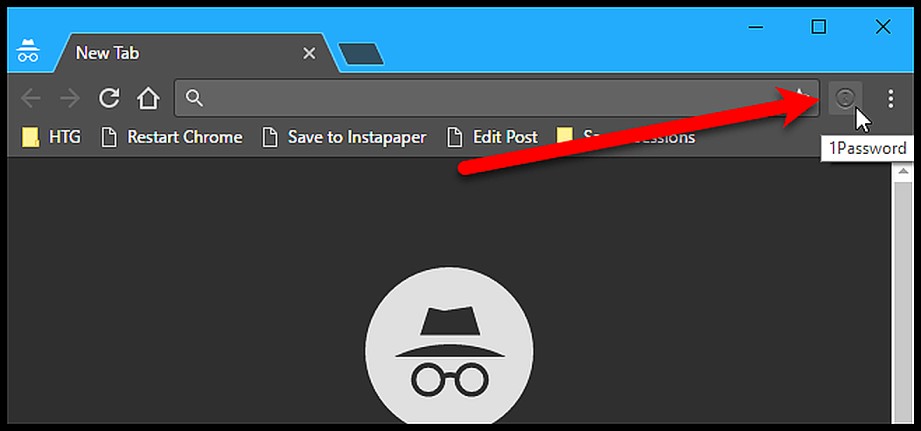
Not sure whether your regular browser is causing the problem? Try signing in through an incognito or private window.
This gives you a fresh browser session and can help you determine whether stored cookies, cache, or extensions are interfering with QuickBooks.
Use these shortcuts:
- Chrome or Edge: Ctrl + Shift + N
- Firefox: Ctrl + Shift + P
- Safari: Command + Shift + N
If QuickBooks works in the private window, your account is likely fine. You can then focus on clearing browser data or checking which extension is causing the problem.
Solution 4: Check Whether Security Settings Are Blocking QuickBooks
Your firewall, antivirus software, proxy, or other security settings may sometimes interfere with QuickBooks access.
If you’ve recently changed security settings and QuickBooks stopped working afterward, check whether the security software is blocking Intuit websites or browser activity.
Don’t disable your antivirus or firewall permanently just to sign in. Instead, review its blocked-site or application settings and make sure legitimate Intuit connections aren’t being restricted.
Solution 5: Check Your Internet Connection
A slow or unstable internet connection can interrupt the connection between your browser and QuickBooks.
You can quickly test your connection by opening a few other websites. If they are also loading slowly, restart your network:
- Shut down your computer.
- Turn off your modem and router.
- Unplug the equipment for about 30 seconds.
- Plug it back in and wait for the connection to return.
- Turn your computer back on.
- Open QuickBooks and try signing in again.
If QuickBooks works normally after switching to another reliable network, your original connection may be contributing to the problem.
Solution 6: Flush the DNS Cache on Your Computer
If your internet connection works but QuickBooks still won’t load, an outdated DNS cache may be worth checking. Flushing DNS refreshes the network information stored on your computer.
For Windows:
- Open Command Prompt as Administrator.
- Enter ipconfig /flushdns and press Enter.
- Restart your browser.
- Try opening QuickBooks again.
For macOS:
DNS cache commands can vary by macOS version. If you’re not comfortable using Terminal, it’s safer to restart your Mac and network connection first rather than running an incorrect command.
Solution 7: Use the Current QuickBooks Sign-In Page
If you’re using an old bookmark, saved link, or page from a previous session, open QuickBooks through its current official website instead.
Avoid relying on random login pages from search results. When you’re entering your Intuit credentials, make sure you’re on an official Intuit or QuickBooks domain.
If the normal login page isn’t loading correctly, try opening it in a private browser window or another supported browser.
Solution 8: Reset Your Intuit Password If Needed
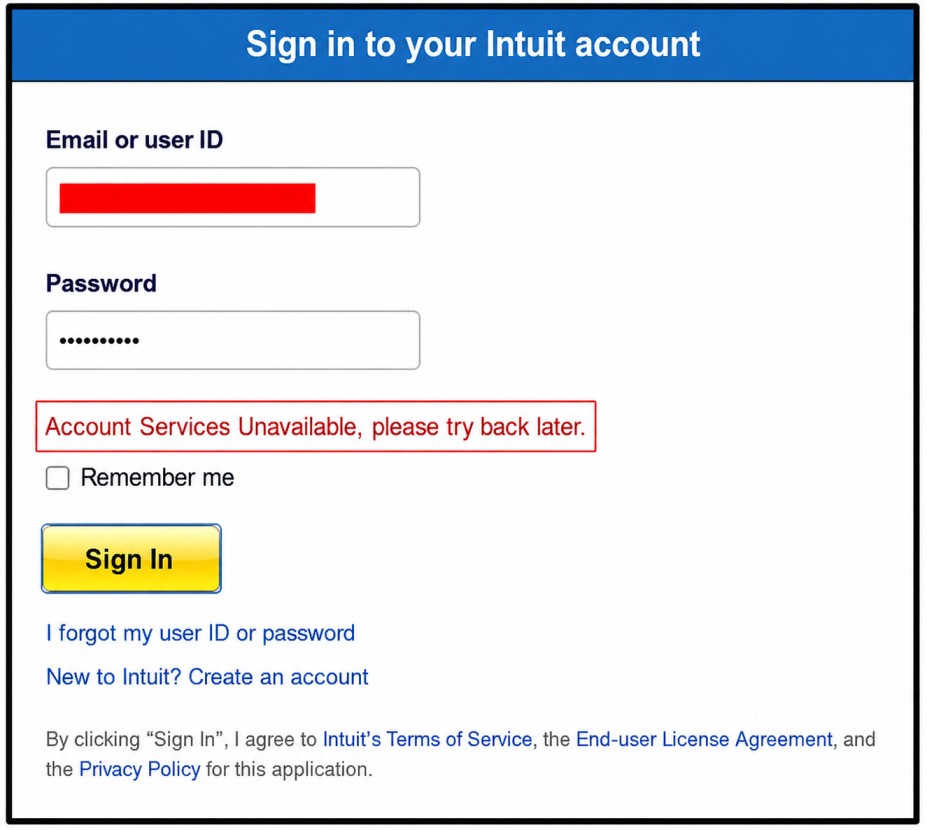
If you’re sure the browser isn’t the problem but QuickBooks still won’t accept your password, resetting your Intuit password may be the next step.
You can:
- Open the Intuit account sign-in page.
- Select the option for a forgotten user ID or password.
- Enter the requested account information.
- Complete the identity verification.
- Create a new password.
- Return to QuickBooks and sign in with the new credentials.
If you’ve already reset your password and it still doesn’t work, don’t keep resetting it repeatedly. Try a private browser or another device first.
Solution 9: Update Your Browser Before Trying Again
An outdated browser can cause compatibility problems with modern web applications such as QuickBooks Online.
Open your browser’s Help, About, or Settings section and check for available updates. Install the update, restart your browser, and try signing in again.
If the browser is already updated but QuickBooks still won’t load, testing another supported browser can help you narrow down the problem.
Solution 10: Restart Your Computer and Network
Sometimes a simple restart is all you need. Restarting your computer closes background processes and clears temporary problems that may be interfering with the browser.
For a complete restart:
- Save your work and shut down the computer.
- Turn off your modem and router.
- Wait about 30 seconds.
- Turn the modem and router back on.
- Wait for the internet connection to return.
- Start your computer.
- Open QuickBooks and try signing in again.
Solution 11: Check the QuickBooks Service Status
If you’ve tried different browsers and devices and still can’t sign in, the problem may not be on your side.
QuickBooks can occasionally experience service interruptions or maintenance. Check the official QuickBooks status page to see whether Intuit has reported an issue affecting sign-in or QuickBooks Online.
If there’s a confirmed service problem, you usually won’t be able to fix it by changing your browser or password. Wait for the service to return to normal and then try signing in again.
If QuickBooks works for other users but you’re still unable to access your account after the service is restored, continue with the account-recovery and browser troubleshooting steps above.
How Can You Fix QuickBooks Desktop Login Problems?
If QuickBooks Desktop isn’t letting you sign in, the problem may be related to permissions, outdated software, or your company file. Try these simple fixes one by one before moving to more advanced troubleshooting.
- Run QuickBooks as an Administrator: Sometimes Windows permissions can stop QuickBooks from completing the sign-in process. You can quickly test this by right-clicking the QuickBooks icon and selecting Run as administrator. If QuickBooks opens and you can sign in normally, the problem may be related to your Windows permissions.
- Update QuickBooks Desktop: If you’re using an older version of QuickBooks Desktop, an update may help resolve connection or authentication problems.
- To check for updates:
- Open QuickBooks Desktop.
- Go to Help → Update QuickBooks Desktop.
- Select Update Now and install any available updates.
- Restart QuickBooks and try signing in again.
- Check Your Windows Permissions: Your Windows user account needs the appropriate permissions to run QuickBooks properly. If you’re using a standard Windows account, try signing in with an administrator account. This can help you determine whether Windows permissions are preventing QuickBooks from accessing the files or services it needs.
- Check Your Company File for Errors: If QuickBooks opens but you’re having trouble accessing your company file, the file itself may need attention. You can use QuickBooks’ built-in Verify Data tool to check for data problems.
- Go to File → Utilities → Verify Data. If QuickBooks finds an issue, follow the prompts to use Rebuild Data.
- Restart Your Computer and Try Again: A simple restart can sometimes clear a temporary QuickBooks or Windows problem. Close QuickBooks, restart your computer, and then open QuickBooks again. If you’re still unable to sign in after these steps, the problem may be related to your Intuit account, Windows setup, or QuickBooks installation rather than a simple login error.
How Can You Fix QuickBooks Payroll Login Problems?
If you’re having trouble signing in to QuickBooks Payroll, the issue may be related to your account, internet connection, QuickBooks version, or security settings. Try these simple steps before making major changes:
- Sign in with the correct admin account: If Payroll requires admin access, make sure you’re using the correct administrator credentials for your QuickBooks account.
- Check your QuickBooks company file: If you’re using QuickBooks Desktop, run Verify Data from File → Utilities. This can help identify data issues that may affect QuickBooks functions.
- Update QuickBooks and Payroll: An outdated QuickBooks version or payroll component can sometimes cause sign-in problems. Install available updates and try logging in again.
- Check your firewall and antivirus: Your security software may block QuickBooks from connecting to its online services. Make sure QuickBooks is allowed through your firewall before trying again.
- Troubleshoot the mobile app: If you’re using the QuickBooks Payroll app, update it first. If the problem continues, reinstalling the app can help refresh its stored data and login session.
If you can sign in successfully after one of these steps, you’ve likely narrowed down what was causing the problem.
How Can You Fix QuickBooks Enterprise Login Problems?
If QuickBooks Enterprise isn’t letting you sign in, the problem may be related to user permissions, the company file, or your network setup. Try these simple checks before making major changes:
- Check User Permissions: Make sure your Enterprise user account has the right permissions. If you can’t log in but other users can, the issue may be specific to your user profile.
- Restart the Server and Workstation: If you’re using Enterprise in a multi-user environment, close QuickBooks on all computers and restart the server and affected workstations. This can clear a stuck session or temporary network problem.
- Check the Intuit Account: Make sure the Intuit account connected to your QuickBooks Enterprise setup is active and that the sign-in details are correct. If your account is locked or the credentials aren’t working, account recovery may be needed.
- Check the User Profile: If only one user is having trouble, the problem may be with that user’s profile or permissions. An administrator can review the user’s access settings before recreating the profile.
- Get Additional Help: If you’ve tried these steps and Enterprise still won’t let you sign in, the issue may involve the company file, server, or network configuration. At that point, getting professional QuickBooks support can help you identify the underlying problem.
Advanced Ways to Fix QuickBooks Sign-In Problems
If the basic fixes haven’t helped and you still can’t sign in to QuickBooks Online, you can try the advanced steps below. Start with the browser and account checks first. Avoid changing older security settings unless a specific error points you in that direction.
Step 1: Check Your Browser and Security Settings
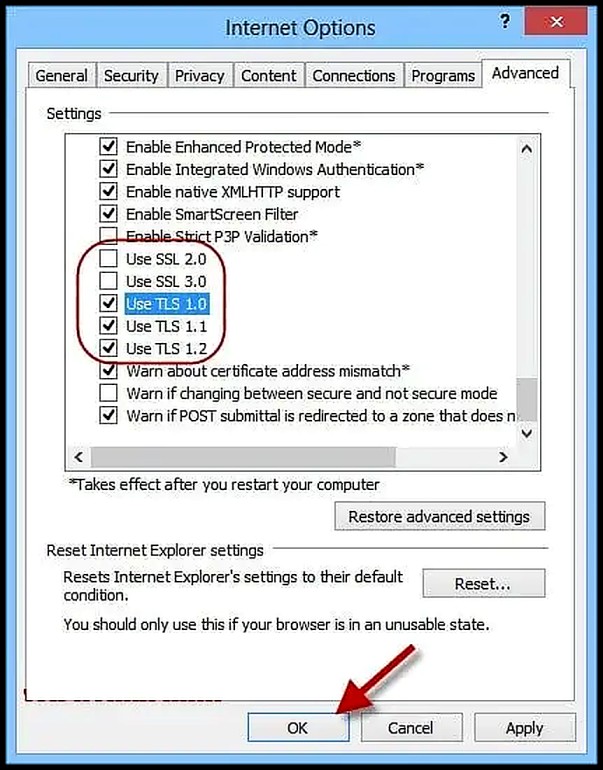
QuickBooks Online works best with a supported, up-to-date browser. Internet Explorer is no longer supported, so the older SSL 2.0/SSL 3.0 instructions found in some troubleshooting guides should not be used. Intuit currently supports current and two previous browser versions and recommends keeping the browser updated.
If you’re using Chrome, Firefox, Edge, or Safari and QuickBooks still won’t let you sign in, try these steps:
- Update your browser to the latest available version.
- Open QuickBooks in a private or incognito window.
- Restart your browser and try again.
- Make sure cookies are allowed for Intuit.
- Check whether a browser extension is interfering with the login page.
- Try another supported browser or device.
Intuit also recommends adding Intuit as a trusted site when browser settings are preventing site content from loading correctly.
Step 2: Clear Your Browser Cache and Intuit Cookies
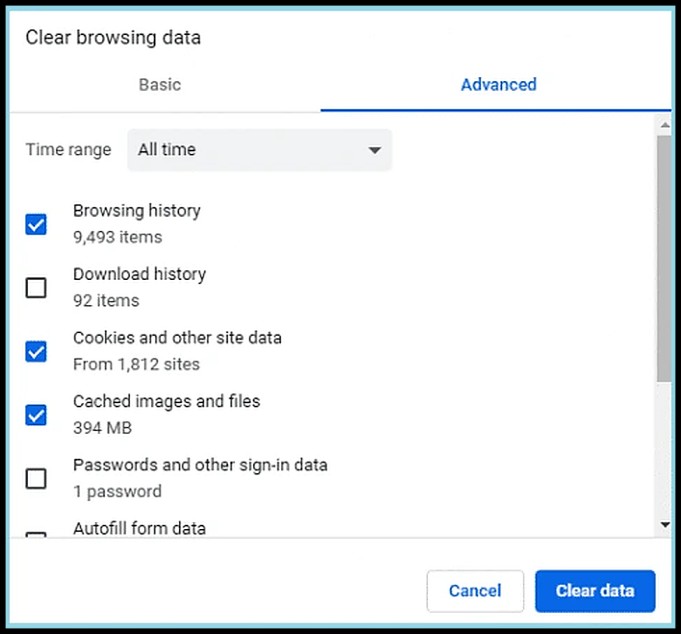
If QuickBooks keeps sending you back to the login page, your browser may be using outdated cache or cookies.
You can start by clearing the browser cache and restarting the browser. If you’re still having the same problem, clear the Intuit-specific cookies instead of deleting every saved cookie.
Intuit specifically recommends this approach when QuickBooks repeatedly asks you to sign in or certain pages fail to load.
Step 3: Check for Browser Extensions Blocking QuickBooks
Sometimes a browser extension can interfere with the QuickBooks sign-in process. If you’re using several extensions, try opening QuickBooks in a private window or another browser where those extensions aren’t active.
If QuickBooks works there, you can disable extensions one at a time to find the one causing the problem.
Step 4: Check Your Network and Browser Activity
If QuickBooks still won’t sign in, the problem may be related to your network rather than your account.
You can use your browser’s Developer Tools to look for failed network requests:
- Open your browser’s Developer Tools.
- Select the Network tab.
- Open the QuickBooks sign-in page.
- Try signing in again.
- Look for requests marked as failed or showing an error.
- Review the error details for clues about the connection or blocked request.
This step is mainly useful for advanced troubleshooting. If you’re not familiar with Developer Tools, trying another browser or device is usually a simpler way to narrow down the problem. Intuit recommends trying another browser or device when normal sign-in troubleshooting doesn’t resolve the issue.
How Can You Fix a QuickBooks Online 504 Gateway Timeout?
A 504 Gateway Timeout means a server didn’t receive a timely response from another server. If you see this while trying to access QuickBooks Online, don’t immediately assume that something is wrong with your account.
First, refresh the page and try again. You can also restart your browser and check whether your internet connection is stable.
- Opening QuickBooks in another supported browser
- Testing another device
- Restarting your router or network connection
- Clearing your browser cache and Intuit cookies
- Checking your firewall or security software for blocked connections
- Checking whether a VPN or proxy is affecting the connection
- Checking the QuickBooks service-status page for an outage
If the same 504 error appears across different browsers and devices, the problem may be on the service side. Intuit recommends checking the QuickBooks status page when QuickBooks Online or connected services aren’t working.
How Can You Fix “Oops, Something Went Wrong” at Sign-In?
If you’re entering the correct credentials but QuickBooks shows “Oops, Something went wrong,” a browser extension may be interfering with the sign-in process. One known cause is IBM Security Rapport. Intuit currently recommends updating both the browser and IBM Security Rapport before trying the following options.
1. Check Whether IBM Security Rapport Is Installed: Open your browser and look at the extensions area near the top-right corner. If you see the IBM Security Rapport extension, it may be affecting the QuickBooks sign-in process. You can also open your browser’s extension settings to confirm whether it’s installed.
2. Try QuickBooks Without the Extension: Before disabling a security extension, you can first test QuickBooks in a private or incognito window. You can also try another supported browser where the extension isn’t installed. If QuickBooks works normally there, the extension may be contributing to the problem.If you decide to disable IBM Security Rapport, remember that doing so removes the additional protection the extension provides while it is disabled. Intuit recommends considering this before turning it off. If you’re not using IBM Security Rapport and still see the “Oops, Something went wrong” message, move on to the normal account-recovery steps instead of changing unrelated browser or security settings. Intuit recommends recovering the user ID or resetting the password when the extension isn’t the cause.
Simple Tips to Prevent QuickBooks Online Login Problems
A few simple habits can help you avoid many QuickBooks Online sign-in problems. You can follow these tips to keep your account access smooth:
- Use the official QuickBooks sign-in page and bookmark it so you don’t accidentally use an outdated or incorrect login page.
- Keep your browser updated to the latest supported version for better compatibility and security.
- Clear your browser cache and cookies if you notice login loops, pages not loading, or repeated sign-in requests.
- Try a private or incognito window when your regular browser keeps causing login problems.
- Temporarily disable browser extensions such as ad blockers or privacy tools if they appear to interfere with QuickBooks.
- Keep your saved passwords updated. If you’ve recently changed your Intuit password, make sure your browser or password manager isn’t filling in the old one.
- Avoid using multiple Intuit accounts in the same browser session when possible, as switching between accounts can sometimes cause confusion.
- Make sure you can receive Intuit emails and verification codes. Check your spam or junk folder if a password reset or verification email doesn’t arrive.
- Use a trusted device when possible. If Intuit offers the option to remember the device, use it only on a device you control and trust.
- Sign out properly when you’re finished, especially on shared or public computers.
- Check the QuickBooks status page if you suddenly can’t sign in. This can help you see whether Intuit is experiencing a service interruption instead of a problem on your side.
What Can You Do If Your QuickBooks Account Is Locked?
If you’re locked out of QuickBooks, don’t keep guessing your password. Instead, use the Intuit account recovery option to regain access. You can usually verify your account through the phone number or email linked to it. If you no longer have access to either one, you may need to complete Intuit’s identity verification process.
Also, avoid creating a new Intuit account just to get around the problem. Your existing account may already be connected to your QuickBooks company, subscription, payroll services, or other Intuit products. Recovering the original account is usually the better option.
What Can You Do If the QuickBooks Online App Keeps Logging Out?
If the QuickBooks Online app logs out repeatedly, first try signing in through a browser. If your account works normally there, the issue may be limited to the app or your device. You can also try these simple checks:
- Update the QuickBooks app to the latest available version.
- Make sure your device’s operating system is up to date.
- Check that your internet connection is stable.
- Sign out of the app and sign back in.
- Try the same account on another device.
If QuickBooks works properly in your browser but keeps logging you out of the app, focus on the app and device rather than repeatedly changing your account password.
How Can You Change Your QuickBooks Password Safely?
If you can still sign in to your Intuit account, you can change your password from your account settings. Follow these steps:
- Sign in to your Intuit Account.
- Open Account Settings or your account profile.
- Go to the Sign-in & Security section.
- Select Password and choose the option to change it.
- Enter your current password when prompted.
- Create a new, strong password and enter it again to confirm.
- Save the changes and sign in again with the new password if required.
Keep in mind that your Intuit account may be connected to products such as QuickBooks, QuickBooks Workforce, and QuickBooks Time. So, make sure you remember the new password before signing out. If you can’t sign in to your Intuit account, don’t try to change the password from inside QuickBooks. Use the Intuit account recovery process first to regain access.
Which QuickBooks Login Problems May Need Different Fixes?
Not every QuickBooks login problem comes from your browser. The right solution can depend on which QuickBooks product you’re trying to access and whether your Intuit account works with other services.
- QuickBooks Self-Employed Login: If you’re having a QuickBooks Self-Employed login problem, start by checking your Intuit email and password. Then try signing in through a private browser or another supported browser. If your account works elsewhere but not in the usual browser, clearing the cache and cookies may help.
- QuickBooks Merchant Login: If you’re facing a QuickBooks Merchant login issue, first check whether you can sign in to your Intuit account normally. If other Intuit services work but the merchant-related service doesn’t, the problem may be specific to that service rather than your password.
- Intuit Login Issue: Your Intuit account can be connected to multiple Intuit products, so an account-level sign-in problem may affect more than one service. If you’re having trouble across several products, focus on recovering or fixing the Intuit account instead of changing settings separately in each QuickBooks product.
Also, avoid creating a new Intuit account just to get around a login problem. Your existing account may already contain important product access, company connections, or subscription information.
Resolve My Account Login Issues: Access Your Intuit Account Securely
Having trouble signing in to My Account can be frustrating, especially when you need immediate access to manage purchases, subscriptions, billing details, or payroll services. My Account is the central hub for managing your company’s relationship with Intuit, including QuickBooks Desktop payroll services and other Intuit products.
This in-depth guide explains how to resolve common My Account login issues, recover your credentials, and understand how Intuit authentication works. Whether you need a confirmation code, forgot your user ID, or are unsure if you already have an Intuit account, this article walks you through every step clearly and securely.
1. What Is My Account and Why Is It Important?
My Account is Intuit’s secure online portal that allows authorized users to manage essential business functions in one place. Through My Account, you can:
- Manage company purchases and subscriptions
- Update payment and billing information
- View and manage service requests
- Maintain contact details
- Access payroll-related services for QuickBooks Desktop
To protect sensitive business data, Intuit requires each authorized user to have their own unique Intuit login. Sharing usernames or passwords is not permitted under Intuit’s security policies.
2. Understanding Authorized Users and Contacts
An authorized user is a person officially listed on your company’s account who is allowed to access My Account and interact with Intuit on behalf of the business. Only existing authorized contacts can invite, re-invite, or remove users from an account.
This restriction ensures that unauthorized individuals cannot add themselves or gain access to company information without approval.
3. How to Fix My Account Login Issues?
Below are the most common My Account login problems and step-by-step solutions to resolve them quickly.
A. I Need a Confirmation Code to Sign In
When Intuit detects a new device, browser, or login attempt, it may request a confirmation code to verify your identity.
- Sign in to your Intuit account.
- Choose how you want to receive your confirmation code (email or phone).
- Select Continue.
- If you no longer have access to the listed email, choose Confirm my account a different way.
- Retrieve the confirmation code.
- Delivery may take a few minutes.
- Check your spam, junk, or bulk email folders if you don’t see it.
- If the code doesn’t arrive, click Didn’t receive a code to request a new one.
- Enter the confirmation code and select Continue.
This verification step helps prevent unauthorized access and keeps your account secure.
B. I Don’t Have an Intuit Login
If you are listed as a contact on the account but have never created an Intuit login, you can set one up easily.
- Go to the Sign In page.
- Select Don’t have an Intuit login?
- Choose your name from the list of authorized contacts and select Continue.
- Enter your email address and phone number.
Important Notes:
- If your email address is already associated with an Intuit account, you cannot create a new one using the same email.
- In that case, retrieve your existing User ID or reset your password instead.
- Complete the required information to create your account.
- Select Continue to finish the setup.
This process ensures that only approved contacts can create logins tied to a company account.
C. I Forgot My User ID
For security reasons, each user must maintain their own Intuit login credentials. If you forget your User ID, you can retrieve it as long as you have access to the email address used during registration.
- On the Sign In page, click Forgot User ID or Email?
- Enter your registered email address.
- Select Submit.
- Check your email for your User ID.
If you don’t receive the email within 45 minutes, check your spam or junk folder, then request it again if needed.
D. I Forgot My Password
Resetting your password is straightforward, provided you can access the email linked to your Intuit login.
- From the sign-in screen, select Forgot Password?
- Enter your User ID and select Submit.
- If prompted, answer your security question.
- Create and confirm your new password, then select Submit.
- Watch for a confirmation email, which typically arrives within 45 minutes.
- Open the email and click Sign in to confirm new password.
- Enter your new password and select Confirm Password Reset.
Once completed, you can return to QuickBooks Desktop or other Intuit services and sign in using your updated password.
4. Is My Intuit Login the Same as My QuickBooks Desktop Login?
This is a common point of confusion.
- QuickBooks Desktop company file login: Used only to access your local QuickBooks Desktop company file.
- Intuit login: Used to access Intuit’s online services, manage subscriptions, billing, payroll, and account information.
These logins are completely separate and serve different purposes. Having access to your QuickBooks Desktop file does not automatically mean you have an Intuit login.
5. Best Practices for Managing Your Intuit Login
To avoid future login issues, follow these security and management tips:
- Use a strong, unique password and update it regularly
- Keep your email address up to date in My Account
- Avoid sharing usernames or passwords
- Ensure each authorized contact has their own login
- Store recovery information securely
These practices help maintain account security and ensure uninterrupted access to your business services.
Accessing My Account is essential for managing your company’s Intuit products and services efficiently. Whether you need a confirmation code, forgot your credentials, or are unsure which login to use, most issues can be resolved quickly by following the correct steps.
By understanding how Intuit authentication works and keeping your login details secure, you can avoid unnecessary downtime and manage your business with confidence. If problems persist, reviewing your authorized contacts or account email settings often resolves the issue faster than creating new credentials.
With the right approach, My Account login issues don’t have to slow your business down.
Recover your Intuit Account if you can’t sign in
Losing access to your Intuit account can feel stressful, especially when you rely on it for important financial tools like QuickBooks, TurboTax, or Mint. Whether you’ve forgotten your user ID, misplaced your password, or can’t receive a verification code, Intuit offers several secure ways to help you sign back in. This comprehensive guide walks you through every step of the Intuit account recovery process, explains common sign-in issues, and shares practical tips to avoid future lockouts.
1. How to Recover Your Intuit Account Using Email or Phone Number?
If you still have access to the email address or phone number connected to your Intuit account, recovering access is quick and straightforward. Intuit uses secure verification codes to confirm your identity and protect your information.
- Visit the official Intuit sign-in page to start the recovery process.
- Enter the email address or phone number linked to your account.
- Choose Password, then select either Forgot password or Text a code to your number.
- Check your email inbox or text messages for a one-time verification code.
- Open your email in a new browser tab, but keep the original sign-in page open.
- Enter the code exactly as received and follow the on-screen instructions.
- When prompted, you may reset your password immediately or skip this step and continue signing in.
Important tip: Do not close the browser window where you enter the verification code. Closing it will cancel the process and require you to request a new code.
This method is the fastest way to restore access when your contact details are still up to date.
- Resetting Your Intuit Password Securely: Once your identity is verified, Intuit allows you to reset your password for better security. Choose a strong password that includes a mix of uppercase letters, lowercase letters, numbers, and symbols. Avoid reusing old passwords or ones you’ve used on other websites. Resetting your password not only restores access but also helps protect your account from unauthorized activity.
2. Use the Intuit Account Recovery Form When Contact Details Are Missing
If you no longer have access to the email address or phone number on file, Intuit provides an alternative solution through its account recovery form. This option ensures that even in complex situations, you can still regain access securely.
A. Documents Accepted for Account Verification
You will be asked to upload a clear photo of one of the following government-issued documents:
- Driver’s license
- State-issued ID card
- Passport
- Notarized document
After submitting the form, Intuit reviews your information carefully to confirm your identity.
B. What to Expect After Submission?
- You’ll receive an email with next steps within one business day.
- The email will come from no_response@intuit.com, so keep an eye on your inbox.
- Once verification is complete, Intuit will send a secure link allowing you to reset your password.
Business hours: Account recovery reviews are handled Monday through Friday, from 8 AM to 5 PM Pacific Time.
3. Troubleshooting Intuit Verification Code Problems
Sometimes, signing in can stall because a verification code doesn’t arrive or fails to work. Below are the most common issues and how to fix them quickly.
A. Didn’t Receive Your Verification Code
If your code hasn’t arrived, don’t panic. Delays of a few minutes are normal. Try these solutions:
- Check your spam or junk email folder if you used an email address.
- Search all email accounts you may have used when creating your Intuit account.
- Add do_not_reply@intuit.com to your approved sender list.
- If you used a phone number, ensure short codes 88811 and 97962 are not blocked.
- If your phone isn’t nearby, log in to your mobile carrier’s website to view messages.
- Return to the sign-in page and select I didn’t get an email or I didn’t get a text message to request a new code.
B. Verification Code Not Working
If the code you entered doesn’t work, double-check that you’re using the most recent one sent. Intuit deactivates older codes automatically for security reasons. Copy and paste carefully or retype the code to avoid mistakes.
Fixing Sign-In Issues After a Password Reset
In some cases, users reset their password successfully but still can’t sign in. This is often caused by stored browser data.
1. Quick Fix for Browser and App Issues
- Clear your browser’s cache and cookies.
- Delete any saved passwords related to Intuit.
- Close and reopen your browser or mobile app.
- Try signing in again using your new password.
These steps resolve most post-reset sign-in problems within minutes.
2. Add a Phone Number for Easier Intuit Account Recovery
To make future sign-ins smoother, consider adding a phone number to your Intuit account if you don’t already have one. A verified phone number allows Intuit to send instant verification codes, reducing the chances of getting locked out.
Keeping your contact information updated is one of the simplest ways to protect your account and save time later.
Best Practices to Avoid Future Intuit Sign-In Problems
Staying proactive can prevent most account access issues. Follow these best practices:
- Keep your email address and phone number current.
- Use a password manager to store complex passwords securely.
- Enable two-step verification for added protection.
- Regularly review account security settings.
- Avoid signing in on public or shared devices whenever possible.
Regaining access to your Intuit account doesn’t have to be complicated. Whether you’re using email verification, text message codes, or the official account recovery form, Intuit provides secure and reliable options to help you sign back in. By understanding the recovery steps, troubleshooting common issues, and keeping your account information updated, you can minimize downtime and stay focused on what matters most—managing your finances with confidence.
If you ever run into trouble again, return to the Intuit sign-in help page and follow the steps outlined above for a fast and secure solution.
Final Thoughts
Login issues with QuickBooks or Intuit can disrupt critical business processes, but most problems are solvable with step-by-step troubleshooting and proper account management.
By understanding platform-specific login issues, managing My Account credentials securely, and following preventive best practices, you can ensure uninterrupted access to your financial tools and focus on running your business efficiently.
Frequently Asked Questions
To fix login problems when using Windows 10:
1. Check your Credentials: Make sure your email/username and password are correct. Turn off Caps Lock and double‑check for typos.
2. Clear Browser Cache & Cookies: Cached data can block authentication; clearing it often helps, especially for QuickBooks Online. Try Incognito/Private mode to test first.
3. Update Software: Ensure QuickBooks Desktop and Windows are fully updated.
4. Run as Administrator: Right‑click the QuickBooks Desktop icon and select Run as Administrator to avoid permission issues.
5. Disable Security Blockers: Temporarily turn off firewall/antivirus that might block QuickBooks.
6. Try Another Browser or Device: If QuickBooks Online won’t load, switch browsers (Chrome, Firefox, Edge).
7. Use QuickBooks Tools: For Desktop errors, use the QuickBooks Tool Hub/Automated Password Reset tool.
QuickBooks Customer Account Management Portal (CAMPS) login failures often stem from browser or credential issues:
1. Browser Cache & Cookies: Old data can interfere — clear your browser cache or use Incognito/Private mode.
2. Typo/errors in Credentials: Make sure your username/password and account details are correct.
3. Browser Plugins/Extensions: Disable ad blockers or script blockers that may interfere.
4. Try Another Browser/Device: If one browser fails, another might succeed.
If none of these work, verify your account details or contact Intuit support for CAMPS access help.
The QuickBooks Automated Password Reset Tool helps reset your QuickBooks Desktop admin password:
1. Download and run the tool for your QuickBooks version.
2. Enter your QuickBooks license number and business details exactly as they appear in your records (this info must match your account).
3. The tool sends an access token to your registered primary email.
4. Enter the token and follow the prompts to set a new admin password.
If the details don’t match, sign in to your CAMPS portal to verify the information or contact support for additional assistance.
Being locked out of QuickBooks Desktop is usually due to forgotten credentials or mismatch with your Intuit account:
1. Use the “I forgot my password” link in the QuickBooks Desktop login screen.
2. Enter your license number, name, email, phone number, and ZIP code as registered.
3. You’ll receive a reset code at the email listed in your CAMPS account — use that to reset your admin password.
4. If this fails, try the Automated Password Reset Tool to force a reset.
If the reset still doesn’t work, contact QuickBooks support for account verification help
That generic message typically means one of the following:
1. Browser Issues: Cached data or cookies blocking authentication, or a browser extension interfering. Clearing cache/cookies or trying Incognito/Private mode often fixes it.
2. Temporary Server Glitch: Intuit services sometimes experience short outages or backend updates — waiting a little while and retrying can work.
3. Multiple Failed Login Attempts: If many wrong attempts occurred, QuickBooks might temporarily restrict access.
Try the above and, if necessary, reset your password or contact support if the error persists.
If you complete the username/password and verification code steps but then encounter a blank page, DNS error, or disconnect:
1. Clear Browser Cache & Cookies: Session data may block the final redirect.
2. Try a Different Browser or Device: Sometimes specific browsers have conflicts after authentication.
3. Use Alternate Login Link: In some community‑reported cases, a special QBO redirect login URL resolves the issue.
4. Network/DNS Problems: Resetting DNS or switching networks can help if the browser reports DNS errors.
If none of these work, contacting QuickBooks Online support is recommended to check for account‑specific or backend issues.
Not exactly. QuickBooks Desktop Pro Plus can require an Intuit Account sign-in for certain account and product-related activities, while the company file can also have its own QuickBooks user credentials. If you’re using Pro Plus, check which login the screen is requesting before changing your password.
It can be. QuickBooks Desktop Premier Plus uses an Intuit Account for certain product and account-management functions, while access to the company file can also depend on the Desktop user’s role. If you’re the admin, make sure you’re using the correct Intuit credentials and company-file access.
Generally, QuickBooks Online Payroll Core is accessed through the QuickBooks Online account rather than requiring a separate QuickBooks login. Your Payroll subscription is managed through QuickBooks Online, and the Primary admin can access subscription information.
QuickBooks Workforce access is separate from the employer’s administrator access to QuickBooks Payroll. An employee can have a Workforce login problem even when the employer can sign in to QuickBooks Payroll without any trouble.
It can contribute to service-access problems, but a login failure shouldn’t automatically be blamed on the payroll plan. QuickBooks Desktop Payroll has different service options, so first check which payroll service is connected to the company file.
Changing your QuickBooks Online or Payroll plan does not normally require you to create a new Intuit account. If you’re upgrading or downgrading a plan, the change is managed from the subscription and billing settings while signed in as the Primary or Company admin.



