
QuickBooks Error 101 is a bank-connection issue that can appear when QuickBooks Online cannot successfully connect with a financial institution. You may notice that your bank account will not connect, the bank feed stops updating, or newly posted transactions do not download.
The most important thing to understand is that Error 101 does not necessarily mean your QuickBooks account is damaged. Intuit’s current guidance identifies inactive bank accounts and uncompleted bank-website prompts as key reasons for this error.
In many cases, you can resolve the problem by signing in to your bank directly, confirming that the account is active, completing any required bank prompts, and then refreshing the connection in QuickBooks Online.
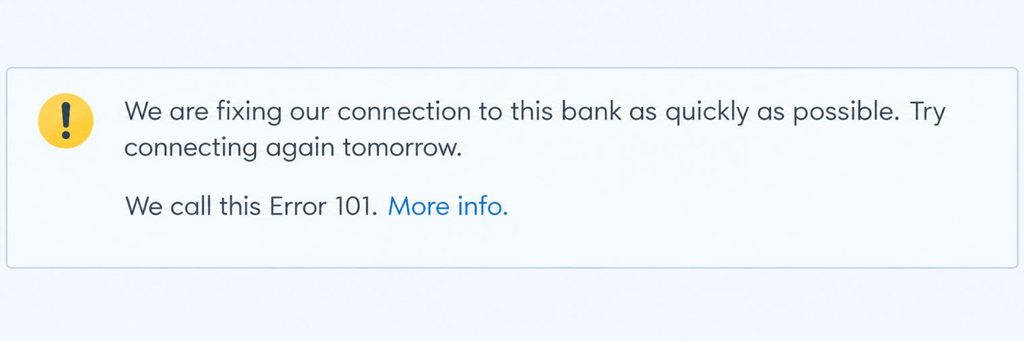
What Does QuickBooks Error 101 Mean?
QuickBooks Error 101 is a banking connectivity error that occurs while connecting to or updating a financial institution in QuickBooks Online. It generally means QuickBooks cannot complete the expected connection with the bank.
You may encounter messages indicating that the connection to online banking is unavailable or that QuickBooks is having trouble connecting to your bank. The current Intuit documentation specifically identifies these situations:
- The bank account has been inactive, such as having no transactions during the previous 12 months.
- You have not accepted updated terms and conditions or another required prompt on the bank’s website.
- You can access your bank but QuickBooks cannot complete the banking connection.
- A bank-side issue is temporarily preventing the connection from working.
An important distinction is that Error 101 is not simply a generic internet or Windows scripting error. Older third-party articles sometimes attribute it to components such as ActiveX, Java, Flash, or Internet Explorer. Those explanations are outdated and should not be treated as the primary diagnosis for the current QuickBooks Online banking error.
Why Does QuickBooks Error 101 Happen When Connecting a Bank?
Understanding the cause helps you avoid unnecessary changes to your QuickBooks account. Start with the bank connection itself before making more disruptive changes.
1. Inactive bank account: An account can trigger Error 101 when it has been inactive for an extended period. Intuit currently describes an active account as one with an existing balance or transactions within the past 12 months. If the account has had no activity for a long time, QuickBooks may be unable to establish the expected connection.
2. Unfinished bank requirements: Your bank may have presented a message that requires your approval before online banking can continue. For example, you might need to:
- Accept updated terms and conditions.
- Acknowledge a security notice.
- Complete a verification request.
- Review a notification from the financial institution.
If you skip the prompt, the QuickBooks connection may remain unavailable.
3. Bank website or connection issue: Sometimes the problem is outside your QuickBooks company. A bank website can have maintenance, an outage, a login problem, or another condition that prevents third-party connections from completing. That’s why testing your bank website directly is one of the first diagnostic steps.
4. Bank information has changed: If you recently changed your bank username, password, or other account information, QuickBooks may still have the previous information. Intuit recommends updating the bank sign-in information in QuickBooks when those details change.
How to Fix QuickBooks Error 101 and Restore Your Bank Connection
Work through these checks in order. The first three are especially important because they address the causes specifically associated with Error 101.
1. Sign in to your bank directly
Open a new browser tab and visit your bank’s official website. Sign in using the same account you are trying to connect to QuickBooks. Check whether:
- You can sign in successfully.
- The account is visible.
- The account has a current balance or recent activity.
- Your bank is displaying an alert.
- You are being asked to accept new terms.
- The bank is requesting additional verification.
- The website displays an outage or maintenance notice.
If you cannot sign in directly to the bank, QuickBooks is unlikely to be able to complete the connection either. In that situation, contact your bank first. If you can sign in normally, continue to the next step.
2. Confirm that the bank account is active
Check the specific account you are trying to connect. According to Intuit’s current Error 101 guidance, an account is considered active when it has an existing balance or transactions within the past 12 months.
This is particularly important if you’re trying to connect an older savings account, credit card, or another account that has not been used recently. If the account is supposed to be active but you cannot access it through your bank’s website, ask the financial institution to confirm its status.
3. Complete any pending bank prompts
While you’re signed in to the bank website, look carefully for messages that require action. Do not assume that simply logging in is enough. Some banks require customers to acknowledge updated terms, security notices, or other messages before third-party financial connections can continue.
Complete the required action and then return to QuickBooks. Intuit specifically recommends checking for these missed prompts as part of the current Error 101 troubleshooting process.
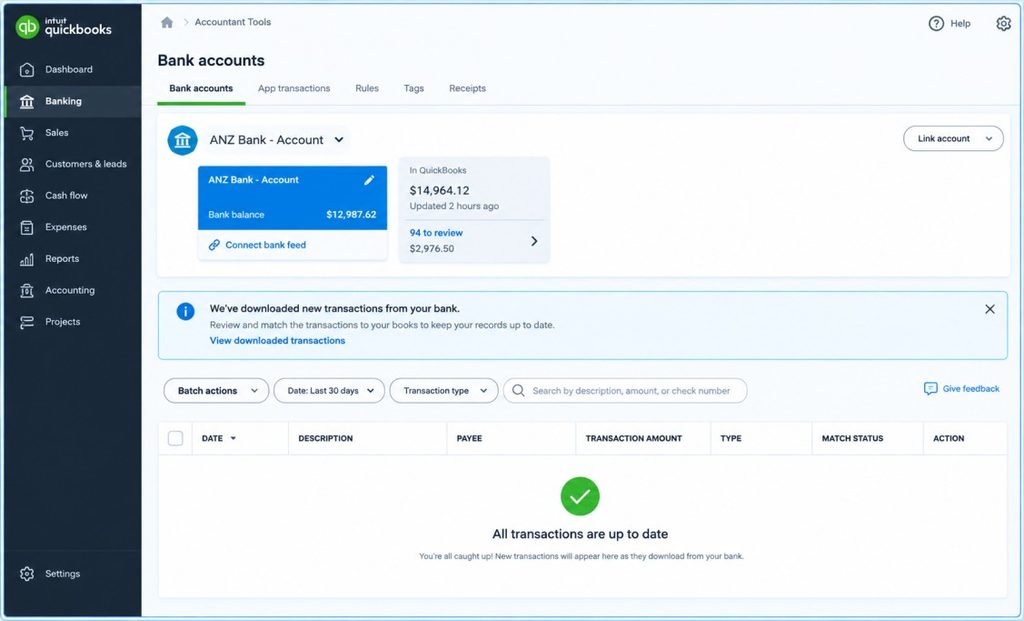
4. Manually update the bank feed
Once you’ve confirmed that the bank website works and any required prompts have been completed, refresh the bank connection. In QuickBooks Online:
- Go to All apps.
- Select Accounting.
- Select Bank transactions.
- Find the affected bank account.
- Select Update.
QuickBooks automatically downloads new transactions from connected accounts, but Intuit notes that update timing varies by bank. A manual update requests the latest available transactions. If the update succeeds, check whether the missing transactions now appear.
5. Try QuickBooks in a private browser window
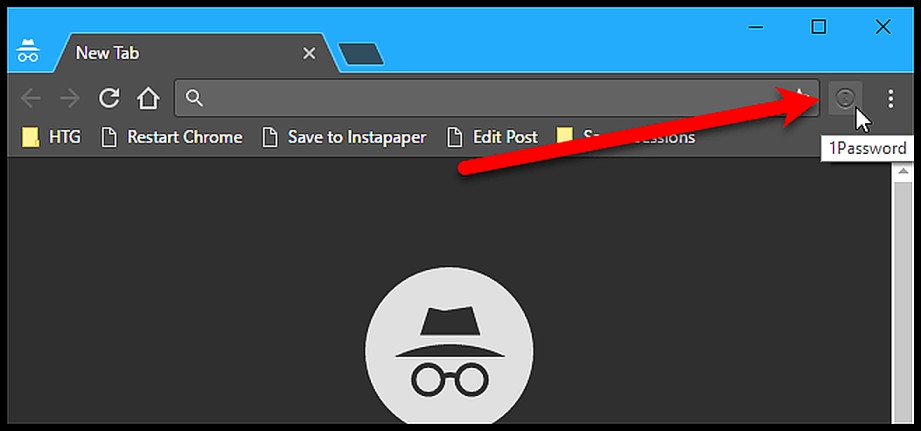
If your bank works correctly but QuickBooks Error 101 continues, try signing in to QuickBooks using an incognito or private browser window.
This can help determine whether cached information, browser extensions, or an existing browser session is interfering with the banking connection. Intuit recommends private browsing as a troubleshooting step for persistent bank connection problems. If the connection works in the private window, your regular browser session may need troubleshooting.
6. Update your bank sign-in information
If you recently changed your bank password, username, or other sign-in details, update the information stored in QuickBooks. In QuickBooks Online:
- Go to All apps.
- Select Accounting.
- Select Bank transactions.
- Select the affected bank account.
- Select Edit.
- Select Edit sign in info.
- Enter the current bank information.
- Select Save and connect.
These steps reflect Intuit’s current instructions for updating bank information in QuickBooks Online.
7. Check whether the problem is affecting the bank connection itself
If your bank website works, the account is active, and no bank prompts are waiting, the issue may be with the connection between the financial institution and QuickBooks.
Before repeatedly reconnecting the account, check QuickBooks’ Bank Feed Status information for a known issue. Intuit advises checking the Bank Feed Status page when manual troubleshooting does not resolve a banking error. If the issue is already listed, additional changes on your side may not be necessary while the connection problem is being addressed.
How to Reconnect a Bank Account in QuickBooks Online
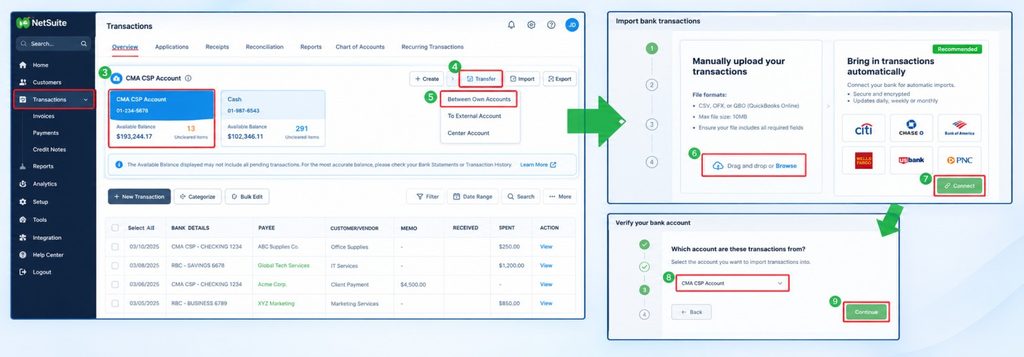
If you eventually need to reconnect the account, first review the transactions that QuickBooks has already downloaded.
This matters because reconnecting can cause transactions to download again, creating duplicates if existing transactions have not been reviewed or matched. When a bank account needs to be reconnected, the general QuickBooks Online process is:
- Go to All apps → Accounting → Bank transactions.
- Select Link account.
- Search for your financial institution.
- Select the appropriate bank.
- Follow the bank’s authentication instructions.
- Select the accounts you want to connect.
- Match each bank account with the appropriate account in QuickBooks.
- Complete the connection.
- Review the downloaded transactions.
Intuit’s current guidance also notes that transactions older than 90 days generally cannot be downloaded through the normal bank-feed process, although older transactions can still be added manually.
What to Do When QuickBooks Error 101 Still Won’t Go Away
If you have verified your bank login, confirmed that the account is active, completed all bank prompts, manually updated the feed, and checked for a known connection issue, the remaining problem may require assistance from QuickBooks or your financial institution. Keep a record of:
- The exact Error 101 message.
- The affected bank and account.
- When the problem started.
- Whether direct bank login works.
- Whether the account has recent activity.
- Any bank notifications you completed.
- Whether the manual update failed.
- Whether private browsing changed the result.
This information can make support troubleshooting much more efficient. Also remember that your bank and QuickBooks handle different parts of the connection. If you cannot access the bank website or the bank has restricted the account, the bank is the appropriate place to start. If the bank works normally but the QuickBooks connection continues to fail, QuickBooks support may need to investigate the connection.
How to Prevent Future QuickBooks Banking Connection Problems
You cannot prevent every bank connection interruption, but a few habits can reduce unnecessary disruption.
- Check your bank directly when a feed stops updating: This quickly tells you whether the issue exists outside QuickBooks.
- Respond to bank notifications promptly: Security and terms-related prompts can prevent third-party connections from working until they are acknowledged.
- Keep your bank sign-in information current: When credentials change, update them in QuickBooks rather than repeatedly attempting an old password.
- Review your bank feed regularly: Don’t wait until reconciliation time to discover that transactions have stopped downloading.
- Avoid unnecessary disconnects: If you need to reconnect an account, review pending transactions first so you can reduce the risk of duplicate downloads.
- Check for known connection issues: If QuickBooks identifies an ongoing bank-feed problem, repeatedly changing your account setup may not solve it.
Final Thoughts on QuickBooks Error 101
QuickBooks Error 101 is primarily a bank-connection problem, so the best troubleshooting approach starts with the financial institution rather than immediately changing your QuickBooks account. First, sign in to your bank’s website. Confirm that the account is active, look for required messages or terms, and make sure the bank itself is accessible. Then return to QuickBooks Online and manually update the bank feed.
If the connection still fails, try a private browser session, verify your current bank sign-in information, and check for a known bank-feed issue. Only consider disconnecting and reconnecting the account after reviewing your existing transactions and understanding the potential effect on future downloads.
Following this order helps you distinguish a QuickBooks Error 101 bank connection problem from an inactive account, a bank-side issue, a credential change, or a temporary connection outage.
QuickBooks Error 101 is a bank connection error that occurs when QuickBooks cannot connect to your bank account to download transactions. This issue may arise due to incorrect login credentials, an interruption in the bank’s services, or a misconfigured bank account setup in QuickBooks.
There are several reasons why QuickBooks may not be connecting to your bank account:
1. Incorrect login credentials or outdated bank account information.
2. Bank server outages or maintenance.
3. A mismatch between the account settings in QuickBooks and the bank.
4. A bank’s online connection is temporarily unavailable.
5. QuickBooks may need to be updated to the latest version to maintain compatibility.
Error 106 occurs when QuickBooks is unable to connect to your bank or download transactions due to authentication or connection issues. This error may indicate a problem with your bank’s website or a miscommunication between QuickBooks and your bank’s server.
To fix Error 106, follow these steps:
1. Verify that your bank’s website is accessible.
2. Ensure your login credentials are correct.
3. Disconnect and reconnect your bank account to QuickBooks.
4. Check if your bank supports the connection type QuickBooks is using.
5. Contact your bank to verify there are no issues on their end.
QuickBooks Error 324 typically occurs when QuickBooks cannot access the bank account details due to an issue with the bank’s online services or improper bank account setup. This error prevents you from downloading or updating bank transactions in QuickBooks.
Error 571 occurs when there is an issue related to the bank’s online system, particularly when QuickBooks cannot fetch the required banking data or transactions. It can also be triggered by changes in the bank’s online security settings.
To fix Error 571, follow these steps:
1. Recheck your bank login credentials and ensure they are up-to-date.
2. Verify that your bank’s website is accessible and that there are no temporary outages.
3. Reconnect your bank account to QuickBooks by removing and adding it back.
4. Contact your bank to verify if they have made any changes to their online banking security protocols.
QuickBooks Error 580 is often triggered by issues when downloading transactions from the bank or syncing online banking information. This can occur due to a security setting mismatch between QuickBooks and your bank’s website.
To fix Error 580, follow these steps:
1. Check your internet connection to ensure it’s stable.
2. Verify your bank account credentials and re-enter them if necessary.
3. Update QuickBooks to the latest version.
4. Contact your bank to confirm there are no blocks or restrictions on your account.
5. If the issue persists, try disconnecting and reconnecting your bank account to QuickBooks.



